
For Apple users, AirPlay is one of the most intuitive ways to mirror or stream content from an iPhone, iPad, or Mac to a larger screen. However, the ecosystem’s tight integration often leaves those with non-Apple TVs wondering if they’re locked out. The good news: you're not. With the right tools and setup, you can use Apple AirPlay with nearly any modern television—even if it’s not an Apple TV—without sacrificing performance or convenience.
The key lies in understanding how AirPlay works and leveraging compatible software, hardware, and network settings to bridge the gap between Apple devices and third-party displays. Whether you own a Samsung, LG, Sony, or budget-friendly smart TV, there are reliable methods to achieve seamless wireless streaming. This guide walks through proven strategies, compatibility considerations, and real-world optimizations that make AirPlay accessible across platforms.
Understanding AirPlay Compatibility Beyond Apple TV
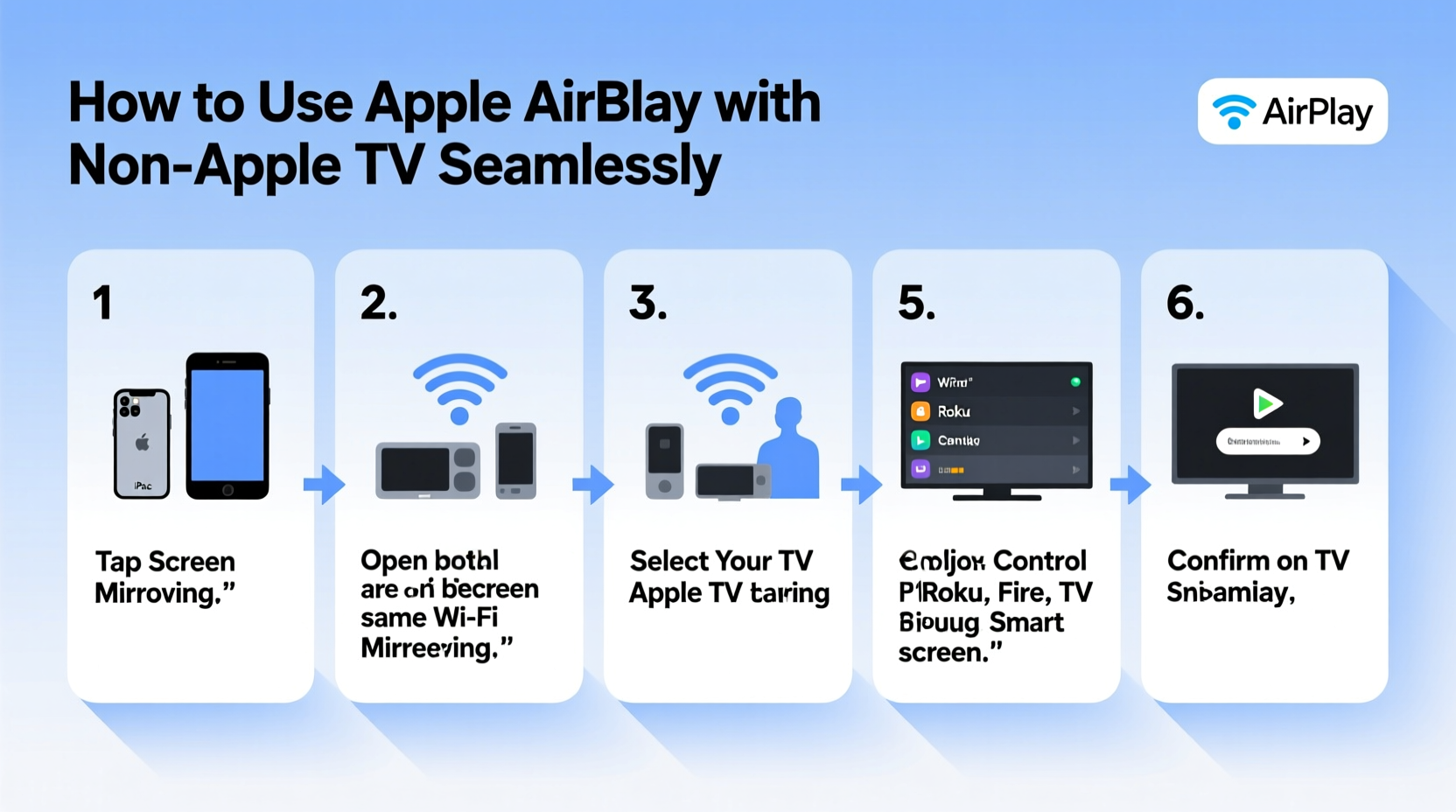
AirPlay is Apple’s proprietary wireless streaming protocol designed to transmit audio, video, and screen mirroring data between Apple devices and supported receivers. While Apple TV is its native companion, AirPlay 2—introduced in 2018—expanded support to include select third-party smart TVs and audio systems.
Many newer smart TVs from major brands now come with built-in AirPlay 2 support. If your TV was manufactured after 2019 and runs on platforms like webOS (LG), Tizen (Samsung), or Google TV (Sony, Hisense), it may already support AirPlay without additional hardware. However, older models or lesser-known brands typically lack this feature, requiring alternative solutions.
To check if your TV supports AirPlay natively:
- Navigate to your TV’s settings menu.
- Look under “Apple AirPlay” or “Screen Sharing” options.
- Ensure both your Apple device and TV are on the same Wi-Fi network.
- On your iPhone or iPad, open Control Center, tap Screen Mirroring, and see if your TV appears as an option.
Solutions for Non-Supporting TVs: Adapters and Software
If your TV doesn’t support AirPlay out of the box, don’t worry—there are effective workarounds. These range from plug-and-play hardware adapters to downloadable receiver applications that turn any device into an AirPlay endpoint.
Option 1: Use an AirPlay-Compatible Streaming Stick
The simplest way to enable AirPlay on a non-Apple TV is by connecting a streaming device that supports it. Devices like the Apple TV 4K or HD are the gold standard, but alternatives exist:
- Amazon Fire TV Stick (4K Max): Supports AirPlay 2 and HomeKit, allowing direct streaming from iOS devices.
- Google Chromecast with Google TV (4K): While primarily built for Google Cast, newer firmware updates have added limited AirPlay 2 functionality for audio and video playback.
- Roku Ultra / Roku Streambar Pro: Full AirPlay 2 support for screen mirroring, photos, music, and videos.
These devices plug into your TV’s HDMI port and connect to Wi-Fi, instantly transforming your display into an AirPlay-receptive screen.
Option 2: Install Third-Party AirPlay Receiver Apps
If you’d rather avoid buying new hardware, software-based solutions can turn a computer or even a Raspberry Pi into an AirPlay receiver. Popular apps include:
- AirServer – Available for Windows, macOS, and select Android TVs, AirServer allows your device to appear as an AirPlay destination.
- Reflector – A cross-platform mirroring tool that supports AirPlay, Google Cast, and Miracast.
- LonelyScreen (AirPlay Receiver for Windows) – Lightweight app for basic screen mirroring on Windows PCs connected to your TV via HDMI.
For example, installing AirServer on a laptop connected to your TV lets you stream content directly from your iPhone to the big screen—ideal for presentations or family movie nights.
“AirPlay adoption outside Apple’s ecosystem has grown significantly. As long as both devices are on the same network and support the protocol, interoperability is increasingly seamless.” — David Lin, Senior Wireless Technology Analyst at TechSync Labs
Step-by-Step Guide to Setting Up AirPlay on Any TV
Follow this practical sequence to get AirPlay working on your non-Apple TV, whether through hardware or software.
- Verify Network Compatibility: Ensure your Apple device and target TV (or streaming stick) are connected to the same 2.4 GHz or 5 GHz Wi-Fi network. Avoid dual-band routers that split SSIDs; use a unified network name.
- Enable AirPlay on Your TV or Device: For smart TVs with native support, go to Settings > Apple Services > AirPlay and turn it on. For external devices like Roku or Fire Stick, install the latest firmware and sign in with your Apple ID if prompted.
- Open Control Center on Your iPhone/iPad: Swipe down from the top-right corner (iPhone X and later) or up from the bottom (older models). Tap “Screen Mirroring.”
- Select Your TV: Wait a few seconds for your TV or streaming device to appear in the list. Tap it to connect.
- Enter Code if Prompted: Some TVs display a four-digit code for verification. Enter it on your iOS device to complete pairing.
- Begin Streaming: Once connected, your screen will mirror instantly. To stop, return to Control Center and tap “Stop Mirroring.”
Optimization Tips for Seamless Performance
Even when AirPlay is technically functional, lag, buffering, or audio sync issues can disrupt the experience. Optimize your setup with these best practices.
Network Optimization
AirPlay relies heavily on stable, high-speed Wi-Fi. Poor signal strength or network congestion leads to stuttering playback.
- Position your router centrally and minimize physical obstructions.
- Use 5 GHz band for lower latency and higher bandwidth, especially for HD or 4K streaming.
- Limit the number of active devices during streaming to reduce bandwidth competition.
- Consider upgrading to a mesh Wi-Fi system for consistent coverage throughout your home.
TV and Device Settings
Adjust both sending and receiving devices for optimal results:
- Disable power-saving modes on your iPhone and TV, which may throttle connectivity.
- Turn off Bluetooth on your Apple device if experiencing audio delays—Wi-Fi should handle all transmission.
- Update firmware on your TV and streaming devices regularly to maintain compatibility.
| Solution Type | Best For | Setup Difficulty | Cost Range |
|---|---|---|---|
| Native Smart TV Support | Newer LG, Samsung, Sony models | Easy | $0 (built-in) |
| Streaming Sticks (Roku, Fire TV) | Older TVs lacking AirPlay | Easy | $30–$70 |
| PC/Mac with AirServer | Temporary setups, office use | Moderate | $15–$30 (software license) |
| Raspberry Pi + Shairport Sync | Tech-savvy users, DIY projects | Advanced | $35+ (hardware) |
Real-World Example: Streaming Family Photos on a Samsung TV
Julie owns a 2021 Samsung QLED TV and wanted to share vacation photos with her parents during dinner. Her iPhone didn’t show the TV in Screen Mirroring, so she checked the settings and discovered AirPlay was disabled by default.
She navigated to Settings > General > Apple AirPlay Settings > AirPlay, enabled it, and set access to “Everyone.” Back on her iPhone, she opened Control Center, tapped Screen Mirroring, and selected her TV. A four-digit code appeared on-screen; after entering it, her phone mirrored perfectly. She opened the Photos app, played a slideshow, and adjusted volume using her iPhone—all without touching the TV remote.
This experience highlights how minor configuration steps can unlock powerful functionality, even without extra hardware.
Frequently Asked Questions
Can I use AirPlay with a projector or monitor that isn’t a smart TV?
Yes. Connect an AirPlay-compatible streaming device (like an Apple TV or Roku) to the HDMI port of your projector or monitor. Alternatively, run an AirPlay receiver app like AirServer on a computer linked to the display.
Is AirPlay 2 different from original AirPlay?
Absolutely. AirPlay 2 introduces multi-room audio, better buffering, background streaming, and support for third-party speakers and TVs. Original AirPlay only allows basic mirroring and lacks modern features.
Why does my AirPlay connection keep dropping?
Frequent disconnections usually stem from Wi-Fi interference, outdated firmware, or weak signal. Try moving closer to the router, switching to 5 GHz, restarting devices, or disabling VPNs and firewalls temporarily.
Final Checklist Before You Start
Before attempting to use AirPlay with your non-Apple TV, confirm the following:
- ✅ Both devices are on the same Wi-Fi network.
- ✅ AirPlay is enabled in your TV’s settings (if supported).
- ✅ Your Apple device runs iOS 12 or later.
- ✅ Router firmware is up to date.
- ✅ No firewall or parental controls are blocking mDNS (required for device discovery).
- ✅ You’ve tested with a short video to verify audio-video sync.
Conclusion
Using Apple AirPlay with non-Apple TVs is no longer a technical hurdle—it’s a matter of choosing the right method for your setup. Whether through built-in support, affordable streaming sticks, or clever software solutions, seamless integration is within reach. The technology has evolved to prioritize user experience over brand exclusivity, making it easier than ever to enjoy Apple’s ecosystem on diverse hardware.




 浙公网安备
33010002000092号
浙公网安备
33010002000092号 浙B2-20120091-4
Comments
No comments yet. Why don't you start the discussion?