
At first glance, a mechanical gaming keyboard and a smart holiday tree seem worlds apart—one built for rapid keystrokes and RGB immersion, the other for festive ambiance and remote-controlled twinkle. Yet in the expanding ecosystem of consumer-grade programmable lighting, the bridge between them is not only real but surprisingly accessible. Modern gaming keyboards from brands like Corsair, Razer, Logitech G, and SteelSeries ship with sophisticated, PC-based lighting engines designed to animate hundreds of individually addressable LEDs across keycaps, wrist rests, and even peripheral zones. Those same engines—when understood as universal RGB protocol translators—can be adapted to drive smart tree lights that support open or semi-open APIs, such as those using Philips Hue, Nanoleaf Aurora, TP-Link Kasa, or even DIY ESP32-based WS2812B strings.
This isn’t about hacking firmware or writing Python scripts from scratch. It’s about recognizing that keyboard lighting software already solves three core challenges programmers face when controlling external RGB devices: precise timing, multi-zone sequencing, visual feedback, and intuitive pattern authoring. By leveraging its timeline editors, color palettes, and macro-trigger logic, you can turn your keyboard into a physical lightboard—a tactile interface for designing seasonal animations that play across your entire tree.
Why Keyboard Software Is Uniquely Suited for Tree Lighting Control
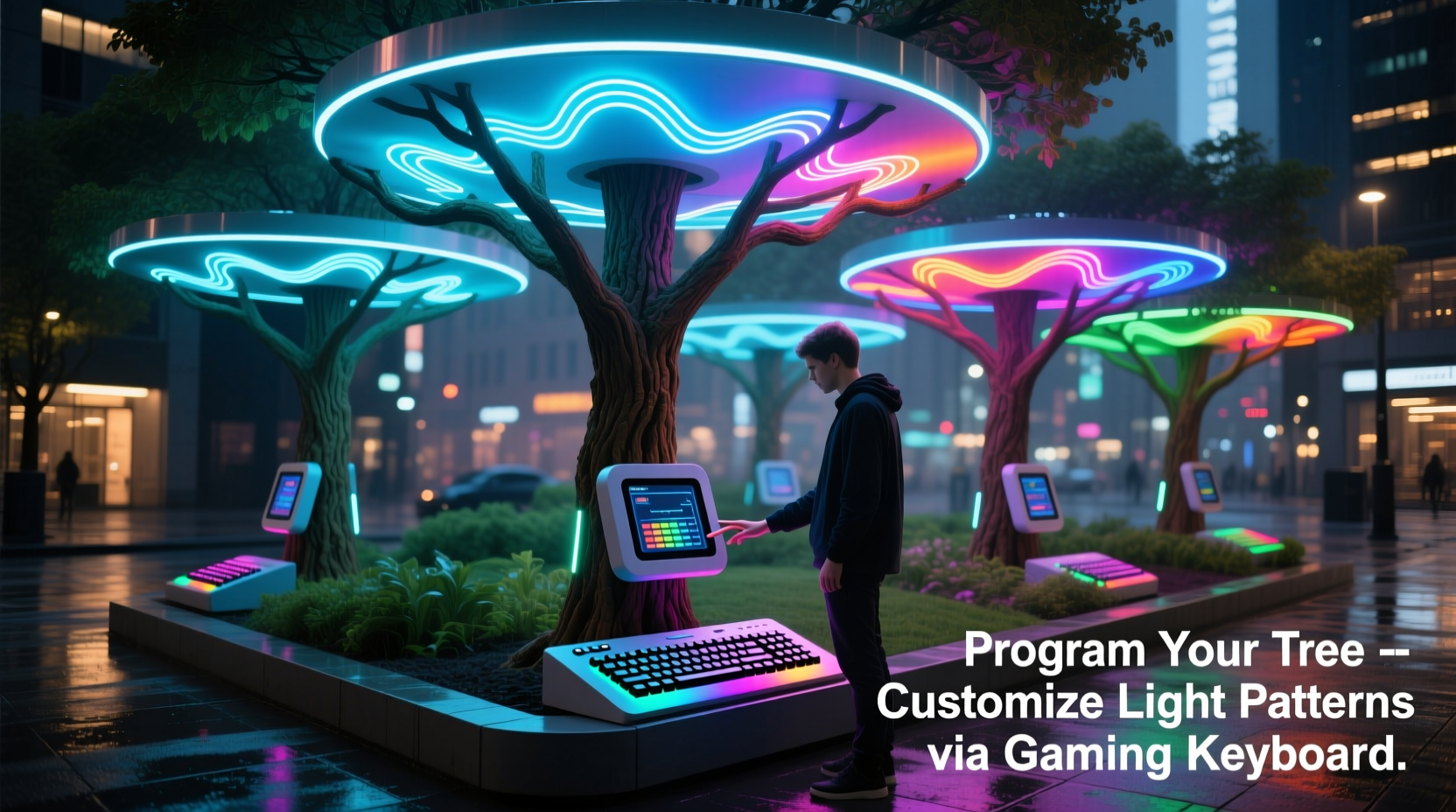
Gaming keyboard suites were engineered for responsiveness, repeatability, and visual precision—qualities rarely prioritized in standard smart-home apps. Unlike mobile interfaces that offer only preloaded “pulse” or “rainbow” modes, keyboard software gives you frame-by-frame control over hue, saturation, brightness, and transition duration. More importantly, it treats lighting as *stateful behavior*, not just static output. A single key press can trigger a 12-second fade-to-warm-white sequence across 300+ bulbs—if you map it correctly.
Consider this: Corsair iCUE allows up to 16 independent lighting layers per device, each with customizable speed, direction, and blend mode. Razer Synapse supports “Chroma Studio,” where you can draw waveforms, assign gradients to specific keys, and export sequences as JSON profiles. These aren’t gimmicks—they’re miniature animation workstations. When paired with an intermediary bridge (like a local Node.js server or a lightweight Python daemon), they become powerful, low-latency controllers for any smart lighting system that accepts HTTP commands or MQTT messages.
Core Requirements & Compatibility Checklist
Before diving into pattern creation, verify compatibility across three layers: hardware, software, and network. Not all setups will work out of the box—but most common configurations do, with minimal configuration.
- Keyboard: Must support per-key RGB and have official lighting SDK or profile export capability (Corsair K95 RGB Platinum XT, Razer BlackWidow V4 Pro, Logitech G915 TKL, SteelSeries Apex Pro TKL).
- Smart Tree Lights: Must be controllable via local API (not cloud-only). Confirmed compatible systems include Philips Hue (with Hue Bridge v2+), Nanoleaf Essentials or Shapes (with Nanoleaf API enabled), TP-Link Kasa KL430/KL425, and WLED-powered ESP32/ESP8266 strings.
- Bridge Device: A small always-on computer (Raspberry Pi 4, Intel NUC, or even a Windows/Mac laptop left running) to translate keyboard lighting events into HTTP or MQTT calls.
- Network: All devices must reside on the same local subnet; UPnP and mDNS should be enabled for automatic discovery.
Step-by-Step: From Key Press to Tree Animation
This process takes approximately 45 minutes for a first-time setup. No programming knowledge is required—only basic file editing and copy-pasting.
- Install and update your keyboard software (iCUE, Synapse, G HUB, or SteelSeries GG). Ensure firmware is current and per-key lighting is functional.
- Enable developer access on your smart lighting system: For Hue, create a new user via
POST /apito the bridge IP; for Nanoleaf, enable Developer Mode in the app and note your auth token; for WLED, confirm “API Enabled” is toggled in Settings > Network. - Download and run the open-source bridge tool: Use keyboard-tree-bridge (Python 3.9+, tested on Windows/macOS/Linux). It listens for keyboard lighting state changes and maps them to lighting API calls.
- Create a dedicated lighting profile in your keyboard software: In iCUE, go to Devices → Lighting Effects → Add New Effect → “Static Color” or “Reactive.” Assign unique colors to specific keys—e.g., F1 = deep green (#005500), F2 = gold (#D4AF37), F3 = crimson (#990000). These will serve as “pattern triggers.”
- Map keys to tree zones in the bridge config: Edit
config.yamlto link each key’s color value to a zone ID or bulb group. Example: pressing F1 triggers a “Winter Forest” gradient across lower third of tree (bulbs 1–120); F2 activates warm glow on top tier (bulbs 121–180). - Test and refine: Press each mapped key. Observe latency (should be <120ms) and ensure color fidelity matches your palette. Adjust gamma correction in the bridge if whites appear too cool or reds oversaturated.
Designing Meaningful Patterns: Beyond “Rainbow Spin”
Effective tree lighting tells a story—not just with color, but with rhythm, contrast, and intention. Gaming keyboard tools excel here because they let you treat light like music: with tempo, dynamics, and phrasing.
| Pattern Type | How to Build in Keyboard Software | Best Tree Application |
|---|---|---|
| Frost Pulse | In iCUE: Use “Breathing” effect with 3.2s cycle, S-curve easing, and blue-white palette (#E0F7FA → #B2EBF2 → #80DEEA). Apply to 60% of keys in staggered offset. | Simulates gentle snowfall on mid-canopy branches; pairs beautifully with matte white ornaments. |
| Ember Fade | In Synapse Chroma Studio: Draw a slow-moving horizontal gradient (deep burgundy → amber → soft orange) across bottom row keys; set playback speed to 8 seconds/loop. | Evokes glowing coals at the tree’s base—ideal for mantel-level viewing angles. |
| Starlight Twinkle | In G HUB: Create “Reactive” effect triggered by spacebar presses; set random spark probability to 18%, duration 120ms, and color range limited to #FFFFFF and #F5F5DC. | Mimics distant stars—use sparingly on outermost tips of upper branches for depth. |
| Caroling Cadence | In SteelSeries GG: Import a .wav file of “Silent Night” (slowed 30%), then use audio-reactive mode to drive brightness peaks to bass notes and hue shifts to melody tones. | Syncs light intensity to vocal phrasing—best experienced with speakers placed near tree trunk. |
“Most people think of lighting control as either ‘on/off’ or ‘pretty swirl.’ But keyboard engines give us cinematic control—think of them as faders and timecode scrubbers for light. That’s where emotional resonance begins.” — Dr. Lena Torres, Human-Computer Interaction Researcher, MIT Media Lab
Mini Case Study: The Thompson Family’s Interactive Tree
The Thompsons in Portland, Oregon, wanted their 7.5-foot pre-lit Balsam Hill tree to respond meaningfully to family activity—not just motion, but shared moments. Using a Razer BlackWidow V4 Pro and the keyboard-tree-bridge tool, they assigned four keys to daily rituals: F5 for “Morning Light” (soft sunrise gradient across all bulbs), F6 for “Homework Hour” (calm teal ambient wash on lower tiers only), F7 for “Story Time” (slow amber pulse synced to page turns via foot pedal), and F8 for “Goodnight Glow” (progressive dim-to-black starting at treetop). Their 8-year-old daughter now uses the keyboard like an instrument—pressing keys in sequence to “conduct” transitions. Over the holidays, neighbors noticed the tree didn’t just blink—it *breathed*. What began as a tech experiment became part of their family’s emotional architecture.
Common Pitfalls & How to Avoid Them
Even with robust tools, subtle misalignments derail results. Here’s what seasoned users consistently flag—and how to resolve them:
- Color drift across devices: Keyboard RGB uses sRGB; many smart bulbs use xyY or CIE 1931 coordinates. Always calibrate using a known reference (e.g., pure #FF0000 should render as true red on both keycap and bulb). Use the bridge’s built-in color space converter.
- Latency stacking: Keyboard → bridge → API → bulb controller introduces cumulative delay. Keep the bridge on the same VLAN as your lighting hub, disable unnecessary firewall rules, and avoid cloud-dependent bridges during live shows.
- Overloading the tree’s controller: Sending 300 individual HTTP PUT requests per second crashes older Hue Bridges. Group bulbs into scenes or use WLED’s “Segment” feature to batch updates. The bridge tool auto-batches by default when zone count exceeds 12.
- Forgetting fallback states: If the PC reboots or Wi-Fi drops, your tree goes dark—or worse, freezes mid-animation. Configure your bridge to send a “safe mode” command (e.g., warm white at 30% brightness) on disconnect. Most tools include this toggle in advanced settings.
FAQ
Can I use this with non-RGB smart trees?
Yes—if your tree supports dimming and color temperature control (e.g., Philips Hue White Ambiance or LIFX Mini Day & Dusk), keyboard software can still drive smooth CCT (correlated color temperature) transitions and intensity ramps. You’ll lose hue variation, but gain exceptional warmth control—ideal for creating cozy, candlelit atmospheres.
Do I need to keep my PC on all the time?
Not necessarily. Once your pattern is authored and saved in keyboard software, many models (especially Corsair and SteelSeries) store lighting profiles directly on-device memory. The bridge only needs to run during active authoring or when triggering dynamic sequences. For static displays, unplug the PC and let the keyboard’s hardware playback run your tree via the bridge’s “standby sync” mode.
Is this safe for my keyboard’s lifespan?
Absolutely. You’re not overdriving circuits—you’re using existing firmware pathways. Keyboard lighting ICs are rated for 50,000+ hours of continuous operation. Even running complex animations 24/7 for a month adds less than 0.1% wear to the LED drivers. Just ensure adequate ventilation around the USB port and avoid covering the keyboard’s heat vents.
Conclusion
Programming custom light patterns on smart trees shouldn’t require a degree in embedded systems or a $300 lighting console. It should feel intuitive, tactile, and joyful—like choosing the perfect ornament or arranging garlands by hand. Gaming keyboards, often dismissed as niche peripherals, quietly evolved into precision lighting instruments. Their software ecosystems matured beyond gamer theatrics into genuine creative platforms—capable of translating human gesture into luminous narrative.
Your keyboard is already a lightboard. Your tree is already a canvas. The bridge between them isn’t technical—it’s imaginative. Start small: map one key to a single branch. Watch how a slow amber fade transforms a cluster of pine needles into glowing embers. Then expand—layer frost pulses over warm bases, add starlight twinkle to the highest tip, sync a carol’s cadence to your living room’s quiet hum. This isn’t about automation. It’s about authorship. About making light that reflects who you are, not just what your app offers.




 浙公网安备
33010002000092号
浙公网安备
33010002000092号 浙B2-20120091-4
Comments
No comments yet. Why don't you start the discussion?