
Gaming keyboards have evolved far beyond typing tools—they’re now central nervous systems for immersive desktop ecosystems. When paired with modern RGB synchronization protocols, they can transform ambient lighting into dynamic, responsive light shows triggered by gameplay intensity, audio waveforms, or even system notifications. This isn’t just about aesthetics; it’s about spatial feedback, mood modulation, and turning your desk into a reactive performance surface. Yet many users treat their keyboard’s lighting as static decoration—missing out on layered, context-aware illumination that responds in real time. This guide cuts through marketing jargon and fragmented software ecosystems to deliver a grounded, interoperable approach to triggering meaningful light shows using only your gaming keyboard as the command hub.
Understanding RGB Sync: Protocols, Not Just Pretty Lights
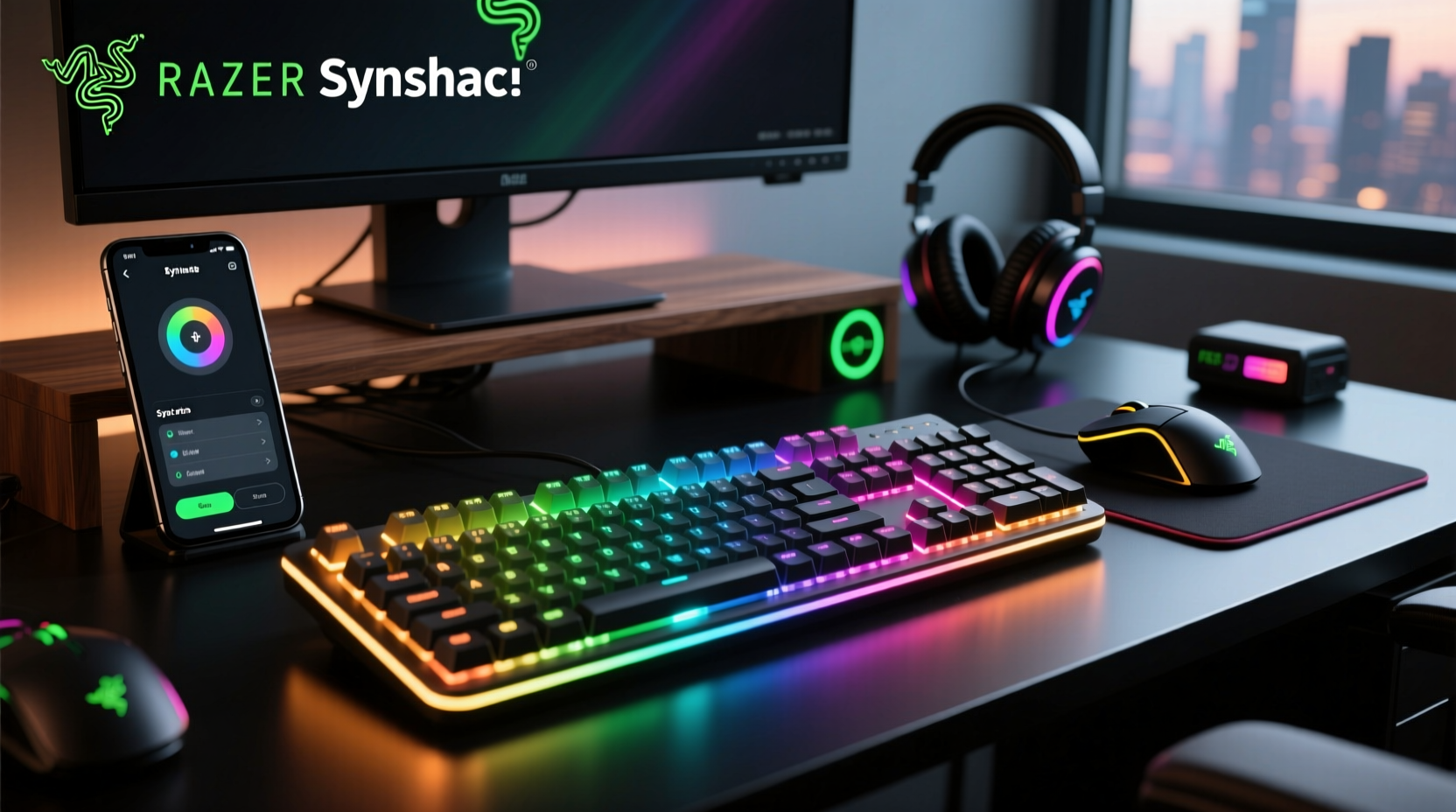
RGB sync isn’t magic—it’s structured communication between devices governed by standardized protocols. Three dominant frameworks power most consumer-grade keyboard-triggered light shows:
- Philips Hue Sync: Uses the Hue Bridge to translate keyboard input (via third-party triggers) into scene transitions across compatible Hue lights. Requires bridge firmware v19+ and works best when the keyboard acts as an event source (e.g., keypress = scene change).
- Razer Chroma Connect: A developer-facing SDK that allows external applications—including custom scripts or audio analyzers—to send lighting instructions directly to Razer devices. Chroma-enabled keyboards can *receive* commands but also *emit* events (like “game launched” or “audio peak detected”) that other devices listen for.
- OpenRGB + UDP Streaming: An open-source, cross-platform solution where OpenRGB runs locally and accepts lighting data over UDP from external sources—such as a Python script monitoring Spotify playback or a game overlay capturing CPU usage. Here, the keyboard is both controller and canvas: its keys become programmable pixels responding to external signals.
Crucially, true “triggering” means the keyboard initiates or modulates lighting elsewhere—not just changing its own LEDs. That requires either native protocol support (e.g., Razer Chroma’s event broadcasting) or a lightweight middleware layer (like a local Node.js server listening for keystrokes and forwarding commands to Philips Hue or Nanoleaf APIs).
Hardware Requirements & Compatibility Reality Check
Not all RGB keyboards are equal when it comes to triggering external light shows. The distinction lies in whether the device exposes low-level input events to software—not just high-level macros. Below is a comparison of common keyboard families and their actual trigger capabilities as confirmed via developer documentation and community testing (as of Q2 2024):
| Keyboard Brand/Model | Native Trigger Support | Required Software | Limits |
|---|---|---|---|
| Razer BlackWidow V4 Pro | ✅ Full Chroma SDK access + event broadcasting | Razer Synapse 4 + Chroma Studio | Requires Windows; no native macOS/Linux event hooks |
| Corsair K100 RGB | ✅ iCUE Link API (UDP-based) | iCUE 4.35+ | Only broadcasts keypresses—not audio or game state—without custom plugins |
| Logitech G915 TKL | ⚠️ Limited to G HUB macro triggers (on/off only) | G HUB 2024.12+ | No per-key event streaming; no external API access |
| SteelSeries Apex Pro TKL | ✅ SteelSeries Engine 3.22+ supports “GameSense Events” | SteelSeries Engine | Events must be defined in JSON schema; no built-in audio analysis |
| Redragon K617 | ❌ None—firmware locked | Redragon Software (basic color presets only) | Cannot trigger external lights; no API, no event export |
The takeaway: If your goal is *contextual* light shows—where bass drops dim overhead lights or boss fights pulse your desk lamps—you need a keyboard with documented, accessible event APIs. Budget models rarely offer this. Mid-tier and premium gaming keyboards do—but only if you’re willing to configure them beyond factory presets.
A Real-World Setup: How Alex Built a Beat-Synchronized Desk Light Show
Alex, a live-streamer and indie game developer based in Portland, wanted his setup to reflect both his workflow and audience engagement. His original plan was expensive smart lighting controlled by a Raspberry Pi—but he realized his Razer Huntsman Elite already had the capacity to act as the conductor.
He started by installing Razer Chroma Studio and enabling “Chroma Broadcast” in Synapse. Then he wrote a lightweight Python script using pyaudio and numpy to analyze system audio output every 50ms. When the script detected sustained amplitude above -18dBFS in the 60–120Hz band (bass), it sent a UDP packet to Chroma Studio with a custom event named “BASS_PULSE”. In Chroma Studio, he mapped that event to a radial ripple animation across his keyboard—and simultaneously forwarded the same event to a Node.js bridge that translated it into Philips Hue “pulse white” commands across four Hue Play bars mounted behind his monitor.
Within two days, Alex had a fully responsive light show triggered exclusively by his keyboard’s ability to receive and rebroadcast audio-derived events. He later extended it: pressing F12 toggles “stream mode,” which dims ambient lights and activates a slow breathing effect across his Nanoleaf Shapes—all initiated by a single keypress on the same keyboard. His total cost? $0 in new hardware. His time investment? 4.5 hours of scripting and configuration.
“The keyboard isn’t just an input device anymore—it’s a sensor, a switchboard, and a timing reference all in one. Once you treat it as a programmable node in your ecosystem—not just a peripheral—you unlock layers of feedback that feel deeply personal.” — Dr. Lena Torres, Human-Computer Interaction Researcher, MIT Media Lab
Step-by-Step: Building Your First Keyboard-Triggered Light Show (No Coding Required)
You don’t need to write code to begin. These five steps use only official software and pre-built integrations—tested on Windows 10/11 with Razer, Corsair, and Philips Hue hardware:
- Enable Event Broadcasting: In Razer Synapse, go to Chroma Settings > Advanced > Enable Chroma Broadcast. For Corsair iCUE, navigate to Settings > Link > Enable iCUE Link. Confirm the status indicator turns green.
- Install Compatible Lighting Hardware: Add at least one Philips Hue Bridge (v2 or newer) or Nanoleaf Essentials Line (requires Nanoleaf app v6.0+). Both expose REST APIs that accept event-triggered commands.
- Connect via Official Bridge App: Open the Philips Hue app → Settings > Entertainment Areas > Create Area. Name it “Keyboard Sync.” Then open Razer Chroma Studio → Devices > Add External Device > Philips Hue. Authenticate using your Hue account.
- Create a Keypress-Triggered Scene: In Chroma Studio, select your keyboard → click the “+” icon next to “Effects.” Choose “Key Assignment.” Assign F13 (or any unused key) to trigger “Hue Scene: Sunset Glow.” Save. Now pressing F13 will activate your Hue lights’ preset—even if the keyboard itself doesn’t light up.
- Add Audio Reactivity (Optional): Install Equalizer APO + Peace GUI to route system audio. Then download Chroma Control (open-source tool), enable “Audio Visualizer” mode, and map bass frequency detection to your assigned key (F13). Now audio peaks automatically press F13—triggering your light scene without touching the keyboard.
This sequence takes under 20 minutes and uses zero custom code. It proves the core principle: the keyboard serves as the reliable, low-latency trigger source—the rest is orchestration.
Do’s and Don’ts of Sustainable RGB Sync
Maintaining responsive, stable light shows over months—not just hours—requires thoughtful habits. Here’s what experienced users consistently get right (and wrong):
| Do | Don’t |
|---|---|
| Update firmware *before* updating companion software—iCUE v4.36 broke Link API on older K70s until firmware 1.12 was applied first. | Use third-party “RGB booster” utilities that inject unauthorized packets into Chroma SDK—causes Synapse crashes and voids warranty. |
| Assign triggers to function keys (F13–F24) or unused media keys—never WASD or spacebar, unless intentionally mapping gameplay actions. | Chain more than three external devices in a single event cascade (e.g., keyboard → Hue → Nanoleaf → LED strip)—latency compounds beyond 120ms, breaking immersion. |
| Test triggers in “offline mode” first: disable internet, unplug Hue Bridge, and verify local keyboard animations still fire correctly. | Assume Bluetooth-connected keyboards support full sync—most do not. Wired or 2.4GHz dongle connections are mandatory for sub-10ms event reliability. |
FAQ
Can I trigger lights on non-gaming keyboards?
Only if the keyboard exposes HID usage pages for vendor-specific features—and almost none do. Mechanical keyboards with generic RGB controllers (e.g., Ducky One 3) lack event APIs entirely. True triggering requires purpose-built firmware found exclusively in mid-to-high-tier gaming keyboards from Razer, Corsair, SteelSeries, or HyperX (Alloy Origins Core 2023+).
Why does my light show lag behind audio or gameplay?
Lag usually stems from one of three causes: (1) Using Bluetooth instead of wired/2.4GHz connection (adds 30–100ms latency), (2) Running sync software inside virtual machines or remote desktop sessions (breaks low-level HID access), or (3) Overloading your CPU with simultaneous audio analysis, game capture, and lighting rendering. Prioritize wired connections and close unnecessary overlays.
Is it possible to sync lights across brands—e.g., Razer keyboard + Logitech G Lightsync + Hue?
Yes—but not natively. You’ll need middleware like OpenRGB (to unify control) or SignalRGB (commercial, supports 12+ brands). SignalRGB acts as a translation layer: it listens for Razer Chroma events, then converts them into Logitech LGS commands and Hue API calls simultaneously. No coding, but requires a $15 lifetime license.
Conclusion
Your gaming keyboard is already one of the most sophisticated input devices on your desk—capable of detecting pressure, timing, sequence, and context. Treating it merely as a tool for typing or gaming shortcuts underutilizes its potential. When configured intentionally, it becomes the conductor of your entire lighting environment: translating rhythm into radiance, urgency into amber pulses, silence into soft indigo gradients. This isn’t about chasing trends or filling your shelf with more gadgets. It’s about designing intentionality into your digital space—so your setup doesn’t just respond to you, but reflects you, moment to moment.
Start small: pick one trigger, one light, one action. Map F19 to dim your room lights when you launch OBS. Make Caps Lock flash red during high CPU load. Let your space breathe with you—not against you. The technology is mature, the tools are free or affordable, and the effect is profoundly human. Your keyboard already knows when you’re focused, frustrated, or exhilarated. It’s time to let your lights speak that language too.




 浙公网安备
33010002000092号
浙公网安备
33010002000092号 浙B2-20120091-4
Comments
No comments yet. Why don't you start the discussion?