
As the holiday season approaches, many homeowners look for ways to add festive charm with minimal effort. One of the most satisfying yet often overlooked details is timing: turning on Christmas lights just as dusk settles in. Doing it manually every evening isn’t practical, but thanks to smart home technology and Google Assistant, you can automate the process perfectly. By syncing your outdoor or indoor lights to turn on at sunset, you ensure a warm, welcoming glow each night without lifting a finger.
This guide walks through everything you need to know—from selecting compatible hardware to setting up precise automation using Google Assistant and your smart lighting system. Whether you're new to smart homes or looking to refine your setup, this method combines convenience, energy efficiency, and seasonal cheer.
What You Need to Get Started
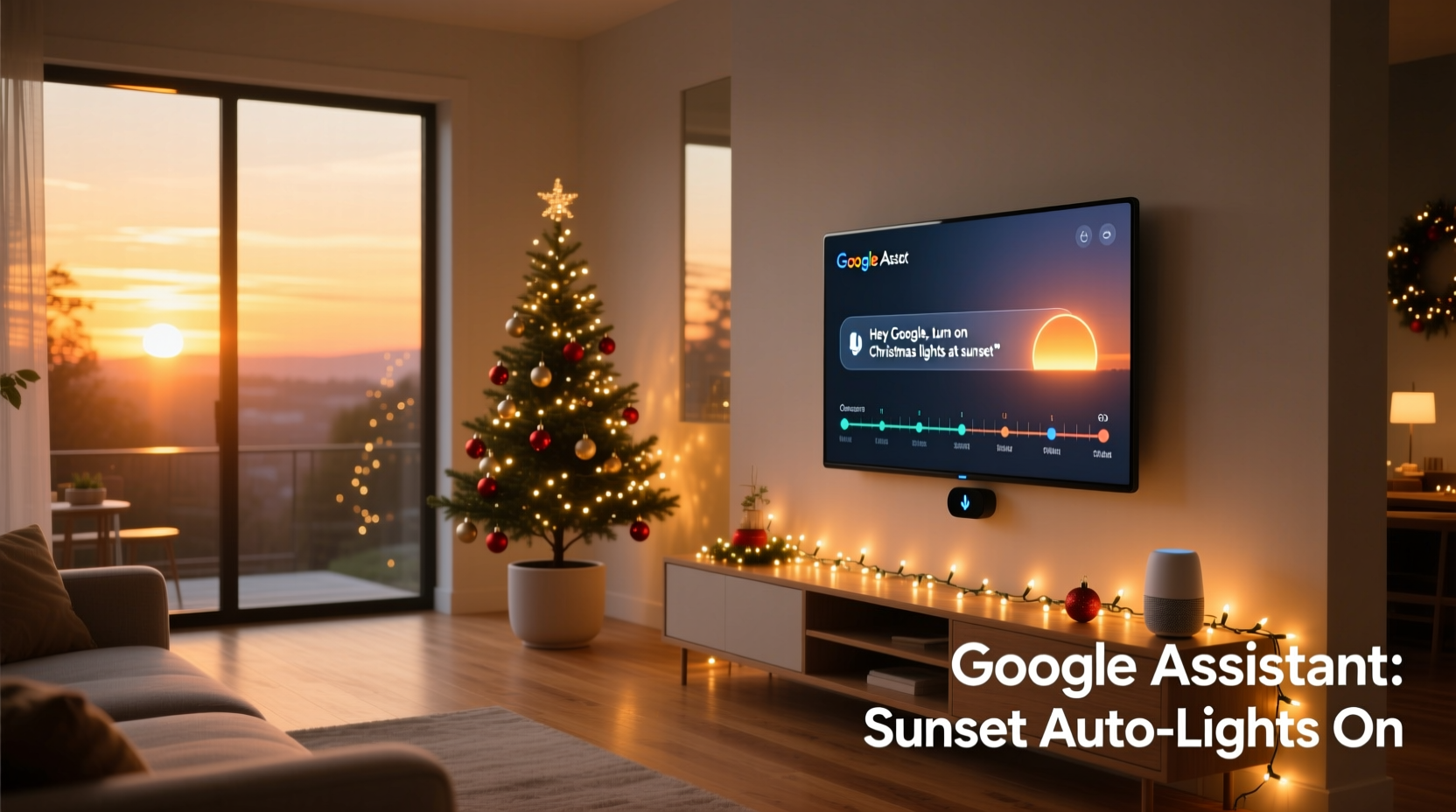
Before diving into automation, gather the necessary components. Not all devices work seamlessly together, so compatibility is key. Here’s what you’ll need:
- A Google Assistant-enabled device: This could be a Google Nest speaker (e.g., Nest Mini, Nest Hub), a smartphone with the Google app, or any other device running Google Assistant.
- Smart light bulbs or smart plugs: These must be compatible with Google Assistant. Popular brands include Philips Hue, LIFX, TP-Link Kasa, Wyze, and Nanoleaf.
- A working Wi-Fi network: All devices should be connected to the same home network.
- The Google Home app: Available on iOS and Android, this app is essential for configuring routines and managing devices.
- Location permissions enabled: For accurate sunset tracking, your Google account must have location services turned on.
Once these are in place, you’re ready to create an automated routine that triggers your lights based on natural sunset times—which change daily depending on your geographic location.
Step-by-Step: Setting Up the Sunset Automation
Automation in Google Assistant is handled through \"Routines.\" Unlike simple voice commands, routines allow you to trigger multiple actions under specific conditions—like time, location, or environmental cues such as sunrise or sunset.
- Open the Google Home app on your smartphone or tablet.
- Navigate to the Routines section. On Android, tap your profile icon > Routines. On iOS, go to Settings > Routines.
- Tap the + button to create a new routine.
- Select Add condition, then choose Time or event.
- Under “At a specific time,” select Sunset. The app will automatically detect your location and calculate the exact sunset time for your area each day.
- Now, tap Add action to define what happens when the condition is met.
- Choose Device > select your smart plug or light group (e.g., “Front Porch Lights” or “Christmas Tree”).
- Set the action to Turn on. Optionally, adjust brightness or color if your bulbs support it (e.g., set to warm white).
- Name your routine—for example, “Holiday Lights at Dusk.”
- Save the routine.
That’s it. From now on, every evening at local sunset, Google Assistant will send a signal to your smart lights, turning them on precisely as daylight fades.
Optional Enhancements
You can further refine the experience by adding more actions:
- Play soft holiday music on a Nest speaker when lights turn on.
- Send a notification to your phone confirming the lights are active.
- Include multiple light groups—porch, tree, roofline—in one command.
“Automating holiday lighting not only improves ambiance but also enhances safety. Well-lit homes deter intruders and make walkways safer during winter evenings.” — Mark Tran, Smart Home Security Consultant
Troubleshooting Common Issues
Even well-planned setups can run into hiccups. Below are frequent problems users encounter—and how to fix them quickly.
| Issue | Possible Cause | Solution |
|---|---|---|
| Lights don’t turn on at sunset | Location services disabled | Enable location in Google Home app settings and verify your address is correct. |
| Sunset time is inaccurate | Wrong home location set | Update your home’s address in the Google Home app under Settings > Home Info. |
| Device not responding | Wi-Fi outage or device offline | Reboot the smart plug/bulb and ensure it appears online in the app. |
| Routine runs late or early | Time zone mismatch | Check your phone’s time zone setting matches your physical location. |
| Multiple triggers at sunset | Duplicate routines created | Review all routines and delete redundant ones using the same trigger. |
Real-World Example: A Cozy Suburban Setup
Consider Sarah, a homeowner in Portland, Oregon. Each year, she decorates her front yard with string lights along the fence, roofline, and driveway trees. In past years, remembering to switch them on was a chore—especially during busy December evenings.
This year, she invested in four TP-Link Kasa smart plugs and paired them with her existing light strands. Using the Google Home app, she grouped all four plugs under “Outdoor Holiday Lights.” Then, she created a routine triggered at sunset. She added a secondary action: her Nest Mini plays a short jingle (“Deck the Halls”) quietly when the lights activate—a small delight for her family.
Since setup, the system has worked flawlessly. Even as sunset times shifted earlier—from 4:45 PM in early December to 4:20 PM by the solstice—the lights adjusted automatically. Neighbors noticed the consistent display, and her children loved the predictable nightly “light show.”
Beyond convenience, Sarah saved energy by avoiding all-night operation. She later added a sunrise-based routine to turn the lights off at dawn, ensuring they never ran longer than necessary.
Advanced Tips for Better Control
Once the basic automation is running, explore advanced features to enhance reliability and personalization.
Use Location-Based Triggers
If you travel during the holidays, you might worry about leaving lights on unattended. Modify your routine to only activate if no one is away:
- In the Google Home app, set up presence detection using household members’ smartphones.
- Edit the routine to include a condition: “Only when someone is home.”
This prevents lights from turning on if the entire family is away on vacation.
Schedule Seasonal Activation
You probably don’t want Christmas lights running year-round. While Google Assistant doesn’t natively support date-range routines, you can manage this manually:
- Create the routine on November 20.
- Delete or disable it on January 6 (Epiphany) or after New Year’s Day.
Alternatively, use third-party platforms like IFTTT (If This Then That) to build date-limited automations. For instance: “Run ‘Turn on holiday lights at sunset’ only between December 1 and January 5.”
Group Devices Strategically
Instead of controlling each bulb individually, organize them into logical groups:
- “Tree Lights”
- “Exterior Roofline”
- “Porch & Pathway”
This makes troubleshooting easier and allows selective activation. You could even set different routines—roofline at sunset, pathway lights at 5 PM during snowy months.
Frequently Asked Questions
Can I use this with non-Google smart speakers?
Yes, but only if they support Google Assistant integration. For example, Amazon Echo devices cannot directly use Google routines. However, if your smart lights work with both Alexa and Google, you can choose which ecosystem controls them. Stick to one primary assistant to avoid conflicts.
Do I need a paid subscription to automate this?
No. All features described—sunset triggers, routines, device control—are free with Google Assistant and the Google Home app. No premium tiers or subscriptions are required.
What if my area has inconsistent sunset visibility?
Google uses official astronomical data based on GPS coordinates, not actual sky visibility. So even on cloudy days or in urban canyons, the calculated sunset time remains accurate. The automation will still fire at the correct moment, regardless of perceived darkness.
Checklist: Automate Your Holiday Lights in 7 Steps
- ✅ Confirm your smart lights/plugs are set up in the Google Home app.
- ✅ Group relevant devices under a single name (e.g., “Christmas Lights”).
- ✅ Verify your home address is correct in Google Home settings.
- ✅ Enable location services on your primary device.
- ✅ Open Routines and create a new automation.
- ✅ Set trigger to “Sunset” and action to “Turn on [device].”
- ✅ Test the routine manually to confirm functionality.
Final Thoughts: Embrace Effortless Festivity
There’s something deeply satisfying about stepping outside on a cold winter evening and seeing your home glowing warmly against the dark. With Google Assistant handling the timing, you reclaim mental space and enjoy the season more fully. No more forgotten switches, inconsistent schedules, or wasted electricity.
Beyond convenience, automated lighting contributes to curb appeal, neighborhood spirit, and home security. And because sunset varies throughout the winter, relying on manual timing means inevitable inconsistency. Automation ensures precision every single day.
The best part? This system takes less than 15 minutes to set up and works reliably for years. Once configured, it requires almost zero maintenance—just occasional checks during firmware updates or Wi-Fi changes.




 浙公网安备
33010002000092号
浙公网安备
33010002000092号 浙B2-20120091-4
Comments
No comments yet. Why don't you start the discussion?