
Every few years, a new smartphone lands in our hands, leaving the previous model to gather dust in a drawer. Instead of letting it fade into digital oblivion, consider giving your old phone a second life as a dedicated home security camera. With Wi-Fi connectivity, built-in HD cameras, microphones, and powerful processors, even outdated smartphones outperform many entry-level commercial security systems. This guide walks through how to repurpose your retired device into a reliable surveillance tool—without spending extra on hardware.
Why Use Old Smartphones as Security Cameras?
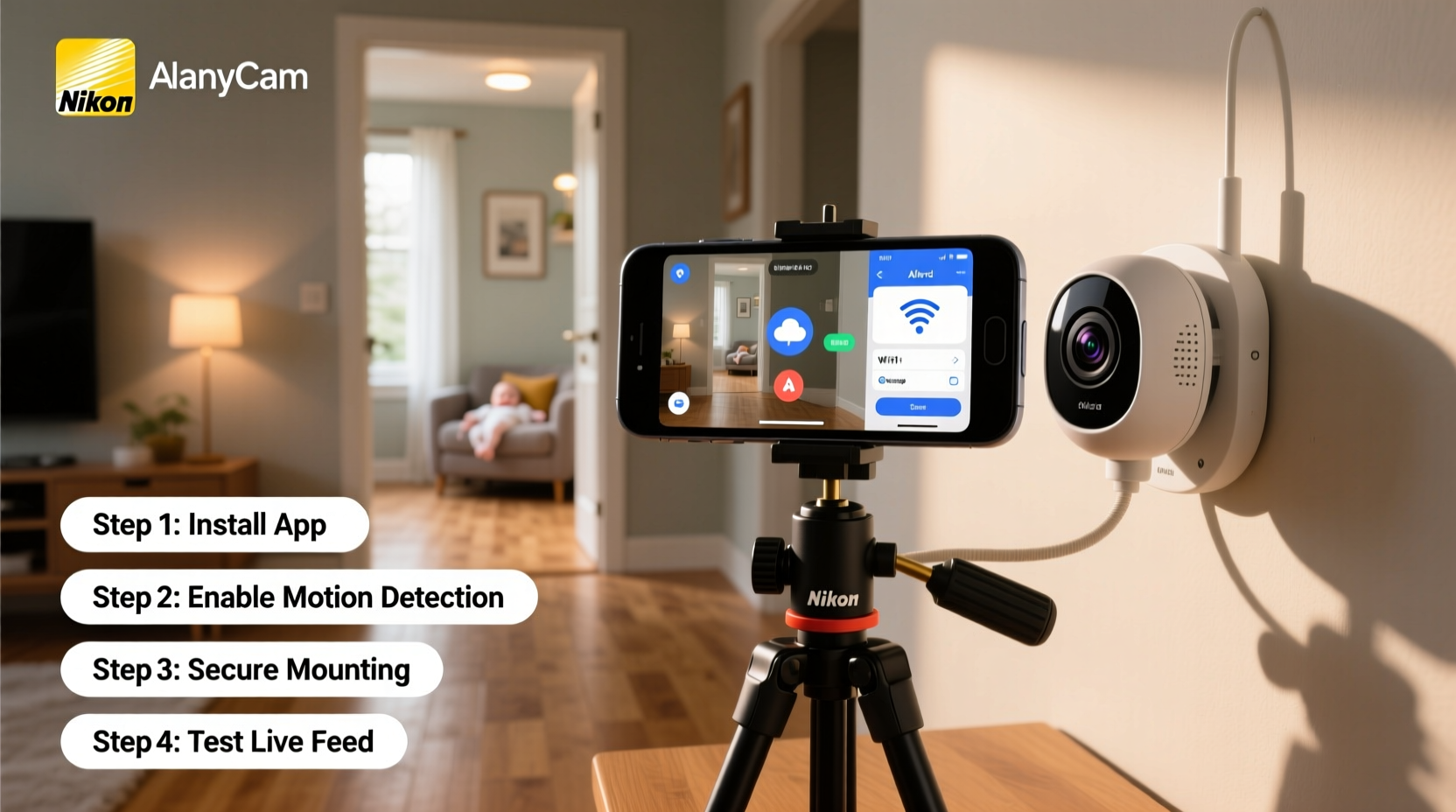
Modern smartphones are equipped with high-resolution cameras, motion detection sensors, and continuous recording capabilities—all essential for a functional security system. Rather than investing in expensive standalone cameras, leveraging an old phone is both economical and environmentally responsible. It reduces electronic waste while maximizing the utility of existing technology.
Additionally, most smartphones support remote access via apps, allowing you to monitor activity from anywhere. Whether checking in on pets, watching for package deliveries, or ensuring no unauthorized access occurs while you're away, a repurposed phone can serve multiple monitoring roles across different rooms.
“Repurposing old devices for home surveillance is one of the most cost-effective ways to achieve 24/7 visibility without compromising quality.” — David Lin, Home Automation Engineer
Step-by-Step Guide to Setting Up Your Phone as a Security Camera
Transforming an old smartphone into a functional security camera involves selecting the right app, configuring settings, positioning the device securely, and ensuring stable power and network connections. Follow this detailed process for optimal results.
- Choose a Compatible App: Select a trusted mobile application designed for turning phones into cameras. Popular options include Alfred, Manything, AtHome Camera, and IP Webcam. These apps are available for both Android and iOS.
- Install and Configure the App: Install the chosen app on both your old phone (the camera) and your primary device (the viewer). Create an account if required and link both devices under the same profile.
- Grant Necessary Permissions: Allow the app access to the camera, microphone, storage, and background operation. Without these permissions, motion alerts or live streaming may not function properly.
- Position the Device Strategically: Mount the phone at eye level or slightly above, pointing toward key entry points like doors, hallways, or driveways. Avoid placing it near windows where glare or reflections interfere with visibility.
- Ensure Continuous Power Supply: Plug the phone into a wall charger. Battery degradation in older models means they likely won’t last long unplugged, especially when streaming video continuously.
- Connect to a Stable Wi-Fi Network: A strong, consistent internet connection ensures smooth video transmission and timely alerts. If possible, connect to a 5GHz band for faster upload speeds and reduced lag.
- Test Motion Detection and Alerts: Walk through the monitored area to verify that motion triggers notifications and recordings. Adjust sensitivity settings to minimize false alarms caused by shadows or pets.
- Enable Cloud or Local Storage: Decide whether to store footage locally on the device or in the cloud. Some apps offer encrypted cloud backup; others rely solely on internal storage or microSD cards.
Best Apps for Turning Phones Into Security Cameras
The success of your DIY security setup hinges largely on the software you choose. Below is a comparison of leading apps based on platform support, features, ease of use, and privacy standards.
| App Name | Platforms | Motion Alerts | Cloud Storage | Free Tier Available | Encryption |
|---|---|---|---|---|---|
| Alfred | Android, iOS | Yes | Limited (rolling 7-day) | Yes | End-to-end (when enabled) |
| AtHome Camera | Android, iOS | Yes | Paid plans only | Yes | SSL/TLS secured stream |
| Manything | Android, iOS | Yes | Yes (30-day retention) | Yes | AES-256 encryption |
| IP Webcam | Android only | Basic detection | No (local save only) | Yes | Password-protected stream |
| Presence | iOS only | Yes | No | Yes | Secure login required |
For cross-platform flexibility and robust alert systems, Alfred stands out due to its intuitive interface and reliable push notifications. Meanwhile, Manything offers superior data protection with enterprise-grade encryption, making it ideal for users concerned about privacy breaches.
Optimizing Placement and Performance
Even the best app won’t compensate for poor positioning. The angle, lighting, and environmental conditions dramatically affect video clarity and detection accuracy.
- Mount the phone securely using a tripod adapter or adhesive phone stand to prevent accidental falls.
- Aim the lens slightly downward to capture facial details and full-body movement rather than just feet.
- Avoid backlighting from windows behind intruders, which can create silhouettes and obscure identification.
- In low-light areas, enable night mode if supported, or supplement with soft ambient lighting to improve image quality.
- Keep the lens clean—dust and smudges reduce resolution and trigger false motion alerts.
Real-World Example: Monitoring a Home Office
Sarah, a freelance graphic designer living in Portland, wanted to secure her home office after experiencing two break-ins within six months. She didn’t want to invest hundreds in professional equipment but needed reliable monitoring. Using her five-year-old iPhone 8, she installed Alfred and mounted it on a shelf overlooking her desk and front door.
She connected the phone to a USB wall charger and joined her home’s 5GHz Wi-Fi network. Within minutes, the app was streaming live video to her current iPhone. One evening, she received a motion alert showing someone trying the doorknob. Thanks to the timestamped recording, she provided clear evidence to local authorities, who identified the suspect through neighborhood patrols.
“I never thought my old phone could do something so important,” Sarah said. “It gave me peace of mind without costing a dime.”
Security and Privacy Considerations
While repurposing old phones is practical, it introduces potential risks. Devices no longer receiving OS updates may have unpatched vulnerabilities. Third-party apps might collect usage data or expose feeds if improperly configured.
To mitigate threats:
- Only download apps from official app stores (Google Play Store or Apple App Store).
- Use strong passwords and two-factor authentication where available.
- Regularly review app permissions and revoke unnecessary access.
- Disable location services for the camera app unless tracking is needed.
- Factory reset the phone before setup to remove personal accounts and residual data.
“Always assume any connected device can be compromised. Minimize attack surface by isolating the camera phone on a guest Wi-Fi network.” — Lena Patel, Cybersecurity Analyst
Checklist: Turn Your Old Phone Into a Security Camera
- ✅ Factory reset the old smartphone
- ✅ Install a reputable security camera app
- ✅ Connect both devices (camera and viewer) to the same account
- ✅ Grant all necessary permissions (camera, mic, storage)
- ✅ Plug the phone into a power source
- ✅ Position it with a clear view of the target area
- ✅ Test motion detection and alert delivery
- ✅ Secure the feed with password protection
- ✅ Review recorded clips daily for the first week
- ✅ Update firmware or app regularly if updates are still issued
Frequently Asked Questions
Can I use multiple old phones as cameras?
Yes. Most apps allow linking several devices to a single account. Each phone acts as an independent camera, viewable remotely from your main device. This enables multi-room coverage, such as monitoring a basement, garage, and front porch simultaneously.
Do these setups work without Wi-Fi?
Not effectively. Real-time viewing and alerts require internet connectivity. While some apps record locally when offline, you won’t receive immediate notifications. For off-grid use, consider standalone cameras with LTE support instead.
Is it legal to record audio along with video?
Laws vary by region. In the U.S., federal law permits audio recording if at least one party consents (one-party consent states). However, 12 states require all parties to consent (two-party consent), including California, Massachusetts, and Washington. Always disable audio recording in sensitive environments or check local regulations before enabling it.
Maximizing Longevity and Reliability
Older smartphones often suffer from degraded batteries and slower processors. To extend their operational lifespan as security devices:
- Disable non-essential features like Bluetooth, GPS, and NFC to reduce background drain.
- Turn off notifications for all other apps to prevent interruptions.
- Set the screen brightness to minimum or off once the app is running.
- Place the phone in a well-ventilated area to avoid overheating during prolonged use.
- Restart the device weekly to clear memory and maintain performance.
Consider dedicating one old phone per critical zone—entryways, nurseries, or storage rooms—so each camera focuses on a specific task. Over time, this distributed approach creates a layered defense system far more adaptable than a single commercial unit.
Conclusion
Repurposing old smartphones as home security cameras merges sustainability with smart living. With minimal effort and zero financial investment beyond what you already own, you can establish a functional surveillance network tailored to your household’s needs. From choosing the right app to optimizing placement and safeguarding privacy, every step enhances both safety and efficiency.




 浙公网安备
33010002000092号
浙公网安备
33010002000092号 浙B2-20120091-4
Comments
No comments yet. Why don't you start the discussion?