
Remote RGB control of Christmas lights has moved far beyond simple red-green-blue presets. Today’s smart lighting systems allow precise, real-time manipulation of hue, saturation, brightness, and even dynamic transitions—all from a smartphone or voice assistant. Yet many homeowners still treat their RGB light strings like basic on/off devices, missing opportunities for seasonal storytelling, mood-based ambiance, or energy-efficient personalization. This isn’t about guesswork or trial-and-error; it’s about understanding how RGB values translate into visible color, how controllers interpret those values, and how to leverage them intentionally—whether you’re illuminating a porch arch with warm amber tones at dusk or syncing a tree to holiday music. The difference between “it kinda works” and “it feels magical” lies in deliberate, informed control.
Understanding RGB: More Than Just Red, Green, and Blue
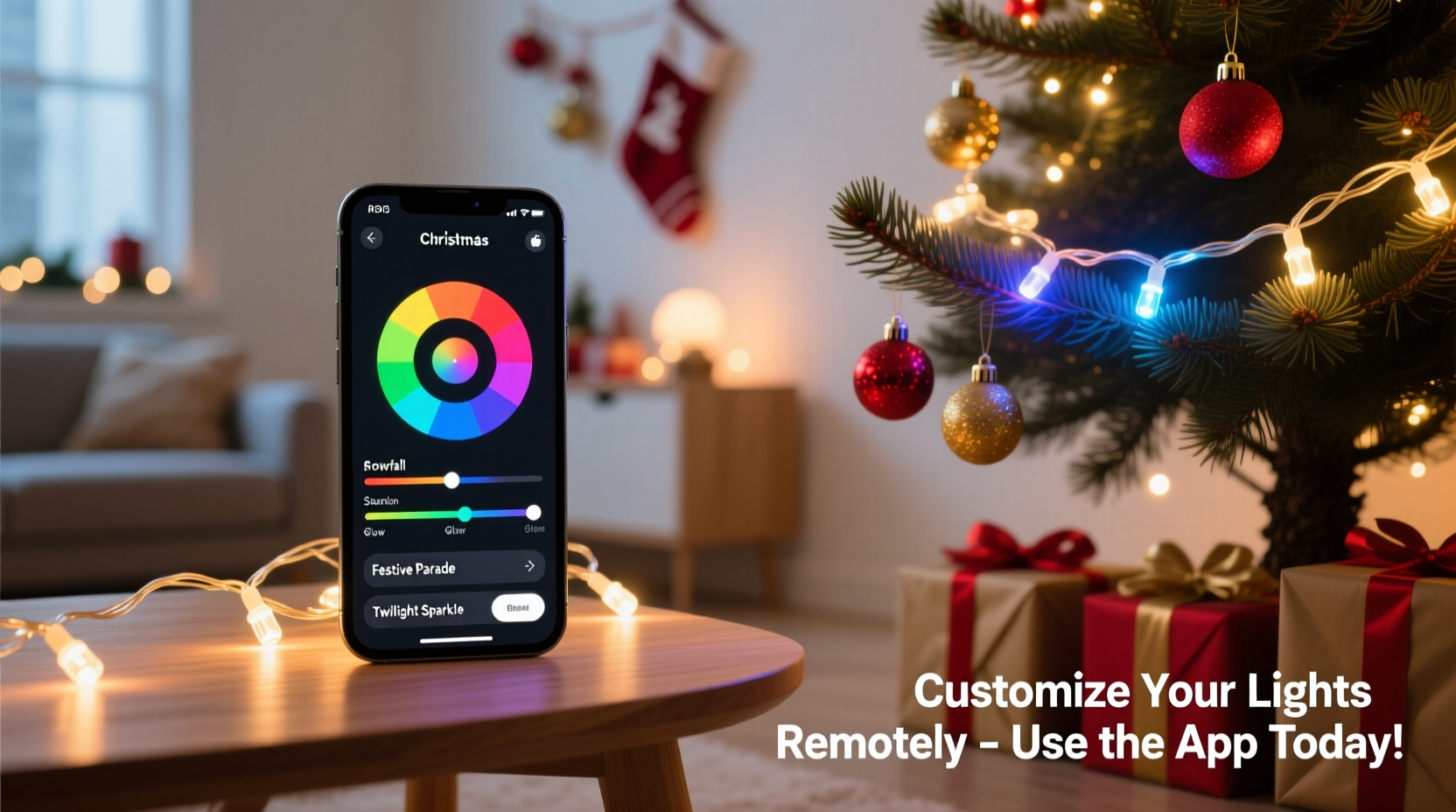
RGB stands for Red, Green, Blue—the three additive primary colors of light. Unlike paint or ink (which use subtractive CMYK), combining light wavelengths *adds* color. When all three channels are at full intensity (255, 255, 255), the result is pure white. When all are at zero (0, 0, 0), the result is black—or, in practice, darkness. Every intermediate combination produces a distinct color: (255, 0, 0) is vivid red; (0, 255, 0) is electric green; (0, 0, 255) is deep blue. But most festive palettes rely on nuanced blends: (255, 140, 0) is classic amber; (72, 61, 139) approximates royal purple; (255, 215, 0) delivers rich gold.
Modern RGB LED strings typically support 8-bit per channel resolution—meaning each color can be set to any integer value from 0 to 255. That yields over 16.7 million possible combinations. However, human perception doesn’t distinguish every variation equally. A change from (100, 100, 100) to (101, 100, 100) is imperceptible, while shifting from (255, 0, 0) to (255, 30, 0) introduces noticeable warmth. Effective remote customization hinges on knowing which adjustments yield meaningful visual impact—not just technical precision.
Choosing and Configuring Your Remote Control System
Not all RGB light controllers support true remote customization. Compatibility depends on hardware architecture and software capability. There are three main categories:
- Wi-Fi Smart Controllers: Devices like the Govee Glide Wall or Twinkly Pro use built-in Wi-Fi to connect directly to your home network. They offer full RGB sliders, preset scenes, scheduling, and voice integration (Alexa, Google Assistant, Siri via HomeKit). Setup requires pairing via the manufacturer’s app and entering your Wi-Fi credentials.
- Bluetooth Controllers: Affordable options such as the Luminara Bluetooth Remote or generic LED strip remotes pair directly with phones but have limited range (typically under 30 feet) and no remote access outside your home. Ideal for small displays or indoor trees where you’ll be nearby.
- Zigbee/Z-Wave Hubs: Systems like Philips Hue Lightstrips (with Hue Bridge) or Sengled Boost require a central hub but deliver superior reliability, mesh networking, and deeper home automation integration—including triggering color changes based on weather data or calendar events.
Crucially, verify controller specifications before purchase. Some budget units advertise “RGB” but only offer 16 fixed colors with no custom input. True customization requires either an app that accepts numeric RGB entry (e.g., “Enter R: 128, G: 255, B: 64”) or a color wheel interface that maps selections directly to underlying values. Also check whether the system supports per-segment control—essential if you want your roofline to glow deep blue while your wreath pulses soft pink.
Step-by-Step: Setting Custom Colors Remotely
- Install and power on your RGB light string: Ensure all connections are secure and the controller is receiving stable voltage. Most systems require a 12V or 24V DC adapter—using an underpowered supply causes flickering or incomplete color rendering.
- Download and open the official app: Avoid third-party apps unless explicitly certified by the manufacturer. Install updates to ensure RGB interpolation algorithms are current.
- Pair the device: Follow in-app prompts. For Wi-Fi models, this usually involves putting the controller in pairing mode (often by holding a button for 5 seconds), selecting its network in your phone’s Wi-Fi list, then returning to the app to complete configuration.
- Navigate to the color customization screen: Look for icons labeled “Custom,” “Color Picker,” “RGB Slider,” or “Manual Mode.” Avoid “Scene” or “Effect” menus—they rarely allow fine-tuned values.
- Input your desired RGB values: Enter numbers precisely. If using a color wheel, tap the exact shade you want, then note the resulting RGB triplet displayed nearby—it’s useful for future replication. For example, to achieve a crisp emerald green for your holly garlands: R=0, G=128, B=64.
- Apply and save: Tap “Set,” “Confirm,” or “Save as Preset.” Name it meaningfully (“Front Porch Emerald,” “Tree Warm Gold”) so you can recall it later without re-entering values.
- Test across lighting conditions: View your selection at dusk and full dark. RGB values appear differently under ambient light—what looks vibrant at noon may wash out after sunset. Adjust brightness (the “V” in HSV, often accessible alongside RGB) to compensate.
Real-World Application: The Miller Family’s Neighborhood Display
The Millers installed 300 RGB pixels along their roofline, 150 on front pillars, and 200 on their 9-foot spruce. Initially, they used factory presets—“Christmas Red,” “Frosty Blue”—but found the colors clashed and lacked cohesion. After learning RGB fundamentals, they created a unified palette:
- Pillars: (180, 120, 40) — a rich, earthy copper that complements their brick façade
- Rooftop outline: (255, 220, 180) — soft warm white, mimicking historic gas lamps
- Tree base: (0, 100, 150) — deep sapphire, evoking winter night skies
- Tree tips: (255, 255, 255) — pure white for contrast and sparkle
Using their Twinkly app, they scheduled daily transitions: pillars shift to copper at 4:30 p.m., rooftop warms at sunset, and the tree cycles through their palette every 90 seconds after 6 p.m. Neighbors began asking how they achieved such harmony. The key wasn’t expensive gear—it was consistent RGB values applied with intention. “We stopped thinking in ‘red’ or ‘blue’ and started thinking in numbers that matched our house,” says David Miller, who manages the display. “Once we had the formula, changing it for Valentine’s Day (R=220, G=60, B=60) or St. Patrick’s (R=40, G=180, B=40) took under two minutes.”
Do’s and Don’ts of RGB Color Management
| Action | Do | Don’t |
|---|---|---|
| Setting Values | Use a calibrated color picker tool (like Adobe Color or Coolors.co) to generate harmonious palettes first, then convert HEX to RGB | Randomly adjust sliders without noting original values—you’ll lose reproducible results |
| Brightness Control | Lower brightness (B value) before adjusting R/G to maintain color integrity in dim environments | Max out all channels to “make it brighter”—this oversaturates and washes out nuance |
| Weather Resilience | For outdoor displays, choose RGB values with higher blue content (e.g., >100) in cold months—blues render more consistently in low temperatures | Use high-red values (R > 220) in freezing conditions—red LEDs dim faster than green/blue when cold |
| Consistency Across Strings | Document exact RGB values for each zone in a shared spreadsheet—critical when multiple people manage the display | Assume “Red” means the same thing across brands—Govee’s “Crimson” ≠ Philips Hue’s “Crimson” |
Expert Insight: Engineering for Emotional Impact
“RGB isn’t just a technical parameter—it’s an emotional vocabulary. A value like (255, 165, 0) isn’t just ‘orange’; it’s the warmth of a fireplace glow, the anticipation of gift-opening. Remote control lets us deploy that vocabulary contextually: cooler tones for quiet reflection, saturated primaries for joyful celebration. The most effective displays don’t chase maximum brightness or speed—they use precise, intentional RGB to tell a story the eye feels before the mind names it.” — Dr. Lena Torres, Lighting Psychologist and Senior Design Lead at Lumina Labs
Troubleshooting Common RGB Remote Issues
Even with correct setup, RGB customization can falter. Here’s how to diagnose and resolve frequent problems:
- Colors appear inconsistent across segments: Likely a voltage drop. Longer runs (>16 feet for 12V strips) cause diminished power to downstream LEDs. Solution: inject power at both ends or add a second power supply mid-run. Verify your controller supports the total wattage—underpowering distorts RGB balance.
- App shows color wheel but no RGB input field: Your firmware may be outdated. Check for controller updates in the app settings. Some manufacturers hide advanced controls behind “Developer Mode” toggles (e.g., tapping the version number 7 times).
- Remote commands lag or fail intermittently: Wi-Fi congestion is the usual culprit. Change your router’s 2.4GHz channel to 1, 6, or 11 (least crowded). For Bluetooth, ensure no metal obstructions exist between phone and controller.
- Custom colors revert after power cycle: The controller isn’t saving to non-volatile memory. In the app, look for “Save as Default” or “Store Current Settings.” Some units require holding a physical button for 10 seconds post-configuration.
FAQ
Can I use RGB values from a website color picker directly in my light app?
Yes—if your app accepts manual entry. Convert HEX (e.g., #FF6B6B) to RGB using online tools, then input the numbers. Note: some apps use HSV (Hue, Saturation, Value) internally, so minor shifts may occur. Always test and tweak.
Why does my “pure white” (255,255,255) look bluish or yellowish?
LED white isn’t truly neutral—it’s a blend of blue diodes + yellow phosphor. Cheaper strings skew cool (blue-tinted); premium ones offer tunable white (CCT adjustment). To compensate, manually reduce blue for warmer white (e.g., 255, 255, 220) or reduce red/green for cooler (230, 230, 255).
Do RGB settings affect energy consumption?
Minimally. Power draw depends primarily on total LED count and brightness level—not color composition. However, running all channels at 255 consumes ~15% more than running one channel at 255 and others at 0. For efficiency, use lower overall brightness with intentional color instead of max brightness + desaturated tones.
Conclusion
Mastering RGB for remote Christmas light customization transforms decoration from decoration into expression. It shifts the focus from “What lights do I own?” to “What feeling do I want to evoke tonight?” Whether you’re crafting a serene midnight-blue grotto, a vibrant candy-cane spiral, or a subtle amber glow that whispers nostalgia, the power resides in precise, repeatable numbers—not vague presets. You don’t need a degree in color science—just curiosity, a reliable app, and the willingness to experiment with values like (138, 43, 226) for violet or (255, 193, 37) for sunshine yellow. Start small: pick one fixture, dial in one custom color, and observe how it changes the space. Then expand. Document what works. Share your palettes. Refine them season after season. Because the most memorable holiday displays aren’t the brightest—they’re the most thoughtfully lit.




 浙公网安备
33010002000092号
浙公网安备
33010002000092号 浙B2-20120091-4
Comments
No comments yet. Why don't you start the discussion?