
The holiday season is the perfect time to blend tradition with technology. One of the most satisfying moments during Christmas prep is flipping the switch and watching your home come alive with festive lights. But what if you could do it without lifting a finger? With smart assistants like Amazon Alexa and Google Assistant, you can control your Christmas lights using only your voice. This guide walks you through everything you need to know—from setup to advanced automation—so you can enjoy a magical, hands-free lighting experience.
Understanding Smart Lighting Basics
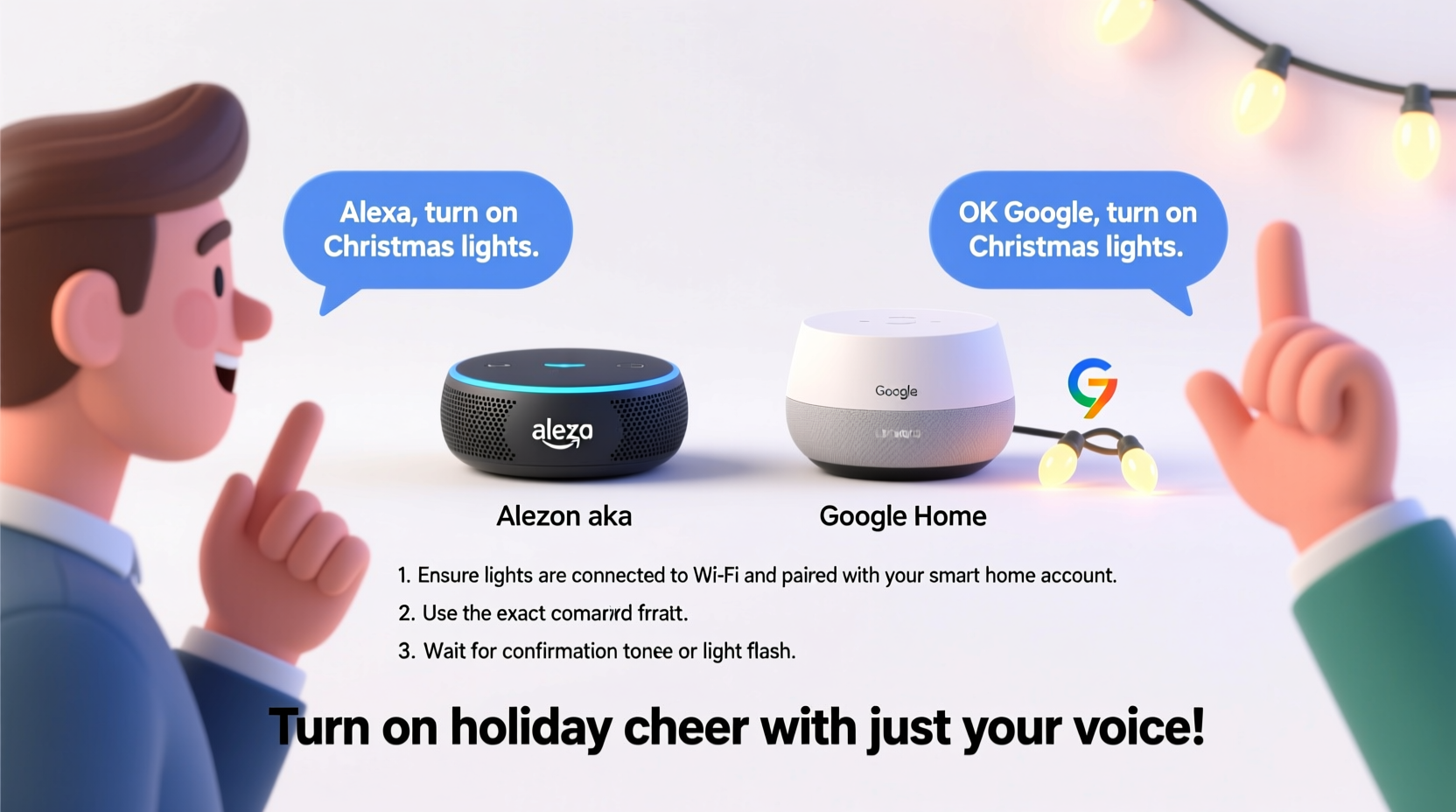
Before diving into voice commands, it's essential to understand how smart lighting works. Traditional Christmas lights plug into wall outlets and operate manually. Smart lights, however, connect to your Wi-Fi network and can be controlled remotely via smartphone apps or voice assistants.
To make your Christmas lights \"smart,\" you don’t necessarily need to replace them. You can use a smart plug—a small device that plugs into your wall outlet and allows any connected light strand to become controllable via app or voice. Alternatively, you can purchase smart LED strings that have built-in Wi-Fi or Bluetooth connectivity.
Once connected, these devices integrate with platforms like Amazon Alexa or Google Home, enabling voice activation through compatible speakers such as the Echo Dot or Google Nest Mini.
Required Equipment and Setup Process
Turning your Christmas lights into a voice-controlled display requires three core components: the lights themselves, a smart control device (plug or bulb), and a voice-enabled speaker.
Equipment Checklist
- A set of standard or smart Christmas lights
- A compatible smart plug (e.g., TP-Link Kasa, Wemo, or Philips Hue) or smart light strip (e.g., Nanoleaf, Govee)
- An Amazon Echo, Google Nest, or other Alexa/Google Assistant-compatible speaker
- A stable 2.4 GHz Wi-Fi network (most smart devices don’t support 5 GHz)
- The corresponding mobile app (e.g., Alexa app, Google Home app, Kasa Smart)
Step-by-Step Setup
- Plug in the smart device: Insert your smart plug into a wall outlet or power strip.
- Connect the lights: Plug your Christmas lights into the smart plug.
- Power on: Turn on both the outlet and the smart plug (some have physical buttons).
- Download the app: Install the companion app for your smart device (e.g., Kasa for TP-Link).
- Follow in-app instructions: Connect the device to your Wi-Fi by scanning QR codes or entering credentials.
- Test remote control: Use the app to turn the lights on and off, confirming successful setup.
- Link to voice assistant: Open the Alexa or Google Home app, go to “Devices,” then “Add,” and follow prompts to discover and link your smart plug.
After discovery, assign a room (e.g., “Living Room”) and give the device a clear name like “Christmas Tree Lights” so voice commands are intuitive.
| Device Type | Best For | Setup Time | Voice Assistant Support |
|---|---|---|---|
| Smart Plug | Standard light strands | 10–15 minutes | Alexa & Google Assistant |
| Smart Light Strip | Custom shapes, windows, mantels | 15–20 minutes | Alexa & Google Assistant |
| Smart Bulb String | Outdoor trees, railings | 10 minutes | Limited; check model |
Using Voice Commands with Alexa and Google Home
Once your lights are connected and recognized by your voice assistant, controlling them becomes effortless. Both Alexa and Google Assistant support natural language commands, meaning you don’t need to memorize rigid phrases.
Alexa Commands
- “Alexa, turn on the Christmas tree lights.”
- “Alexa, turn off the holiday lights.”
- “Alexa, dim the living room lights to 50%.”
- “Alexa, set the Christmas lights to red and green.” (only if using color-changing smart strips)
- “Alexa, schedule the lights to turn on at 5 PM every day.”
Google Assistant Commands
- “Hey Google, turn on the porch lights.”
- “Hey Google, switch off the Christmas display.”
- “Hey Google, brighten the tree lights.”
- “Hey Google, change the holiday lights to blue.”
- “Hey Google, turn on the lights at 6:30 PM starting today.”
For best results, ensure your device names are specific and consistent. Avoid generic labels like “lights” or “device 1.” Instead, use descriptive names such as “Front Yard Snowman Lights” or “Indoor Tree LEDs.”
“Voice control isn’t just about convenience—it’s about creating memorable experiences. Imagine gathering the family and saying, ‘Hey Google, light up Christmas,’ and watching the house sparkle instantly.” — Daniel Ruiz, Smart Home Integration Specialist
Creating Routines and Automations
While turning lights on and off with your voice is impressive, setting up routines takes your setup to the next level. Both Alexa and Google Assistant allow you to create automated schedules and multi-step actions triggered by time, voice, or even location.
Example Routine: Evening Holiday Ambience
- Trigger: Time-based — 5:00 PM daily from December 1 to January 1.
- Action: Turn on “Christmas Tree Lights,” “Window Lights,” and “Porch Display.”
- Optional: Play soft holiday music on your Echo speaker.
How to Set Up an Alexa Routine
- Open the Alexa app.
- Navigate to More > Routines > Create Routine.
- Tap the plus (+) icon under “When this happens” and select “Schedule.”
- Set time, days, and recurrence.
- Under “Add action,” choose “Smart Home” and select your lights to turn on/off.
- Save the routine with a name like “Holiday Lights On.”
How to Set Up a Google Home Automation
- Open the Google Home app.
- Go to Automations > + Add Automation.
- Select “Time of day” as the trigger.
- Choose start and end times.
- Under “Then,” tap “Add action” and select your lights.
- Choose “Turn on” or “Turn off” and confirm.
- Save as “Daily Christmas Lights.”
Real-World Example: The Johnson Family’s Smart Holiday Display
The Johnsons live in a suburban neighborhood known for its elaborate Christmas decorations. Every year, they spend hours untangling lights and coordinating switch times. Last season, they upgraded to smart plugs and integrated their display with Alexa.
They labeled each section: “Front Lawn Reindeer,” “Roof Line Lights,” “Garage Star.” Using the Alexa app, they created a single routine called “Full Display” that turns on all lights simultaneously. Now, when guests arrive, Mr. Johnson says, “Alexa, activate Full Display,” and the entire yard illuminates in sync.
Beyond convenience, the system saved them money. By scheduling lights to turn off at 10 PM, they reduced energy usage by nearly 30%. Their children even programmed a “Santa Arrival” mode that slowly brightens the tree at midnight on Christmas Eve.
The neighbors noticed—and soon, three other homes on the block adopted similar setups. What started as a personal upgrade became a community trend.
Troubleshooting Common Issues
Even well-planned smart lighting systems can encounter hiccups. Here are frequent problems and how to resolve them:
- Lights not responding to voice commands: Ensure the smart plug is online in its app. Reboot the device and re-link it to Alexa or Google if needed.
- Device not discovered: Confirm your phone and smart plug are on the same 2.4 GHz Wi-Fi band. Disable mobile data during setup.
- Voice assistant doesn’t recognize the device name: Avoid names too similar to other devices. Use distinct identifiers like “Upstairs Tree” instead of “Tree Lights.”
- Lights turn on but flicker: Overloaded circuits or incompatible dimmer settings may cause this. Try plugging into a different outlet or disabling dimming in the app.
- Schedule not activating: Check the time zone setting in your voice assistant app. Also verify the routine is enabled and not paused.
Frequently Asked Questions
Can I control outdoor Christmas lights with voice commands?
Yes, as long as the lights are connected to a weather-rated smart plug or are part of a waterproof smart light strip. Ensure the smart device is protected from moisture and installed according to manufacturer guidelines.
Do I need a smart speaker to use voice commands?
Not necessarily. While devices like Echo or Nest offer hands-free access, you can also use voice commands through the Alexa or Google Assistant app on your smartphone. Just tap the mic icon and speak your command.
Can multiple people control the same lights?
Yes. If your smart plug is linked to a shared home in the Alexa or Google Home app, all household members can control the lights using their own devices or voice commands—provided they’re part of the same account or home group.
Final Tips for a Seamless Experience
Maximize your smart lighting setup with these expert-backed practices:
- Label everything clearly: Use descriptive names in your app to avoid confusion.
- Group related devices: Create rooms or groups (e.g., “Holiday Lights”) for bulk control.
- Use scenes: Save lighting combinations (e.g., “Cozy Night In” or “Party Mode”) for instant ambiance.
- Monitor energy use: Some smart plugs show real-time power consumption—helpful for managing electricity costs during extended displays.
- Update firmware regularly: Keep your smart devices updated to benefit from bug fixes and new features.
Conclusion
Integrating voice commands to control your Christmas lights transforms a simple seasonal task into a joyful, interactive experience. Whether you're welcoming guests, setting a cozy mood, or surprising loved ones on Christmas morning, Alexa and Google Home put the magic at your command—literally. With minimal setup and a bit of planning, you can automate your holiday lighting, reduce manual effort, and add a touch of modern wonder to your traditions.




 浙公网安备
33010002000092号
浙公网安备
33010002000092号 浙B2-20120091-4
Comments
No comments yet. Why don't you start the discussion?