
Staying connected without constantly checking your phone is one of the core promises of wearable technology. The Apple Watch excels at delivering timely notifications, but when it comes to messaging apps like WhatsApp, functionality isn’t always obvious. While you can’t run WhatsApp natively on the Apple Watch, you can still enjoy seamless messaging through smart integration with your iPhone. This guide walks you through everything you need to know—from setup to advanced tips—to keep your conversations flowing directly from your wrist.
Understanding the Limitations and Possibilities
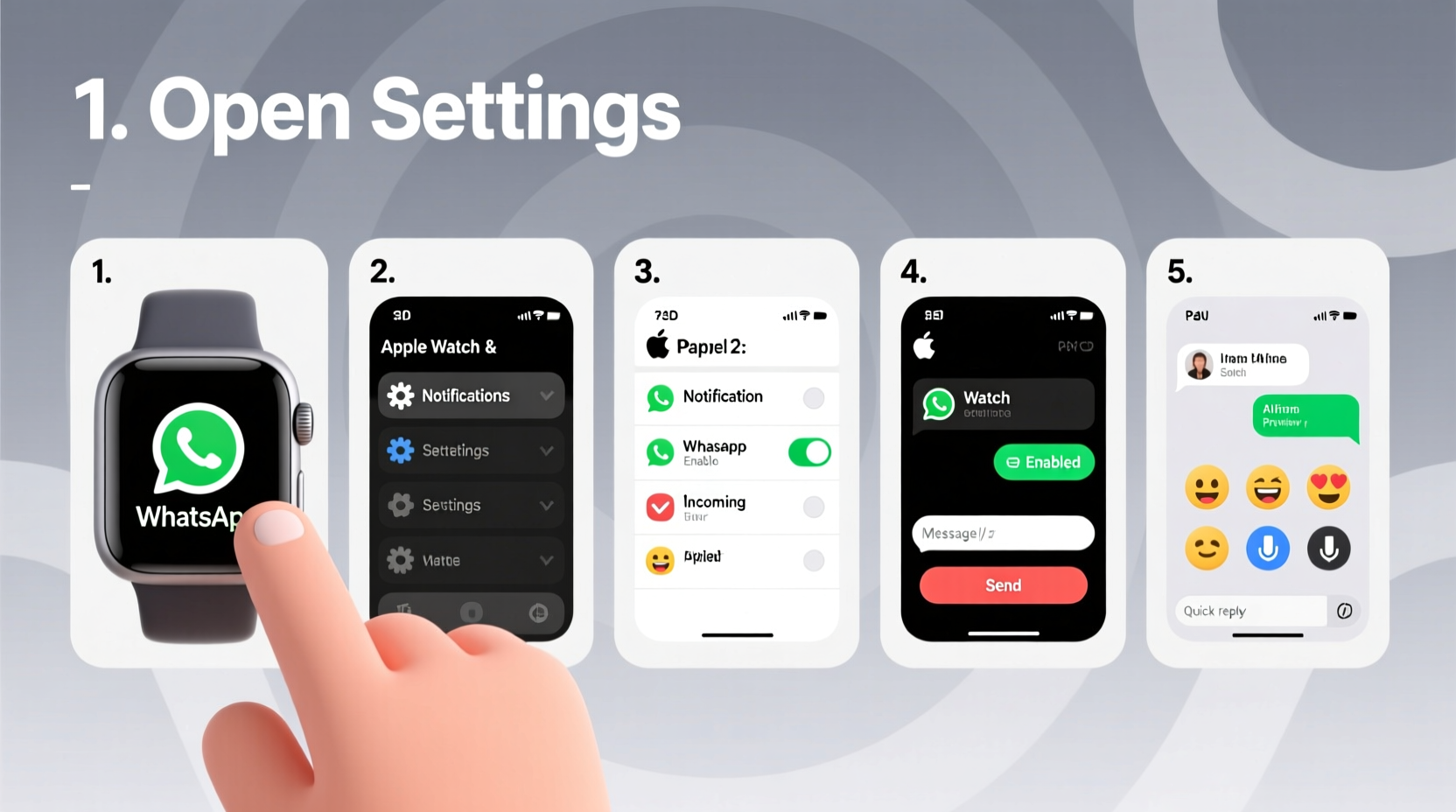
The Apple Watch does not support a standalone WhatsApp app. Unlike iMessage or third-party apps built specifically for watchOS, WhatsApp operates exclusively through the iPhone. However, that doesn’t mean your watch is useless for WhatsApp. Thanks to iOS notification mirroring and third-party complications, you can receive alerts, read messages, and even respond using dictation, pre-set replies, or emojis—all from your wrist.
Key capabilities include:
- Receiving real-time WhatsApp notifications
- Reading full message previews (if enabled)
- Replying via voice-to-text, scribble input, or quick responses
- Marking chats as read
- Initiating new messages using Siri (with limitations)
It’s important to manage expectations: you cannot view media, edit messages, or access WhatsApp status updates directly on the watch. But for quick communication, especially during workouts, meetings, or commutes, the Apple Watch becomes a powerful extension of your iPhone-based WhatsApp experience.
Step-by-Step Setup: Connecting WhatsApp Notifications to Your Apple Watch
To begin using WhatsApp on your Apple Watch, follow this clear sequence of steps to ensure proper syncing and optimal performance.
- Ensure Compatibility: Confirm that your Apple Watch is running watchOS 7 or later and your iPhone is on iOS 14 or newer. Both devices should be updated to their latest versions.
- Keep Bluetooth & Wi-Fi Active: Make sure your iPhone and Apple Watch are connected via Bluetooth. For best results, both devices should be on the same Wi-Fi network.
- Open the Apple Watch App on iPhone: Launch the Watch app from your iPhone’s home screen.
- Navigate to Notifications: Tap “Notifications” in the My Watch tab.
- Locate WhatsApp: Scroll down and find WhatsApp in the list of apps. If it's not visible, open WhatsApp on your iPhone and send or receive a test message to trigger system recognition.
- Enable Mirror My iPhone: Select “Mirror my iPhone” under WhatsApp settings. This ensures all notification behaviors—including banners, sounds, and alert styles—are duplicated on your watch.
- Customize Alert Style (Optional): You can choose between “Alert,” “Persistent,” or “None.” Persistent alerts repeat until acknowledged, ideal for high-priority contacts.
- Test the Connection: Have someone send you a WhatsApp message while your phone is nearby but out of reach. The notification should appear on your watch within seconds.
Once configured, every incoming WhatsApp message will appear as a banner on your watch face. Swipe right to reply instantly or left to dismiss.
How to Reply to WhatsApp Messages from Your Apple Watch
The true value of WhatsApp integration lies in the ability to respond quickly without pulling out your phone. Here’s how to do it effectively:
Using Voice Dictation
Tap the microphone icon in the reply field and speak naturally. watchOS converts speech to text with impressive accuracy. After reviewing the transcription, tap “Send.”
Using Scribble
If you prefer typing, enable Scribble in the Watch app under General > Keyboard. Write letters with your finger on the screen, and the system will convert them into text in real time.
Using Quick Replies
iOS learns your frequent responses and suggests shortcuts like “Yes,” “No,” “I’ll call you later,” or custom phrases you’ve used before. These appear as tappable options below the message.
Sending Emojis
Tap the emoji button to browse recently used or frequently sent emojis. You can also spell an emoji name (e.g., “smile”) using Scribble or dictation.
Optimizing Your Experience: Best Practices and Workarounds
While native support is limited, several strategies enhance usability and make WhatsApp feel more integrated with your Apple Watch.
| Action | Benefit | How to Enable |
|---|---|---|
| Use Focus Modes | Prevent distractions while ensuring priority messages still come through | Set up Focus in iPhone Settings > Focus; allow WhatsApp notifications during specific modes |
| Create Custom Complications | Quickly see unread message count at a glance | Use third-party apps like “Notification Center” or “Glance” from the App Store |
| Enable Wrist Raise Alerts | See messages instantly when lifting your wrist | Go to Watch app > General > Wake Screen > Enable \"Wake on Wrist Raise\" |
| Use Siri Shortcuts | Send predefined WhatsApp messages hands-free | Create a shortcut in the Shortcuts app to send a message via WhatsApp to a contact |
“Wearables are shifting how we interact with messaging—less screen time, more contextual awareness. The Apple Watch may not run WhatsApp directly, but its ability to filter and streamline communication is unmatched.” — Dr. Lena Torres, Human-Computer Interaction Researcher, MIT Media Lab
Real-World Example: Messaging During a Morning Run
Consider Sarah, a busy professional who jogs every morning with only her Apple Watch and wireless earbuds. Her phone stays locked at home. Mid-run, her sister sends a WhatsApp message asking if she can pick up their mom from the airport.
Sarah feels the tap on her wrist, glances at her watch, reads the message clearly, and replies using voice dictation: “Yes, I’ll take the 3 PM flight.” She confirms the text preview and taps send. No interruption to her run, no need to carry her phone. This scenario highlights the practical power of optimized WhatsApp usage on the Apple Watch—efficiency, convenience, and continuity.
Frequently Asked Questions
Can I send photos or videos on WhatsApp from my Apple Watch?
No. The Apple Watch does not support media attachments in WhatsApp messages. You must use your iPhone to send images, videos, or documents.
Why don’t my WhatsApp messages show up on my Apple Watch?
This usually happens if notifications are disabled, the iPhone and watch aren’t synced, or WhatsApp isn’t set to “Mirror my iPhone” in the Watch app. Restart both devices and recheck notification settings.
Is there a third-party app that brings full WhatsApp support to Apple Watch?
Currently, no third-party app offers full WhatsApp functionality due to Apple’s security restrictions and lack of official API access. Apps claiming to do so may compromise privacy and are not recommended.
Maximizing Utility: A Practical Checklist
Follow this checklist to ensure your Apple Watch delivers the best possible WhatsApp experience:
- ✅ Update both iPhone and Apple Watch to the latest OS versions
- ✅ Open the Watch app and enable WhatsApp under Notifications
- ✅ Set alert style to “Persistent” for critical conversations
- ✅ Enable Scribble and test handwriting recognition
- ✅ Train Siri by using voice replies regularly
- ✅ Use Focus modes to filter non-urgent notifications
- ✅ Test end-to-end functionality with a friend before relying on it
Conclusion
Using WhatsApp on your Apple Watch isn’t about replacing your phone—it’s about reducing dependency on it. With thoughtful setup and smart habits, you can stay engaged in conversations, respond promptly, and maintain momentum in your day without constant phone checks. Whether you're in a meeting, cooking, exercising, or simply want a digital detox, your wrist can become the most efficient point of contact.




 浙公网安备
33010002000092号
浙公网安备
33010002000092号 浙B2-20120091-4
Comments
No comments yet. Why don't you start the discussion?