
Modern smartphones are packed with sensors, touchscreens, and connectivity options that make them ideal candidates for turning into versatile game controllers. For Steam users, this opens up exciting possibilities—especially when playing on a PC connected to a TV or in situations where traditional controllers aren’t available. With the right setup, you can use your Android or iOS device as a fully functional input device for hundreds of Steam games, from platformers to racing titles and even some FPS experiences.
This guide walks through every step needed to connect your mobile phone to Steam, configure it properly, and optimize its performance as a controller. Whether you're lounging on the couch or traveling with a portable Steam setup, transforming your phone into a controller is both practical and surprisingly effective.
Why Use Your Phone as a Steam Controller?
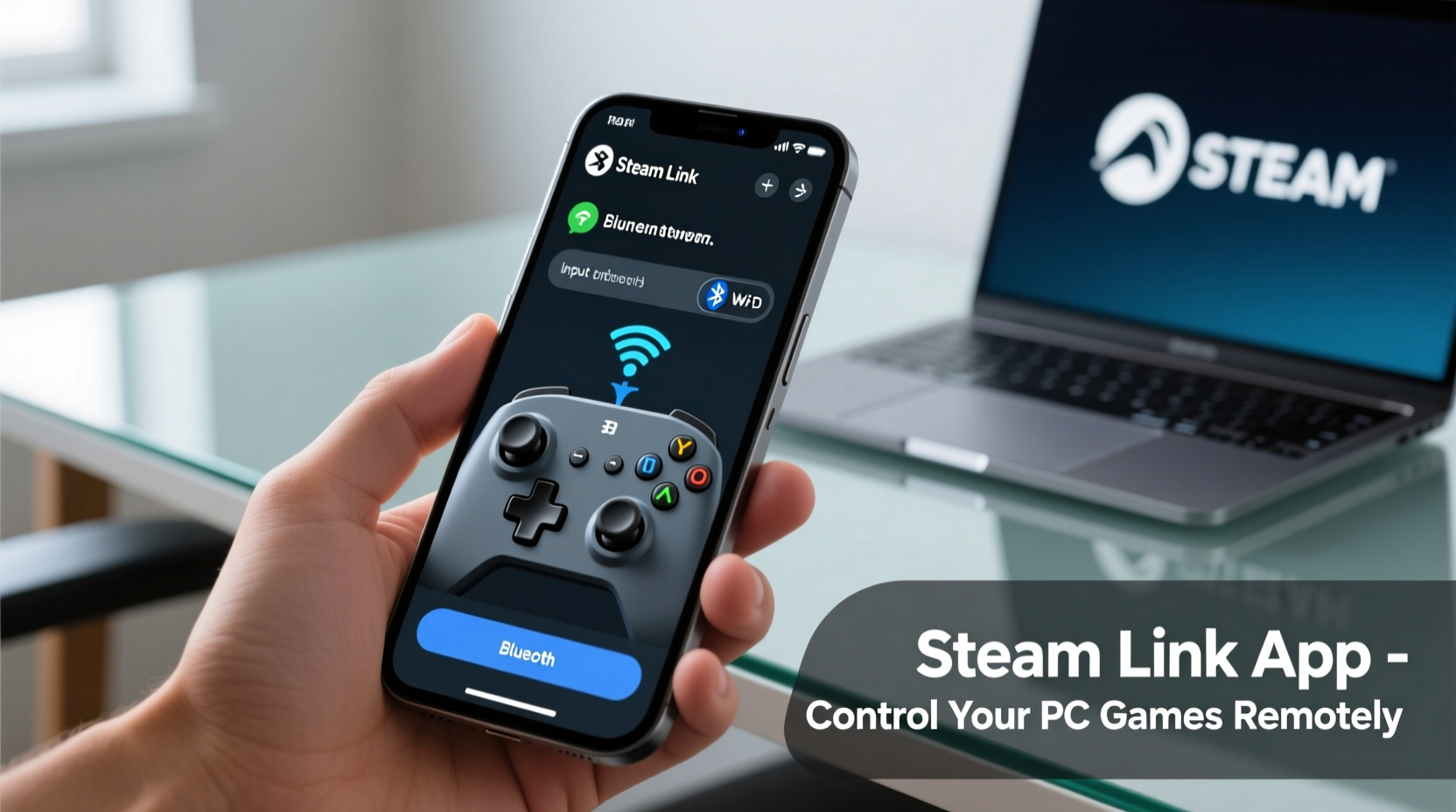
The appeal of using a mobile phone as a Steam controller goes beyond convenience. It’s about flexibility and accessibility. Not everyone owns multiple dedicated gamepads, but nearly everyone has a smartphone within arm's reach. Steam’s built-in Remote Play feature leverages this ubiquity, allowing seamless integration between devices without requiring extra hardware.
Additionally, touchscreen controls can be customized per game, offering layouts tailored to specific genres. You can map virtual buttons, joysticks, and triggers exactly where they feel most natural. Some users even prefer touch-based aiming aids or swipe gestures for certain gameplay styles.
Step-by-Step Setup Process
To begin using your phone as a controller, follow these clear steps. The process works across both Android and iOS devices and requires no third-party apps if you’re using Steam’s native tools.
- Update Steam Client: Ensure your Steam client on PC is updated to the latest version. Go to Steam > Check for Updates in the top-left menu.
- Enable Remote Play: Navigate to Steam > Settings > Remote Play. Confirm that “Enable Remote Play” is checked.
- Install Steam Link App: Download the official Steam Link app from the Google Play Store (Android) or Apple App Store (iOS).
- Connect Devices on Same Network: Make sure your phone and PC are on the same 5GHz Wi-Fi band if possible—it reduces lag significantly.
- Launch Steam Link: Open the app on your phone. It will automatically search for compatible PCs running Steam.
- Pair Your Device: When prompted, enter the four-digit PIN displayed on your PC screen into the app.
- Select Input Mode: After connection, tap the on-screen controller icon to enable touch input. This activates the virtual gamepad overlay.
Once paired, your phone becomes a full input device. Movement sticks, face buttons, bumpers, triggers, and even gyro controls (on supported devices) become available directly on the touchscreen.
Customizing Touch Controls for Better Gameplay
One of Steam’s strongest features is its extensive customization system. After connecting via Steam Link, you can fine-tune the layout of your virtual controller to match your preferences.
- Tap the controller settings icon (usually a gear) within the Steam Link interface.
- Adjust button size, position, and transparency for better visibility during intense gameplay.
- Enable “Touch Feedback” to get visual pulses when pressing buttons—helpful for muscle memory development.
- For games not optimized for controllers, switch to mouse-and-keyboard emulation mode in the input settings.
Some advanced users remap actions based on playstyle—for example, placing jump and attack buttons near thumbs for faster access. These adjustments can dramatically improve responsiveness and comfort over long sessions.
| Feature | Benefit | Best Used In |
|---|---|---|
| Virtual Analog Sticks | Precise directional control | Platformers, action-adventure |
| Gyro Aiming | Smoother camera movement | FPS, flight sims |
| On-Screen Keyboard | Text input without physical keyboard | MMOs, chat-heavy games |
| Button Transparency Slider | Less screen obstruction | All game types |
Real-World Example: Couch Gaming Without Extra Hardware
Daniel, a casual gamer from Portland, wanted to play Stardew Valley and Portal 2 from his living room but didn’t want to buy a new controller. His laptop was hooked up to the TV, and he already owned an iPhone. Using the Steam Link app, he connected his phone in under five minutes. He customized the layout so that inventory shortcuts were easily reachable and enabled haptic feedback for immersive interaction.
Within days, he found himself preferring the portability and personalization of the phone setup. “It felt more intuitive than I expected,” Daniel said. “I could pause, adjust volume, or even check messages without disconnecting—something my wired controller never allowed.”
“We designed Remote Play to give players freedom—freedom from cables, from sitting at desks, and from needing specialized gear.” — Valve Developer Blog, Steam Input Systems Team
Do’s and Don’ts When Using Your Phone as a Controller
To maximize performance and avoid frustration, keep these guidelines in mind:
| Do | Don't |
|---|---|
| Use a phone stand or mount for stable positioning | Play while holding the phone in awkward angles |
| Lower screen brightness to reduce glare during night sessions | Ignore battery consumption—streaming drains power quickly |
| Test controls in safe environments before critical gameplay | Assume all games support touch input equally |
| Close background apps to free memory and boost performance | Stream over unstable or congested networks |
FAQ: Common Questions About Mobile Steam Control
Can I use my phone as a controller without streaming the game?
No, the Steam Link method requires streaming the game from your PC to your phone. However, once streamed, your phone acts as both display and controller. There is currently no way to use the phone as a standalone input device for a locally running Steam game unless using third-party tools like Moonlight with custom configurations.
Is there noticeable input lag?
Lag depends heavily on your network quality. On a strong 5GHz Wi-Fi connection, latency can be under 100ms—playable for most genres except competitive fast-paced shooters. Using a wired Ethernet connection on the host PC further stabilizes performance.
Does this work with cloud versions of Steam games like Steam Deck Cloud Sync?
Yes. As long as the saved game syncs to your main library and runs locally on your PC, the controller functionality remains unchanged. The phone connects to the host machine, not the cloud service itself.
Final Checklist Before You Start Playing
- ✅ Both devices are on the same Wi-Fi network
- ✅ Steam client is open and updated
- ✅ Remote Play is enabled in Steam settings
- ✅ Steam Link app is installed and granted necessary permissions
- ✅ Game supports controller input or has KB+M fallback
- ✅ Phone is charged or connected to power
- ✅ Screen timeout is disabled during gameplay
Take Control—Literally—in Your Hands
Turning your mobile phone into a Steam game controller isn’t just a workaround—it’s a legitimate, flexible alternative to traditional hardware. With thoughtful configuration and a reliable network, your smartphone becomes a dynamic, customizable interface that adapts to your gaming habits. From relaxing indie titles to adrenaline-fueled adventures, the ability to play comfortably from any room enhances the overall experience.
Now that you know how simple the setup can be, why not try it tonight? Connect your phone, tweak the controls, and discover a new way to interact with your favorite Steam library. Share your custom layouts or tips with others—because great gaming shouldn’t depend on what you own, but on how creatively you use what you already have.




 浙公网安备
33010002000092号
浙公网安备
33010002000092号 浙B2-20120091-4
Comments
No comments yet. Why don't you start the discussion?