
Modern smartphones are equipped with powerful cameras that rival dedicated point-and-shoots — and in the hands of someone who understands manual mode, they can produce results that look professionally shot. While automatic settings work well in predictable lighting, manual mode unlocks precision, consistency, and creative freedom. Whether you're capturing landscapes at golden hour or shooting portraits in low light, mastering manual controls transforms your phone into a true photography tool.
Understanding Manual Mode: Beyond Auto
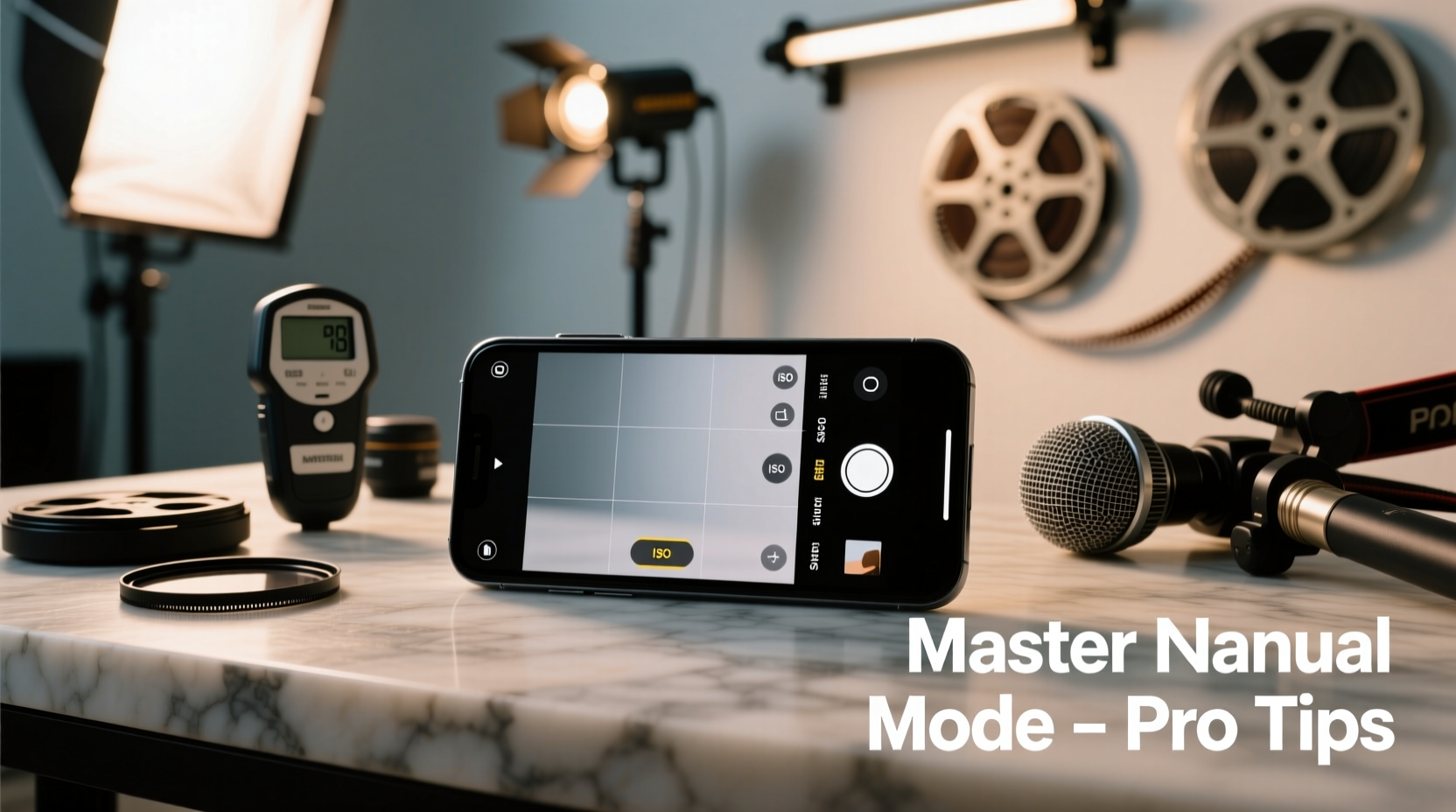
Manual mode gives you direct control over core photographic parameters: ISO, shutter speed, white balance, focus, and exposure compensation. Unlike auto mode, where the phone decides these settings based on algorithms, manual mode lets you make deliberate choices that match your vision.
This level of control is essential when dealing with challenging lighting conditions — such as dim interiors, high-contrast scenes, or fast-moving subjects — where automatic systems often fail. It also allows for consistent exposure across a series of shots, which is crucial for time-lapses, panoramas, or social media content requiring visual continuity.
Key Settings in Manual Mode Explained
To shoot like a pro, you must understand what each setting does and how they interact. Think of them as tools in a photographer’s kit — each serving a distinct purpose, but most effective when used together.
ISO: Sensitivity to Light
ISO determines how sensitive your sensor is to light. Lower values (like ISO 50–100) produce clean, noise-free images but require plenty of light. Higher ISO (800+) brightens dark scenes but introduces grain or digital noise.
For best quality, keep ISO as low as possible. Only increase it when necessary, and never rely on high ISO to compensate for poor lighting without adjusting other settings first.
Shutter Speed: Capturing Time
Shutter speed controls how long the sensor is exposed to light. Fast speeds (1/1000 sec) freeze motion — ideal for sports or action shots. Slow speeds (1/2 sec or longer) allow more light in and create motion blur, useful for light trails, waterfalls, or artistic effects.
However, slow shutter speeds require stability. Even slight hand movements cause blur, so use a tripod or rest your phone securely.
Aperture: Depth of Field (Limited on Phones)
Most smartphones have fixed aperture lenses, meaning you can’t change the f-stop manually. However, newer models with multiple lenses offer simulated depth-of-field effects through software. True aperture control remains limited, but understanding its role helps you appreciate how background blur (bokeh) is created and how it affects exposure.
White Balance: Color Accuracy
White balance ensures colors appear natural under different light sources. Auto white balance works decently, but manual selection prevents unwanted color casts — such as orange tints under incandescent lights or blue tones in shade.
Set white balance according to your environment: Tungsten (~3200K) for indoor bulbs, Daylight (~5500K) for outdoors, Cloudy (~6500K) for overcast days. Custom presets allow fine-tuning for studio lighting or mixed environments.
Focus: Sharpness Control
Tap-to-focus is standard, but manual focus gives precise control. Slide the focus ring (if available in your app) to adjust sharpness distance. This is especially useful in macro photography or when shooting through glass or fences.
“Manual focus eliminates guesswork. When you know exactly where the plane of focus should be, you’re no longer relying on the phone’s contrast detection to get it right.” — Daniel Reyes, Mobile Photography Instructor
Step-by-Step Guide to Shooting in Manual Mode
Mastering manual mode isn’t about memorizing numbers — it’s about developing intuition through practice. Follow this sequence to build confidence and consistency.
- Choose the Right App: Built-in camera apps often limit manual access. Download a professional-grade app like ProCamera (iOS), Moment Pro Camera, Open Camera (Android), or Adobe Lightroom Mobile for full control.
- Stabilize Your Phone: Place your phone on a mini tripod, lean it against a wall, or use a phone clamp. Stability is non-negotiable for manual exposure.
- Set ISO First: Begin with ISO 100 in daylight or ISO 400–800 indoors. Avoid going above ISO 1600 unless absolutely necessary.
- Select Shutter Speed: For handheld shots, stay above 1/60 sec. For motion blur, drop below 1/15 sec and stabilize the device.
- Adjust White Balance: Match it to your lighting. If colors look off, switch to custom Kelvin mode and tweak until whites appear neutral.
- Manually Focus: Tap to set approximate focus, then fine-tune using the focus slider. Zoom in digitally to check sharpness on critical details.
- Check Exposure with Histogram: Enable the histogram in your camera app. A balanced exposure shows data centered without clipping shadows (left edge) or highlights (right edge).
- Take Test Shots and Review: Shoot a few frames, review on a larger screen if possible, and adjust one variable at a time.
Real Example: Low-Light Street Photography
Sophia, an urban photographer in Chicago, wanted to capture the glow of neon signs reflecting on wet pavement after rain. Her phone’s auto mode kept brightening the scene, washing out the mood. She switched to manual mode using the Filmic Pro app.
She set ISO to 400 to minimize noise, shutter speed to 1/4 second to capture light streaks from passing cars, and white balance to Tungsten to correct the warm streetlights. Using a small tabletop tripod, she focused manually on a puddle 3 feet away. The resulting image preserved the deep blues of the night sky, the vivid reds of signage, and subtle reflections — a shot that felt cinematic and intentional.
Without manual control, the dynamic range would have been compressed, colors distorted, and motion blurred unintentionally. This example shows how technical knowledge enables artistic expression.
Do’s and Don’ts: Quick Reference Table
| Do | Don't |
|---|---|
| Use a tripod for shutter speeds slower than 1/15 sec | Handhold during long exposures |
| Keep ISO under 800 for cleaner images | Rely on ISO above 1600 unless unavoidable |
| Use the histogram to judge exposure | Trust the screen brightness alone |
| Shoot in RAW format when possible | Only use JPEG for critical work |
| Adjust one setting at a time | Change multiple variables simultaneously |
Pro Checklist: Mastering Smartphone Manual Mode
- ✅ Use a third-party camera app with full manual controls
- ✅ Stabilize your phone before adjusting shutter speed
- ✅ Set ISO based on available light (low = better quality)
- ✅ Choose shutter speed based on subject motion and stability
- ✅ Manually set white balance instead of relying on auto
- ✅ Fine-tune focus using manual focus slider
- ✅ Enable histogram to monitor exposure accuracy
- ✅ Shoot in RAW for maximum editing flexibility
- ✅ Review test shots critically before finalizing settings
- ✅ Practice in varied lighting conditions weekly
Frequently Asked Questions
Can all smartphones use manual camera mode?
No, not all phones support full manual control natively. Most modern mid-range and flagship devices do, but you’ll need a compatible app like Open Camera, ProCam, or Adobe Lightroom to access ISO, shutter speed, and white balance adjustments. Check your phone’s specifications and app compatibility before assuming full control is available.
Is shooting in RAW necessary when using manual mode?
While not mandatory, shooting in RAW greatly enhances post-processing potential. RAW files retain more detail in shadows and highlights, allowing you to recover blown-out skies or lift dark areas without introducing artifacts. If storage space allows, always opt for RAW + JPEG when capturing important scenes in manual mode.
Why does my photo look blurry even with manual settings correct?
Blur can result from several factors: camera shake during long exposures, incorrect focus distance, or subject movement. Ensure your phone is stable, confirm focus is locked on the intended subject (zoom in to verify), and consider increasing shutter speed if your subject is moving. Also, lens smudges can reduce sharpness — wipe the lens gently before shooting.
Conclusion: From Casual Snaps to Professional Results
Using your smartphone camera in manual mode shifts you from passive snapshot-taker to active creator. You’re no longer dependent on algorithms guessing your intent — you define exposure, color, motion, and focus with intention. The learning curve may seem steep at first, but each adjustment builds muscle memory and visual literacy.
The best photographers aren’t those with the most expensive gear, but those who understand how light, time, and technology interact. With practice, your smartphone becomes an extension of your creative eye. Start with one setting — say, shutter speed — and master it in different environments. Combine it with ISO control, then add white balance. Soon, you’ll be making deliberate decisions that elevate every image.




 浙公网安备
33010002000092号
浙公网安备
33010002000092号 浙B2-20120091-4
Comments
No comments yet. Why don't you start the discussion?