
When your HP laptop refuses to power up, it can feel like a digital emergency. Whether you rely on it for work, school, or personal use, a non-responsive device disrupts your routine. The good news is that many \"no power\" issues aren’t permanent hardware failures. In fact, most cases stem from simple, fixable causes like drained batteries, faulty chargers, or temporary system glitches. This guide walks you through proven, step-by-step methods to revive your HP laptop—without needing technical expertise.
1. Confirm the Basics: Rule Out Simple Causes
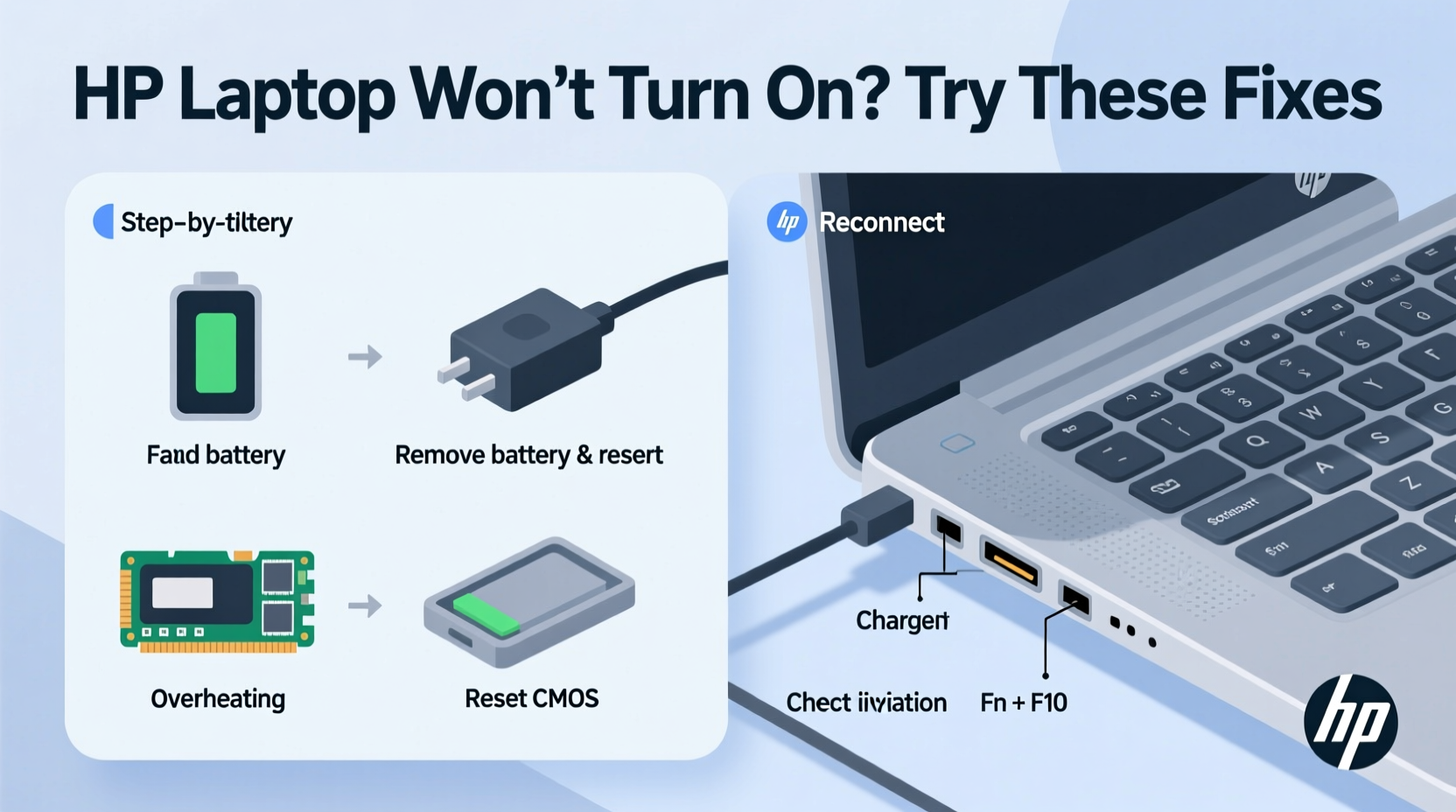
Before diving into complex diagnostics, verify the fundamentals. Many users overlook basic power sources in their frustration. Start here:
- Ensure the charger is securely plugged into both the wall outlet and the laptop.
- Check if the power adapter light (if present) is illuminated.
- Test the outlet with another device to confirm it’s working.
- Inspect the charging cable for frays, kinks, or bent connectors.
If your laptop has a removable battery, take it out and reinsert it firmly. Sometimes, a loose connection prevents power delivery even when everything else appears functional.
2. Perform a Hard Reset (Power Cycle)
A hard reset clears residual power from the system and resets internal components—a surprisingly effective fix for laptops that won’t turn on. Follow this sequence carefully:
- Unplug the AC adapter from the laptop.
- If the battery is removable, remove it. If not, skip to step 4.
- Press and hold the power button for 15 seconds to drain stored electricity.
- Reconnect the battery (if removed).
- Plug in the charger—do not connect any other peripherals.
- Press the power button once.
This process often resolves issues caused by electrical buildup or firmware hiccups. According to HP support forums, over 30% of “no power” cases are resolved with a successful hard reset.
“Residual static charge can lock up motherboard circuits. A full power cycle resets these pathways and restores normal operation.” — David Lin, Senior Hardware Technician at PC Repair Hub
3. Diagnose Power Source and Battery Issues
Next, isolate whether the problem lies with the battery, charger, or internal hardware. Use the table below to identify symptoms and solutions:
| Symptom | Likely Cause | Fix |
|---|---|---|
| No lights, no fan spin, completely dead | Faulty charger, dead battery, or motherboard issue | Test with known-good charger; perform hard reset |
| Charging light flickers but laptop won’t start | Battery failure or poor connection | Remove and reseat battery; try without battery (if possible) |
| Laptop powers on briefly then shuts off | Overheating, corrupted BIOS, or failing component | Cool down device; attempt BIOS reset via key combo |
If you have access to another HP laptop with the same charger model, swap adapters temporarily. If the second laptop powers on with your charger, the issue likely isn’t the adapter. Conversely, if your laptop works with a different charger, replace yours immediately.
4. Test Without Battery (AC-Only Boot)
For laptops with internal batteries, this step requires caution—but for models with removable batteries, it's straightforward:
- Power off the laptop and unplug the charger.
- Remove the battery completely.
- Reconnect only the AC adapter.
- Press the power button.
If the laptop turns on without the battery, the issue is likely a defective or deeply discharged battery. Even if the battery appears intact, internal cell degradation can prevent proper power delivery. In such cases, replacement is the best solution.
Note: Some HP models (e.g., Pavilion x360, Envy series) may not boot without a battery due to firmware restrictions. If nothing happens, reinsert the battery and proceed to advanced diagnostics.
5. Check for Display or Silent Boot Issues
Sometimes, the laptop *is* turning on—but the screen remains black. Don't assume total failure. Look for subtle signs:
- Is the fan spinning briefly after pressing power?
- Does the Caps Lock or Num Lock indicator flash when pressed?
- Do any LED lights pulse or change color?
If yes, the system may be booting silently. Connect an external monitor via HDMI. Press Win + P repeatedly after powering on to toggle display modes. If the external screen works, your laptop’s display or hinge cable may be damaged—not the mainboard.
Mini Case Study: Sarah’s Pavilion That Wouldn’t Start
Sarah, a freelance writer, left her HP Pavilion 15 overnight after a long session. The next morning, pressing the power button did nothing—no lights, no sound. She tried multiple outlets and checked the charger port. Nothing worked.
She followed the hard reset procedure: unplugged the charger, held the power button for 15 seconds, then plugged back in. Still no response. Then she noticed the charger was warm but the laptop end wasn’t clicking in securely. Upon closer inspection, the DC jack was slightly loose.
She took it to a repair shop, where they confirmed a worn charging port. After soldering the connection, the laptop powered on normally. Lesson: Physical wear can mimic total system failure. Always inspect ports and cables closely.
Advanced Fixes: BIOS Reset and RAM Check
If basic steps fail, consider deeper hardware resets. HP laptops support a built-in BIOS recovery mode triggered by specific key combinations during startup.
To attempt a BIOS reset:
- Unplug the charger and remove the battery (if possible).
- Hold the power button for 60 seconds to fully discharge.
- Reconnect only the charger (no battery).
- Press and hold Win + B, then press the power button while still holding the keys.
- Keep holding for 3–5 seconds. If successful, you’ll hear beeps or see diagnostic lights.
This forces the system to reload default BIOS settings, which can resolve corruption-induced boot blocks.
Another potential culprit: faulty RAM. Memory modules can become loose over time, especially in laptops carried frequently. If comfortable, open the rear panel (check HP’s official disassembly guides online), remove the RAM sticks, clean contacts with a soft eraser, and reseat them firmly.
Frequently Asked Questions
Why does my HP laptop show no signs of life?
No lights, sounds, or fan movement usually indicates a complete power failure. Causes include a dead charger, failed battery, damaged charging port, or motherboard issue. Start with a hard reset and test with a known-working charger.
Can a software update prevent my laptop from turning on?
Rarely. Software doesn’t block initial power-on. However, a corrupted update can freeze the system just after boot, mimicking a power issue. If fans spin or lights come on, the problem is likely post-power firmware-related.
How do I know if my HP laptop’s motherboard is dead?
True motherboard failure is uncommon. Signs include consistent no-power behavior across tested chargers and batteries, no response to hard resets, and no diagnostic beeps or LED patterns. Professional diagnosis is recommended before concluding this.
Final Checklist: What to Do When Your HP Laptop Won’t Turn On
- Verify the power outlet and charger function.
- Inspect the charging cable and port for damage.
- Perform a hard reset (drain residual power).
- Try booting without the battery (if removable).
- Connect an external monitor to rule out display failure.
- Attempt BIOS reset using Win + B.
- Reseat RAM modules if accessible.
- Seek professional help if all else fails.
Conclusion: Take Action Before Replacing
Most HP laptops that won’t turn on don’t need replacement—just methodical troubleshooting. By starting with simple checks and progressing logically, you can save time, money, and unnecessary stress. Many fixes take under ten minutes and cost nothing. Even if the issue persists, knowing you’ve ruled out common causes gives you stronger footing when seeking repair services.




 浙公网安备
33010002000092号
浙公网安备
33010002000092号 浙B2-20120091-4
Comments
No comments yet. Why don't you start the discussion?