
Having your HP printer go offline can disrupt work, delay important documents, and cause unnecessary frustration. Whether you're using a Windows PC or a Mac, an \"offline\" status often stems from communication breakdowns between your device and the printer—ranging from simple connection glitches to outdated drivers or network misconfigurations. The good news is that most of these issues are fixable with systematic troubleshooting. This guide walks through proven solutions tailored for both operating systems, helping you restore printing functionality efficiently.
Understanding Why Your HP Printer Goes Offline
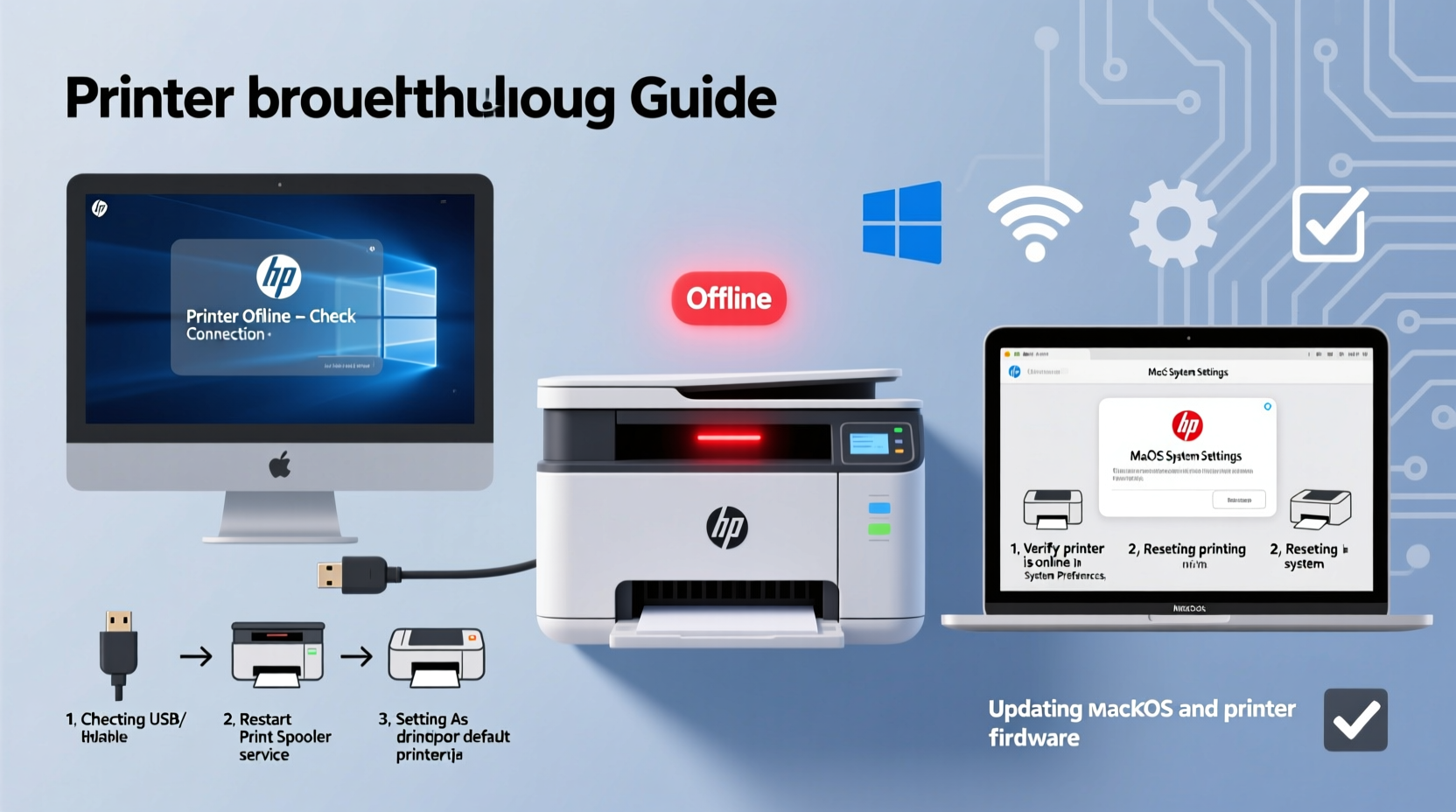
An HP printer showing as “offline” doesn’t necessarily mean it’s powered off. Instead, the computer fails to communicate with it due to software, hardware, or network-related causes. Common triggers include:
- Wi-Fi signal drops or router instability
- Outdated or corrupted printer drivers
- Incorrect default printer settings
- Firewall or antivirus blocking communication
- USB cable faults (for wired setups)
- Printer stuck in sleep mode or error state
Before diving into complex diagnostics, verify basic indicators: Is the printer powered on? Are there any blinking lights signaling errors? Is paper jammed or ink low? Resolving physical issues first ensures your troubleshooting targets the right layer.
Step-by-Step Fixes for Windows Users
Windows users often encounter offline status due to spooler service hiccups or incorrect printer configurations. Follow this sequence to isolate and resolve the issue:
- Check Physical Connections: Ensure the printer is on, within range (if wireless), and connected properly via USB or Wi-Fi.
- Set Printer Online Manually: Open Settings > Devices > Printers & scanners. Select your HP printer, click “Open queue,” then choose “See what’s printing.” From the menu, uncheck “Use Printer Offline” if enabled.
- Restart Print Spooler Service: Press Win + R, type
services.msc, locate “Print Spooler,” right-click and select Restart. If stopped, start it manually. - Reinstall HP Printer Driver: Go to Device Manager, expand Print queues, right-click your HP model, and uninstall. Reboot and let Windows reinstall it automatically—or download the latest driver from HP’s official support site.
- Run HP Print and Scan Doctor: Download this free diagnostic tool from HP. It automatically detects common problems and applies fixes for connectivity, print jobs, and offline status.
Essential Solutions for Mac Users
macOS handles printers differently than Windows, relying heavily on CUPS (Common Unix Printing System). When an HP printer appears offline on a Mac, try these targeted steps:
- Verify Printer Status in System Settings: Go to Apple Menu > System Settings > Printers & Scanners. Click your HP printer. If it says “Offline,” click the toggle to reconnect.
- Delete and Re-add the Printer: Remove the current entry by clicking the minus (-) button, then click the plus (+) to re-add it. macOS usually auto-detects available printers on the network.
- Reset the Printing System: Right-click in the printer list area and select “Reset printing system.” This clears all configurations—re-add your printer afterward.
- Update macOS and HP Software: Check for system updates under System Settings > General > Software Update. Also, install HP Easy Admin or HP Smart app from the App Store for better control.
- Check Bonjour and Network Discovery: Ensure your Mac and printer are on the same network subnet. Use the Terminal command
ping [printer-IP]to test connectivity.
“Network printers rely on consistent IP assignment. Assigning a static IP to your HP printer prevents future dropouts.” — David Lin, IT Infrastructure Specialist
Universal Troubleshooting Checklist
Regardless of your OS, apply this universal checklist to eliminate common root causes:
- ✅ Confirm printer power and Wi-Fi/Ethernet connection
- ✅ Restart both printer and router
- ✅ Ensure correct default printer selection on your device
- ✅ Update or reinstall the latest HP driver
- ✅ Disable firewall or antivirus temporarily to test interference
- ✅ Run built-in HP diagnostics (HP Print and Scan Doctor or HP Smart app)
- ✅ Verify IP address consistency (especially after router resets)
Comparative Table: Windows vs. Mac Troubleshooting Steps
| Action | Windows Method | Mac Method |
|---|---|---|
| Access Printer Settings | Settings > Devices > Printers & scanners | System Settings > Printers & Scanners |
| Force Online Mode | Uncheck “Use Printer Offline” in print queue | Click “Resume” or reselect printer |
| Clear Print Queue | Stop Print Spooler, delete files in C:\\Windows\\System32\\spool\\PRINTERS, restart service | Cancel jobs in queue or reset printing system |
| Diagnostic Tool | HP Print and Scan Doctor | HP Smart App or Console logs |
| Driver Update Source | HP Support Website or Windows Update | App Store or HP Support Website |
Real-World Example: Fixing a Persistent Offline Issue
Sarah, a freelance designer in Portland, relied on her HP Envy 6055 for client contracts and invoices. One Monday morning, her Mac showed the printer as offline despite no changes to her setup. She verified Wi-Fi strength, restarted the printer, and even reconnected it to the network—but the issue persisted.
After reviewing system logs, she noticed repeated timeouts when communicating with the printer’s IP address. A quick check revealed her router had reassigned the printer a new IP after a firmware update. Sarah accessed her router settings, reserved the original IP for the printer’s MAC address, and re-added the device on her Mac. Within minutes, the printer appeared online and resumed normal operation.
This case highlights how dynamic IP assignment can silently break printer connectivity—a fixable issue once identified.
Frequently Asked Questions
Why does my HP printer keep going offline randomly?
Random disconnections are often caused by weak Wi-Fi signals, power-saving modes on the printer, or IP conflicts. Set a static IP for the printer and disable sleep mode in its settings to maintain stable communication.
Can USB cables cause offline status?
Absolutely. Damaged or low-quality USB cables can interrupt data flow, causing the system to mark the printer as offline. Try a high-speed, shielded USB cable and plug into a different USB port on your computer.
Does updating macOS or Windows affect printer connectivity?
Yes. Major OS updates sometimes replace or remove legacy drivers. After an update, always check if your HP printer is recognized and reinstall drivers if needed. Using HP’s official tools ensures compatibility.
Final Tips for Preventing Future Offline Errors
Maintaining reliable printer uptime involves proactive habits. Place your printer within optimal range of your router, preferably avoiding thick walls or electronic interference. Regularly update firmware through the HP Smart app. Schedule monthly reboots of both printer and router to clear memory leaks and refresh connections.
For shared office environments, assign static IPs to all networked printers. Document each device’s configuration so recovery is fast during outages. Lastly, avoid using generic drivers—always opt for model-specific ones from HP’s website.
Conclusion
Resolving an HP printer offline issue on Windows or Mac doesn’t require technical expertise—just methodical troubleshooting. From checking simple settings like “Use Printer Offline” to deeper fixes like resetting the print spooler or assigning static IPs, each step brings you closer to seamless printing. Don’t tolerate recurring disruptions. Apply these strategies today, and ensure your HP printer remains a dependable part of your workflow.




 浙公网安备
33010002000092号
浙公网安备
33010002000092号 浙B2-20120091-4
Comments
No comments yet. Why don't you start the discussion?