
When your HP printer shows as “offline,” it can disrupt work, delay important documents, and create unnecessary stress. This status doesn’t always mean the printer is physically disconnected—often, it’s a communication issue between your device and the printer. Whether you're using a wired USB connection or a wireless network setup, multiple factors could trigger the offline alert. The good news: most causes are fixable with straightforward troubleshooting. By methodically checking connections, configurations, and system settings, you can restore your HP printer to an “online” state without professional help.
Understanding Why Your HP Printer Goes Offline
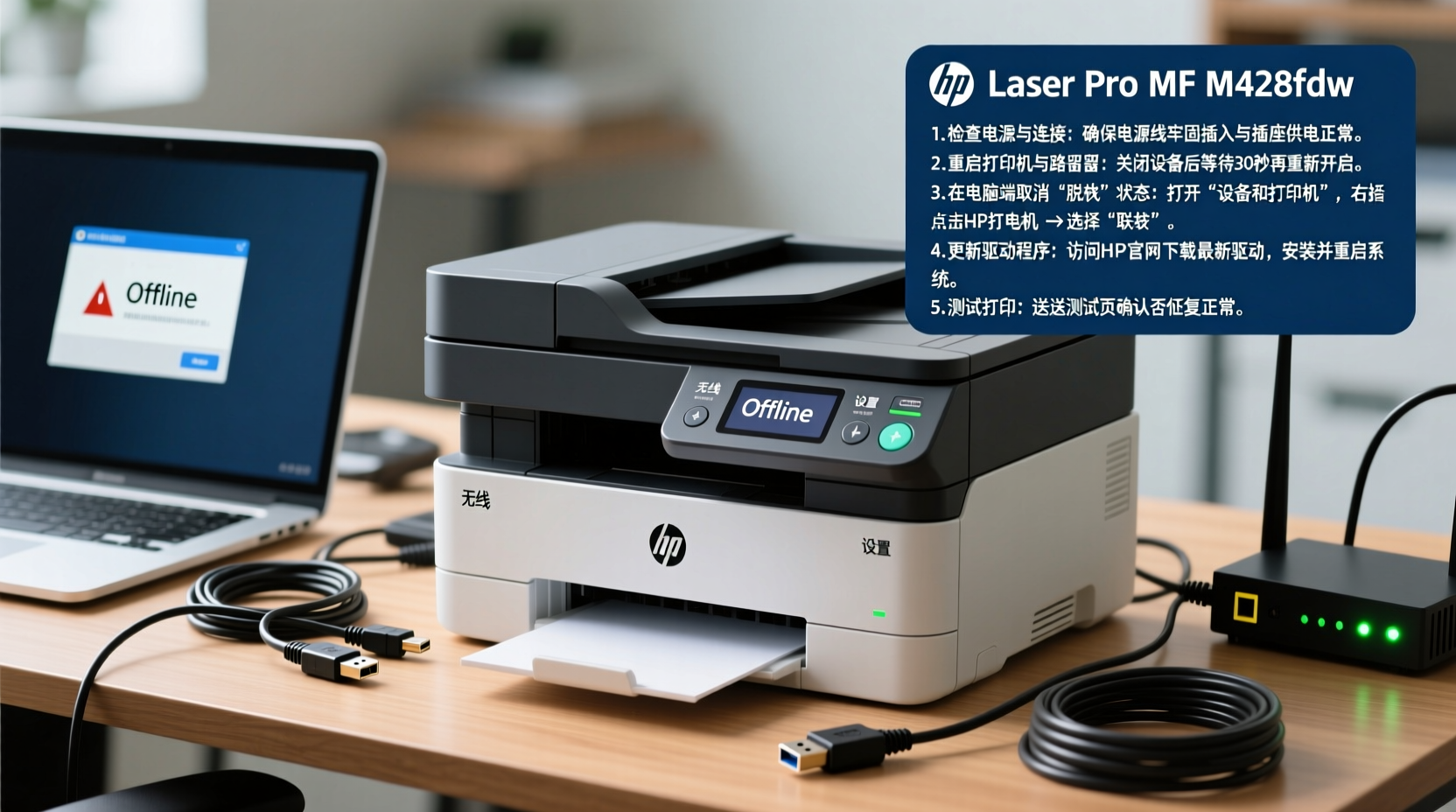
An HP printer may appear offline for several reasons, ranging from simple connectivity glitches to deeper software conflicts. Common triggers include Wi-Fi signal drops, outdated drivers, incorrect default printer settings, or even temporary firmware hiccups. In shared office environments, multiple users attempting to print simultaneously can also confuse the spooler service, leading Windows or macOS to flag the printer as unavailable.
Before jumping into complex fixes, it's essential to determine whether the problem is local (affecting one computer) or network-wide (affecting all devices). If only one device reports the printer as offline, the issue likely lies in that machine’s settings. If all devices show the same status, the root cause may be the printer itself, the router, or the network configuration.
Step-by-Step Guide to Bring Your HP Printer Back Online
Follow this structured sequence to diagnose and resolve the offline issue efficiently. Each step builds on the previous one, eliminating potential causes in order of likelihood and complexity.
- Check Physical Status and Power
Ensure the printer is powered on and not displaying any error messages like paper jams or low ink. A blinking light or warning symbol may indicate a hardware issue that needs resolution before reconnection. - Verify Connection Type
Determine if your printer uses USB, Wi-Fi, or Ethernet. For wireless models, confirm that the printer is connected to the same network as your computer. On the printer’s screen, navigate to Settings > Network > Wireless Settings to view current connection details. - Restart All Devices
Power off the printer, router, and your computer. Wait 30 seconds, then power them back on in this order: router → printer → computer. This reset clears temporary glitches in network communication and refreshes the IP assignment. - Check Printer Status in Operating System
On Windows: Open Settings > Devices > Printers & scanners. Click your HP printer and ensure it’s not set to “Use Printer Offline.” If it is, toggle it off. On macOS: Go to System Settings > Printers & Scanners, select the printer, and verify the status under the name. - Clear Print Queue
A stalled document can block new jobs and trigger an offline appearance. Open the print queue (via Control Panel > Devices and Printers > right-click printer > See what’s printing), cancel all pending jobs, and restart the Print Spooler service (Windows: Services.msc > Print Spooler > Restart). - Reconnect Printer if Necessary
If the printer remains undetected, remove it from the list and re-add it using the built-in OS printer setup tool. Use the HP Smart app for guided assistance, especially for wireless models.
Common Fixes by Connection Type
Different setups require different approaches. The table below outlines targeted solutions based on how your HP printer connects to your network.
| Connection Type | Common Issues | Recommended Actions |
|---|---|---|
| USB | Loose cable, driver conflict, port failure | Try a different USB cable and port; reinstall HP drivers via HP Support Assistant |
| Wi-Fi | Weak signal, wrong network, IP conflict | Move printer closer to router; reconnect via WPS or manual setup; assign static IP if needed |
| Ethernet | Cable damage, router port issue | Test with known-working cable; try a different LAN port on the router |
| Shared Network Printer | Host PC turned off, permissions | Ensure host computer is on and sharing enabled; use direct IP printing instead |
Expert Insight: What Technicians Recommend
Seasoned IT support professionals emphasize consistency in maintenance and configuration. Many recurring printer issues stem from overlooked updates or unstable network environments.
“Over 70% of ‘offline’ printer cases we see are due to outdated drivers or misconfigured power management settings. Keeping firmware updated and disabling printer sleep modes can prevent most disruptions.” — Raj Mehta, Senior IT Support Specialist, TechFlow Solutions
HP regularly releases firmware updates that improve stability, security, and compatibility with newer operating systems. Ignoring these updates increases the risk of communication breakdowns. Use the HP Smart app or visit support.hp.com to manually check for updates specific to your model.
Troubleshooting Checklist
Use this concise checklist to ensure no step is missed during recovery:
- ✅ Printer is powered on and has no error lights
- ✅ Connected to the correct Wi-Fi network (if wireless)
- ✅ Computer and printer are on the same network
- ✅ “Use Printer Offline” mode is disabled
- ✅ Print queue is cleared and spooler restarted
- ✅ Latest HP drivers and firmware are installed
- ✅ Firewall or antivirus isn’t blocking printer communication
- ✅ Test print sent successfully after troubleshooting
Real Example: Office Printer Recovery
In a small marketing firm, the shared HP LaserJet Pro MFP M428fdw suddenly appeared offline for all team members. Initial checks showed the printer was on and had Wi-Fi signal, but no jobs were processing. The IT manager followed the standard procedure: restarted the printer and router, verified network alignment, and confirmed that “Use Printer Offline” was off across all machines. Still, the issue persisted.
The breakthrough came when he accessed the printer’s embedded web server (via its IP address in a browser) and noticed a firmware update notification. After installing the update, the printer automatically rejoined the network and resumed normal operation. The root cause? A recent Windows update had introduced a protocol mismatch that the outdated firmware couldn’t handle. This case underscores the importance of keeping both system and printer software in sync.
Frequently Asked Questions
Why does my HP printer keep going offline randomly?
Random offline behavior is often caused by power-saving settings on the printer or computer, weak Wi-Fi signals, or automatic driver updates that temporarily disrupt communication. Disable sleep mode on the printer and ensure your router provides stable coverage in the printer’s location.
Can a firewall block my HP printer from going online?
Yes. Overly aggressive firewall or antivirus software can prevent your computer from communicating with the printer. Temporarily disable the firewall to test—if the printer comes online, adjust the settings to allow HP services (e.g., HP Status Service, HP Device Monitor) through the firewall.
How do I print directly without relying on the network?
You can use a USB cable to connect the printer directly to your computer. Alternatively, set up Wi-Fi Direct on compatible HP models, which creates a direct wireless link without needing a router. This is useful during network outages.
Final Steps and Long-Term Prevention
Once your HP printer is back online, take preventive measures to reduce future disruptions. Schedule monthly checks for firmware and driver updates. Label cables clearly and use surge protectors to avoid physical damage. For wireless printers, consider placing them within optimal range of the router or using a Wi-Fi extender if necessary.
Regular maintenance—not just reactive fixes—ensures consistent performance. Printing a network configuration page weekly can help monitor IP stability and signal strength over time.
“Don’t wait for a crisis. Treat your printer like any critical business tool—with routine care and monitoring.” — Lisa Tran, Managed IT Services Director
Take Action Today
Your HP printer doesn’t have to stay offline. With systematic troubleshooting and a few smart habits, you can restore functionality quickly and minimize downtime. Apply the steps outlined here, use the checklist as a reference, and empower yourself to handle future issues confidently. Share your experience or ask questions in the comments—your insight might help another user facing the same challenge.




 浙公网安备
33010002000092号
浙公网安备
33010002000092号 浙B2-20120091-4
Comments
No comments yet. Why don't you start the discussion?