
If you've ever settled in for a much-anticipated episode only to be met with endless buffering, black screens, or sudden crashes, you're not alone. Hulu glitching is a common frustration that affects users across smart TVs, streaming devices, mobile phones, and tablets. While the issue may seem random, most playback and connection problems stem from identifiable causes—ranging from network instability to outdated app versions. The good news: nearly all of these issues can be resolved with systematic troubleshooting.
This guide breaks down the root causes of Hulu playback failures and delivers actionable solutions. Whether you're dealing with constant rebuffering, error codes like \"Playback Error\" or \"We’re having trouble loading this video,\" or intermittent crashes, the following steps will help restore smooth streaming.
Understanding Common Hulu Playback Issues
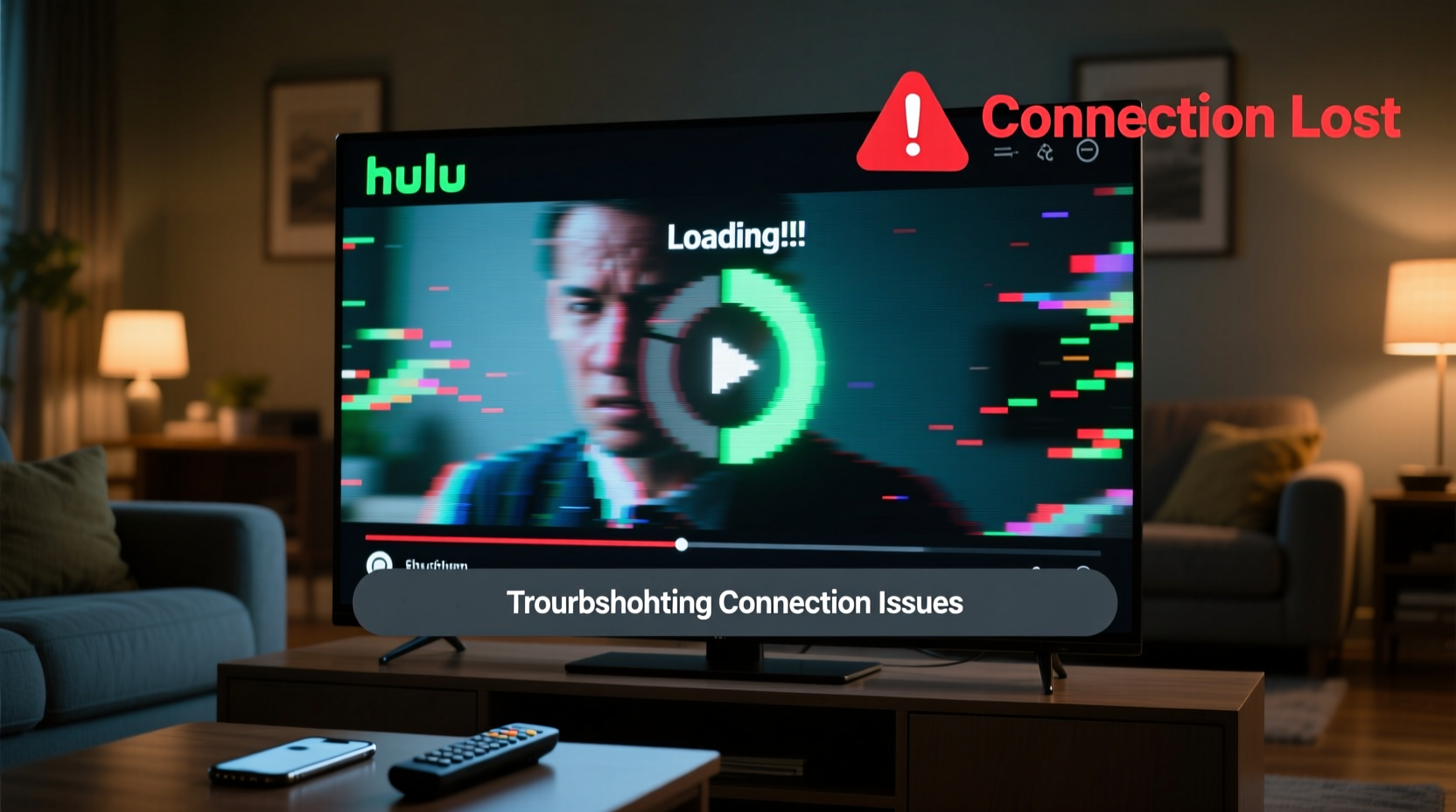
Hulu’s interface is generally reliable, but when glitches occur, they tend to fall into predictable categories:
- Buffering or low-quality playback: Video stutters, pauses, or drops to lower resolution.
- Playback errors: Messages like “We’re having trouble playing this video” or “Error 500.”
- App crashes: Hulu closes unexpectedly during use.
- Connection timeouts: Unable to load content despite internet access.
- Audio-video sync issues: Sound lags behind or cuts out entirely.
These symptoms often point to one or more underlying factors: weak Wi-Fi, bandwidth congestion, device-specific bugs, corrupted cache, or temporary server-side disruptions on Hulu’s end.
Step-by-Step Troubleshooting Guide
Follow this logical sequence to isolate and fix the cause of Hulu glitching:
- Check Hulu’s service status. Visit Downdetector or similar outage trackers to confirm whether the problem is widespread. If Hulu’s servers are down, no local fix will work until they’re restored.
- Restart your streaming device and router. Power cycle both your device (TV, Fire Stick, Roku, etc.) and your modem/router. Unplug for 30 seconds before reconnecting.
- Test your internet speed. Hulu recommends at least 3 Mbps for standard definition and 8 Mbps for HD. Use Speedtest.net to verify your current speeds. If below threshold, consider upgrading your plan or reducing connected devices.
- Switch from Wi-Fi to Ethernet (if possible). Wired connections are far more stable than wireless, especially for 4K or live TV streaming.
- Move closer to your router or use a Wi-Fi extender. Signal strength degrades over distance and through walls. Position matters.
- Close background apps. On phones, tablets, or computers, other apps may be consuming bandwidth or system resources.
- Clear the Hulu app cache. Over time, cached data can become corrupted. Clear it via your device settings without losing account info.
- Update the Hulu app. Outdated versions may lack critical bug fixes. Check your app store for updates.
- Reinstall the Hulu app. If clearing cache doesn’t help, uninstall and reinstall the app to reset its configuration.
- Log out and back into your account. This refreshes authentication tokens that may have expired or corrupted.
Device-Specific Fixes for Persistent Glitches
Different platforms handle Hulu differently. What works on an iPhone might not apply to a Samsung Smart TV. Here’s how to troubleshoot by device type:
| Device | Common Issue | Solution |
|---|---|---|
| Smart TVs (Samsung, LG, Vizio) | App crashes on launch | Clear app data, update firmware, or factory reset the app. |
| Amazon Fire Stick / Fire TV | Buffering despite good speed | Disable Data Saver mode under Settings > Preferences. |
| Roku | \"We’re having trouble loading this video\" | Remove and re-add Hulu channel; check for system updates. |
| iOS / Android | Audio plays but no video | Clear cache, disable battery saver, or reinstall app. |
| Web Browser (Chrome, Safari) | Playback error or black screen | Disable ad blockers, clear cookies, or try incognito mode. |
Mini Case Study: Resolving Chronic Buffering on a Roku Ultra
A user in Austin reported persistent buffering on their Roku Ultra despite having a 100 Mbps fiber connection. Initial tests showed strong signal, yet Hulu would stall every 2–3 minutes. After ruling out server issues and updating the device, the problem persisted. The breakthrough came when they checked their router’s Quality of Service (QoS) settings. Another household member was using a cloud backup tool that consumed upstream bandwidth, indirectly affecting streaming stability. By prioritizing the Roku in QoS settings and scheduling backups for off-hours, the buffering stopped completely. This highlights how hidden network activity can disrupt even high-speed connections.
Expert Insight on Streaming Stability
“Streaming services like Hulu are highly sensitive to packet loss and latency, not just raw speed. A connection with 5% packet loss will stutter more than a slower but stable one.” — Raj Patel, Network Engineer & Home Media Specialist
This insight underscores why speed tests alone don’t tell the full story. Tools like ping tests (e.g., pinging google.com or hulu.com) can reveal latency spikes or dropped packets. Consistently high ping (>100ms) or timeouts indicate network congestion or routing issues worth addressing.
Troubleshooting Checklist
Use this checklist to methodically resolve Hulu playback issues:
- ✅ Confirm Hulu is not experiencing an outage
- ✅ Restart your router and streaming device
- ✅ Run a speed and ping test
- ✅ Switch to 5GHz Wi-Fi if available
- ✅ Close bandwidth-heavy apps (Zoom, downloads, cloud sync)
- ✅ Update the Hulu app and device firmware
- ✅ Clear Hulu app cache or data
- ✅ Reinstall the Hulu app
- ✅ Log out and log back into your Hulu account
- ✅ Try a different device to isolate the issue
Frequently Asked Questions
Why does Hulu keep saying “We’re having trouble playing this video”?
This message typically indicates a connection interruption between your device and Hulu’s servers. It can result from poor Wi-Fi, ISP throttling, app corruption, or temporary server errors. Follow the troubleshooting steps above, starting with a restart and speed test.
Does Hulu work better on certain devices?
Yes. Devices with faster processors and optimized software—like Apple TV, newer Fire Sticks, and select Samsung TVs—tend to deliver smoother performance. Older or budget devices may struggle with 4K content or live streams due to hardware limitations.
Can my internet provider be slowing down Hulu?
Possible. Some ISPs throttle video streaming during peak hours. Using a wired connection, enabling Quality of Service (QoS) on your router, or connecting via a VPN may help bypass throttling, though results vary by provider.
Final Steps and When to Contact Support
If you’ve completed all the steps above and Hulu still glitches, it’s time to escalate. Contact Hulu Support directly with details: your device model, internet speed results, error messages, and steps already attempted. They can check account-level issues or escalate to technical teams if needed.
Additionally, if multiple streaming apps (Netflix, Disney+, etc.) behave poorly, the issue likely lies with your network or hardware. Consider upgrading your router, using a mesh Wi-Fi system, or consulting a network technician for deeper diagnostics.
Conclusion: Take Control of Your Streaming Experience
Hulu glitching doesn’t have to ruin your viewing experience. Most playback and connection issues are fixable with structured troubleshooting and a bit of technical awareness. From restarting your router to optimizing your network setup, each step brings you closer to seamless streaming. Don’t accept constant buffering as normal—your entertainment deserves better.




 浙公网安备
33010002000092号
浙公网安备
33010002000092号 浙B2-20120091-4
Comments
No comments yet. Why don't you start the discussion?