
Many iPhone and iPad users rely on iCloud to keep their data safe and accessible across devices. But over time, something unexpected happens: iCloud storage fills up fast. Suddenly, you're getting notifications that your 5GB free tier is full or that a backup failed due to insufficient space. The root cause? Your iCloud backup has grown far larger than expected. Understanding why this happens—and how to fix it quickly—is essential for maintaining seamless device sync and avoiding costly upgrades.
Why Is My iCloud Backup So Large?
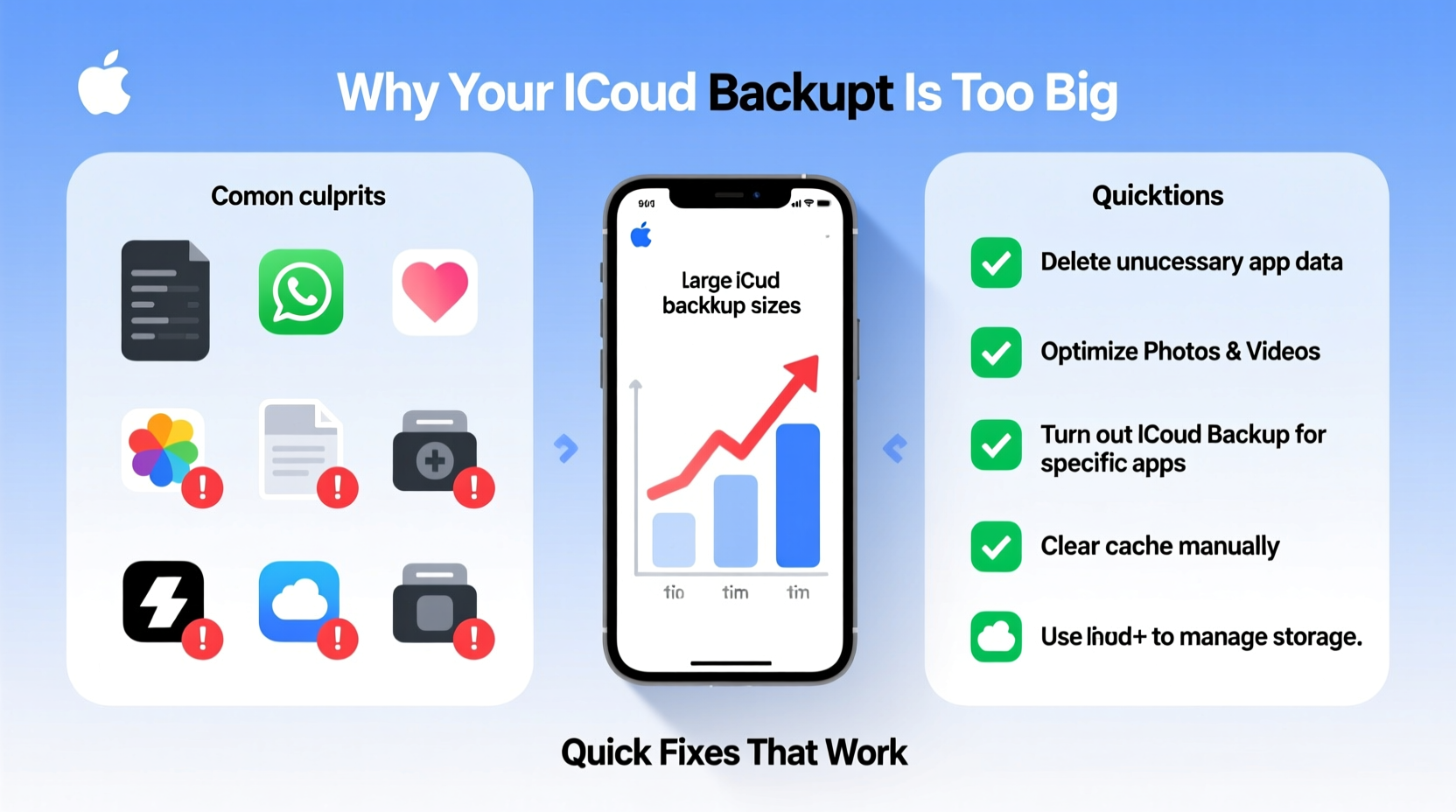
iCloud automatically backs up your device’s apps, settings, photos, messages, and more. While convenient, the process doesn’t always distinguish between essential data and digital clutter. Over months or years, small files accumulate into gigabytes of unnecessary backup weight. Several factors contribute to bloated backups:
- Photos and videos in Camera Roll: High-resolution media from recent iPhones can consume several gigabytes alone.
- App data accumulation: Apps like WhatsApp, Facebook, and games store large caches and documents that sync to iCloud.
- Old messages with attachments: Years of iMessages containing photos, videos, and voice memos are backed up by default.
- Duplicate or redundant files: Some apps save multiple versions of the same file or cache temporary data unnecessarily.
- System logs and temporary files: iOS occasionally includes diagnostic data that inflates backup size.
The result is a backup that may be 2–3x larger than your actual device usage suggests—especially if you haven’t reviewed what’s being backed up in months.
How to Check What’s Taking Up Space in iCloud
Before making changes, identify which apps and services are consuming the most space. Apple provides built-in tools to analyze your iCloud usage.
- Open Settings on your iPhone or iPad.
- Tap your name at the top, then select iCloud.
- Tap Manage Storage (or Storage & Backup on older iOS versions).
- Select Backups.
- Choose your device under “Backups.”
You’ll see a list of apps and the amount of data each contributes to the backup. Look for outliers—apps showing hundreds of MBs or even GBs. Common culprits include:
| App | Typical Backup Size | Is It Necessary? |
|---|---|---|
| WhatsApp Messenger | 500MB – 5GB+ | Sometimes—only if chat history isn't backed up elsewhere |
| 200MB – 1.5GB | No—app data can be re-downloaded | |
| Games (e.g., Clash of Clans) | 100MB – 1GB | Rarely—unless progress isn’t synced to game account |
| Messages | Varies (often >1GB) | Yes—if important conversations need preservation |
| Camera Roll (via iCloud Photos) | Depends on photo count | Only if not using separate cloud storage |
This breakdown helps prioritize cleanup efforts. You might be surprised how much space is taken by apps you rarely use.
Step-by-Step Guide to Reduce iCloud Backup Size
Follow this sequence to trim down your iCloud backup without losing critical data.
- Disable backup for high-data apps: In the Backups menu, tap any app using excessive space and select “Turn Off & Delete.” This removes its data from future backups but keeps it on your device.
- Enable iCloud Photos instead of backing up Camera Roll: Go to Settings > [Your Name] > iCloud > Photos and turn on “iCloud Photos.” Then disable “Photos” in backup settings. This prevents duplication.
- Delete old messages: Go to Settings > Messages > Keep Messages and change from “Forever” to “30 Days” or “1 Year.” Then manually delete long message threads with heavy media.
- Clear Safari and website data: Settings > Safari > Clear History and Website Data. Also consider turning off Safari syncing if not essential.
- Offload unused apps: Settings > General > iPhone Storage > Enable “Offload Unused Apps.” Smaller app footprints mean smaller backups.
- Create a new backup: After changes, go to Settings > [Your Name] > iCloud > iCloud Backup and tap “Back Up Now.” Monitor the new size.
This process typically reduces backup size by 30–70%, depending on initial bloat.
“Most users don’t realize that app cache and temporary files are silently included in iCloud backups. A routine audit can save both space and money.” — Lisa Tran, Mobile Data Optimization Specialist
Mini Case Study: Reducing a 12GB Backup to 4.2GB
Sarah, a freelance photographer, received constant warnings about her full iCloud storage despite having only 64GB on her iPhone. Her backup showed 12.3GB used—impossible given her local storage limit. She followed the audit steps above and discovered:
- WhatsApp was backing up 3.8GB of chat media.
- Facebook cached 1.6GB of images and videos.
- Messages with attachments consumed 4.1GB.
- Her Camera Roll was duplicated in both iCloud Photos and backup.
By disabling WhatsApp and Facebook backups, enabling iCloud Photos exclusively, and limiting message retention to one year, Sarah reduced her next backup to just 4.2GB—a 66% reduction. She avoided upgrading to a paid plan and improved backup speed significantly.
Quick Fixes Checklist
✅ Quick Fixes Checklist: Reduce iCloud Backup Size in Under 15 Minutes
- Review app-specific backup sizes in iCloud settings
- Turn off backup for WhatsApp, Facebook, and other social/media apps
- Enable iCloud Photos and disable separate photo backup
- Set message retention to “1 Year” or less
- Clear Safari history and website data
- Run a new manual backup
- Verify reduced size in Manage Storage
Frequently Asked Questions
Will turning off app backups delete my data?
No. Disabling an app’s backup only stops that data from being saved to iCloud. The app and its content remain fully functional on your device. However, if you erase your phone or set up a new device, that app’s data won’t restore unless it syncs through another method (like a login account).
Can I back up photos somewhere else instead of iCloud?
Yes. Alternatives like Google Photos, Dropbox, or a computer-based backup system can store photos securely. Once migrated, disable photo backup in iCloud to prevent redundancy. Just ensure your chosen service offers sufficient privacy and reliability.
How often should I clean up my iCloud backup?
Every 3–6 months is ideal, especially if you frequently install/uninstall apps or take lots of photos. Regular audits prevent sudden storage overages and maintain faster backup performance.
Final Tips for Long-Term iCloud Management
Maintaining a lean iCloud backup isn’t a one-time fix—it’s part of smart digital hygiene. Avoid automatic bloat by reviewing new apps’ backup behavior when installed. Consider using third-party cloud services for large files like videos or project documents. And remember: iCloud is designed for continuity, not archival storage.
If you’re consistently hitting limits even after optimization, evaluate whether a higher-tier plan makes sense. But for most users, smarter backup habits eliminate the need for expensive upgrades.
Conclusion
An oversized iCloud backup doesn’t have to be a permanent problem. With a clear understanding of what drives storage growth and a few strategic adjustments, you can reclaim space, avoid subscription fees, and ensure smoother device management. Take control of your backup today—your future self will thank you when setup time drops from hours to minutes.




 浙公网安备
33010002000092号
浙公网安备
33010002000092号 浙B2-20120091-4
Comments
No comments yet. Why don't you start the discussion?