
If you rely on iCloud Mail for personal or professional communication, missing emails can be more than an inconvenience—it can disrupt your workflow, delay responses, and even cause missed opportunities. When iCloud stops receiving new messages, the issue often lies in settings, connectivity, or account configuration rather than a system-wide outage. The good news is that most problems are solvable with methodical troubleshooting. This guide walks you through proven steps to restore your iCloud email functionality across iPhone, iPad, Mac, and web browsers.
Check iCloud System Status First
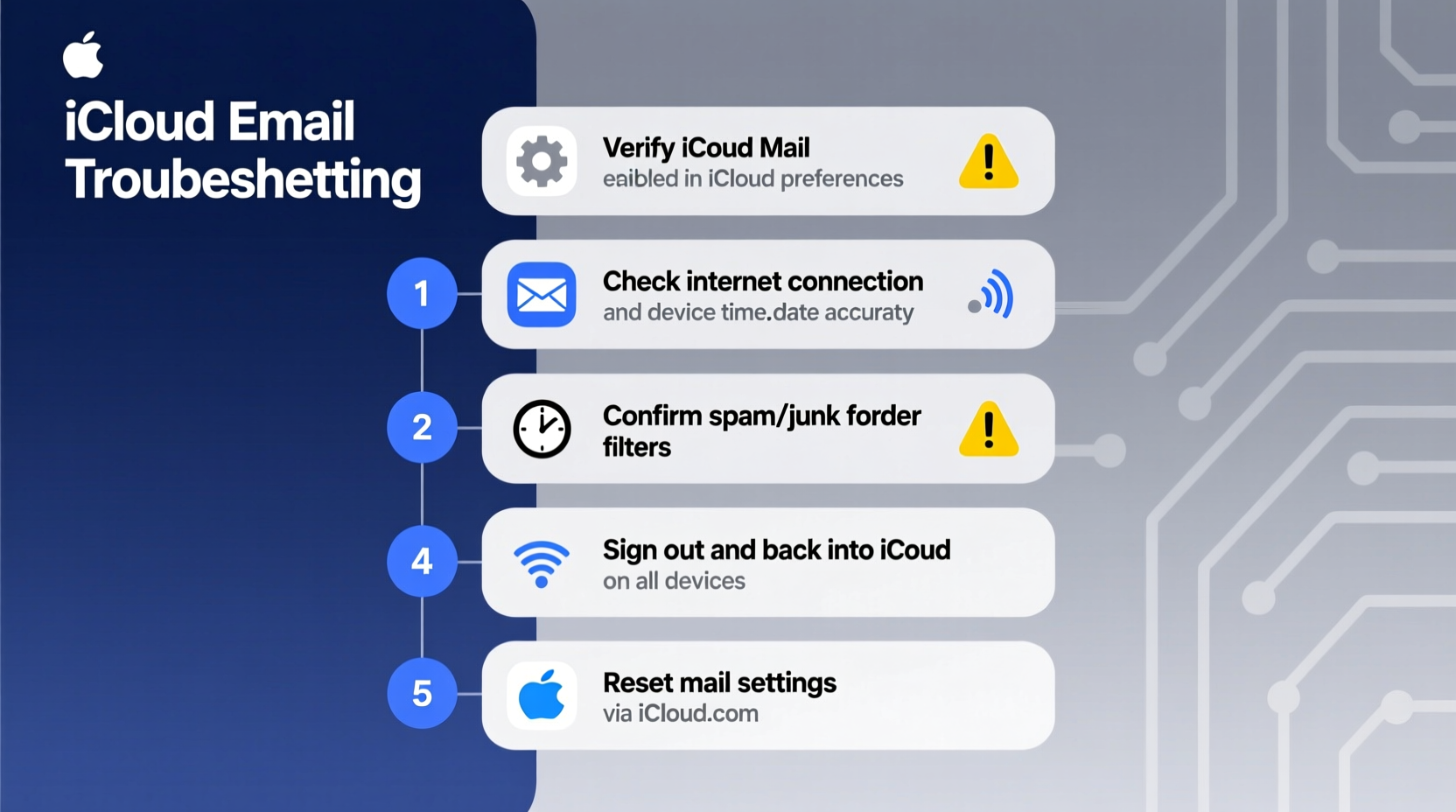
Before diving into device-specific fixes, confirm whether the issue stems from Apple’s end. Occasionally, iCloud services experience outages due to maintenance or technical glitches.
- Visit Apple's System Status page.
- Look for any alerts next to \"iCloud Mail.\"
- If there’s a red or amber indicator, wait until Apple resolves the issue.
“Over 30% of reported iCloud email issues occur during brief service interruptions that resolve within hours.” — Apple Support Incident Report, 2023
If the status is green (normal), proceed to local troubleshooting on your device.
Verify Your Internet Connection
iCloud Mail requires a stable internet connection to sync incoming messages. Even if other apps work, intermittent Wi-Fi or data issues can affect background syncing.
To rule out connectivity problems:
- Open Safari or another app requiring internet access.
- Load a website to confirm connectivity.
- On iPhone/iPad: Go to Settings > Wi-Fi and ensure you're connected to a working network.
- Try toggling Airplane Mode on and off to reset network interfaces.
Ensure iCloud Mail Is Enabled on Your Device
A common reason iCloud isn’t receiving emails is that the Mail feature has been accidentally disabled in iCloud settings.
On iPhone or iPad:
- Go to Settings > [Your Name] > iCloud.
- Scroll down and check if Mail is toggled ON.
- If it’s off, enable it and wait a few minutes for syncing to resume.
On Mac:
- Click the Apple menu > System Settings (or System Preferences).
- Select Apple ID > iCloud.
- Make sure the box next to Mail is checked.
After enabling, open the Mail app. It may take several minutes to download recent messages depending on volume and connection speed.
Step-by-Step Guide: Re-Sync iCloud Mail
Sometimes, simply refreshing the sync process resolves delivery delays. Follow this sequence to force a full re-sync:
- Disable iCloud Mail on your device using the steps above.
- Wait 60 seconds—this clears temporary cache and pending sync queues.
- Re-enable iCloud Mail and allow time for reconnection.
- Open the Mail app and pull down on the inbox to manually refresh.
- Check Junk folder in case emails were misrouted.
This process resets the mail sync daemon and often recovers stuck messages.
Review Push and Fetch Settings
iCloud uses push notifications to deliver new emails instantly. If set to \"Fetch,\" your device checks for messages at intervals, causing delays.
To configure email fetch frequency:
- On iPhone/iPad: Settings > Mail > Accounts > Fetch New Data.
- Select Push if available.
- If Push isn’t supported, choose Fetch and set frequency to Every 15 Minutes.
| Setting | Impact on Email Delivery | Recommendation |
|---|---|---|
| Push | Emails arrive instantly as they’re sent | ✅ Best choice when available |
| Fetch – Every 15 Min | Minor delays up to 15 minutes | 🟡 Acceptable alternative |
| Fetch – Hourly or Manually | Significant delays; emails only appear on manual check | ❌ Not recommended for active users |
Clear Mail Cache and Reset Sync Data
Corrupted local cache files can prevent iCloud from downloading new messages. While iOS doesn’t allow direct cache deletion, restarting the device helps. On Mac, you can manually remove cached data.
On Mac – Clear Mail Cache:
- Quit the Mail app completely.
- Open Finder and press Cmd + Shift + G.
- Type:
~/Library/Mail/V8/(or V7/V6 depending on macOS version). - Delete contents of this folder (back up if needed).
- Also clear:
~/Library/Caches/com.apple.mail - Restart your Mac and reopen Mail.
The system will rebuild the mailbox structure and initiate a fresh sync with iCloud servers.
Mini Case Study: Recovering Missed Client Emails
Sarah, a freelance graphic designer, missed three client emails over two days despite having her iPhone nearby. She assumed the clients hadn’t sent them—until one followed up via text. Investigating, she discovered iCloud Mail was disabled in her iCloud settings after a recent iOS update prompted her to review permissions. After re-enabling iCloud Mail and switching to Push fetch, her inbox synced all pending messages within five minutes. Since then, she performs a monthly check of her iCloud settings to avoid recurrence.
This highlights how silent setting changes post-update can disrupt critical communications without obvious warning signs.
Check iCloud Storage Capacity
If your iCloud storage is full, syncing halts across all services—including Mail. iCloud requires free space to store and synchronize new emails and attachments.
To check storage:
- iPhone/iPad: Settings > [Your Name] > iCloud > iCloud Storage.
- Mac: Apple Menu > System Settings > Apple ID > iCloud > iCloud Storage.
If storage is full:
- Delete old backups or large photos/videos stored in iCloud.
- Upgrade your plan via Settings > iCloud > Manage Storage > Change Storage Plan.
“Running out of iCloud storage doesn’t just slow things down—it stops syncing altogether.” — Lisa Tran, Senior AppleCare Advisor
Re-Add Your iCloud Account as a Last Resort
If all else fails, removing and re-adding your iCloud account forces a complete reconfiguration. Note: This may temporarily remove contacts, calendars, and mail data unless backed up.
To re-add iCloud account:
- Go to Settings > [Your Name] > iCloud.
- Scroll down and tap Sign Out.
- Confirm and enter your Apple ID password.
- After signing out, restart the device.
- Sign back in with your Apple ID and re-enable iCloud Mail.
Your emails will begin syncing again once the account is fully restored.
Check for Software Updates
Bugs in outdated software can interfere with iCloud services. Ensure your device runs the latest OS version.
- iOS/iPadOS: Settings > General > Software Update
- macOS: Apple Menu > System Settings > General > Software Update
Install any pending updates and test email reception afterward.
FAQ
Why am I only receiving some iCloud emails but not others?
This often points to filtering rules, junk mail classification, or selective sync settings. Check your Junk folder and ensure no third-party filters are redirecting messages. Also, confirm that “All Inboxes” is selected in the Mail app sidebar.
Can I access iCloud Mail from non-Apple devices?
Yes, but with limitations. You can add iCloud Mail to Android or Windows devices using IMAP, though features like Notes and Reminders won’t sync. Use the following settings:
Server: imap.mail.me.com
Port: 993 (SSL required)
How long does iCloud keep deleted emails?
Deleted emails remain in the “Trash” folder for 30 days before permanent removal. You can recover them during this window by moving them back to the inbox.
Troubleshooting Checklist
✅ iCloud Email Fix Checklist:
- Confirm iCloud Mail service is online
- Test internet connection stability
- Ensure iCloud Mail is enabled in settings
- Set Fetch to Push or every 15 minutes
- Check for sufficient iCloud storage
- Update device to latest OS version
- Restart device and refresh Mail app
- Clear cache (on Mac) or re-add iCloud account if needed
Conclusion
iCloud not getting emails is a frustrating but typically fixable issue. Most cases stem from simple misconfigurations—disabled services, poor fetch settings, or full storage—rather than deep technical failures. By systematically verifying your connection, settings, and account status, you can restore reliable email delivery in under 30 minutes. Don’t wait for problems to escalate. Proactively review your iCloud setup every few months, especially after major software updates. Stay connected, stay informed, and keep your digital communication flowing smoothly.




 浙公网安备
33010002000092号
浙公网安备
33010002000092号 浙B2-20120091-4
Comments
No comments yet. Why don't you start the discussion?