
When it comes to safeguarding your iPhone data, two options dominate the conversation: iCloud backups and computer-based backups via iTunes or Finder. Despite Apple’s push toward cloud-first solutions, millions of users continue to use both methods—sometimes without fully understanding why. The truth is, relying on just one method introduces risk. Combining both offers redundancy, flexibility, and peace of mind that neither can deliver alone.
Smartphone data loss remains a top concern for users worldwide. A single dropped phone, forgotten passcode, or failed iOS update can erase years of messages, photos, and settings. While iCloud provides convenience and automation, computer backups offer control and completeness. Understanding the strengths and limitations of each helps explain why dual-backup strategies aren’t just common—they’re often essential.
The Core Differences: iCloud vs Computer Backup
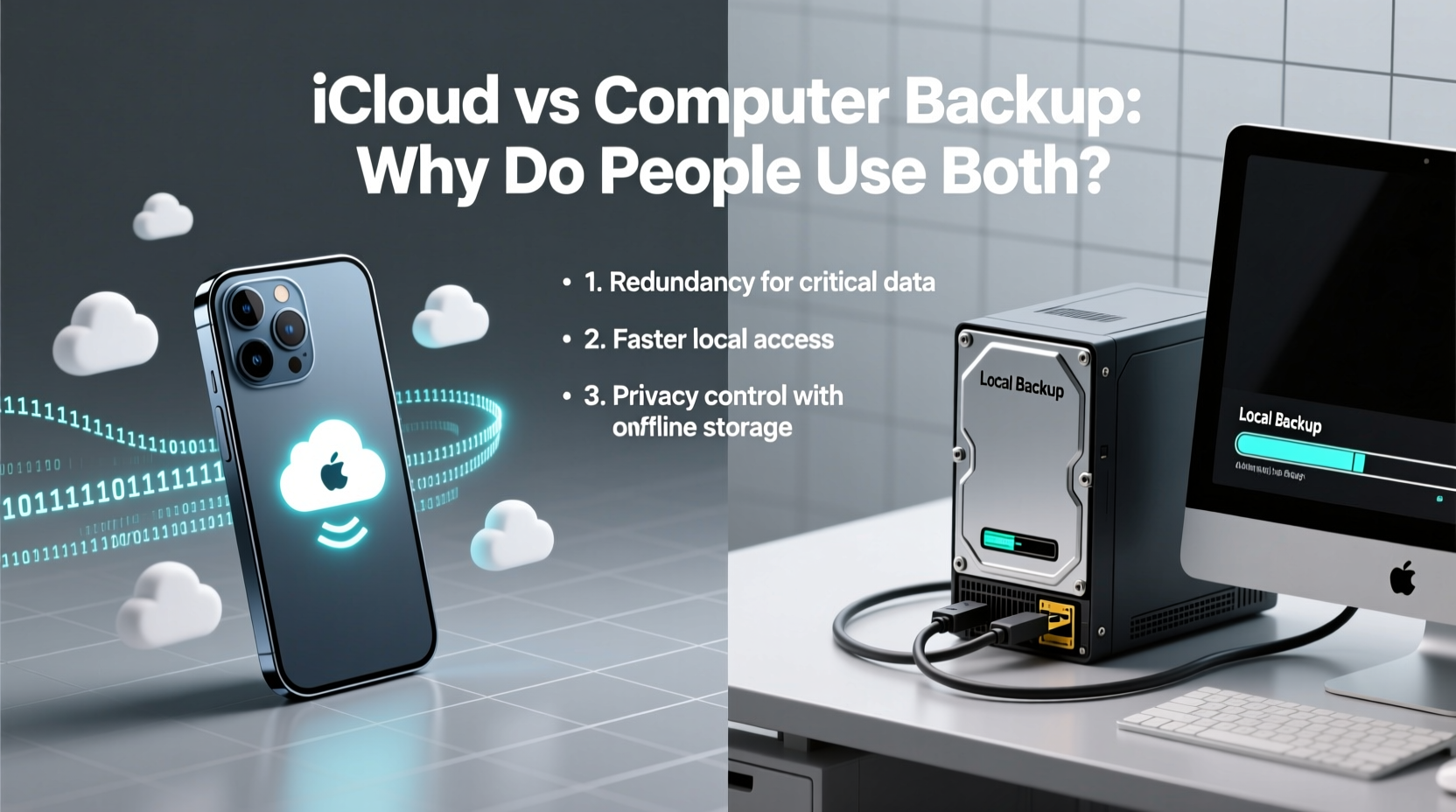
iCloud and computer backups serve the same ultimate purpose—preserving your iPhone data—but they function in fundamentally different ways.
- iCloud Backup: Operates wirelessly over the internet. It automatically backs up encrypted data when your iPhone is locked, connected to Wi-Fi, and charging. This includes device settings, app data, Health data, HomeKit configurations, and messages (but not photos if iCloud Photos is enabled).
- Computer Backup (iTunes/Finder): Requires a physical connection via USB. It creates a full local copy of your device, including all media files, app data, messages, settings, and even some data excluded from iCloud, such as saved passwords and unencrypted health records (if backed up locally).
Because of these differences, many users treat them as complementary rather than competing tools.
Why Redundancy Matters: The Case for Using Both
Data experts consistently emphasize redundancy as a core principle of digital safety. Relying solely on one backup method—no matter how reliable—creates a single point of failure.
Consider this real-world scenario:
Mini Case Study: Sarah upgraded her iPhone 13 to an iPhone 15 and restored from iCloud. After setup, she realized her message history only went back six months. Her iCloud storage had filled up, and older backups were overwritten. Fortunately, she had also made periodic computer backups. By restoring from her last local backup before the upgrade, she recovered three years of iMessages and attachments.
This example highlights a key limitation of iCloud: storage caps. Free accounts get 5GB, which fills quickly with multiple devices or large photo libraries. Even paid plans can run out during automatic backups, silently failing without user awareness.
Computer backups don’t face this issue—they scale with your hard drive capacity. But they require manual action and are vulnerable to hardware failure. If your laptop dies and you haven’t stored the backup externally, your data vanishes.
Using both methods ensures that even if one fails, the other likely preserves your data.
Comparison Table: Key Features at a Glance
| Feature | iCloud Backup | Computer Backup |
|---|---|---|
| Encryption | End-to-end (if enabled) | Device-level (with password) |
| Wi-Fi Passwords Saved? | No | Yes (if encrypted) |
| Photos Included? | Only if iCloud Photos is off | Yes (full library) |
| Backup Frequency | Daily (automatic) | Manual or scheduled |
| Storage Limit | 5GB free, up to 2TB paid | Limited by computer drive size |
| Internet Required? | Yes | No (after initial sync) |
| Access from Any Device? | Yes | No (requires same computer) |
Expert Insight: What Security Specialists Recommend
Cybersecurity professionals stress layered protection. One-time backups are not enough.
“The 3-2-1 rule still applies: keep three copies of your data, on two different media, with one offsite. For iPhone users, that means iCloud (offsite) plus a local computer backup (on-site), ideally with an additional external drive.” — Dr. Lena Patel, Data Security Analyst at SecureMobile Labs
This model directly aligns with dual backup usage. iCloud acts as the offsite copy, protecting against physical loss or theft. The computer backup serves as the primary local archive, enabling faster restores and access to more complete data.
Step-by-Step: How to Maintain Both Backups Effectively
To get the most from both systems, follow this routine:
- Enable iCloud Backup: Go to Settings > [Your Name] > iCloud > iCloud Backup and toggle it on. Ensure your iPhone charges nightly on Wi-Fi.
- Monitor iCloud Storage: Visit Settings > [Your Name] > iCloud > Manage Storage to check usage. Upgrade if nearing capacity.
- Set Up Encrypted Computer Backup: Connect your iPhone to your Mac or PC. In Finder (macOS Catalina+) or iTunes (older systems), select your device, check “Encrypt local backup,” and set a password.
- Run Weekly Local Backups: Plug in your iPhone weekly and initiate a manual backup. Label it with the date if managing multiple versions.
- Verify Backup Integrity: Occasionally test by restoring to a secondary device or checking backup dates and sizes.
- Store Backups Offsite (Optional): Copy your encrypted computer backup folder to an external drive kept in a secure location.
Common Pitfalls to Avoid
- Assuming iCloud is always current: If your iPhone hasn’t backed up due to low battery or poor connectivity, iCloud may be outdated.
- Forgetting the encryption password: Without it, you lose access to saved passwords and Health data in local backups.
- Storing backups only on a failing drive: Regularly check your computer’s disk health and consider redundant external storage.
- Ignoring app-specific data: Some apps (like banking or note-taking) store sensitive data not included in iCloud unless explicitly supported.
Frequently Asked Questions
Can I restore from iCloud and then switch to a computer backup later?
Yes, but not simultaneously. You must erase your device and choose one source. Once restored from iCloud, you cannot apply a computer backup without erasing again. Plan accordingly based on which backup has the most relevant data.
Does a computer backup include everything an iCloud backup does?
In most cases, yes—and more. Computer backups include items like locally cached maps, some app caches, and Safari history, which iCloud omits. However, only iCloud supports seamless cross-device syncing for features like Find My and Keychain (when properly configured).
Is it safe to store encrypted backups on my computer?
Yes, provided your computer is password-protected and not shared publicly. Use strong login credentials and enable FileVault (Mac) or BitLocker (Windows) for added security. Never leave the password written near your device.
Conclusion: Embrace Both for True Peace of Mind
The persistence of dual backup usage isn’t habit—it’s wisdom. iCloud delivers automation and mobility. Computer backups provide depth, speed, and independence from subscription limits. Together, they form a resilient defense against data loss.
You don’t have to choose between convenience and control. Modern digital life demands both. By integrating iCloud and computer backups into a consistent routine, you protect not just your photos and messages, but your personal history, relationships, and productivity.




 浙公网安备
33010002000092号
浙公网安备
33010002000092号 浙B2-20120091-4
Comments
No comments yet. Why don't you start the discussion?