
When your iPhone crashes, gets lost, or needs to be replaced, a reliable backup can mean the difference between a minor inconvenience and a digital disaster. Apple offers two primary backup methods—iCloud and iTunes (now part of Finder on macOS Catalina and later)—but not all backups are created equal. While both systems promise to preserve your data, they differ significantly in scope, accessibility, and what they actually save. Understanding these differences is essential if you want to ensure nothing important is left behind.
The reality is that neither iCloud nor iTunes captures 100% of your device's contents in every scenario. The key lies in knowing what each method includes, where it falls short, and how to use them strategically for maximum protection.
What iCloud Backup Actually Saves
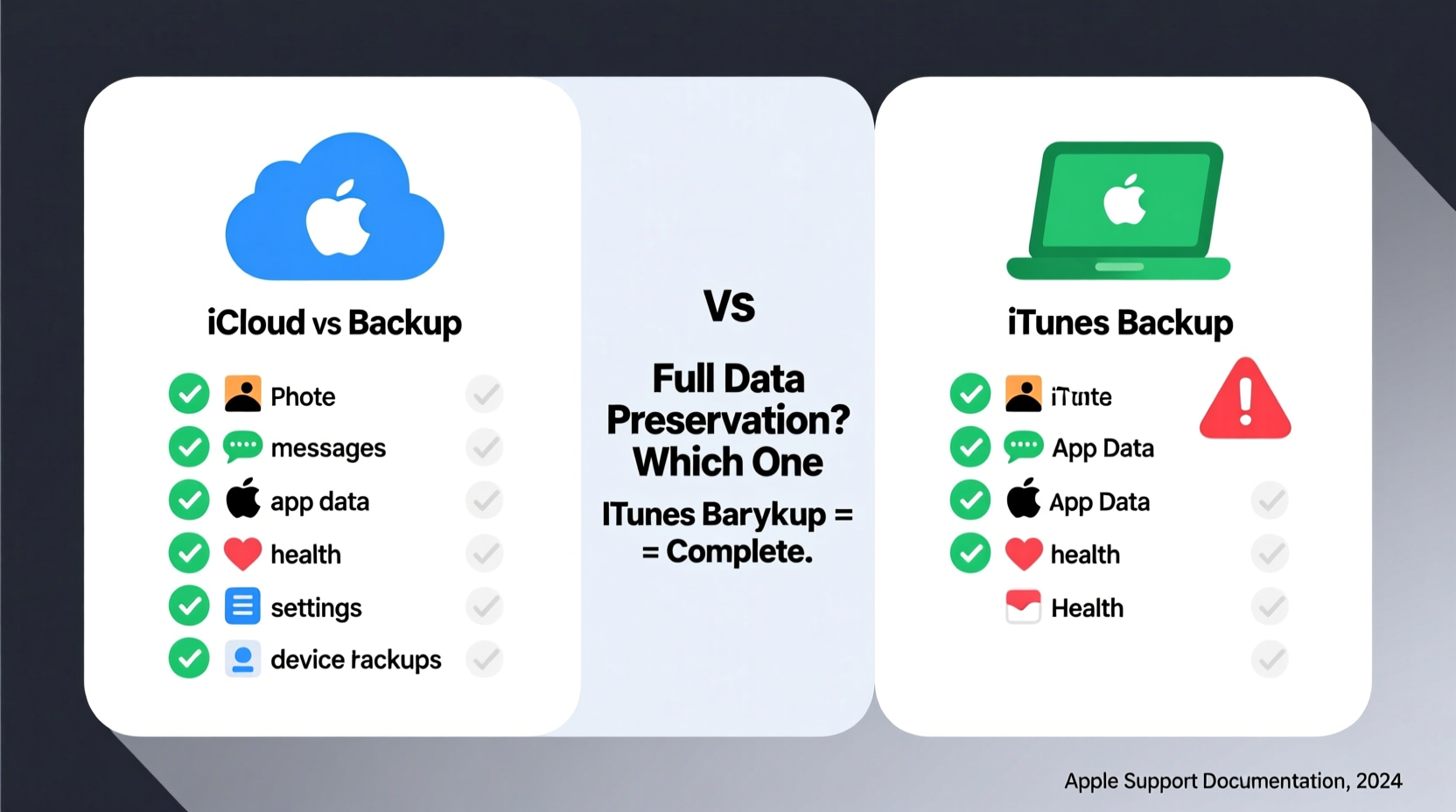
iCloud Backup is designed for convenience. Once enabled, it automatically backs up your iPhone daily over Wi-Fi when the device is locked and charging. This seamless process appeals to most users—but it comes with notable exclusions.
iCloud securely stores the following:
- Device settings (Wi-Fi passwords, wallpaper, app layouts)
- iMessage, SMS, and MMS messages
- Photos and videos (if iCloud Photos is not enabled)
- Purchased music, apps, books, and ringtones
- Health data
- HomeKit configurations
- App data (from apps that support iCloud)
- Visual voicemail password (if supported by carrier)
However, several critical items are not included in an iCloud backup:
- Content already stored in iCloud (e.g., iCloud Drive files, iCloud Photos)
- Apple Watch backups
- Data synced from other services (such as Gmail contacts or calendar events not set as default)
- Some third-party app data, depending on developer implementation
- Large media files if storage space is limited
What iTunes/Finder Backup Includes (and Excludes)
Unlike iCloud, iTunes (or Finder on Mac) performs a local backup when you connect your iPhone to a computer. This method typically captures more data than iCloud, especially when encrypted backups are used.
A standard iTunes backup includes:
- All data stored locally on the device
- Messages, call history, notes, and reminders
- App data and settings
- Photos and videos in the Camera Roll (unless managed by another photo service)
- Device settings and preferences
- Home screen layout and app organization
- Health and fitness data
But here’s the catch: unencrypted iTunes backups do not include sensitive information such as:
- Wi-Fi passwords
- Website history
- Mail accounts
- Some saved passwords and authentication tokens
To access this restricted data, you must enable encrypted backup in iTunes/Finder. When encryption is turned on, all the above items are included—and protected with a password you choose.
“Many users don’t realize their iTunes backup is incomplete because they skipped encryption. That single step determines whether your passwords and browsing history are preserved.” — David Lin, Mobile Data Security Analyst
Side-by-Side Comparison: iCloud vs iTunes Backup
| Feature | iCloud Backup | iTunes/Finder Backup |
|---|---|---|
| Location | Apple’s cloud servers | Local computer (Mac or PC) |
| Automatic? | Yes (daily, when conditions met) | No (manual connection required) |
| Encryption Option | Always encrypted | Optional (must enable manually) |
| Wi-Fi Passwords Saved? | Yes | Only if encrypted |
| Website History & AutoFill Data | Yes | Only if encrypted |
| Stored Separately from iCloud Synced Data? | No (excludes iCloud Photos, Drive, etc.) | Yes (includes local copies) |
| Storage Limit | Limited (5GB free; paid plans available) | Limited only by computer hard drive |
| Recovery Speed | Depends on internet speed and file size | Faster (local transfer) |
| Vulnerable to Hacking? | Low (end-to-end encryption for most data) | Only if password weak or computer compromised |
Step-by-Step: How to Maximize Your iPhone Backup Coverage
To ensure you’re truly saving “everything,” follow this comprehensive strategy that combines both iCloud and iTunes/Finder backups:
- Enable iCloud Backup: Go to Settings > [Your Name] > iCloud > iCloud Backup > Turn On. This ensures automatic daily protection of core data.
- Turn on iCloud Photos: Navigate to Settings > Photos and enable “iCloud Photos” to offload your entire photo library to the cloud independently.
- Use Encrypted iTunes/Finder Backup: Connect your iPhone to your computer. In Finder (Mac) or iTunes (PC), select your device, check “Encrypt local backup,” and set a strong password. This preserves passwords, history, and sensitive data.
- Back Up Regularly: Manually initiate a Finder/iTunes backup weekly or after major changes (new apps, system updates).
- Verify Backup Completion: After each backup, confirm success in the device summary screen. For iCloud, check Settings > General > iPhone Storage > Manage Storage to see the latest backup timestamp.
Real-World Example: Recovering After a Lost Phone
Sarah, a freelance photographer, dropped her iPhone in water during a weekend trip. She had been using iCloud Photos to back up her portfolio, but hadn’t enabled encrypted iTunes backups. When she restored her new iPhone from iCloud, her photos were intact—but she was shocked to find her saved Wi-Fi passwords, email accounts, and even her banking app login tokens missing.
It took her hours to reconfigure her work setup. Her camera remote app failed to reconnect because the authentication token wasn’t restored. She later learned that while iCloud preserved app data, it couldn’t restore certain credentials without a local encrypted backup.
Afterward, Sarah changed her routine: she now performs monthly encrypted Finder backups on her MacBook and verifies both iCloud and local backup statuses weekly. “I assumed ‘backup’ meant everything,” she said. “Now I know better.”
FAQ: Common Questions About iPhone Backups
Does iCloud backup save text messages?
Yes, iCloud does save iMessages, SMS, and MMS messages as part of its standard backup. However, if Messages in iCloud is enabled, messages sync directly to iCloud and aren’t duplicated in the device backup.
Can I restore an iTunes backup to a new iPhone?
Yes. You can restore from an iTunes/Finder backup during initial setup or later via Finder/iTunes. Just make sure the backup is compatible with the iOS version on the new device.
Why is my iCloud backup so small compared to my phone’s storage?
iCloud backup excludes content already in iCloud (like Photos and Drive), purchased media (re-downloaded from Apple), and large cached files. This often makes the backup much smaller than total device usage.
Conclusion: Neither Method Alone Saves Everything
No single backup solution fully preserves every byte of data on your iPhone. iCloud excels in automation and accessibility but omits data already synced to the cloud. iTunes/Finder backups offer deeper coverage—especially when encrypted—but require manual effort and physical access to a computer.
The safest approach is not choosing between iCloud and iTunes, but using both strategically. Let iCloud handle daily continuity, while maintaining periodic encrypted local backups for complete data resilience. This dual-layer method ensures that even in worst-case scenarios, your messages, settings, passwords, and personal memories remain recoverable.




 浙公网安备
33010002000092号
浙公网安备
33010002000092号 浙B2-20120091-4
Comments
No comments yet. Why don't you start the discussion?