
For many, the magic of the holiday season lies in tradition—twinkling lights, handmade ornaments, and the scent of pine filling the air. But a growing number of families are redefining festive decor with a modern twist: projecting dynamic animations directly onto their Christmas trees. This technique, known as indoor projection mapping, can transform a simple evergreen into a canvas of dancing snowflakes, swirling auroras, or even personalized family messages.
Yet, despite its visual appeal, many first-timers hesitate. They wonder: Is this technology reserved for tech-savvy professionals with expensive gear? Can someone with no experience in video editing or home automation pull it off? The answer may surprise you. While projection mapping can scale to highly complex installations, the entry point for beginners is far more accessible than most assume.
Understanding Indoor Projection Mapping
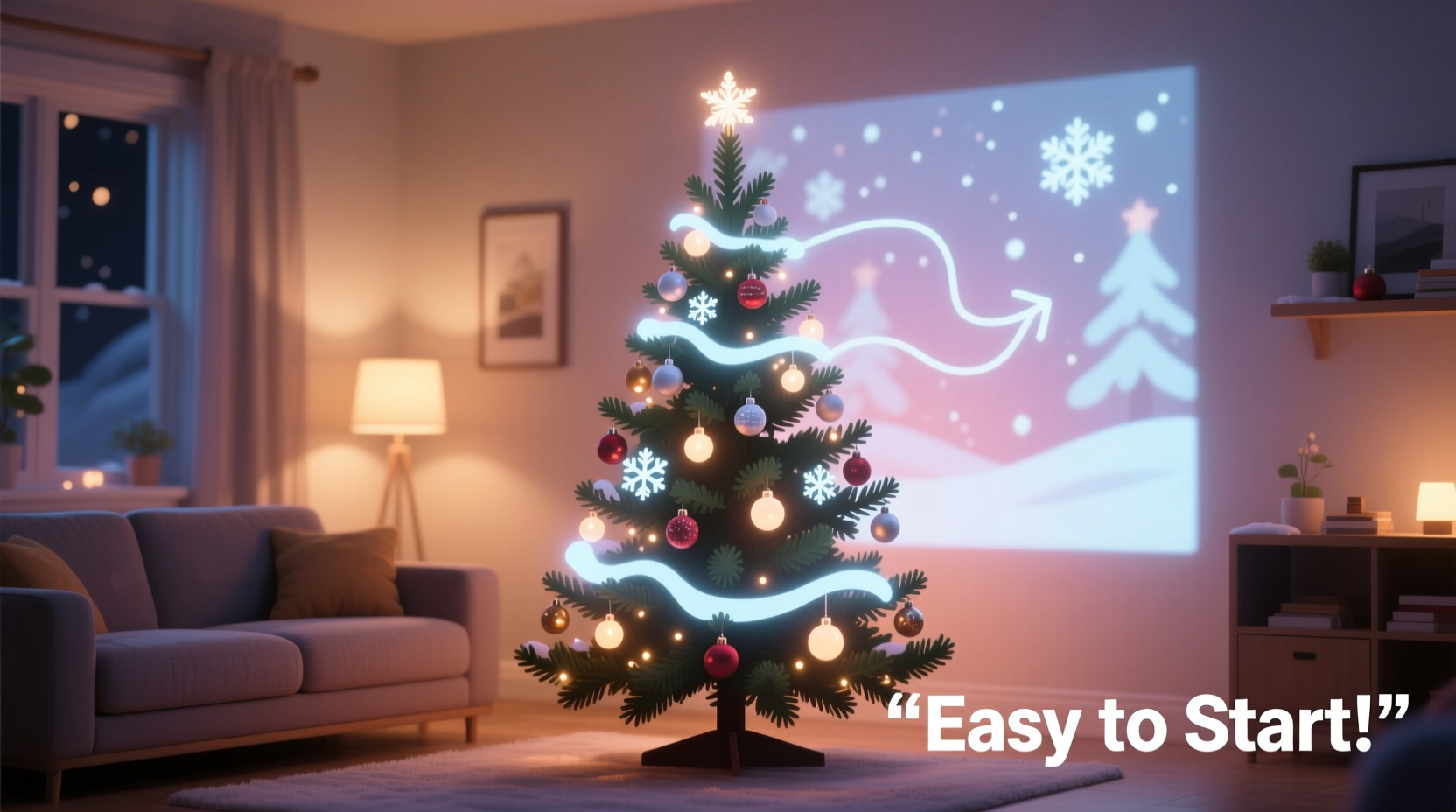
Projection mapping involves aligning projected images or videos precisely to the shape and surface of an object—in this case, a Christmas tree. Unlike standard slideshow projections on flat walls, mapping accounts for depth, angles, and irregularities. When done well, it creates the illusion that light and motion are part of the tree itself.
Indoor setups offer several advantages over outdoor versions. Controlled lighting reduces glare, ambient brightness is easier to manage, and weather isn’t a factor. Most importantly, indoor environments allow for shorter throw distances, meaning smaller, less powerful projectors can be used effectively.
The core components include a projector, media source (like a laptop, mini PC, or media box), content (pre-made or custom animations), and ideally, software that enables alignment and warping. But not all systems require advanced configuration. Ready-to-use kits and plug-and-play solutions have lowered the barrier significantly.
Breaking Down the Complexity: What Beginners Actually Face
The perception of complexity often stems from misunderstanding what’s required at each stage. Let’s demystify the process by examining the real challenges and separating myth from reality.
Myth: You need 3D modeling skills to map a tree.
Reality: Most consumer-grade software uses 2D masking or basic corner pinning. You don’t need to model the tree in three dimensions—just outline its silhouette and adjust edges.
Myth: You must create your own animations.
Reality: Hundreds of free and paid Christmas-themed animations are optimized for tree projection. Many come with built-in aspect ratios and timing cues that sync with music.
Myth: You need a high-lumen projector costing hundreds of dollars.
Reality: In a darkened room, even a 2,000-lumen projector under $300 works well for trees up to 7 feet tall.
The true challenge isn’t technical mastery—it’s managing expectations. A flawless, seamless wrap-around effect seen in viral videos often involves multiple projectors, calibrated sensors, and professional-grade tools. But for home use, a single front-facing projection that covers 60–80% of the tree can still deliver a magical experience.
“Most people overestimate what they need to get started. With the right content and a little patience, anyone can achieve a ‘wow’ moment in under two hours.” — Daniel Reeves, DIY Projection Artist and Creator of HolidayLightShow.net
Step-by-Step Guide: Setting Up Your First Tree Projection
Follow this realistic timeline to go from unboxing to illumination—without prior experience.
- Choose the Right Projector (Day 1)
Select a projector with at least 2,000 lumens and native 720p resolution. Look for keystone correction and HDMI input. Portable models like the Anker Nebula Capsule or Epson ECO500 series are popular among beginners. - Prepare Your Space (Day 1)
Place the tree in a dimmable room, ideally against a neutral wall. Remove reflective objects nearby. Position the projector on a stable surface 6–10 feet away, aimed at the center of the tree. - Download Pre-Made Content (Day 1–2)
Search for “Christmas tree projection mapping templates” on platforms like YouTube, ArtNet, or specialized forums. Download MP4 files formatted for conical shapes (often 16:9 or 4:3 with black side masks). - Align the Projection (Day 2)
Play a test animation. Use the projector’s zoom and focus to fill the tree. If your media device runs Windows or macOS, use free software like MapTool or HeavyM Lite to manually adjust the edges using corner pins until the image hugs the tree’s outline. - Test and Refine (Day 2)
Run a full animation loop. Check for hotspots (overly bright areas) or spill onto walls. Adjust angle or add cardboard shields around the lens to mask excess light. - Automate Playback (Optional, Day 3)
Use a Raspberry Pi or old tablet with a looping video player app to run shows on schedule. Pair with smart plugs to turn the projector on at dusk.
This entire process typically takes 3–5 hours spread over a weekend. No coding, no rendering, no calibration tools required—just careful observation and minor adjustments.
Essential Tools and Budget Breakdown
You don’t need a professional rig. Here’s a realistic comparison of beginner-friendly options versus advanced setups.
| Component | Beginner Setup | Advanced Setup |
|---|---|---|
| Projector | 2,000-lumen portable (e.g., Anker Nebula) – $250 | 5,000+ lumen short-throw with lens shift – $1,200+ |
| Content | Free downloads or $10 packs from Etsy – $0–$15 | Custom animations via Blender or After Effects – $200+ in time/software |
| Software | Free trial of HeavyM Lite or MapTool – $0 | Full MadMapper or Resolume Arena license – $300–$600 |
| Media Player | Laptop or Amazon Fire Stick – $0–$50 | Dedicated mini-PC with SSD – $200 |
| Total Estimated Cost | $250–$350 | $1,700–$2,500 |
The takeaway? You can enter the world of projection mapping without draining your holiday budget. And since most components are reusable year after year—even for non-holiday themes—the investment pays off quickly.
Avoiding Common Beginner Mistakes
Even simple setups can go wrong without awareness of typical pitfalls. These missteps aren’t signs of failure—they’re part of the learning curve.
- Overlooking ambient light: Even a small lamp across the room can wash out projections. Turn off all unnecessary lights during display hours.
- Using overly detailed content: Complex animations with fast motion lose clarity on textured branches. Opt for bold shapes, slow transitions, and high contrast.
- Ignoring audio sync: If your video includes music, ensure speakers are placed nearby so sound matches the visual rhythm. Delayed audio breaks immersion.
- Mounting the projector too low: Angling upward causes keystoning and uneven coverage. Keep the lens level with the tree’s midpoint.
- Expecting perfection on the first try: Alignment takes tweaking. Do a dry run before guests arrive.
Real Example: Sarah’s First Projection Tree
Sarah, a schoolteacher from Portland, had never touched projection software before last December. Inspired by a neighbor’s display, she decided to try it herself. She purchased a refurbished Anker projector for $220 and downloaded a free “Winter Wonderland” pack from a Reddit community.
Her initial attempt failed—half the animation spilled onto the ceiling. But after watching a 12-minute YouTube tutorial on manual masking, she used the free version of MapTool to stretch the video corners to match her 6-foot tree. She played the loop through her laptop, hidden behind a side table.
The result? Her children were mesmerized. Neighbors stopped by to watch. One asked if she hired a designer. “I did this in my pajamas,” she later joked online. Now, she plans to expand next year with two synchronized projectors—one for the tree, one for the mantle.
Sarah’s story isn’t unique. It reflects a growing trend: accessible tools enabling creative expression without expertise.
Checklist: Your Beginner’s Roadmap to Success
Use this checklist to stay on track and avoid missing critical steps.
- ✅ Choose a dimmable room with space for projector placement
- ✅ Buy or borrow a 720p/2,000-lumen projector
- ✅ Set up the tree and clear surrounding clutter
- ✅ Download at least three test animations (free ones first)
- ✅ Connect media source (laptop, stick, etc.) via HDMI
- ✅ Perform a test projection and adjust focus/zoom
- ✅ Use software or manual masking to fit the image to the tree
- ✅ Eliminate light bleed with cardboard or curtains
- ✅ Run a full 5-minute loop to check stability
- ✅ Schedule playback or set up automatic restarts
Completing these steps doesn’t guarantee a viral-worthy show—but it does guarantee a working, impressive display that feels anything but amateur.
Frequently Asked Questions
Can I use a smartphone as a projector?
No—smartphones lack the brightness and lens design to project large-scale images. However, you can use a phone to control a connected projector or media player remotely.
Do I need to modify my Christmas tree?
Not at all. In fact, fewer physical decorations work better. Heavy tinsel or reflective balls can scatter light and break the illusion. A simpler tree with sparse ornaments enhances projection clarity.
How long does setup take for a beginner?
Plan for 3–6 hours total: 1 hour for hardware setup, 2–3 hours for alignment and testing, and 1–2 hours for refinement. Much of this is waiting for downloads or cooling between tests—no intense labor required.
Conclusion: Magic Is Within Reach
Indoor projection mapping for Christmas trees isn’t just for experts. It’s for curious parents, hobbyists, and anyone who wants to add a touch of digital wonder to their holidays. The technology has evolved to meet everyday users—not the other way around.
The real skill isn’t in mastering software or buying gear. It’s in being willing to experiment, embrace imperfection, and celebrate small victories—like the first time snow appears to fall through your tree’s branches.
You don’t need a degree in computer graphics. You don’t need a six-figure budget. You just need a quiet evening, a willingness to learn, and the desire to create something memorable.




 浙公网安备
33010002000092号
浙公网安备
33010002000092号 浙B2-20120091-4
Comments
No comments yet. Why don't you start the discussion?