
If you’ve opened Instagram expecting to see new direct messages—only to find a blank inbox or missing conversations—you’re not alone. Many users face the frustrating issue of Instagram messages not appearing when they should. Whether it’s a delayed notification, a vanished thread, or an entire inbox that won’t load, these problems can disrupt communication with friends, clients, or brands. The good news is that most causes are fixable with straightforward troubleshooting steps.
This guide breaks down the most common technical and account-related reasons behind disappearing or hidden Instagram messages and provides actionable solutions to get your DMs back on track—fast.
Why Instagram Messages Disappear: Common Causes
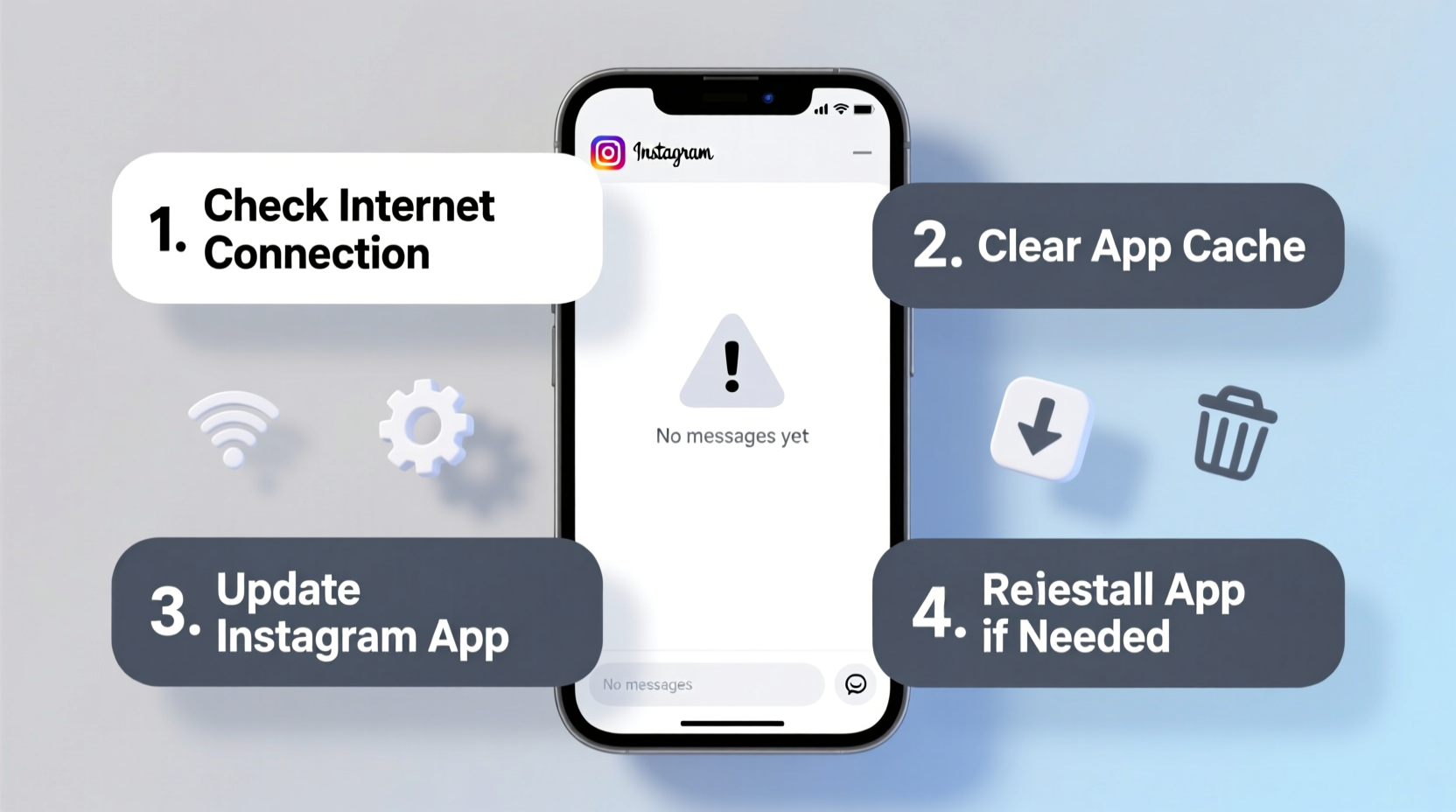
Instagram’s messaging system runs on both server-side infrastructure and local app performance. Issues can stem from either side—or both. Understanding the root cause is key to applying the right fix.
- App glitches or bugs: Outdated or corrupted app versions often fail to sync messages properly.
- Poor internet connection: Unstable Wi-Fi or mobile data can interrupt message delivery and loading.
- Message filtering (Hidden Requests): Instagram automatically filters suspected spam into “Message Requests” or “Spam,” where they remain unseen unless manually checked.
- Account restrictions: If your account has been limited due to policy violations, messaging features may be disabled temporarily.
- Blocked or restricted users: Messages from blocked contacts don’t appear in your main inbox.
- Server outages: Occasionally, Instagram experiences global downtime affecting core features like DMs.
- Software conflicts: Background apps or OS-level settings (like battery saver) can interfere with push notifications and syncing.
Step-by-Step Guide to Restore Missing Instagram Messages
Follow this systematic approach to diagnose and fix your missing messages. Start with basic checks before moving to more advanced solutions.
- Check your internet connection
Ensure you're connected to a stable network. Try loading other apps or websites to confirm connectivity. - Restart the Instagram app
Close Instagram completely from your phone’s app switcher, then reopen it. This clears temporary glitches. - Force-stop and restart (Android)
Go to Settings > Apps > Instagram > Force Stop, then relaunch. - Check Message Requests and Spam folders
Navigate to your inbox, tap the avatars icon in the top-right, and review both “Requests” and “Spam.” Legitimate messages sometimes land here. - Update the Instagram app
Visit your device’s app store and ensure you’re running the latest version of Instagram. - Clear app cache (Android) or reinstall (iOS)
On Android: Settings > Apps > Instagram > Storage > Clear Cache. On iOS: Delete and reinstall the app to refresh its data. - Log out and back in
In Settings > Account, log out, close the app, then log back in. This re-authenticates your session and forces a full sync. - Check for Instagram outages
Use sites like Downdetector.com to see if others report similar issues in your region.
Do’s and Don’ts When Fixing Instagram DM Problems
| Do’s | Don’ts |
|---|---|
| Regularly update the Instagram app | Ignore recurring sync errors |
| Check Message Requests weekly | Delete the app without backing up important chats |
| Use strong, consistent internet | Assume all missing messages are gone forever |
| Enable push notifications for DMs | Share login details to “fix” account issues |
| Review privacy and blocking settings | Repeatedly spam send buttons during outages |
Real Example: Recovering Lost Client Messages
Sophia, a freelance graphic designer, missed a critical message from a client because her Instagram DMs weren’t updating. She assumed the client hadn’t responded, only to discover two days later that the message was buried in her “Spam” requests folder. After reviewing her settings, she realized she had recently changed her privacy preferences to “Allow message requests from everyone,” which increased filtered messages. By adjusting her filter settings and setting up email notifications for new requests, Sophia now catches all incoming messages—even those Instagram initially hides.
This scenario highlights how automated filtering, while useful for reducing spam, can accidentally sideline important conversations—especially for professionals using Instagram as a communication tool.
“Over 60% of missing DM reports we analyze trace back to message filtering or outdated app versions—not actual message loss.” — Tech Support Lead, Social Platform Care Team
Prevent Future Message Issues: Proactive Tips
Once you’ve recovered your messages, take steps to avoid recurrence. Prevention is often faster than troubleshooting.
- Enable message delivery receipts: Go to Privacy > Messages and turn on “Show Read Receipts” to know when messages are seen.
- Manage message filters: Under Privacy > Messages, choose “People You Follow” instead of “Everyone” to reduce spam filtering risks.
- Use linked Facebook Messenger: If enabled, some Instagram DMs also appear in Messenger, offering a backup view.
- Monitor storage space: Low device storage can prevent app updates and background syncing.
- Set up notifications: Ensure Instagram has permission to send alerts in your phone’s settings.
FAQ: Common Questions About Missing Instagram Messages
Can someone’s message disappear if I block them?
Yes. If you block a user, their messages vanish from your inbox. If you unblock them, previous messages do not automatically return unless they send a new one.
Why do my messages show “Seen” but I never saw them?
This can happen if you briefly opened the chat without reading the content, or if another device logged into your account viewed the message. It may also occur due to a sync error.
Are deleted messages recoverable?
Not directly through Instagram. Once a message is deleted—by you or the sender—it cannot be retrieved unless you previously saved or exported the conversation. Third-party recovery tools are not recommended due to security risks.
Final Checklist: Restore & Protect Your Instagram DMs
Use this checklist to quickly troubleshoot and secure your messaging experience:
- ✅ Confirm internet connection is stable
- ✅ Restart the Instagram app
- ✅ Check Message Requests and Spam folders
- ✅ Update Instagram to the latest version
- ✅ Clear app cache or reinstall if needed
- ✅ Log out and back in to force sync
- ✅ Review account restrictions and blocking settings
- ✅ Adjust message filtering preferences for better visibility
- ✅ Enable notifications and read receipts
- ✅ Monitor for platform-wide outages
Conclusion: Stay Connected Without the Stress
Missing Instagram messages don’t have to mean lost opportunities. Most issues stem from simple technical hiccups or overlooked settings—not permanent data loss. By understanding how Instagram’s messaging system works and taking proactive steps to maintain it, you can ensure your conversations stay visible and accessible.
Take a few minutes today to review your message settings, clear any app clutter, and set up safeguards like notifications and regular request checks. A small investment in maintenance now can save hours of confusion later.




 浙公网安备
33010002000092号
浙公网安备
33010002000092号 浙B2-20120091-4
Comments
No comments yet. Why don't you start the discussion?