
Suddenly unable to share a photo or video on Instagram can be frustrating—especially when you're ready to engage your audience or document a special moment. You tap \"Share,\" only to be met with an error, a frozen screen, or no option to proceed. While it might feel like the app is targeting you personally, the reality is usually more technical than personal. Instagram restricts posting for a variety of reasons, ranging from account security flags to outdated app versions. The good news: most issues have straightforward solutions. Understanding why Instagram is blocking your posts—and how to fix it quickly—can save time, stress, and lost engagement.
Common Reasons Instagram Won’t Let You Post
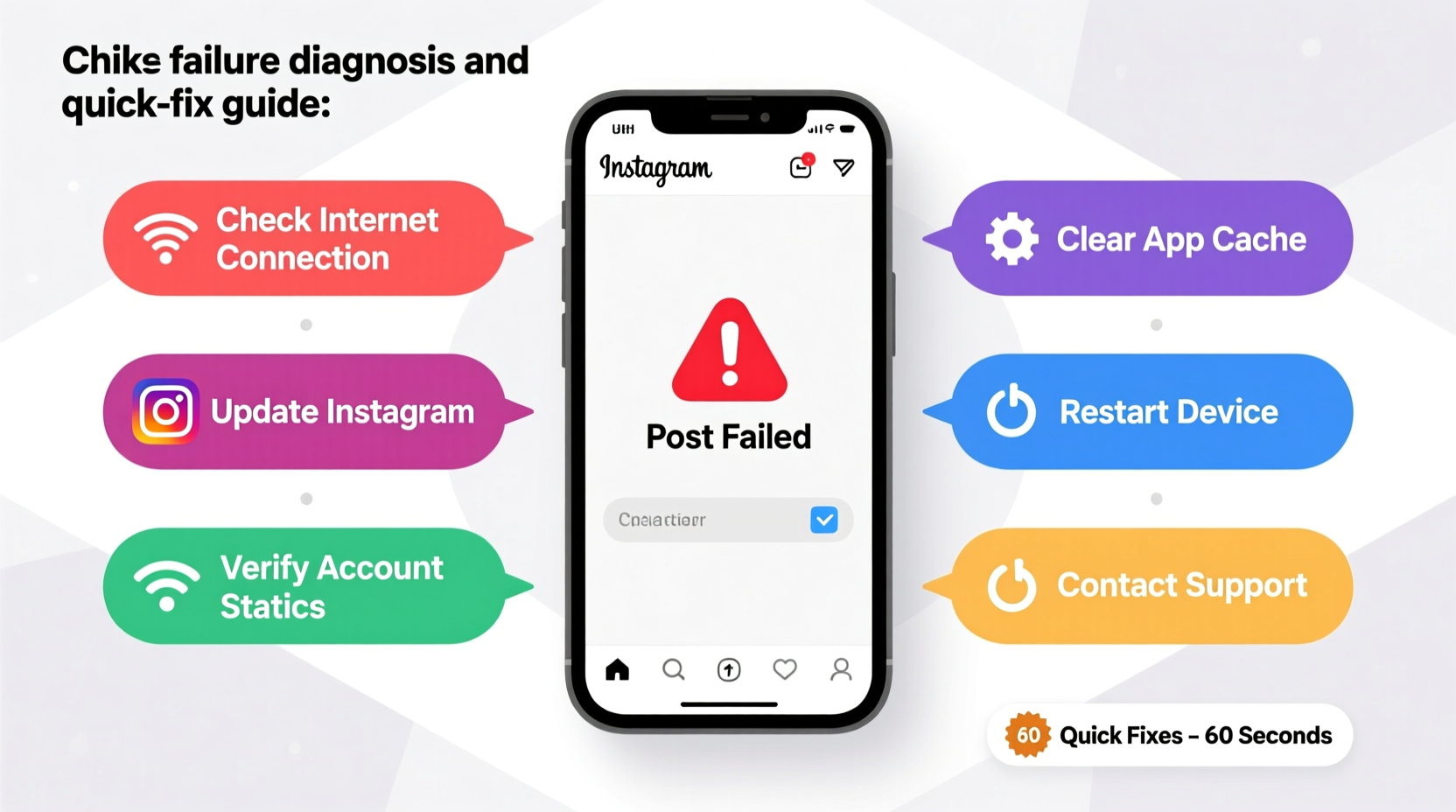
Before jumping into fixes, it's important to identify what’s actually causing the block. Instagram uses automated systems to detect suspicious behavior, enforce community guidelines, and maintain platform stability. When these systems trigger, they can temporarily limit functionality—even if you’ve done nothing wrong.
- Violation of Community Guidelines: Content flagged for nudity, violence, hate speech, or misinformation may be blocked before upload.
- Excessive Posting or Automation: Rapid-fire posting or using third-party automation tools can trigger anti-spam filters.
- Pending Account Review: If Instagram detects unusual activity, your account may be under review, limiting actions like posting.
- App Glitches or Outdated Version: Bugs in older versions of the app often interfere with basic functions.
- Server-Side Issues: Sometimes the problem isn’t on your end—Instagram’s servers may be down or experiencing delays.
- Login Session Expired: If you've been logged out silently, posting options may disappear until you re-authenticate.
Step-by-Step Guide to Regain Posting Access
Follow this structured approach to diagnose and resolve your posting issue efficiently. Most users regain full access within minutes by methodically checking each potential cause.
- Check Your Internet Connection
Ensure you’re connected to a stable Wi-Fi or cellular network. Try loading other apps or websites to confirm connectivity. - Force-Close and Reopen Instagram
Close the app completely (swipe it away from recent apps), then reopen it. This clears temporary glitches. - Update the Instagram App
Go to your device’s app store (Google Play or App Store) and check for updates. An outdated version may lack critical bug fixes. - Clear App Cache (Android Only)
Navigate to Settings > Apps > Instagram > Storage > Clear Cache. This removes corrupted temporary data without deleting login info. - Log Out and Back In
Go to your profile, tap the menu, and select “Log Out.” Then log back in with your credentials. This refreshes your session and can resolve authentication errors. - Check for Active Restrictions
Visit Settings > Account > Messages & Posts. Look for any alerts about restricted features due to policy violations. - Wait It Out (If Flagged)
If Instagram has placed a temporary restriction, it typically lasts 24–72 hours. Avoid repeated attempts to post, as this may extend the block.
Do’s and Don’ts When Facing Posting Blocks
| Do’s | Don’ts |
|---|---|
| Update the app regularly | Use bots or automation tools |
| Review Instagram’s Community Guidelines | Spam the post button repeatedly |
| Post at natural intervals (not dozens per day) | Share content that skirts policy boundaries |
| Log out and back in to refresh session | Switch accounts rapidly to bypass limits |
| Contact Instagram Support via Help Center | Create a new account to evade restrictions |
Real Example: How Sarah Regained Her Posting Access
Sarah, a lifestyle content creator with 18K followers, noticed she couldn’t upload a carousel post after returning from a weekend trip. Each time she tapped “Share,” the app froze. She tried restarting her phone, but the issue persisted. After reading online forums, she realized she had used a third-party analytics tool earlier in the week that required her password. Though convenient, the tool violated Instagram’s security policies.
She immediately revoked the app’s access through Instagram’s Security settings, logged out, cleared her app cache, and reinstalled the latest version. Within ten minutes, she was able to post without issues. More importantly, she stopped using unauthorized apps and now relies only on Meta Business Suite for scheduling—keeping her account compliant and functional.
“Repeated failed posting attempts don’t speed up recovery—they signal spam-like behavior to Instagram’s algorithms.” — Jordan Lee, Social Media Platform Analyst
Quick Checklist: Restore Posting Privileges Fast
- ✅ Confirm internet connection is stable
- ✅ Close and restart the Instagram app
- ✅ Update Instagram to the latest version
- ✅ Log out and log back in
- ✅ Check for account restrictions in Settings
- ✅ Avoid automation or third-party apps
- ✅ Wait 24–72 hours if temporarily restricted
Frequently Asked Questions
How long does an Instagram posting block last?
Temporary restrictions typically last between 24 and 72 hours. The duration depends on the severity of the detected behavior. For minor issues like rapid posting, access is often restored within a day. More serious violations—such as repeated policy breaches—may result in longer limitations or permanent action.
Can I appeal a posting restriction?
Yes. If you believe your account was mistakenly flagged, go to the notification about the restriction and tap “Appeal.” Instagram will review your case, though responses may take several days. Be honest in your explanation and avoid submitting multiple appeals, which can slow the process.
Why can I comment but not post?
This usually indicates a partial restriction. Instagram sometimes limits specific actions instead of disabling the entire account. Posting requires higher trust from the system, so it’s often the first feature disabled during a security review. Commenting and liking may still work during this period.
Preventing Future Posting Issues
Maintaining uninterrupted access to Instagram’s features requires consistent, guideline-compliant behavior. Think of your account like a credit score—each action builds trust over time. Sudden spikes in activity, especially from non-native tools, damage that trust.
Stick to official methods for content creation and scheduling. Use Instagram’s built-in scheduler (available for business and creator accounts) or Meta Business Suite. Avoid apps that promise follower growth or engagement boosts—many operate by scraping data or simulating bot behavior, which Instagram actively penalizes.
Regularly audit your connected apps. Every few months, visit Settings > Security > Apps and Websites and remove any services you no longer use. This reduces security risks and ensures no rogue app is triggering background activity that could flag your account.
Conclusion
Being unable to post on Instagram doesn’t have to derail your content plans. Most issues stem from simple technical glitches or preventable policy missteps. By understanding the root causes—from app bugs to shadow restrictions—you can respond quickly and effectively. The key is staying calm, following a clear troubleshooting path, and avoiding behaviors that trigger Instagram’s automated defenses.




 浙公网安备
33010002000092号
浙公网安备
33010002000092号 浙B2-20120091-4
Comments
No comments yet. Why don't you start the discussion?