
If your internet keeps dropping unexpectedly, you're not alone. Millions of users experience intermittent connectivity that disrupts work, streaming, gaming, and video calls. While frustrating, most outages stem from predictable issues—many of which you can resolve quickly without calling your ISP. Understanding the root causes and applying targeted solutions can save time, reduce stress, and get you back online reliably.
Common Causes of Intermittent Internet Connection
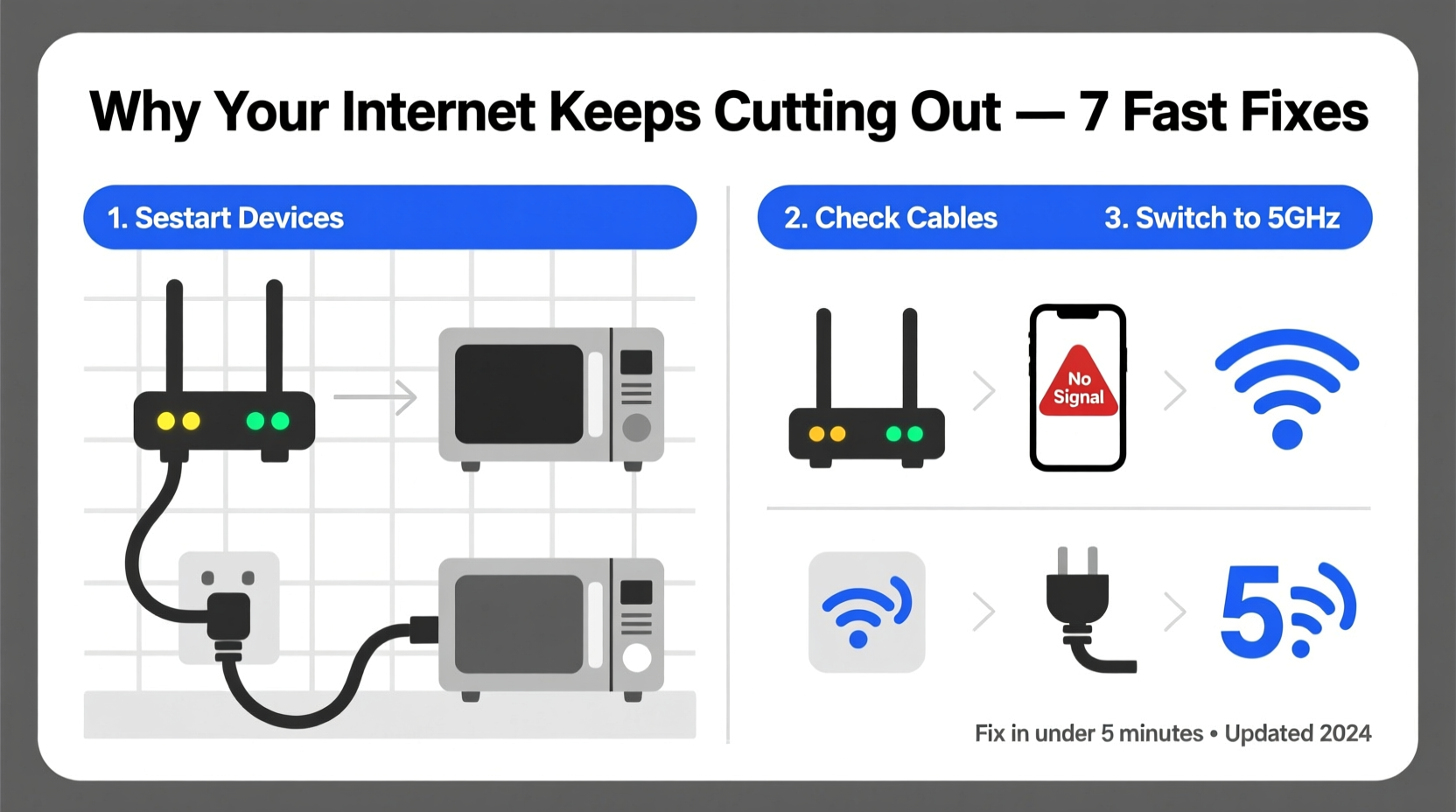
Before attempting fixes, it’s essential to identify what might be causing your internet to cut out. The problem could originate from your home network, your Internet Service Provider (ISP), or even external factors like weather or software conflicts.
- Router or modem issues: Overheating, outdated firmware, or hardware failure.
- Wi-Fi interference: Nearby electronics, thick walls, or competing networks on the same channel.
- Cable or line problems: Damaged coaxial cables, loose Ethernet connections, or faulty DSL lines.
- Network congestion: Too many devices connected simultaneously, especially during peak hours.
- ISP outages or throttling: Scheduled maintenance, service disruptions, or bandwidth limitations.
- Device-specific problems: Outdated drivers, power-saving settings, or malware.
“Over 60% of reported ‘internet outages’ are actually localized to the user’s router or device configuration.” — Tech Support Report, National Broadband Association, 2023
Quick Diagnostic Steps to Identify the Source
Before diving into repairs, confirm where the issue lies. Follow this simple timeline to pinpoint the problem:
- Test multiple devices: Check if the issue occurs on smartphones, laptops, and tablets. If only one device is affected, the problem is likely device-specific.
- Go wired: Connect a computer directly to the modem via Ethernet. If the wired connection is stable, the issue is Wi-Fi-related.
- Restart your equipment: Power cycle your modem and router. Unplug both for 30 seconds, then plug the modem in first, wait for it to fully boot, then restart the router.
- Check ISP status: Visit your provider’s outage map or call support to verify if there’s a known service disruption in your area.
- Inspect physical connections: Ensure all cables are secure and undamaged, especially the coaxial line from the wall to the modem.
Effective Fixes Based on the Root Cause
Once you’ve narrowed down the source, apply the appropriate solution. Here are proven remedies for the most frequent culprits:
Fix 1: Reboot and Update Your Router
A simple reboot resolves temporary glitches in over 70% of cases. For long-term stability, ensure your router’s firmware is up to date. Log into your router’s admin panel (usually via 192.168.1.1 or 192.168.0.1) and check for updates under the “Administration” or “Firmware” tab.
Fix 2: Optimize Wi-Fi Signal Strength
Place your router in a central location, elevated and away from metal objects, microwaves, and cordless phones. Use a Wi-Fi analyzer app to detect channel congestion and switch to a less crowded band (e.g., 5 GHz instead of 2.4 GHz).
Fix 3: Replace Faulty Cables and Hardware
Coaxial cables degrade over time. If your modem frequently loses sync, try replacing the coax cable. Similarly, aging routers may struggle with modern demands—consider upgrading to a dual-band or mesh system if you have dead zones.
Fix 4: Limit Bandwidth-Hungry Devices
Streaming, downloads, and cloud backups consume significant bandwidth. Use Quality of Service (QoS) settings on your router to prioritize critical activities like video calls or gaming.
Fix 5: Disable Power-Saving on Network Adapters
On Windows laptops, the system may turn off the network adapter to save power. To fix this:
- Open Device Manager.
- Expand “Network adapters.”
- Right-click your Wi-Fi adapter > Properties > Power Management.
- Uncheck “Allow the computer to turn off this device to save power.”
Troubleshooting Checklist
✅ Quick Fix Checklist: Internet Keeps Cutting Out
- Reboot modem and router
- Check for ISP outages
- Test connection with Ethernet cable
- Verify Wi-Fi signal strength across rooms
- Update router firmware
- Replace damaged coax or Ethernet cables
- Move router to a central, unobstructed location
- Switch Wi-Fi channel to reduce interference
- Limit number of active devices
- Disable power-saving on network adapters
Do’s and Don’ts: What to Avoid When Fixing Connectivity Issues
| Do’s | Don’ts |
|---|---|
| Use surge protectors for networking gear | Stack router and modem tightly (can cause overheating) |
| Schedule large downloads during off-peak hours | Ignore blinking lights on your modem (often indicate sync issues) |
| Set up a guest network for visitors | Share your main Wi-Fi password freely |
| Monitor data usage if near a cap | Assume the problem is always your ISP |
Real Example: How Sarah Fixed Her Spotty Home Office Connection
Sarah, a freelance graphic designer, struggled with dropped Zoom calls every afternoon. Her internet worked fine in the morning but failed consistently between 2–4 PM. After testing her setup, she discovered her neighbor’s security camera system operated on the same Wi-Fi channel. Using her router’s admin interface, she switched from channel 6 to channel 11 on the 2.4 GHz band. She also upgraded her router’s firmware and moved it from a closet to an open shelf. The changes eliminated dropouts, allowing her to deliver client projects on time without interruptions.
Frequently Asked Questions
Why does my internet cut out at the same time every day?
This often indicates network congestion. If many people in your area stream or download during peak hours (typically 6–10 PM), your ISP may experience strain. It could also be a scheduled process on your network, such as automatic backups or updates. Monitor device activity during those times to identify the culprit.
Can a virus cause internet disconnections?
Yes. Malware can flood your network with background traffic or disable network services. Run a full system scan using trusted antivirus software. Also, check Task Manager (Windows) or Activity Monitor (Mac) for unusual network usage by unknown processes.
How do I know if my modem is failing?
Signs include frequent disconnects, slow speeds despite a good plan, constant rebooting, or persistent error lights (especially flashing red or amber). If your modem is over five years old, consider replacing it—even if your ISP rents one to you, buying your own compatible model can improve performance and save rental fees.
Conclusion: Take Control of Your Connection
An unstable internet connection doesn’t have to be a daily annoyance. Most issues stem from preventable or correctable causes—ranging from simple reboots to strategic hardware upgrades. By systematically diagnosing the problem and applying targeted fixes, you can achieve a reliable, high-speed connection that supports your lifestyle and work needs.




 浙公网安备
33010002000092号
浙公网安备
33010002000092号 浙B2-20120091-4
Comments
No comments yet. Why don't you start the discussion?