
Nothing disrupts productivity, entertainment, or communication faster than a sudden loss of internet connectivity. Whether you're working from home, streaming a movie, or trying to join an important video call, a disconnected internet can feel like a digital blackout. The good news: most connection problems are solvable with methodical troubleshooting. Instead of immediately calling your ISP or replacing hardware, start with proven diagnostic steps that resolve the majority of issues—often in under 10 minutes.
1. Confirm the Problem Scope
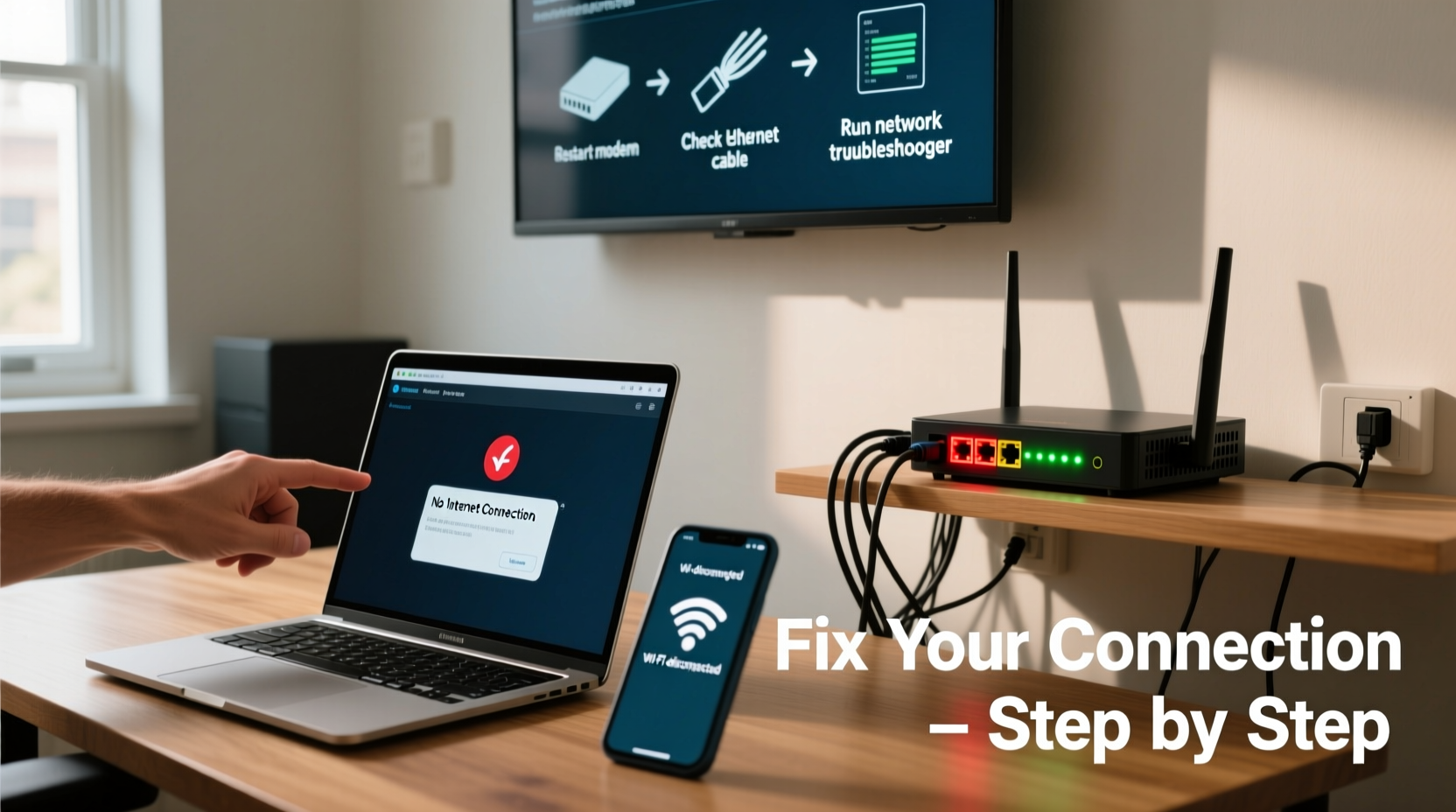
Before diving into fixes, determine whether the issue is isolated to one device or affects your entire network. This distinction guides where you focus your efforts.
- Single device offline? Check Wi-Fi settings, airplane mode, or network drivers.
- All devices down? The problem likely lies with your router, modem, or internet service provider.
- Some connected, some not? Could be a router setting (like MAC filtering), IP conflict, or weak signal strength.
For example, if your laptop shows “No Internet” while your phone connects fine, the issue isn’t your ISP—it’s local to the laptop.
2. Step-by-Step Troubleshooting Process
Follow this logical sequence to isolate and resolve the root cause efficiently.
- Reboot your router and modem. Unplug both for 30 seconds, then power the modem first, wait until its lights stabilize, then restart the router.
- Check physical connections. Ensure Ethernet cables are firmly seated, power adapters are functional, and no cables are damaged.
- Verify Wi-Fi is enabled. On laptops, check function keys (e.g., Fn + F2); on phones, ensure Wi-Fi is on and connected to the correct network.
- Test with a wired connection. Plug a computer directly into the modem via Ethernet. If it works, the issue is likely Wi-Fi-related.
- Run built-in network diagnostics. Windows has a Network Troubleshooter; macOS offers Wireless Diagnostics under Utilities.
- Renew IP address. Open Command Prompt (Windows) or Terminal (macOS), type
ipconfig /releasethenipconfig /renew(Windows), orsudo dhclient en0(macOS). - Flush DNS cache. Use
ipconfig /flushdnson Windows orsudo dscacheutil -flushcacheon macOS.
This sequence addresses over 80% of common issues, from DHCP failures to temporary glitches in network hardware.
3. Common Causes and Their Fixes
Different symptoms point to different underlying problems. Here's how to match them up:
| Symptom | Possible Cause | Solution |
|---|---|---|
| No Wi-Fi networks visible | Airplane mode, disabled adapter, driver issue | Enable Wi-Fi, update drivers, reinstall network adapter |
| Connected but \"No Internet\" | Router issue, DNS failure, ISP outage | Restart router, change DNS to 8.8.8.8, check ISP status |
| Slow or intermittent speed | Interference, distance from router, network congestion | Move closer, switch bands (5GHz vs 2.4GHz), reduce connected devices |
| Can't load specific websites | DNS misconfiguration, firewall block, site downtime | Clear browser cache, try another device, use Google Public DNS |
| Constant disconnects | Firmware bug, overheating, faulty hardware | Update firmware, improve ventilation, replace outdated equipment |
4. Expert Insight: When Hardware Matters
Not all problems are software-based. Aging or low-quality hardware often masquerades as random disconnections.
“Many users waste hours troubleshooting when their router is simply past its lifecycle. Routers older than 4–5 years struggle with modern traffic loads and security standards.” — David Lin, Network Infrastructure Engineer at NetSecure Solutions
Consider upgrading to a dual-band or tri-band router if you have multiple devices. Mesh systems are ideal for large homes with dead zones. Also, ensure your modem is compatible with your ISP’s current speed tier—outdated DOCSIS 2.0 modems won’t support gigabit plans.
5. Real-World Case Study: Home Office Blackout
Julie, a freelance graphic designer in Portland, suddenly lost internet during a client upload. Her phone worked, but her desktop did not. She followed these steps:
- Checked Wi-Fi icon: Connected but “No Internet.”
- Restarted desktop: No change.
- Ran Windows Network Troubleshooter: Reported “default gateway not available.”
- Rebooted router and modem: After 2 minutes, internet restored.
The root cause? Her ISP had pushed a configuration update overnight that temporarily disrupted the modem-router handshake. A restart re-established the link. Julie now schedules monthly reboots to prevent similar hiccups.
Essential Tips for Ongoing Connection Health
Quick Fix Checklist
Print or bookmark this checklist for fast reference when your internet drops:
- ✅ Restart your device
- ✅ Toggle airplane mode off
- ✅ Reboot modem and router (in order)
- ✅ Check for physical cable damage
- ✅ Test with a wired Ethernet connection
- ✅ Run OS network diagnostic tool
- ✅ Renew IP and flush DNS
- ✅ Log into router admin page (usually 192.168.1.1) and check connection status
- ✅ Visit downdetector.com to see if your ISP has outages
- ✅ Contact ISP if all else fails
Frequently Asked Questions
Why does my Wi-Fi show as connected but no internet access?
This usually means your device has joined the local network but cannot reach the internet. Common causes include modem sync issues, DNS failures, or ISP outages. Try rebooting your modem and changing your DNS to Google’s (8.8.8.8).
How do I know if it’s my router or my ISP?
Connect a device directly to the modem via Ethernet. If it gets online, the router is the issue. If not, contact your ISP. You can also check your modem’s indicator lights—steady “Online” or “Internet” light means ISP signal is present.
Can a virus cause internet connection problems?
Yes. Malware may hijack DNS settings, flood your network with traffic, or disable network adapters. Run a full system scan with updated antivirus software if suspicious behavior persists after network troubleshooting.
Stay Connected With Confidence
Internet disruptions don’t have to derail your day. Most connection problems stem from simple, fixable issues—once you know where to look. By understanding the difference between device-level glitches and network-wide failures, you gain control over your digital environment. Keep this guide handy, follow the checklist, and treat your networking hardware with the same care as your computer or phone. With consistent maintenance and smart diagnostics, you’ll spend less time troubleshooting and more time doing what matters online.




 浙公网安备
33010002000092号
浙公网安备
33010002000092号 浙B2-20120091-4
Comments
No comments yet. Why don't you start the discussion?