
If your iPad is taking longer than usual to charge, you're not alone. Many users experience frustratingly slow charging times that disrupt productivity, media use, or travel plans. While occasional delays might seem normal, consistent slow charging often signals an underlying issue — one that can usually be resolved without replacing the device. Understanding the root causes and applying practical solutions can restore your iPad’s charging efficiency in minutes.
Slow charging doesn’t always mean a failing battery or broken hardware. More often, it stems from overlooked habits, incompatible accessories, or software glitches. This guide breaks down the most common culprits and provides actionable steps to get your iPad charging at optimal speed again.
Why Is Your iPad Charging So Slow?
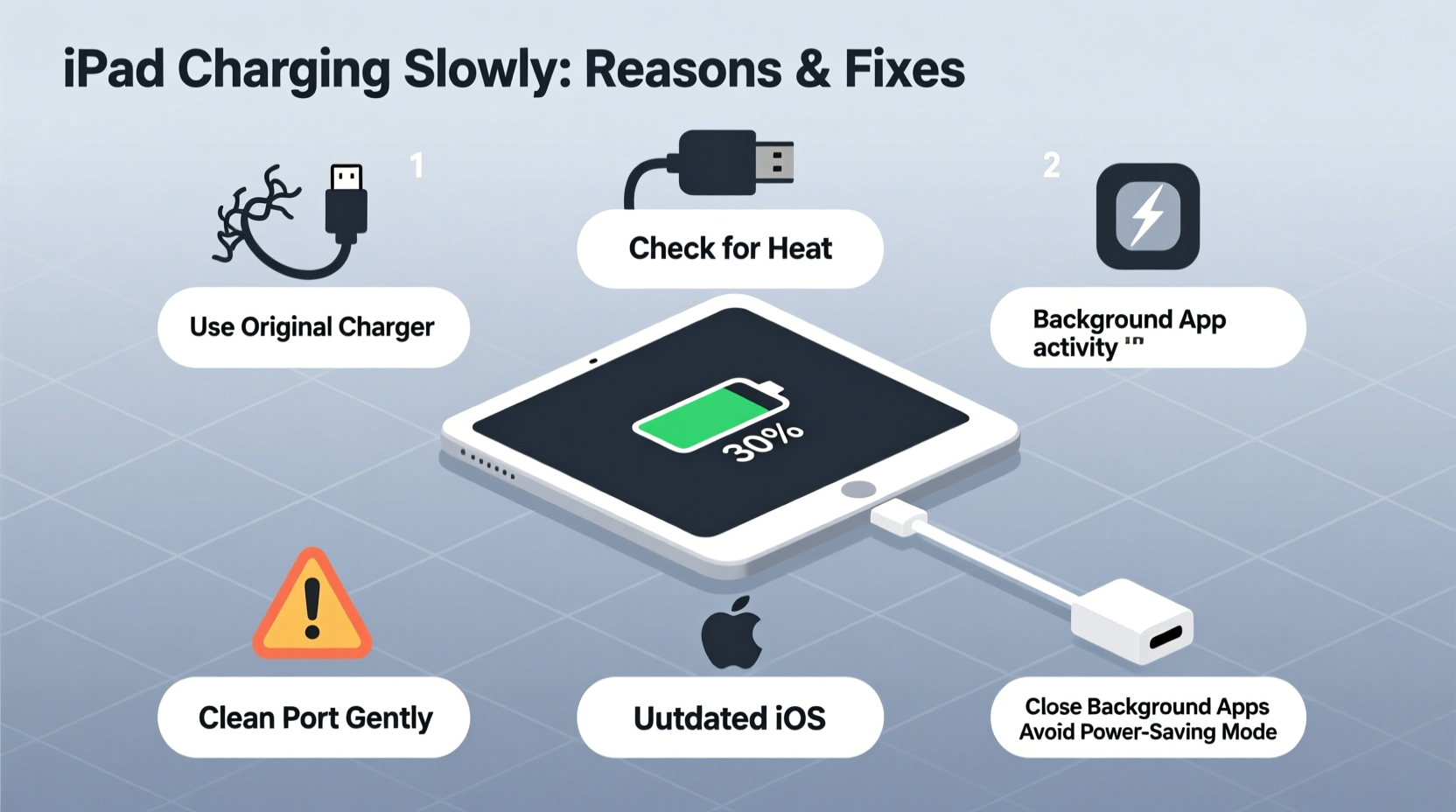
The first step in solving slow charging is identifying what’s causing it. Modern iPads are designed to support fast charging (on compatible models), but various factors can interfere with performance. These include power source limitations, cable quality, background processes, environmental conditions, and even protective cases.
iPad charging speed depends on three key components: the charger, the cable, and the device itself. Any weakness in this chain reduces efficiency. For example, using a 5W iPhone charger with a 10.9-inch iPad will result in noticeably slower charging compared to Apple’s recommended 20W adapter.
Common Causes of Slow iPad Charging
- Inadequate power adapter: Using underpowered chargers (like those from older iPhones) limits current flow.
- Damaged or low-quality cables: Frayed, bent, or third-party cables may not support full data and power transfer.
- Background app activity: Resource-heavy apps running in the background increase power consumption during charging.
- High ambient temperature: Heat buildup forces the iPad to throttle charging to protect the battery.
- Dirt or debris in the charging port: Lint, dust, or corrosion block proper connection.
- Outdated iOS version: Software bugs or inefficient power management in older versions affect charging behavior.
- Aging battery health: After 500+ charge cycles, lithium-ion batteries lose capacity and charge more slowly.
“Many users don’t realize how much their choice of charger affects performance. A mismatched adapter can cut charging speed by over 50%.” — Jordan Lee, Senior Mobile Technician at iFixHub
Step-by-Step Fixes to Speed Up iPad Charging
Follow this systematic troubleshooting process to identify and resolve your iPad’s slow charging issue.
- Use the correct charger: Plug your iPad into a 20W or higher USB-C power adapter. Avoid using laptop USB-A ports or car chargers with low output.
- Inspect the charging cable: Look for kinks, fraying, or loose connectors. Try a certified USB-C to Lightning or USB-C to USB-C cable (depending on model).
- Clean the charging port: Power off the iPad. Use a dry, soft-bristled brush (like a clean toothbrush) to gently remove lint and debris from the port.
- Close background apps: Double-click the Home button (or swipe up and pause on newer models) and close unused apps before charging.
- Enable Airplane Mode: Turn on Airplane Mode and disable Wi-Fi and Bluetooth to reduce power draw while charging.
- Update iOS: Go to Settings > General > Software Update and install any available updates.
- Charge in a cool environment: Avoid direct sunlight, hot cars, or placing the iPad on warm surfaces while charging.
- Restart your iPad: A simple reboot clears temporary system glitches that may interfere with charging.
- Test with a different outlet: Faulty wall sockets or overloaded power strips can deliver inconsistent power.
- Check Battery Health: While iPads don’t display battery percentage in settings like iPhones, if your device is over 3–4 years old and holds less charge, consider a battery replacement.
Do’s and Don’ts of iPad Charging
| Do’s | Don’ts |
|---|---|
| ✔ Use Apple-certified 20W+ USB-C charger | ✖ Use damaged or cheap third-party cables |
| ✔ Charge in a cool, dry place | ✖ Leave iPad in direct sun or hot car |
| ✔ Enable Airplane Mode when fast charging | ✖ Play games or stream video while charging |
| ✔ Clean port regularly with soft tools | ✖ Insert metal objects or sharp tools into port |
| ✔ Keep iOS updated for optimal power management | ✖ Ignore software update notifications |
Real-World Example: How Sarah Fixed Her iPad’s Charging Issue
Sarah, a freelance graphic designer, relied on her iPad Pro for client work during commutes. She noticed it was taking nearly five hours to charge from 20% to full — far longer than before. At first, she assumed the battery was failing. But after trying several fixes, she discovered the real culprit: her go-to charging cable had a small internal break near the connector. Though it still “worked,” it only transferred partial power.
She switched to Apple’s original USB-C cable and used her MacBook’s 30W charger instead of a portable power bank. Her iPad then charged from 0% to 50% in just 35 minutes. The difference was immediate and dramatic. Sarah now keeps a backup MFi-certified cable in her bag and checks her charging gear monthly.
Frequently Asked Questions
Can I use my iPhone charger to charge my iPad?
Yes, but it will charge significantly slower. iPhone chargers typically output 5W or 12W, while iPads benefit from 20W or higher. For daily use, invest in a compatible high-wattage adapter.
Why does my iPad charge slowly even when turned off?
If charging remains slow when powered off, the issue is likely hardware-related — such as a degraded battery, faulty cable, damaged charging port, or substandard power adapter. Try different combinations of cables and chargers to isolate the problem.
Does fast charging damage my iPad’s battery?
Apple designs supported iPad models (like iPad Pro and iPad Air 4+) to handle fast charging safely. The system regulates voltage and heat to prevent long-term damage. However, frequent fast charging in hot environments may accelerate wear over several years.
Final Checklist: Fix Slow iPad Charging in Under 10 Minutes
Before visiting a service center, run through this quick diagnostic checklist:
- ✅ Am I using a 20W or higher USB-C power adapter?
- ✅ Is the charging cable undamaged and Apple-certified?
- ✅ Is the charging port free of lint and debris?
- ✅ Is my iPad updated to the latest iOS version?
- ✅ Is the room temperature between 62°F and 72°F (16°C–22°C)?
- ✅ Are no heavy apps running in the background?
- ✅ Have I restarted the iPad recently?
Take Control of Your iPad’s Charging Performance
Slow iPad charging is rarely inevitable. Most cases stem from simple oversights — using the wrong charger, ignoring port cleanliness, or leaving apps running. By understanding how power delivery works and applying targeted fixes, you can reclaim fast, reliable charging without spending money on replacements.
Your iPad is built to last for years, but its performance depends on how well you maintain the ecosystem around it: cables, adapters, software, and usage habits. Take a few minutes today to audit your charging setup. Replace worn cables, upgrade outdated adapters, and keep your device cool and updated.




 浙公网安备
33010002000092号
浙公网安备
33010002000092号 浙B2-20120091-4
Comments
No comments yet. Why don't you start the discussion?