
The iPad Mini 6 and iPad Air 5 occupy adjacent but distinct spaces in Apple’s tablet lineup. Both support the Apple Pencil (2nd generation), offer powerful processors, and deliver crisp displays—making them strong contenders for digital note-taking. But when it comes to writing, sketching, or annotating documents, screen size plays a pivotal role. Many users wonder: Is the iPad Mini 6’s smaller display too cramped for effective note-taking compared to the larger iPad Air 5? The answer isn’t binary—it depends on usage patterns, portability needs, and personal comfort.
This article breaks down the real-world implications of screen size differences between these two devices, evaluates their performance in note-taking scenarios, and offers practical guidance for choosing the right device based on your workflow.
Screen Size and Usability: The Core Difference
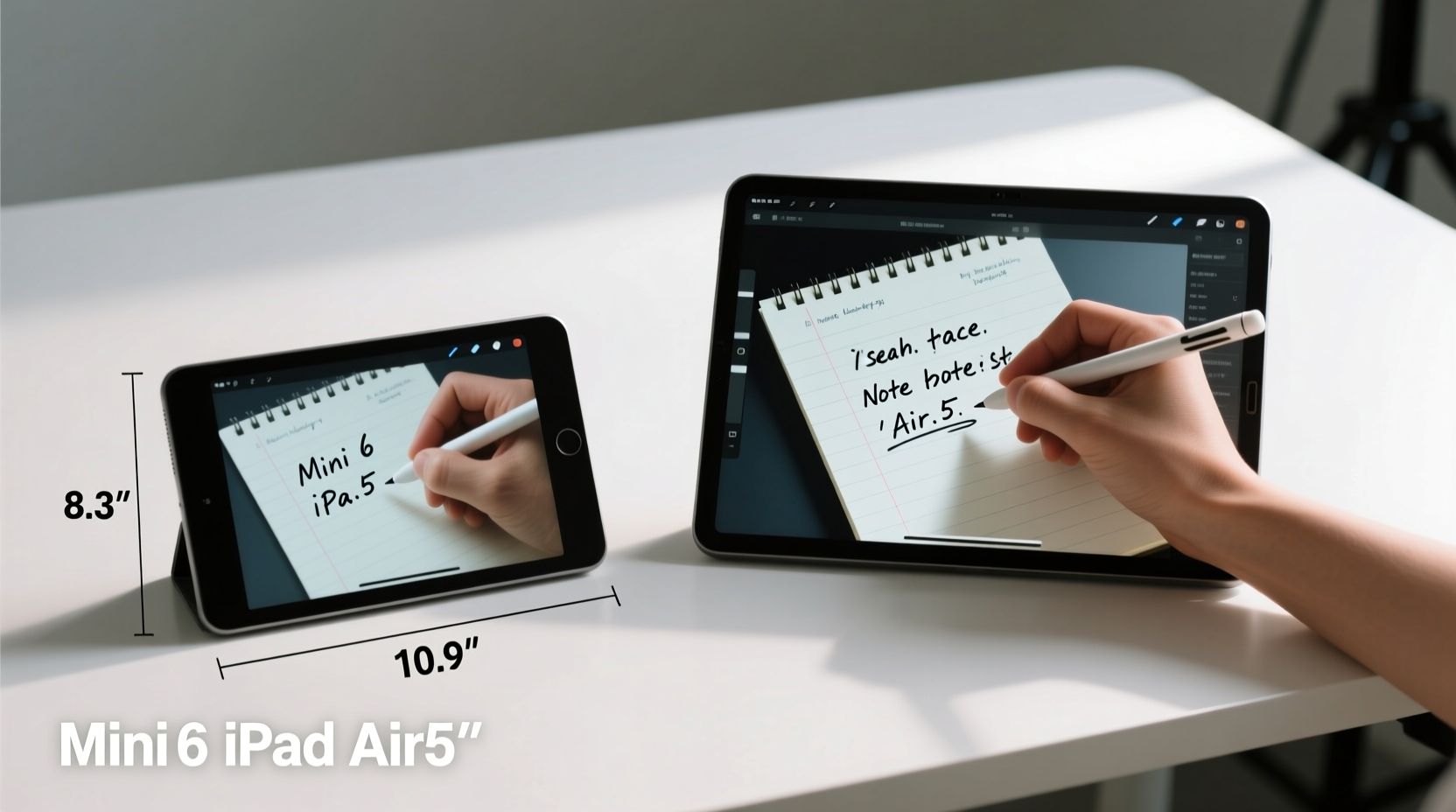
The most obvious distinction lies in screen dimensions. The iPad Mini 6 features an 8.3-inch Liquid Retina display, while the iPad Air 5 boasts a 10.9-inch Liquid Retina display. Though both use similar LCD technology with P3 wide color and True Tone, the physical difference in viewing area significantly affects how much content you can see—and write—at once.
To put this into perspective:
- iPad Mini 6: 8.3” diagonal, ~148.6 mm x 195.4 mm active display area
- iPad Air 5: 10.9” diagonal, ~178.5 mm x 248.6 mm active display area
The iPad Air provides approximately 40% more screen real estate than the Mini. This extra space becomes especially noticeable when using split-screen apps, reading PDFs with margin notes, or drafting longer-form content. On the Mini, everything feels more compact—text, toolbars, keyboard, and handwriting space are all squeezed into a tighter frame.
Note-Taking Experience: Real-World Implications
When evaluating which iPad is better suited for notes, consider three key aspects: handwriting comfort, app compatibility, and ergonomics.
Handwriting Space and Precision
On the iPad Mini 6, the smaller screen means less room for freeform writing. Users who take extensive lecture notes or create visual mind maps may find themselves constantly panning across the page. In contrast, the iPad Air 5 allows for broader strokes and more natural layout organization. You can place a document on one side and take margin notes on the other without feeling constrained.
However, some users report that the Mini’s compact size improves control. Because the entire screen is within easier thumb and Apple Pencil reach, there’s less arm movement required during long writing sessions. For people with smaller hands or those who prefer holding the device in landscape mode while writing, this can be a benefit.
App Behavior Across Devices
Most note-taking apps—including Notability, GoodNotes, and Apple Notes—are optimized for both models. However, interface elements scale differently. Toolbars, palettes, and virtual keyboards consume a higher percentage of the Mini’s screen, leaving less usable space for actual content.
For example, in GoodNotes, switching between pen, highlighter, and eraser takes up valuable vertical space. On the iPad Air, you can keep multiple tool panels open simultaneously without sacrificing writing area. On the Mini, you might need to collapse menus frequently, disrupting flow.
“The iPad Air strikes a near-perfect balance between portability and productivity. For students and professionals alike, that extra inch makes a tangible difference in daily use.” — David Lin, EdTech Consultant
Performance and Hardware Comparison
Both tablets are powered by capable chips—the iPad Mini 6 uses the A15 Bionic, while the iPad Air 5 runs the M1 chip. While the M1 is technically superior in multi-core performance and graphics, both handle note-taking apps effortlessly. There’s no lag when writing, zooming, or flipping through pages.
Other hardware factors also influence the note-taking experience:
| Feature | iPad Mini 6 | iPad Air 5 |
|---|---|---|
| Display Size | 8.3 inches | 10.9 inches |
| Processor | A15 Bionic | M1 |
| Apple Pencil Support | 2nd gen (magnetic attach & charge) | 2nd gen (magnetic attach & charge) |
| Battery Life | Up to 10 hours | Up to 10 hours |
| Weight | 293g (Wi-Fi model) | 461g (Wi-Fi model) |
| Portrait Mode Typing | Tighter keyboard spacing | Full-size floating keyboard possible |
| Split-Screen Multitasking | Limited due to narrow width | More viable with Slide Over and Split View |
The weight difference is significant: the Mini weighs nearly 36% less than the Air. This makes it ideal for extended handheld use—such as during lectures, fieldwork, or commuting. Conversely, the Air is better suited for desk-based workflows where stability and screen space outweigh portability concerns.
Mini Case Study: Student Use in University Lectures
Sophia, a third-year medical student at the University of Toronto, tested both devices over a semester. She attended four-hour lecture blocks daily and needed to take detailed anatomical diagrams and pharmacology notes.
She started with the iPad Mini 6, drawn to its pocketable design. Initially, she appreciated how easily she could hold it with one hand while gesturing with the other. However, after several weeks, she found herself fatigued from constant zooming and repositioning her drawings. Writing full sentences in narrow margins became frustrating, and referencing slides alongside her notes was difficult due to limited split-screen utility.
She switched to the iPad Air 5 and immediately noticed improvements. She could view a full lecture slide on half the screen and draw annotations beside it. Her diagram proportions were more accurate, and she spent less time adjusting the viewport. Although the Air was heavier in her backpack, she concluded the trade-off was worth it for academic productivity.
Sophia’s experience reflects a common trend: highly mobile users love the Mini until they hit cognitive limits imposed by screen constraints. Once tasks require sustained focus and spatial reasoning, the Air tends to win out.
Portability vs. Productivity: Choosing Your Priority
The choice between the iPad Mini 6 and iPad Air 5 ultimately hinges on whether you prioritize mobility or functionality.
The Mini excels as a secondary device—a companion for quick sketches, grocery lists, journal entries, or reading eBooks with light highlighting. Its compact form factor fits in small bags, coat pockets, or even large jeans pockets. It’s also excellent for travelers who want minimal bulk.
The Air, meanwhile, functions more like a lightweight laptop replacement. With its larger canvas, it supports complex workflows involving research papers, presentation prep, and cross-referencing sources. When paired with a keyboard case, it becomes a credible alternative to traditional notebooks.
Checklist: Which iPad Is Right for Your Note-Taking Needs?
- ✅ Do you take long-form or technical notes regularly? → Lean toward iPad Air 5
- ✅ Do you value pocket-sized convenience over screen space? → iPad Mini 6 may suffice
- ✅ Will you use split-screen apps often? → iPad Air 5 handles this better
- ✅ Are you primarily annotating PDFs or textbooks? → Larger screen reduces eye strain
- ✅ Do you have hand fatigue issues? → Lighter Mini may reduce strain during handheld use
- ✅ Do you already own a laptop for heavy work? → Mini works well as a supplementary device
Expert Recommendations and Workflow Tips
According to UX researchers at the Human Interface Lab at Stanford, optimal touchscreen writing requires at least 20% margin space around active content to prevent accidental touches and allow for natural grip zones. The iPad Mini 6 struggles to meet this threshold when running full-screen apps, particularly in portrait orientation.
One workaround is using landscape mode exclusively for note-taking. Rotating the Mini horizontally increases horizontal writing space and mimics a notebook spread. Some users pair this with a slim Bluetooth keyboard to turn the Mini into a hybrid journal-laptop setup.
“Ergonomics matter more than specs when it comes to digital note-taking. A device that fits your body and routine will always outperform one that merely looks powerful on paper.” — Dr. Lena Torres, Human Factors Researcher
Step-by-Step: Optimizing Either Device for Notes
- Choose the right stylus grip: Use a matte finish or silicone sleeve on the Apple Pencil for better control, especially on the smaller Mini screen.
- Adjust app settings: In GoodNotes or Notability, set default zoom levels to maximize visible writing area.
- Use templates: Pre-designed ruled, grid, or Cornell note templates help structure content efficiently, compensating for limited space.
- Enable dock customization: Keep only essential tools visible to minimize UI clutter.
- Practice gesture shortcuts: Learn swipe gestures to quickly switch tools or undo strokes without navigating menus.
- Consider external storage: Use iCloud or Dropbox sync to access notes across devices if using the Mini as a capture tool and Air for editing.
Frequently Asked Questions
Can I comfortably type on the iPad Mini 6 for note-taking?
Typing is functional but not ideal for prolonged sessions. The on-screen keyboard is narrower, increasing typo rates. External keyboards improve usability, but the overall system becomes bulkier. For frequent typing, the iPad Air 5 offers a more comfortable experience.
Does the iPad Mini 6 feel outdated for note-taking in 2024?
No. Despite its smaller size, the Mini 6 remains modern with USB-C, center-mounted front camera (ideal for video calls), and full Apple Pencil 2 support. Its limitations are ergonomic, not technological. As long as your workflow doesn’t demand expansive layouts, it remains a capable note-taker.
Is the price difference justified?
The iPad Air 5 typically costs $100–$150 more than the Mini 6. Whether this is justified depends on usage. For casual journaling or light schoolwork, the Mini offers excellent value. For university students, researchers, or creatives, the Air’s larger screen often justifies the premium through increased efficiency and reduced friction.
Conclusion: Make the Screen Work for You, Not Against You
The iPad Mini 6 is not inherently “too small” for notes—but it does impose constraints that become apparent under specific conditions. If your note-taking involves dense text, complex diagrams, or multitasking, the iPad Air 5’s larger display delivers a measurably smoother experience. However, if portability, single-hand use, or minimalism defines your lifestyle, the Mini remains a compelling option.
Technology should adapt to human behavior, not the other way around. Test both devices if possible. Write a full page of notes on each. See which one lets you focus on ideas rather than interface management. The best tool isn’t the biggest or fastest—it’s the one you’ll actually use consistently.




 浙公网安备
33010002000092号
浙公网安备
33010002000092号 浙B2-20120091-4
Comments
No comments yet. Why don't you start the discussion?