
Choosing between the iPad Pro and the Surface Pro 9 isn’t just about brand preference—it’s about matching your workflow to the right tool. For students, creatives, and remote professionals who rely on digital note-taking and occasional video editing, both devices offer compelling features. But subtle differences in operating systems, accessories, app ecosystems, and hardware design can significantly impact productivity and user satisfaction.
This guide breaks down each device’s strengths and limitations in real-world scenarios involving handwritten notes, annotation, sketching, and light video workflows—helping you decide which device better supports your daily routine.
Design and Portability: Form Factor Matters
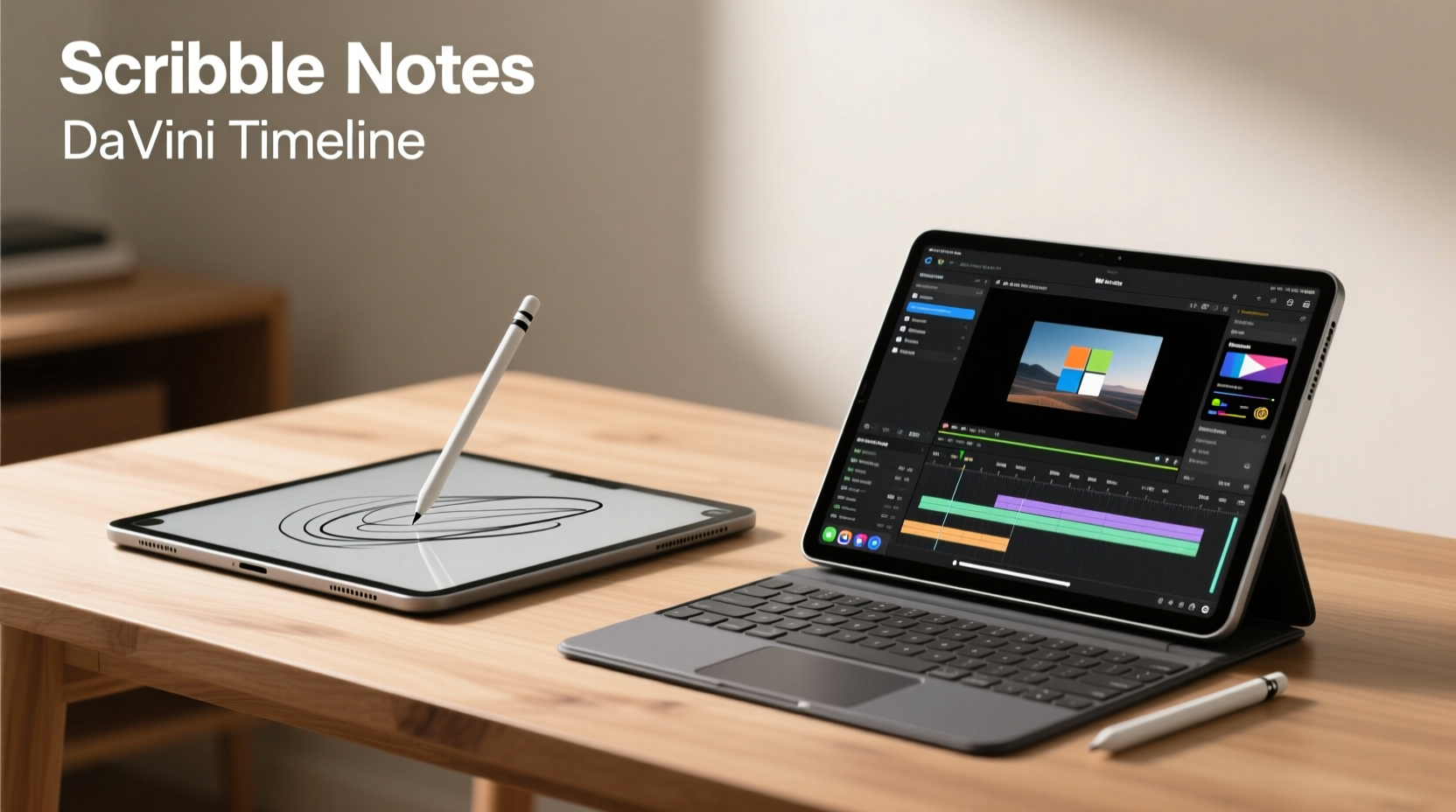
The iPad Pro and Surface Pro 9 are both designed with mobility in mind, but their approaches differ. The iPad Pro is a pure tablet experience, available in 11-inch and 12.9-inch models, with an ultra-thin profile and minimal weight. It excels as a standalone device when paired with the Apple Pencil and Magic Keyboard or a third-party folio.
In contrast, the Surface Pro 9 blends tablet and laptop functionality more seamlessly. It includes a built-in adjustable kickstand and runs full Windows 11, allowing it to function as both a tablet and a clamshell laptop replacement. The 13-inch touchscreen is slightly smaller than the larger iPad Pro, but its aspect ratio (3:2) offers more vertical space—ideal for document work and long-form writing.
Portability favors the iPad Pro due to its lighter build and longer battery life under typical use. However, the Surface Pro 9’s versatility shines when you need desktop-grade multitasking without carrying a separate laptop.
Note-Taking Experience: Precision, Latency, and App Ecosystem
Digital note-taking is where both devices truly differentiate themselves through stylus technology and software integration.
The Apple Pencil (2nd generation), used with the iPad Pro, is widely regarded as the gold standard for low latency and pressure sensitivity. Paired with apps like GoodNotes, Notability, and Apple Notes, it delivers a near-paper-like feel. Palm rejection works flawlessly, and the magnetic attachment ensures the stylus is always charged and within reach.
The Surface Pro 9 uses Microsoft’s Slim Pen 2, which also offers excellent responsiveness and haptic feedback (on supported models). Writing directly on the screen feels natural, especially with OneNote, which remains one of the most robust digital notebooks available. Windows Ink integration across Office apps adds flexibility for annotating PDFs or PowerPoint slides.
However, iOS has a slight edge in consistency. Because Apple controls both hardware and software, there's less variability in how apps handle handwriting recognition, searchability of ink, and synchronization across devices via iCloud. On Windows, while capable, the experience can vary depending on driver updates, pen settings, and app optimization.
“After testing both platforms with medical students, we found that the iPad Pro reduced cognitive load during lectures—students focused more on content than device quirks.” — Dr. Lena Torres, EdTech Researcher at Northwestern University
Video Editing Capabilities: Can They Handle Real Work?
Light video editing—trimming clips, color correction, adding subtitles, and exporting social media reels—is increasingly common among mobile professionals. Both devices support this use case, but their capabilities diverge based on software availability and processing power.
The iPad Pro, powered by Apple’s M2 or M4 chip (depending on model year), runs powerful apps like LumaFusion, Filmic Pro, and iMovie. LumaFusion, in particular, brings multi-track timeline editing, keyframing, and audio mixing to the tablet form factor. With external storage support via USB-C, the iPad Pro can import 4K footage directly from SD cards or SSDs.
The Surface Pro 9, equipped with either an Intel Evo processor or Microsoft’s SQ3 ARM chip (with 5G), runs full versions of Adobe Premiere Rush, DaVinci Resolve, and even lightweight projects in Premiere Pro. This access to desktop-class software gives it a significant advantage for users already embedded in the Adobe ecosystem.
That said, thermal throttling can be an issue on the fanless Surface Pro during extended rendering sessions. The iPad Pro handles sustained loads better thanks to efficient Apple silicon and optimized apps. Additionally, the iPadOS interface, while touch-first, sometimes lacks keyboard shortcuts and window management needed for complex timelines.
Editing Workflow Comparison
| Feature | iPad Pro | Surface Pro 9 |
|---|---|---|
| Native Video Apps | iMovie, LumaFusion, CapCut | Premiere Rush, DaVinci Resolve, Clipchamp |
| Desktop-Class Software | No (app sandboxing limits) | Yes (full Windows apps) |
| Multi-App Support | Limited split-screen/floating windows | Full desktop multitasking |
| External Monitor Support | Up to 6K with adapter | Up to dual 4K via USB-C |
| Rendering Speed (1080p export) | Fast (optimized metal framework) | Moderate (depends on cooling) |
Real-World Use Case: A Freelance Journalist’s Workflow
Sophie Kim, a freelance documentary journalist based in Portland, uses her iPad Pro 12.9” daily for field reporting. During interviews, she takes voice memos and hand-written notes using the Apple Pencil in Notability, often sketching storyboards alongside timestamps. Later, she imports short B-roll clips shot on her iPhone into LumaFusion, syncing audio automatically via cloud links.
“I used to carry a laptop and notebook,” she explains. “Now I do everything on the iPad. The ability to draw directly on timelines in LumaFusion saves me hours when planning sequences.”
When she returns home, she connects the iPad to a monitor using a USB-C hub, extending her workspace. While she misses some advanced features of Final Cut Pro, she finds that 80% of her editing needs are met efficiently—and with far less gear.
In contrast, Mark Tran, a university lecturer and part-time content creator, relies on his Surface Pro 9. He delivers presentations using PowerPoint with ink annotations live, records short lecture videos, and edits them using Premiere Rush before uploading to his course portal. His familiarity with Windows shortcuts and file system makes him more productive despite the device’s bulkier setup.
“I tried switching to iPadOS, but I kept missing drag-and-drop file management and proper folder navigation,” he admits. “For me, being able to plug in a USB drive and edit directly in the same environment is non-negotiable.”
Accessories and Long-Term Investment
Neither device comes fully functional out of the box. Both require additional purchases to unlock their full potential for note-taking and editing.
- iPad Pro: Apple Pencil ($129), Magic Keyboard ($299), or a third-party case with typing support.
- Surface Pro 9: Type Cover ($149), Slim Pen 2 ($129.99), optional docking station.
Over time, these costs add up. The base iPad Pro starts around $799, but with essential accessories, total investment exceeds $1,200. The Surface Pro 9 starts at $999, and with Type Cover and pen, reaches approximately $1,275—nearly identical in final cost.
Resale value also plays a role. iPads tend to hold value better over time, especially newer M-series models. Surface devices depreciate faster, partly due to shorter software support cycles (typically 5–6 years vs. Apple’s 6–7+).
Checklist: Choosing Your Device
Use this checklist to determine which device aligns best with your needs:
- Do you primarily take handwritten notes or annotate documents? → iPad Pro + Apple Pencil wins for fluidity
- Do you rely on desktop software like Photoshop, Premiere Pro, or Excel macros? → Surface Pro 9 required
- Is portability and instant-on critical? → iPad Pro responds faster from sleep
- Do you prefer a single OS across devices (iPhone/Mac)? → iPad integrates better
- Will you connect to external monitors or peripherals regularly? → Surface Pro offers broader compatibility
- Are you budget-conscious and want longevity? → iPad generally lasts longer before feeling outdated
Frequently Asked Questions
Can the iPad Pro replace a laptop for light video editing?
Yes—for basic to intermediate tasks. Apps like LumaFusion and iMovie provide professional-grade tools, but lack some advanced effects and plugin support found in desktop NLEs. If you don't need After Effects integration or multicam sync, the iPad Pro is sufficient.
Is the Surface Pen better than the Apple Pencil?
They serve different purposes. The Apple Pencil leads in latency and seamless pairing. The Slim Pen 2 offers eraser gestures and haptics, plus deeper integration with Microsoft 365 apps. For pure writing, Apple wins; for hybrid productivity, Microsoft competes closely.
Which has better battery life for note-taking on campus?
The iPad Pro consistently achieves 8–10 hours of active use, even with video playback and stylus input. The Surface Pro 9 averages 6–7 hours under similar conditions, dropping further when running CPU-intensive background processes. For all-day unplugged use, the iPad holds the advantage.
Step-by-Step Setup Guide for Optimal Performance
Maximize your device’s efficiency with this setup process:
- Update firmware and OS – Ensure both devices have the latest updates installed for optimal security and performance.
- Pair the stylus – Attach Apple Pencil magnetically or pair Slim Pen via Bluetooth settings.
- Install core apps – For iPad: GoodNotes, LumaFusion, Files, iCloud Drive. For Surface: OneNote, DaVinci Resolve, Adobe Creative Cloud, PowerToys.
- Configure cloud sync – Set up automatic backups to iCloud or OneDrive to prevent data loss.
- Customize keyboard shortcuts – On Surface, use PowerToys to remap keys. On iPad, enable Scribble and Quick Note gestures.
- Test stylus accuracy – Write and draw in a blank note to adjust palm rejection and pressure settings.
- Optimize storage – Offload old projects to external drives or cloud services to maintain speed.
Final Verdict: Which Should You Choose?
The iPad Pro is the superior choice if your primary focus is intuitive, responsive note-taking and streamlined mobile video editing. Its ecosystem is tightly integrated, the Apple Pencil sets the benchmark for digital inking, and apps like LumaFusion prove tablets can handle real creative work.
The Surface Pro 9 is ideal if you need a true laptop replacement—a device that functions equally well as a tablet and a productivity machine. Its full Windows OS allows installation of legacy software, multitasking with multiple resizable windows, and seamless file management. It’s better suited for users already invested in Microsoft 365 or Adobe’s desktop suite.
Ultimately, the decision hinges on workflow philosophy: Do you want a focused, distraction-free creation tool (iPad Pro), or a flexible, full-powered mini-computer (Surface Pro 9)?




 浙公网安备
33010002000092号
浙公网安备
33010002000092号 浙B2-20120091-4
Comments
No comments yet. Why don't you start the discussion?