
If your iPad, once a model of efficiency, now feels sluggish—lagging between apps, freezing during scrolling, or taking forever to load websites—it’s time to take action. Performance slowdowns are common across all generations of iPads, but they’re rarely permanent. Whether you're using an older model or the latest iPad Pro, software bloat, storage congestion, and background processes can degrade responsiveness. The good news is that most slowdowns are fixable with targeted troubleshooting. This guide walks through practical, tested solutions to diagnose and resolve performance issues so your iPad runs smoothly again.
Identify the Root Cause of Sluggish Performance
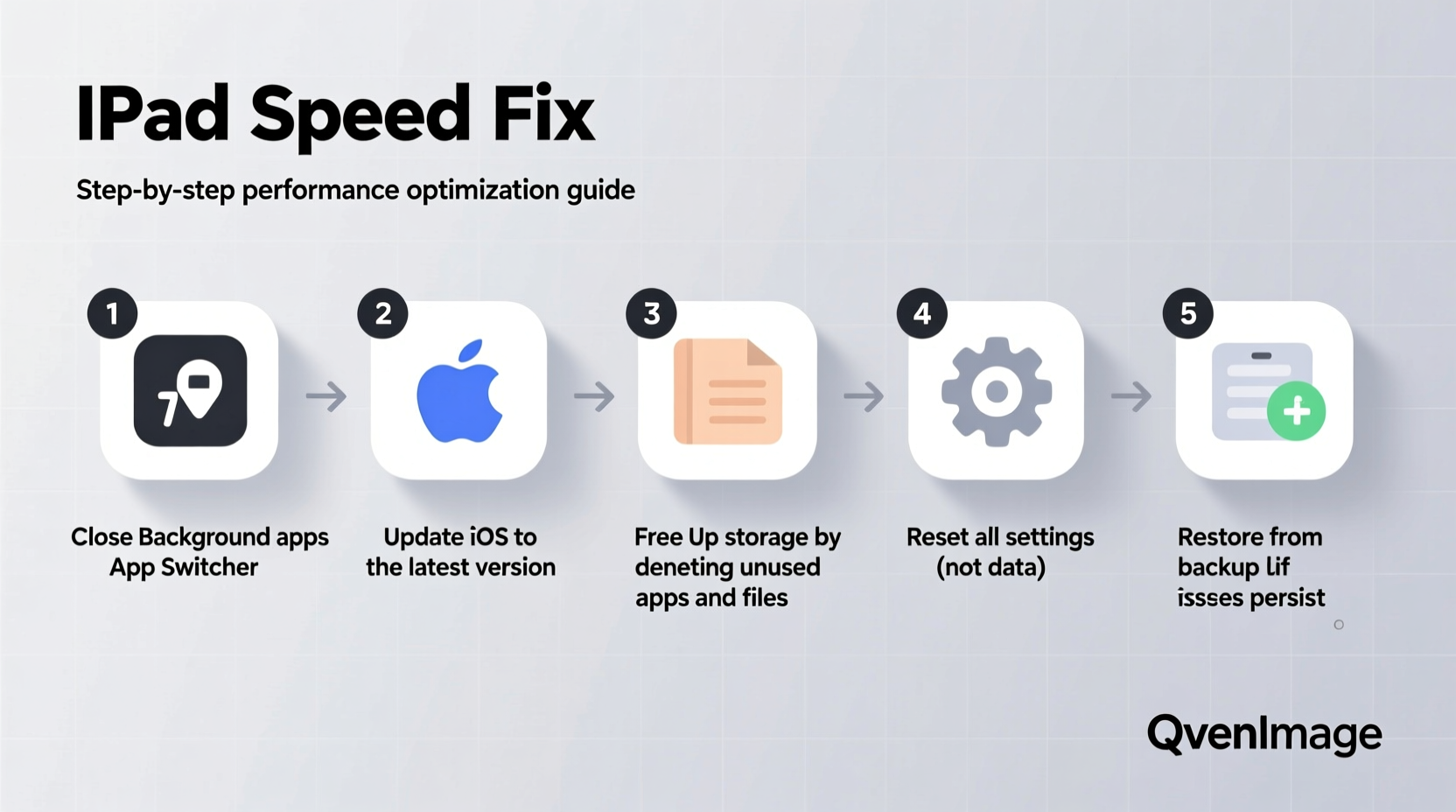
Before jumping into fixes, it's essential to understand what might be slowing down your iPad. Common culprits include:
- Low available storage: When storage drops below 10%, iOS slows down significantly due to limited space for temporary files and system operations.
- Outdated software: Older versions of iPadOS may lack performance optimizations or contain bugs affecting speed.
- Too many background apps: Apps running in the background consume memory and CPU resources, even when not actively used.
- Buggy or poorly optimized apps: Some third-party apps are resource-heavy or contain memory leaks that degrade overall performance.
- Hardware limitations: Older iPads with less RAM or outdated processors naturally struggle with newer, more demanding apps.
Determining whether the issue is software-related or hardware-bound helps prioritize your next steps. Most users will find that software adjustments alone can dramatically improve responsiveness.
Step-by-Step Guide to Speed Up Your iPad
Follow this structured sequence of actions to systematically address performance issues. Start from the top and work your way down—most users see improvement after just a few steps.
- Check available storage: Go to Settings > General > iPad Storage. If free space is under 2 GB, offload unused apps, delete old photos/videos, or move files to cloud storage.
- Update iPadOS: Navigate to Settings > General > Software Update. Install the latest version, which often includes performance patches and security improvements.
- Restart your device: Press and hold the power button (and home button on older models), then slide to power off. Wait 30 seconds, then turn it back on.
- Close unused apps: Double-click the Home button (or swipe up and pause on newer models) to access the app switcher. Swipe up on each app preview to close them.
- Reset all settings: In Settings > General > Transfer or Reset iPad > Reset > Reset All Settings. This doesn’t erase data but clears network, display, and privacy configurations that may be causing conflicts.
- Offload or delete heavy apps: In iPad Storage, tap on large apps like games or video editors. Choose “Offload App” to keep documents while removing the app binary.
- Reduce motion and visual effects: Go to Settings > Accessibility > Motion > Reduce Motion. Also enable “Prefer Cross-Fade Transitions” to minimize animations.
- Clear Safari cache: Settings > Safari > Clear History and Website Data. This removes accumulated junk that can bog down browsing.
Do’s and Don’ts for Maintaining iPad Performance
| Do’s | Don’ts |
|---|---|
| Keep at least 15% of storage free | Ignore storage warnings until your iPad freezes |
| Update iPadOS as soon as stable versions are available | Delay updates for months, risking security and compatibility issues |
| Use built-in features like Screen Time to monitor app usage | Install too many widgets or live activities that run constantly |
| Enable Automatic Background App Refresh selectively | Allow all apps to refresh in the background |
| Back up regularly via iCloud or computer | Wait until your iPad crashes before backing up |
Real-World Example: Reviving a Lagging iPad Air 2
Sarah, a freelance writer, noticed her iPad Air 2—running iPadOS 15—had become nearly unusable. Pages scrolled with a stutter, Safari took over 20 seconds to load articles, and Notes would freeze when typing. She had over 80% of her 64GB storage filled with screenshots, podcasts, and unused apps.
After following the step-by-step guide above, she deleted 12 GB of old media, offloaded three large games, updated to the latest compatible iPadOS version, and reset settings. The result? Her iPad booted faster, Safari loaded pages in under five seconds, and multitasking between apps became fluid again. While not as fast as a new model, it regained enough functionality for her daily writing and research tasks.
This case illustrates how software optimization can breathe new life into aging hardware—even on devices no longer eligible for the newest OS versions.
Expert Insight on Long-Term iPad Maintenance
“Performance degradation isn’t inevitable. Regular maintenance—like managing storage, updating software, and minimizing background activity—can extend an iPad’s peak performance by years.” — David Lin, Mobile Device Optimization Specialist
Lin emphasizes that user habits play a bigger role than most realize. “Many people treat tablets like appliances—use them until they break. But treating your iPad like a high-performance tool, with routine care, makes a dramatic difference.”
Essential Checklist: Fix iPad Lag in Under 30 Minutes
Use this quick-reference checklist to troubleshoot and improve performance efficiently:
- ✅ Check storage: Free up space if below 10% capacity
- ✅ Install the latest iPadOS update
- ✅ Restart the device completely
- ✅ Close all background apps via app switcher
- ✅ Turn off Background App Refresh for non-essential apps
- ✅ Clear Safari history and website data
- ✅ Disable unnecessary widgets and animations
- ✅ Offload or delete rarely used, large apps
- ✅ Reset settings if issues persist (Settings > General > Reset)
- ✅ Back up your iPad before making major changes
Frequently Asked Questions
Will resetting my iPad erase all my data?
Not necessarily. Resetting settings (Settings > General > Reset > Reset All Settings) only clears system preferences like Wi-Fi passwords and display options. It does not delete apps or personal files. However, “Erase All Content and Settings” will wipe everything—always back up first if choosing this option.
Can a factory reset make my iPad faster?
Yes, in some cases. A full factory reset removes all apps, data, and accumulated system clutter. After reinstalling only essential apps, many users report a noticeable speed boost. However, this should be a last resort—especially on older iPads where hardware limits remain unchanged.
Why is my new iPad slow after just a few months?
Even new iPads can slow down if overloaded with apps, widgets, and background processes. Accumulated cache, automatic downloads, and unoptimized third-party apps contribute to lag. Regular maintenance is key, regardless of device age.
Conclusion: Take Control of Your iPad’s Performance Today
An iPad running slow doesn’t mean it’s time to upgrade. In most cases, performance issues stem from manageable software and usage patterns—not failing hardware. By understanding how storage, background activity, and system settings impact speed, you regain control over your device’s responsiveness. The fixes outlined here—from clearing cache to optimizing settings—are accessible to all users and require no technical expertise.




 浙公网安备
33010002000092号
浙公网安备
33010002000092号 浙B2-20120091-4
Comments
No comments yet. Why don't you start the discussion?