
It’s a common frustration: you download an app on your iPhone, then switch to your iPad only to find it looks awkward, behaves differently, or doesn’t take full advantage of the larger screen. You might wonder—why can’t developers just make one version that works perfectly on both devices? After all, they’re both running iOS (or iPadOS), use the same App Store, and share many hardware features. The reality, however, is more complex than it appears. While technically possible for a single app to run on both devices, true optimization requires deliberate design and development choices that go beyond simple compatibility.
The gap between iPhone and iPad isn’t just about screen size—it’s about user behavior, interface expectations, and platform-specific capabilities. Understanding these differences explains why “the same app” often feels like two separate experiences.
Screen Real Estate and Interface Design
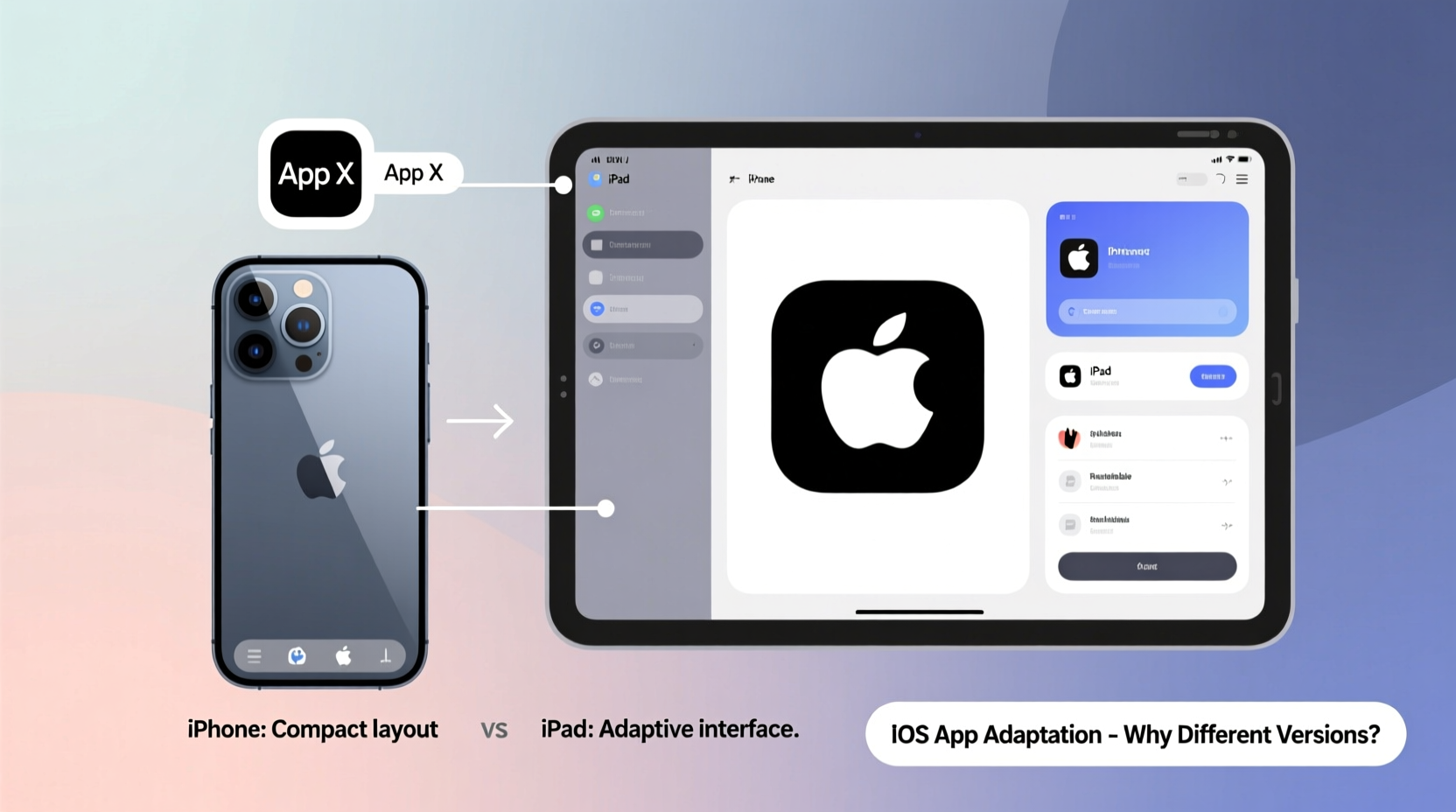
The most obvious difference between iPhone and iPad is screen size. An iPhone typically ranges from 4.7 to 6.9 inches diagonally, while iPads start at around 8.3 inches and go up to over 12 inches. This isn’t just a matter of scaling up buttons and text—it fundamentally changes how users interact with apps.
On an iPhone, interfaces are designed for single-handed use, vertical scrolling, and focused tasks. On an iPad, users expect multitasking, split views, and richer layouts. A well-designed iPad app leverages this space with sidebars, tool palettes, and resizable panels—features that would clutter or confuse a phone interface.
Apple provides tools like Auto Layout and Size Classes in Xcode to help developers create adaptive interfaces that respond to different screen sizes. But merely making an app responsive doesn’t guarantee a good experience. Truly optimized apps require custom UI logic tailored to each device’s strengths.
Development Tradeoffs: Universal vs. Optimized Apps
Technically, developers can build what’s called a “universal” app—one binary that runs on both iPhone and iPad. Most modern apps are universal by default. However, being universal doesn’t mean being equally effective on both platforms.
Many smaller developers prioritize iPhone-first design because the majority of iOS users access apps primarily on phones. It’s resource-intensive to design, test, and maintain two distinct interface paradigms within one app. As a result, some iPad versions feel like stretched-up iPhone apps rather than thoughtfully adapted ones.
Apple has long encouraged developers to embrace iPad-specific features. With the introduction of iPadOS in 2019, the platform gained unique capabilities like Stage Manager, drag-and-drop between apps, and enhanced file system access—none of which exist on iPhone. These features demand dedicated engineering effort to support properly.
“Designing for iPad means rethinking workflow, not just layout.” — Craig Federighi, Apple SVP of Software Engineering
App Architecture Differences Between Devices
Beyond visuals, there are functional disparities. Consider how apps handle multitasking:
- iPad: Supports Split View, Slide Over, and Picture in Picture—allowing users to run multiple apps simultaneously.
- iPhone: Limited to limited picture-in-picture and background audio, with no true side-by-side multitasking.
An app built only for iPhone may not pause or resume correctly when placed in a Slide Over window. It might not support drag-and-drop text or images into another app. Or it could fail to save state properly when minimized temporarily.
Additionally, performance expectations differ. iPads often have more powerful processors and greater memory capacity. Developers may choose to enable advanced features—like high-resolution rendering, multi-track editing in video apps, or complex document handling—only on iPad, knowing the hardware can support it.
Comparison: iPhone vs. iPad App Experience
| Feature | iPhone App Behavior | iPad App Behavior |
|---|---|---|
| Layout | Linear, scroll-based, single column | Multi-panel, sidebar navigation, grid views |
| Multitasking | Limited to background play or PiP | Split View, Slide Over, Stage Manager supported |
| Input Methods | Touch only (primarily) | Touch, Apple Pencil, external keyboard, trackpad |
| File Management | Limited access via Files app | Full integration with Files, external drives, network locations |
| App Switching | App Switcher view | Dock, App Exposé, desktop-like management |
Real-World Example: Notes App Across Devices
Take Apple’s own Notes app as a case study. On iPhone, opening a note takes over the entire screen. To see your list of notes, you must tap back. The toolbar is compact, and markup tools appear in a bottom drawer.
On iPad, Notes uses a master-detail layout: your notebook list stays visible on the left while you edit on the right. Markup tools appear as a floating palette. You can open two notes side-by-side using Split View. Drag a photo from Safari directly into a note. Use an Apple Pencil to sketch with low latency and palm rejection.
This isn’t just visual scaling—it’s a reimagined interaction model suited to the device. The same underlying functionality exists, but the way users access and combine features reflects deeper adaptation.
Checklist: What Makes an iPad App Truly Optimized?
Not all iPad apps deliver a great experience. Here’s how to tell if an app truly embraces the platform:
- Uses a split-view or sidebar interface for navigation
- Supports drag-and-drop from other apps
- Adapts to different window sizes and orientations
- Leverages Apple Pencil for precision input (if relevant)
- Integrates with Files app and external storage
- Supports keyboard shortcuts and external keyboards
- Runs smoothly in Slide Over or Split View mode
If an app checks most of these boxes, it was likely developed with iPad-specific workflows in mind—not just ported from iPhone.
Frequently Asked Questions
Can any iPhone app run on iPad?
Yes. All iPhone apps can run on iPad in compatibility mode. They appear either centered on the screen or stretched to fill it (depending on settings), but they don’t automatically gain iPad-specific features unless the developer has implemented them.
Why do some apps have separate iPad versions?
Historically, some developers released separate \"HD\" or \"Pro\" versions for iPad. Today, this is rare—most apps are universal. However, certain professional tools (like Procreate or LumaFusion) offer feature differentiation based on device capability, even within a single app binary.
Will Apple eventually merge iPhone and iPad apps completely?
While the underlying OS shares a foundation, Apple continues to treat iPadOS as a distinct platform with unique productivity goals. Full convergence is unlikely, as user needs on tablets diverge significantly from phones—especially in creative, educational, and enterprise contexts.
Step-by-Step: How Developers Can Improve Cross-Device Experiences
For developers—or users curious about the process—here’s a simplified view of how to build a truly unified yet optimized app:
- Use Adaptive Layouts: Implement Auto Layout and Size Classes to let the UI respond fluidly to screen dimensions.
- Test on Both Devices: Don’t assume iPhone designs scale well. Test interactions, touch targets, and readability on actual iPads.
- Enable Multitasking: Ensure your app handles being resized, moved, or run alongside others without crashing or losing data.
- Leverage Platform Features: Add support for Apple Pencil, external keyboards, and file providers where appropriate.
- Offer Feature Tiers: If advanced tools require more screen space or processing power, enable them conditionally on iPad.
- Gather User Feedback: Monitor how people actually use the app on each device and iterate accordingly.
Conclusion: One App, Two Identities
The dream of a single app that works perfectly on both iPhone and iPad is achievable—but it requires more than technical compatibility. It demands thoughtful design, behavioral insight, and respect for how people use each device differently. An email app shouldn’t just show bigger text on iPad; it should let you triage messages in one pane while drafting in another. A drawing app shouldn’t merely expand its canvas—it should unlock gesture controls, layer panels, and pressure sensitivity that match the tablet’s potential.
As users, we benefit when developers invest in both platforms equally. And as technology evolves, the line between mobile and desktop computing continues to blur—especially on iPad. The future isn’t about forcing the same experience onto different screens, but about crafting intelligent, context-aware apps that adapt seamlessly to how, where, and why we use them.




 浙公网安备
33010002000092号
浙公网安备
33010002000092号 浙B2-20120091-4
Comments
No comments yet. Why don't you start the discussion?