
Nothing disrupts productivity or leisure time like an iPad that refuses to connect to Wi-Fi. Whether you're trying to stream a show, download important files, or join a video call, a sudden loss of connectivity can be frustrating. The good news is that most Wi-Fi issues on iPads are not hardware-related and can be resolved quickly with the right approach. This guide walks through practical, step-by-step solutions to get your iPad back online—fast.
Restart Your iPad and Router
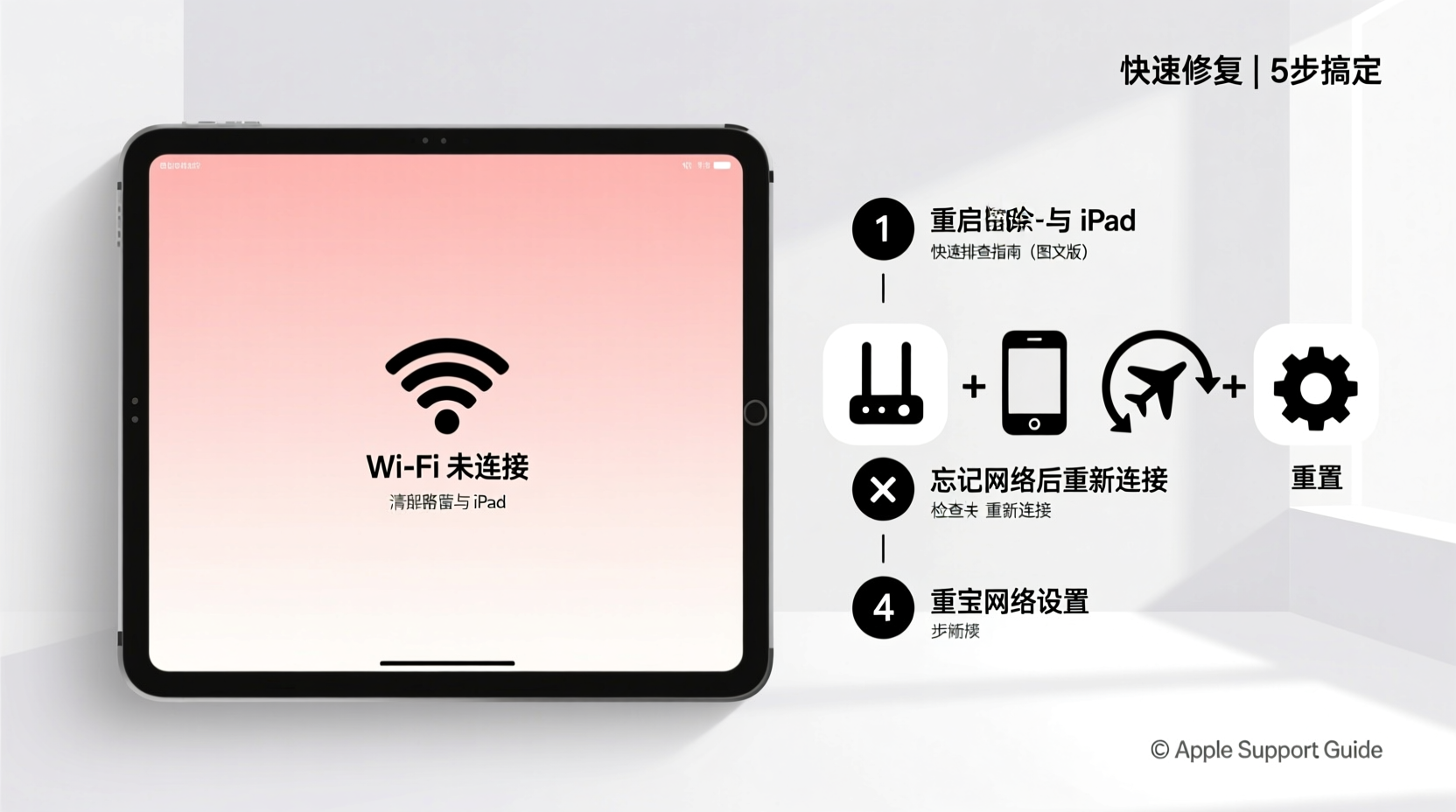
The simplest yet most overlooked solution is restarting both your iPad and your Wi-Fi router. A temporary software glitch or network congestion can prevent proper communication between devices.
To restart your iPad:
- Press and hold the top (or side) power button until the \"slide to power off\" prompt appears.
- Slide to power off and wait 30 seconds.
- Press and hold the power button again to turn it back on.
For your router:
- Unplug the power cable from the back of the router.
- Wait for at least 30 seconds—this clears any residual charge and resets the internal memory.
- Plug it back in and wait up to two minutes for all lights to stabilize.
Once both devices are back online, attempt to reconnect your iPad to Wi-Fi. In many cases, this single step resolves the issue.
Check Wi-Fi Settings and Network Selection
Sometimes, your iPad may appear connected but isn’t actually accessing the internet. Verify the correct network is selected and that no restrictions are in place.
Navigate to Settings > Wi-Fi. Ensure Wi-Fi is turned on and look for the network you intend to use. If your network appears but has a warning icon (like an exclamation mark), it means the iPad connected to the router but cannot reach the internet.
Tap the “i” icon next to the network name to view details. Confirm:
- The IP address is not labeled as “Invalid” or “0.0.0.0”
- DNS settings are either automatic or correctly configured
- The network isn’t marked as “Weak Security” (common with outdated WPA protocols)
If the network shows as “Not in Range,” move closer to the router or eliminate physical obstructions like walls or metal appliances.
Forget and Rejoin the Network
If your iPad repeatedly fails to maintain a stable connection, saved network credentials might be corrupted. Removing and re-adding the network often helps.
- Go to Settings > Wi-Fi.
- Tap the “i” icon next to your network.
- Select Forget This Network.
- Confirm the action when prompted.
- Reconnect by selecting the network from the list and entering the password again.
This process clears any incorrect configurations stored in your device’s memory and forces a fresh handshake with the router.
“Resetting network profiles eliminates configuration drift—a common cause of intermittent Wi-Fi problems.” — David Lin, Senior Network Engineer at NetSecure Systems
Reset Network Settings
If multiple networks fail to connect or if Wi-Fi keeps dropping, resetting your iPad’s entire network configuration may be necessary. This wipes all saved Wi-Fi passwords, Bluetooth pairings, and cellular settings.
To reset:
- Open Settings > General > Transfer or Reset iPad.
- Tap Reset.
- Select Reset Network Settings.
- Enter your passcode if prompted and confirm.
Your iPad will restart automatically. After rebooting, go back to Wi-Fi settings and reconnect to your network.
Note: You’ll need to re-enter Wi-Fi passwords for all previously connected networks, so have them ready.
Update iPad Software
Outdated iOS versions can contain bugs that interfere with wireless functionality. Apple regularly releases updates that improve stability, security, and compatibility with modern routers.
To check for updates:
- Go to Settings > General > Software Update.
- If an update is available, tap Download and Install.
- Ensure your iPad is plugged in and connected to Wi-Fi during installation.
Even minor point updates (e.g., from 17.4 to 17.5) can include critical network patches. Keeping your device updated prevents avoidable connectivity issues down the line.
Troubleshooting Checklist
Use this concise checklist to methodically diagnose and fix Wi-Fi problems:
- ✅ Restart iPad and Wi-Fi router
- ✅ Confirm Wi-Fi is enabled and correct network is selected
- ✅ Check for internet access on other devices
- ✅ Forget and rejoin the Wi-Fi network
- ✅ Move closer to the router to test signal strength
- ✅ Reset network settings if issues persist
- ✅ Install the latest iOS version
- ✅ Test with another Wi-Fi network (e.g., public hotspot)
Follow each step in order. Most users regain connectivity by step four or five.
When Hardware or Environment Is the Issue
If none of the above steps work, consider external factors such as router limitations or iPad hardware damage.
Routers more than three to five years old may struggle with newer devices due to outdated firmware or limited bandwidth support. Dual-band routers (2.4 GHz and 5 GHz) offer better compatibility, but some iPads may prefer one band over the other. Try disabling the 5 GHz band temporarily to see if your iPad connects more reliably on 2.4 GHz.
Physical damage—such as water exposure or a drop—can also impair the iPad’s Wi-Fi antenna. If your iPad fails to detect *any* networks, even in public places, the issue may be hardware-related. In such cases, contact Apple Support or visit an authorized service provider.
| Symptom | Possible Cause | Solution |
|---|---|---|
| iPad sees network but won’t connect | Incorrect password or IP conflict | Forget network and rejoin |
| No networks appear | Wi-Fi disabled or hardware issue | Toggle Wi-Fi off/on; reset network settings |
| Connects but no internet | Router or ISP problem | Test with another device; restart router |
| Keeps disconnecting | Signal interference or iOS bug | Move closer to router; update iOS |
Real-World Example: Home Office Connectivity
Sarah, a freelance graphic designer, relied on her iPad Pro for client calls and cloud-based design tools. One morning, her iPad wouldn’t connect to her home Wi-Fi, despite showing full signal bars. Her iPhone and laptop worked fine.
She first restarted her iPad—no change. She then checked Settings > Wi-Fi and noticed the network had a yellow warning icon. After forgetting the network and re-entering the password, the iPad connected immediately. Later, she realized her router had auto-updated overnight, causing a brief authentication mismatch with saved devices. By removing and re-adding the network, she restored full functionality within minutes.
This scenario highlights how device-specific glitches—not overall network failure—often cause Wi-Fi issues.
Frequently Asked Questions
Why does my iPad say “No Internet Connection” even though it’s connected to Wi-Fi?
This message means your iPad has joined the local network but cannot reach the internet. The issue likely lies with the router or internet service provider. Restart the router and test with another device to confirm.
Can a VPN or firewall block my iPad’s Wi-Fi?
Yes. Some corporate or public networks use firewalls that restrict certain devices or applications. If you're using a personal VPN app, try disabling it temporarily to see if connectivity improves.
What should I do if only my iPad can’t connect?
If other devices work fine on the same network, the problem is isolated to your iPad. Follow the troubleshooting steps in this guide, starting with forgetting the network and updating iOS. If the issue persists, reset network settings.
Conclusion: Regain Control Over Your Connection
An iPad that won’t connect to Wi-Fi doesn’t mean the device is broken or beyond repair. In most cases, a few quick actions—restarting, resetting, or updating—are all it takes to restore seamless connectivity. The key is systematic troubleshooting: rule out simple causes first before moving to advanced solutions.
By understanding how Wi-Fi works on your iPad and applying these reliable fixes, you can minimize downtime and stay productive or entertained without interruption. Don’t let a temporary glitch derail your day—take control, apply these steps, and get back online with confidence.




 浙公网安备
33010002000092号
浙公网安备
33010002000092号 浙B2-20120091-4
Comments
No comments yet. Why don't you start the discussion?