
If you’ve ever taken a selfie with your iPhone 11 and immediately thought, “Why does this look so bad compared to the rear camera?” you’re not alone. Many users are surprised by the noticeable difference in image quality between the front and back cameras. The truth is, it’s not just your face—it’s the hardware, software, lighting, and even psychology at play. Understanding the technical and practical differences can help you take better selfies and feel more confident in your self-portraits.
The Hardware Difference: Front vs Back Camera Specs
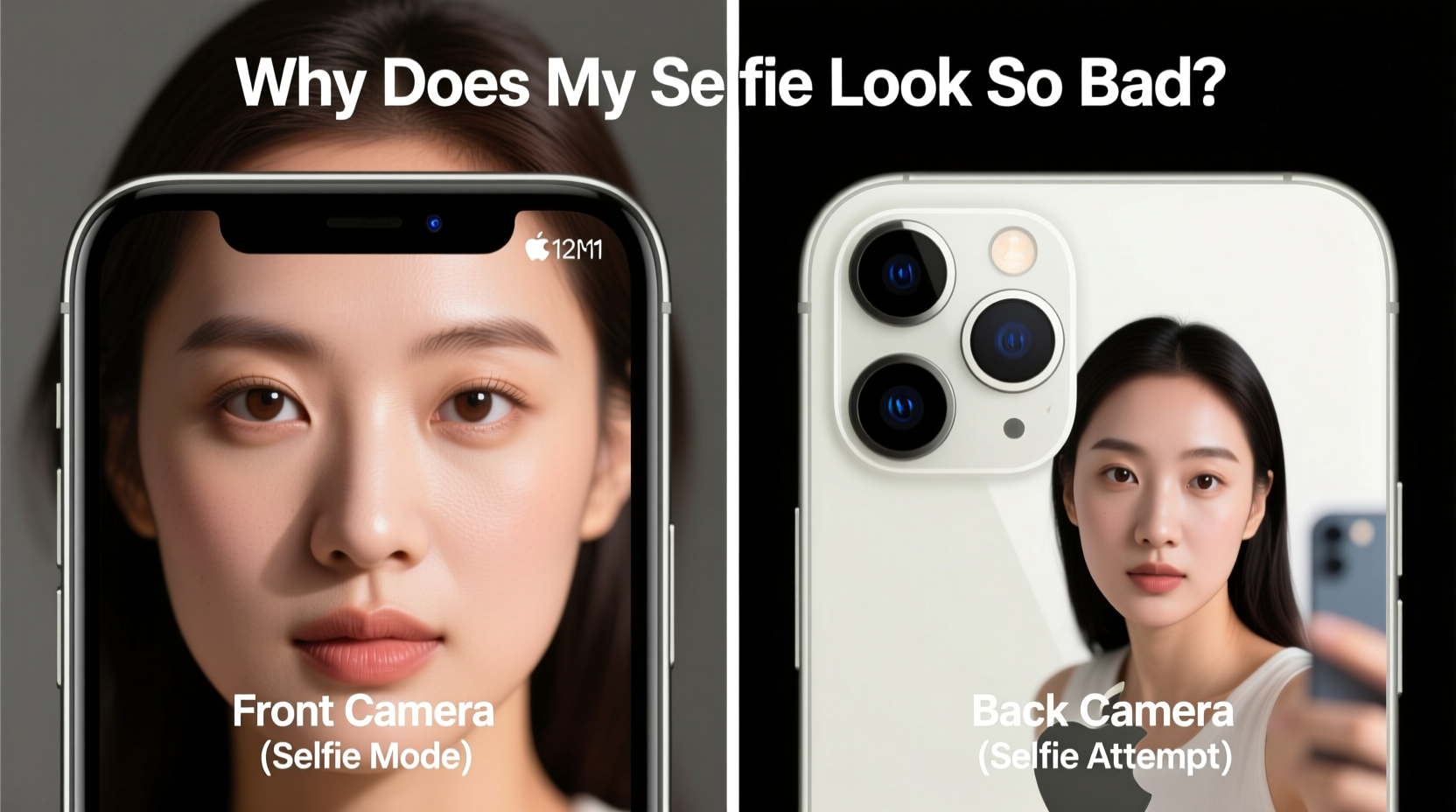
The most fundamental reason for the disparity lies in the physical camera systems. Apple designed the iPhone 11 with a clear hierarchy: the rear camera is built for high-quality photography, while the front camera prioritizes convenience and video calls.
| Feature | Front Camera (TrueDepth) | Back Camera (Dual System) |
|---|---|---|
| Resolution | 12 MP | 12 MP (Wide) + 12 MP (Ultra-Wide) |
| Aperture | f/2.2 | f/1.8 (Wide), f/2.4 (Ultra-Wide) |
| Sensor Size | Smaller sensor | Larger sensor with better light capture |
| Optical Image Stabilization | No | Yes (on Wide lens) |
| Autofocus | Fixed focus (optimized for ~50cm distance) | Advanced autofocus with Focus Pixels |
| Low-Light Performance | Limited; Night mode available but less effective | Night mode with longer exposure and better processing |
While both cameras technically offer 12 megapixels, the rear system benefits from larger sensors, wider apertures, optical stabilization, and dual-lens versatility. The front camera lacks many of these features, making it inherently less capable in dynamic or low-light conditions.
Lighting: The Invisible Factor in Selfie Quality
No camera, no matter how advanced, can overcome poor lighting. Selfies are often taken indoors, in shaded areas, or with the subject facing away from the light source—common mistakes that degrade image quality.
When you use the rear camera, you naturally point it toward the scene, which usually means better illumination. With selfies, your face is frequently backlit or lit unevenly. This forces the iPhone to boost ISO (increasing noise) or underexpose parts of your face.
“Lighting is the single most important factor in mobile photography. A $1,000 camera with bad light will always lose to a $100 phone in golden hour.” — David Kim, Mobile Photography Instructor at SF Art Institute
To improve selfie appearance:
- Face a window or natural light source
- Avoid overhead fluorescent lights, which cast harsh shadows
- Use a ring light or soft lamp for indoor consistency
- Enable HDR on your iPhone 11 to balance bright and dark areas
Psychology and the Mirror Effect: Why You Look “Wrong”
There’s a psychological component to why your selfies might seem unflattering. Most people are used to seeing their reflection in mirrors, which shows a reversed version of your face. The iPhone front camera typically captures a non-reversed image (unless using certain apps), meaning you're seeing yourself as others do—which can feel unfamiliar or “off.”
This discrepancy causes cognitive dissonance. Features like facial asymmetry, hair part direction, or eye dominance appear reversed, making you feel like you don’t look like “yourself.” Studies show that people rate mirror images as more attractive than true camera images simply because they’re more familiar.
How to Take Better Selfies on iPhone 11: A Step-by-Step Guide
You don’t need a new phone to get better results. With smart techniques, you can significantly improve your front-camera output.
- Position the Light Source: Stand with natural light in front of you, ideally slightly above eye level. Avoid direct sunlight, which creates harsh highlights.
- Hold the Phone at Eye Level: Angling the camera down slightly slims the face and opens up the eyes. Holding it too low emphasizes the chin and nose.
- Use Burst Mode for Action Shots: Press and hold the shutter button to capture multiple frames. Pick the one where your expression is most natural.
- Switch to Portrait Mode: The TrueDepth system enables depth mapping. Use Portrait mode to blur the background and make your face stand out.
- Edit Thoughtfully: Use the built-in editing tools to adjust brightness, contrast, and warmth. Avoid over-sharpening or excessive filters.
- Try Third-Party Apps: Apps like Halide or ProCamera offer manual controls for exposure, focus, and white balance—giving you more creative control.
Real Example: From Frustrated User to Confident Sharer
Sarah, a 28-year-old marketing professional, avoided posting selfies because her iPhone 11 front camera made her skin look blotchy and her eyes dull. She assumed the camera was defective. After consulting a photography guide, she realized her bathroom lighting—a cool-toned LED above the mirror—was casting unflattering blue shadows.
She moved her selfie spot to a nearby window, angled her phone slightly downward, and began using Portrait mode with natural light. Within days, her Instagram engagement increased, and friends complimented her “glow.” It wasn’t a new phone or filter—it was understanding the environment.
Do’s and Don’ts: Quick Checklist for Better iPhone 11 Selfies
“Most selfie issues aren’t technical—they’re environmental. Fix the light, fix the angle, and the camera will do the rest.” — Lena Park, Tech Lifestyle Influencer
- ✅ Do: Face natural light sources
- ✅ Do: Use Portrait mode for depth effect
- ✅ Do: Clean the front lens regularly (oils smudge easily)
- ✅ Do: Hold the phone steady or use a tripod
- ❌ Don’t: Rely on digital zoom (reduces quality)
- ❌ Don’t: Take selfies in dim rooms without supplemental light
- ❌ Don’t: Overuse beauty filters that distort facial features
- ❌ Don’t: Ignore software updates (Apple improves camera processing with each iOS release)
Frequently Asked Questions
Why does my iPhone 11 front camera look blurry?
Blurriness often comes from shaky hands, dirty lenses, or low light. The front camera lacks optical image stabilization, so any movement during capture can cause blur. Clean the lens, steady your hands, and ensure adequate lighting.
Can I improve front camera quality with settings?
Yes. Go to Settings > Camera > Record Video and set it to 1080p at 60fps for sharper footage. Also enable HDR and Auto Macro (if applicable). In photo mode, use the grid to align shots and avoid cropping later.
Does the iPhone 11 have Night mode on the front camera?
Yes, but it's less effective than on the rear camera. Night mode activates automatically in low light, but requires you to hold still for 1–3 seconds. For best results, brace your arms against your body or use a surface for stability.
Final Thoughts: Embrace the Tool, Not the Flaw
The iPhone 11 front camera isn’t broken—it’s optimized for different use cases. It excels in FaceTime, quick social posts, and well-lit environments. The gap in quality between front and back cameras reflects design priorities, not failure. By understanding its limitations and working with its strengths, you can take selfies that look natural, flattering, and true to life.
Instead of asking, “Why does my selfie look so bad?” start asking, “How can I work with my camera to look my best?” That shift in mindset unlocks creativity and confidence. The best camera is the one you have with you—the key is knowing how to use it well.




 浙公网安备
33010002000092号
浙公网安备
33010002000092号 浙B2-20120091-4
Comments
No comments yet. Why don't you start the discussion?