
The evolution of smartphone design has shifted from raw performance to meaningful interaction. With hardware buttons becoming fewer—gone are headphone jacks and home buttons—manufacturers now repurpose physical inputs for smarter functions. The iPhone 15 Pro’s Action Button and Android’s long-standing tradition of customizable side keys represent two philosophies in this transition: Apple’s curated simplicity versus Android’s open-ended flexibility. But when it comes to actual daily utility, which system offers more value?
This isn’t just about pressing a button—it’s about how that press integrates into your life. Whether you're a photographer, commuter, parent, or multitasker, the ability to trigger actions instantly can save seconds that add up over time. Let’s examine both systems beyond marketing claims, focusing on real use cases, limitations, and long-term usability.
The iPhone 15 Action Button: Refined but Restricted
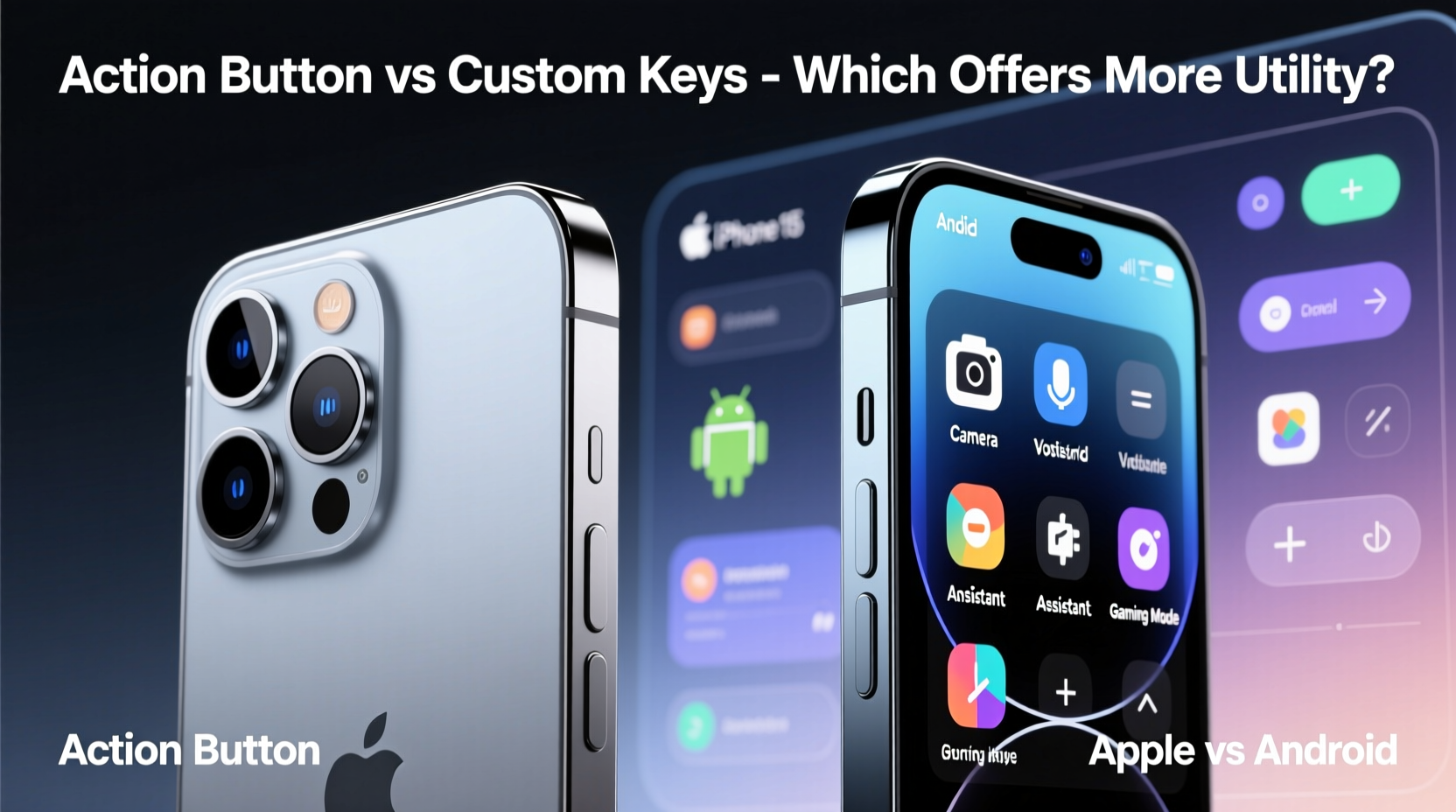
Replacing the mute switch on previous iPhones, the Action Button on the iPhone 15 Pro and Pro Max is Apple’s first fully programmable physical input since the 3D Touch era. It supports haptic feedback and can be set to launch one of several functions: launching the camera, turning on the flashlight, starting a Focus mode, playing a Shortcuts automation, or opening the Voice Memo app.
Apple designed the Action Button with tactile subtlety in mind. A short press triggers the default function; holding activates haptics and opens a menu if multiple shortcuts are assigned via third-party apps (limited support). However, despite its sleek integration, the Action Button operates within tight constraints.
Unlike earlier rumors suggesting full remapping capabilities, the Action Button cannot be reassigned to common actions like screenshot, magnifier, or app switching. Its integration with the Shortcuts app allows some creativity, but even then, execution speed depends on background processing, not direct hardware triggering.
Android’s Customizable Side Keys: Freedom with Complexity
For years, Android OEMs have offered ways to customize power and volume buttons. Samsung’s Bixby key (now reprogrammable), OnePlus’ Alert Slider (which inspired Apple’s Action Button), and Google Pixel’s double-press to launch Assistant are all examples of how Android leverages physical inputs for adaptive control.
Modern Android implementations go further. On devices like the Galaxy S24 series or Pixel 8 Pro, users can assign the power button to perform different actions based on press duration or pattern—single press to lock, double press to launch camera, long press to activate Assistant or shut down. Some manufacturers even allow context-aware triggers, such as launching a fitness tracker only when the phone detects motion.
More importantly, rooted devices or those running custom ROMs unlock near-total control. Apps like Button Mapper or Tasker let users bind any key combination to tasks ranging from toggling dark mode to sending pre-written texts or controlling smart home devices—all without opening an app.
“Physical buttons should serve the user, not the OS. Android’s openness allows people to shape their phones around their lives—not the other way around.” — David Lin, Mobile Interaction Designer at XDA Developers
Comparative Utility: Flexibility vs. Consistency
To evaluate true utility, we must consider adaptability, learning curve, reliability, and ecosystem alignment. Below is a breakdown comparing core aspects of both systems:
| Feature | iOS Action Button | Android Side Keys |
|---|---|---|
| Default Functions | Flashlight, Camera, Focus Mode, Voice Memo, Shortcut | Lock screen, Power off, Emergency, Assistant, Camera (varies) |
| Customization Depth | Limited to five options; Shortcuts integration possible | Full remapping via settings or third-party tools |
| Context-Aware Actions | No | Yes (e.g., launch workout app only during morning hours) |
| Multitap Support | No | Yes (double/triple press supported on many models) |
| Third-Party App Integration | Partial (requires app support) | Extensive (via Tasker, Automate, etc.) |
| Reliability & System Stability | High (sandboxed, no crashes) | Variable (depends on software quality) |
| User Learning Curve | Low (simple UI, guided setup) | Moderate to high (especially with automation tools) |
The data shows a clear trade-off: iOS prioritizes ease of use and stability, while Android emphasizes personalization and advanced functionality. For most average users, Apple’s approach reduces confusion and ensures consistent behavior. But for power users—those who automate workflows, manage multiple accounts, or rely on accessibility features—Android’s depth provides tangible benefits.
Real-World Example: Commuter Workflow Optimization
Consider Maria, a city commuter who uses public transit daily. Her routine includes checking train times, enabling noise cancellation, scanning her transit card, and reading saved articles.
- On iPhone: She sets the Action Button to activate a “Transit Mode” Focus, which silences non-urgent alerts and opens her transit app. It helps, but she still needs to unlock the phone and tap twice to scan her card.
- On Android: Using a modified power button setup, a double press launches her wallet app directly to her transit pass, while a long press starts a voice note for ideas during the ride. Another shortcut toggles noise-canceling mode on her connected headphones via a dedicated macro.
In this scenario, Android’s layered controls reduce steps significantly. While iOS streamlines one part of the process, Android orchestrates several, demonstrating superior utility for complex routines.
Step-by-Step Guide: Maximizing Your Action Button or Side Key
Regardless of platform, getting the most out of programmable buttons requires intentional setup. Follow these steps to optimize yours:
- Identify Recurring Tasks: List 3–5 actions you perform daily (e.g., taking notes, checking weather, muting sound).
- Prioritize Speed-Critical Actions: Choose tasks where saving 2–3 seconds matters (e.g., emergency contacts, flashlight in dark spaces).
- Map Based on Context: Assign functions relevant to location or time (e.g., “Work Mode” during office hours, “Sleep Mode” at night).
- Test and Iterate: Use the button for a week. If you forget it exists, reassign to something more urgent.
- Leverage Automation Tools: On Android, link buttons to Tasker or Bixby Routines. On iOS, build robust Shortcuts with variables and conditions.
Checklist: Building a Useful Button Profile
Use this checklist to ensure your configuration enhances—not complicates—your experience:
- ✅ Function can be triggered faster than unlocking and tapping an app
- ✅ Assigned task occurs at least once per day
- ✅ Does not conflict with accidental presses (e.g., pocket activation)
- ✅ Works offline or in low-signal areas (important for flashlights or SOS)
- ✅ Has visual or haptic confirmation so you know it activated
- ✅ Easy to disable temporarily (e.g., during presentations or flights)
FAQ
Can I assign the iPhone Action Button to launch any app?
No. Apple does not allow direct app launching via the Action Button. You can only trigger built-in utilities or run a Shortcut—but even then, the app may open slowly depending on complexity.
Is it safe to remap side keys on Android?
Generally yes. Built-in customization (like Samsung’s power button settings) is safe and stable. Third-party tools like Button Mapper are also reliable but may stop working after OS updates or require accessibility permissions.
Why doesn’t Apple allow more customization?
Apple prioritizes system integrity, battery life, and user simplicity. Deep customization increases risk of misuse, crashes, or security issues. Their philosophy favors curated experiences over open access—similar to why sideloading remains restricted.
Conclusion: Which Offers More Real Utility?
The answer depends on what kind of utility you value. If you want a simple, reliable way to access flashlight or camera quickly, the iPhone 15’s Action Button excels. It’s thoughtfully integrated, responds consistently, and fits seamlessly into Apple’s ecosystem. For casual users and those new to smartphone automation, it’s a welcome upgrade.
But if you measure utility by versatility, scalability, and integration across services, Android’s customizable side keys win decisively. They support multitap gestures, contextual logic, and deep automation—capabilities that grow more valuable the longer you use them. The initial setup might take effort, but the payoff is a device that feels uniquely tailored to your habits.
Ultimately, Apple offers convenience; Android delivers capability. As smartphones become extensions of our cognition, the ability to shape them precisely—not just use them as intended—becomes the defining feature of true utility.




 浙公网安备
33010002000092号
浙公网安备
33010002000092号 浙B2-20120091-4
Comments
No comments yet. Why don't you start the discussion?