
The iPhone 15 Pro introduced one of Apple’s most debated hardware changes in years: the replacement of the traditional mute switch with a customizable Action Button. At first glance, it appears sleek and modern—Apple even marketed it as a way to “do more with a press.” But beyond the marketing, users are asking: Is this feature genuinely useful, or is it just another tech gimmick designed to justify a premium price tag?
To answer that, we need to look beyond surface-level customization. The Action Button isn’t flashy like Dynamic Island or powerful like the A17 chip, but its value lies in utility, personalization, and integration into daily routines. Whether you’re a power user, a photographer, or someone who values efficiency, the Action Button can be more than a novelty—if used intentionally.
Understanding the Action Button: More Than Just a Switch
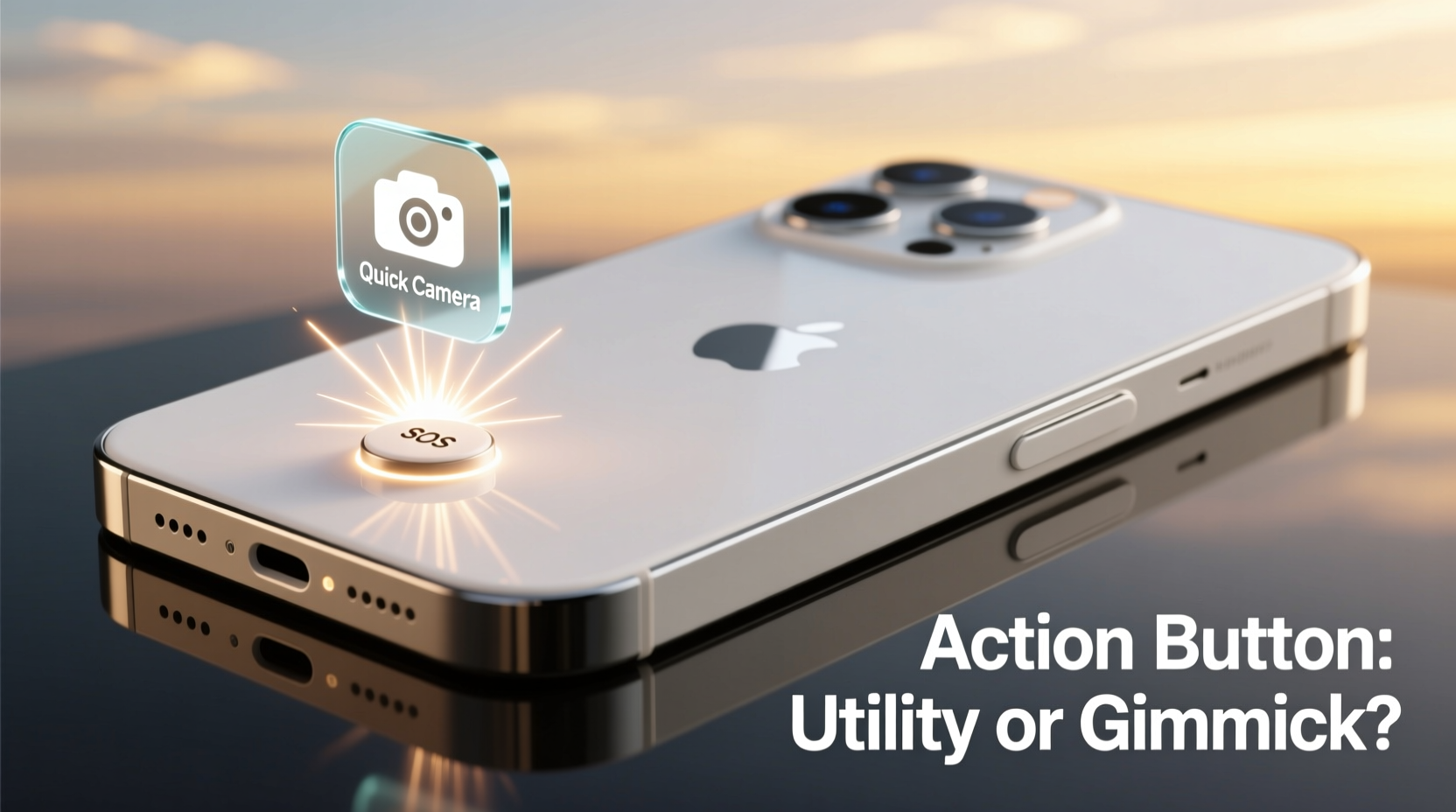
The Action Button replaces the ring/silent switch on the left side of the iPhone 15 Pro and Pro Max. Unlike its predecessor, which had only one function, this new button is programmable. Through Settings > Action Button, users can assign different functions to short presses, long presses, or even double presses (with third-party apps via Shortcuts).
Apple preloads several options: launching Camera, Voice Memos, Flashlight, Focus modes, Magnifier, and Accessibility features. But the real flexibility comes from integrating it with the Shortcuts app, allowing automation of complex tasks with a single tap.
This shift reflects Apple’s broader trend toward contextual control—giving users faster access to tools they use frequently, without unlocking the phone or navigating menus. It’s not unlike the function buttons found on high-end Android phones or DSLR cameras, where tactile control enhances usability.
Practical Uses That Add Real Value
The key to determining whether the Action Button is useful lies in how it integrates into your habits. For many, defaulting to flashlight or camera is sufficient. But for those willing to customize, the potential is significant.
1. Instant Access to Productivity Tools
Assigning the button to launch a specific Focus mode—like Work, Sleep, or Driving—can streamline transitions between parts of your day. A long press before bed could activate Sleep mode, dimming the screen, silencing notifications, and starting a meditation playlist.
2. Photography Enhancement
Photographers often miss shots due to slow app launches. Setting the Action Button to open Camera directly reduces lag. Even better: pair it with a shortcut that opens Camera and immediately switches to ProRAW mode or activates Night mode based on lighting conditions.
3. Accessibility Powerhouse
For users with motor impairments or visual challenges, the Action Button can serve as a dedicated lifeline. Assigning it to activate VoiceOver, Magnifier, or even an emergency SOS sequence adds critical functionality without requiring multiple taps or voice commands.
4. Smart Home & Automation Triggers
Using Shortcuts, the button can control HomeKit devices. Press once to turn off all lights and lock doors when leaving home. Hold to start a “Movie Mode” that dims lights, closes blinds, and launches your streaming app.
5. Health & Mindfulness Integration
Set a long press to log water intake, start a breathing exercise, or begin a mindfulness timer. Over time, these small nudges support healthier digital habits.
“Physical controls reduce cognitive load. When a task becomes muscle memory, it increases efficiency and reduces distraction.” — Dr. Lena Park, Human-Computer Interaction Researcher, Stanford University
Action Button: Gimmick vs. Genuine Utility
Critics argue the Action Button offers marginal improvement over existing gestures or widgets. After all, you can already add shortcuts to your lock screen or use back-tap gestures. So why add a new button?
The difference is tactile feedback and consistency. Touchscreens lack physical cues; buttons do not. In situations where looking at your phone isn’t safe or convenient—driving, cooking, walking at night—a tactile control provides reliability.
Moreover, unlike widgets or swipe menus, the Action Button doesn’t require visual attention. You don’t need to unlock, swipe, or hunt for an icon. It’s immediate, consistent, and works from any state—locked, asleep, or in use.
Still, there are valid limitations. The button doesn’t support haptic feedback for different actions, nor does it have distinct physical positions like the old switch. And if you never customize it, defaulting to flashlight feels underwhelming for a flagship device feature.
The verdict? It’s not a revolutionary upgrade, but it’s far from a gimmick—for those who take the time to personalize it.
Do’s and Don’ts of Using the Action Button
| Do | Don't |
|---|---|
| Use it for high-frequency tasks (e.g., camera, flashlight) | Assign it to rarely used functions |
| Integrate with Focus modes or health tracking | Change the setting too often—consistency builds habit |
| Leverage Shortcuts for multi-step automations | Ignore accessibility use cases—it can be life-changing |
| Test different press types (short vs. long) | Assume it’s only for power users—simplicity has value too |
Real-World Example: How a Photographer Uses the Action Button
Meet Daniel Reyes, a travel photographer based in Lisbon. He upgraded to the iPhone 15 Pro primarily for the titanium build and improved low-light performance—but quickly grew dependent on the Action Button.
Daniel spends hours walking through narrow alleys and coastal cliffs, where pulling out his phone to open the camera app often meant missing the perfect shot. He configured the Action Button to open Camera instantly and set a long press to toggle between standard and cinematic mode.
“It’s subtle, but it changed my workflow,” he says. “Now I walk with my phone in hand, thumb resting on the Action Button. When I see something, I press and shoot in under a second. No fumbling. It feels more like using a real camera.”
He later expanded its use: a double-press shortcut (via Shortcuts) logs GPS location and tags the photo with metadata for post-processing. While not built-in, the flexibility allowed him to create a system tailored to his needs.
Daniel’s experience illustrates a core truth: the Action Button’s value isn’t in what it does out of the box, but in how it adapts to individual workflows.
Step-by-Step Guide to Maximizing the Action Button
Getting the most out of the Action Button requires intentional setup. Follow this timeline to integrate it meaningfully into your routine:
- Week 1: Experiment with Defaults
Try each preset—Camera, Flashlight, Voice Memos, etc. Use it daily and note which one you reach for most. - Week 2: Customize One Core Function
Go to Settings > Action Button and assign it to your most-used tool. Stick with it to build muscle memory. - Week 3: Introduce a Shortcut
Open the Shortcuts app and create a simple automation—e.g., “Start Workout” or “Send ‘On My Way’ Text.” Assign it to the button. - Week 4: Optimize for Context
Refine based on usage. Maybe a long press triggers a work routine, while a short press turns on flashlight. Test and adjust. - Ongoing: Reassess Monthly
As your habits change, update the button. Seasonal adjustments—like activating a holiday playlist in December—keep it relevant.
Frequently Asked Questions
Can I assign different actions to short and long presses?
Yes, but only one primary action per press type is supported natively. For example, a short press can open Camera, while a long press activates Voice Memos. More complex combinations (like double press) require the Shortcuts app.
Does the Action Button work when the phone is off or dead?
No. Like most software-dependent features, it requires the device to be powered on. However, it does work from the locked screen and sleep state.
Can I revert to a mute switch behavior?
You can’t restore the physical toggle, but you can assign the Action Button to mute the ringer. This mimics the old switch’s function, though without the visual indicator of silent mode.
Final Verdict: Useful Tool or Marketing Fluff?
The iPhone 15 Pro’s Action Button sits at the intersection of innovation and pragmatism. It’s not essential, nor is it groundbreaking. But dismissing it as a gimmick overlooks its potential for meaningful personalization.
For casual users who stick to defaults, it may feel like a solution in search of a problem. But for those who rely on quick access, automation, or accessibility features, it becomes an invisible assistant—always ready, always within reach.
Its success depends entirely on user engagement. Much like widgets, dark mode, or even Siri, the surface-level experience is underwhelming. But dive deeper, and you uncover layers of utility that align with Apple’s philosophy: technology should adapt to you, not the other way around.
In a world saturated with touch-based interfaces, reintroducing a programmable physical button might seem retro. Yet, in practice, it bridges the gap between intention and action—reducing friction in ways that matter.
Make It Yours
The Action Button won’t transform your iPhone experience overnight. But with a few minutes of setup and a willingness to experiment, it can become one of the most intuitive tools at your disposal.
Don’t let it sit idle as a glorified flashlight trigger. Challenge yourself to find the one task you perform dozens of times a day—and automate it. Whether it’s journaling, controlling smart home devices, or capturing fleeting moments, the power is literally at your fingertips.




 浙公网安备
33010002000092号
浙公网安备
33010002000092号 浙B2-20120091-4
Comments
No comments yet. Why don't you start the discussion?