
If your iPhone alarm fails to go off, it can disrupt your entire day—especially if you rely on it to wake up, catch a flight, or make an important meeting. While Apple’s Clock app is generally reliable, software glitches, incorrect settings, or misunderstood features can prevent alarms from sounding. The good news: most issues are fixable with simple steps. This guide walks through the most common causes of a silent iPhone alarm and how to resolve them quickly and effectively.
Check Basic Alarm Settings First
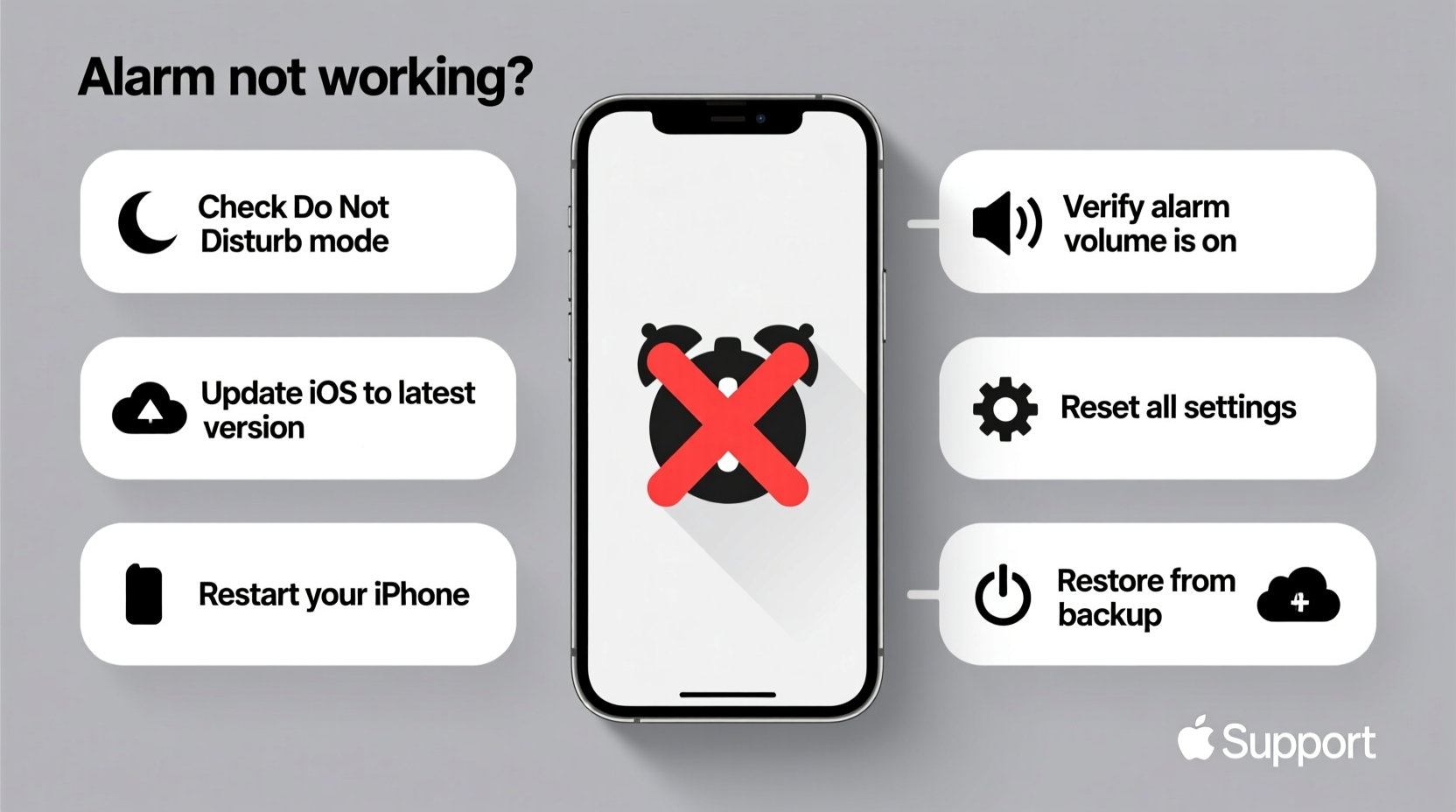
Before diving into complex solutions, verify the foundational settings that control your alarm. Many users assume their alarm is set correctly only to discover later that a minor oversight caused the failure.
- Open the Clock app and tap the Alarm tab.
- Ensure your alarm is toggled on (green).
- Confirm the correct time and AM/PM designation.
- Verify that the alarm label doesn’t say “Sleep” unless using Sleep Mode intentionally.
Also, check that you’ve selected a loud enough sound. If the alarm tone is set to “None,” no sound will play even if the alarm is active.
Volume and Sound Settings That Silence Your Alarm
Your iPhone may be set to suppress alarms under certain conditions. Two key settings often cause confusion: Ringer Volume and Change with Buttons.
The physical volume buttons typically adjust media and ringer volume—not the alarm volume. However, if “Change with Buttons” is enabled, pressing the volume buttons after unlocking the phone changes the ringer level, which indirectly affects alarm loudness.
“Many people don’t realize their alarm volume depends on the last ringer volume they set. If you lowered the volume during a meeting, your alarm might be too quiet to hear.” — David Lin, iOS Support Specialist
How to Fix Alarm Volume
- Go to Settings > Sounds & Haptics.
- Under Ringers and Alerts, increase the volume slider.
- Toggle off Change with Buttons if you want alarm volume to remain independent.
- Test by setting a test alarm one minute ahead and verifying the sound level.
Note: Alarms always bypass Silent mode (when the side switch shows orange), but they do not bypass Do Not Disturb if misconfigured.
Do Not Disturb and Focus Modes: Silent Killers of Alarms
One of the most frequent reasons alarms don’t sound is interference from Focus modes—especially Sleep Focus. Introduced in iOS 15, Focus filters notifications and alerts based on your current activity, and if misconfigured, it can silence alarms unintentionally.
| Focus Mode | Can It Block Alarms? | Solution |
|---|---|---|
| Do Not Disturb | No (alarms still work) | Ensure no third-party apps override system sounds |
| Sleep Focus | Yes (if alarm isn't approved) | Add Clock app to allowed apps in Focus settings |
| Work Focus | No (by default) | Check custom settings for sound exceptions |
To Allow Alarms During Sleep Focus:
- Open the Health app and go to Sleep.
- Tap Schedule & Bedtime and ensure your alarm is listed under “Wake Up Time.”
- Go to Settings > Focus > Sleep.
- Tap Allowed Notifications and confirm Clock is enabled.
Software Glitches and App Issues
Sometimes, the Clock app itself becomes unresponsive due to temporary software bugs. This is more common after iOS updates or when background processes conflict.
Step-by-Step App Reset
- Close the Clock app from the App Switcher: Swipe up from the bottom (or double-click Home on older models) and swipe the Clock preview away.
- Restart your iPhone: Press and hold the side button and either volume button, then slide to power off.
- Turn the device back on and wait 30 seconds before opening the Clock app.
- Recreate your alarm to rule out data corruption.
If the issue persists, consider updating iOS. Go to Settings > General > Software Update. Apple frequently releases patches for known alarm-related bugs.
In rare cases, resetting all settings can help. Navigate to Settings > General > Transfer or Reset iPhone > Reset > Reset All Settings. This won’t erase your data but will restore system preferences like Wi-Fi passwords and display settings.
Real-World Example: Sarah Missed Her Flight
Sarah, a business consultant, relied on her iPhone alarm to wake up for an early flight. Despite setting the alarm the night before, she slept through it. Upon investigation, she discovered she had unknowingly activated Sleep Focus through the Health app’s bedtime feature. Because she hadn’t explicitly allowed the Clock app in the Focus settings, her alarm was silenced.
After reconfiguring her Sleep Focus permissions and testing the alarm, she restored reliability. She now sets two alarms—one via Clock and another using a third-party app—as a backup.
“Don’t trust a single alarm method. Technology fails. Redundancy saves mornings.” — Dr. Lena Patel, Productivity Researcher
Troubleshooting Checklist
Use this checklist the next time your iPhone alarm doesn’t work:
- ✅ Is the alarm actually turned on in the Clock app?
- ✅ Is the alarm sound set to something other than “None”?
- ✅ Is the ringer volume high enough?
- ✅ Is Sleep Focus or another Focus mode blocking the alarm?
- ✅ Are you using the latest version of iOS?
- ✅ Did you restart the phone recently?
- ✅ Have you tested the alarm with a one-minute delay?
- ✅ Is the speaker clean and unobstructed?
Frequently Asked Questions
Why does my iPhone alarm sometimes only vibrate?
This usually happens if the sound is set to “None” or if the phone is in a Focus mode that restricts audio. Also, ensure your alarm sound selection includes audio, not just vibration.
Can low battery or power-saving mode disable my alarm?
No. Even in Low Power Mode, scheduled alarms will still trigger. However, if your phone shuts down due to dead battery, obviously no alarm can sound. Charge overnight if relying on the alarm.
Will my alarm work if my iPhone is turned off?
No. The device must be powered on. Airplane Mode or Do Not Disturb won’t stop the alarm, but a powered-off phone cannot run any apps, including Clock.
Final Tips for Reliable Alarms
For maximum reliability, adopt a few preventive habits:
- Use multiple alarms: Set one for five minutes before your intended wake time as a backup.
- Place your phone face-up and within earshot: Don’t place it under a pillow or across the room where sound is muffled.
- Avoid third-party alarm apps with poor reviews: Stick to trusted options or use the native Clock app, which integrates best with iOS.
- Charge your phone nightly: A dead battery defeats even the best-configured alarm.




 浙公网安备
33010002000092号
浙公网安备
33010002000092号 浙B2-20120091-4
Comments
No comments yet. Why don't you start the discussion?