
Suddenly finding that your favorite iPhone apps won’t open, freeze, crash, or fail to load can be frustrating—especially when you rely on them daily for communication, productivity, or entertainment. While iOS is known for its stability, app issues do occur due to software glitches, outdated systems, corrupted data, or connectivity problems. The good news is that most of these problems are fixable without visiting a service center. This guide walks you through practical, effective solutions to get your apps running smoothly again.
Check Your Internet Connection
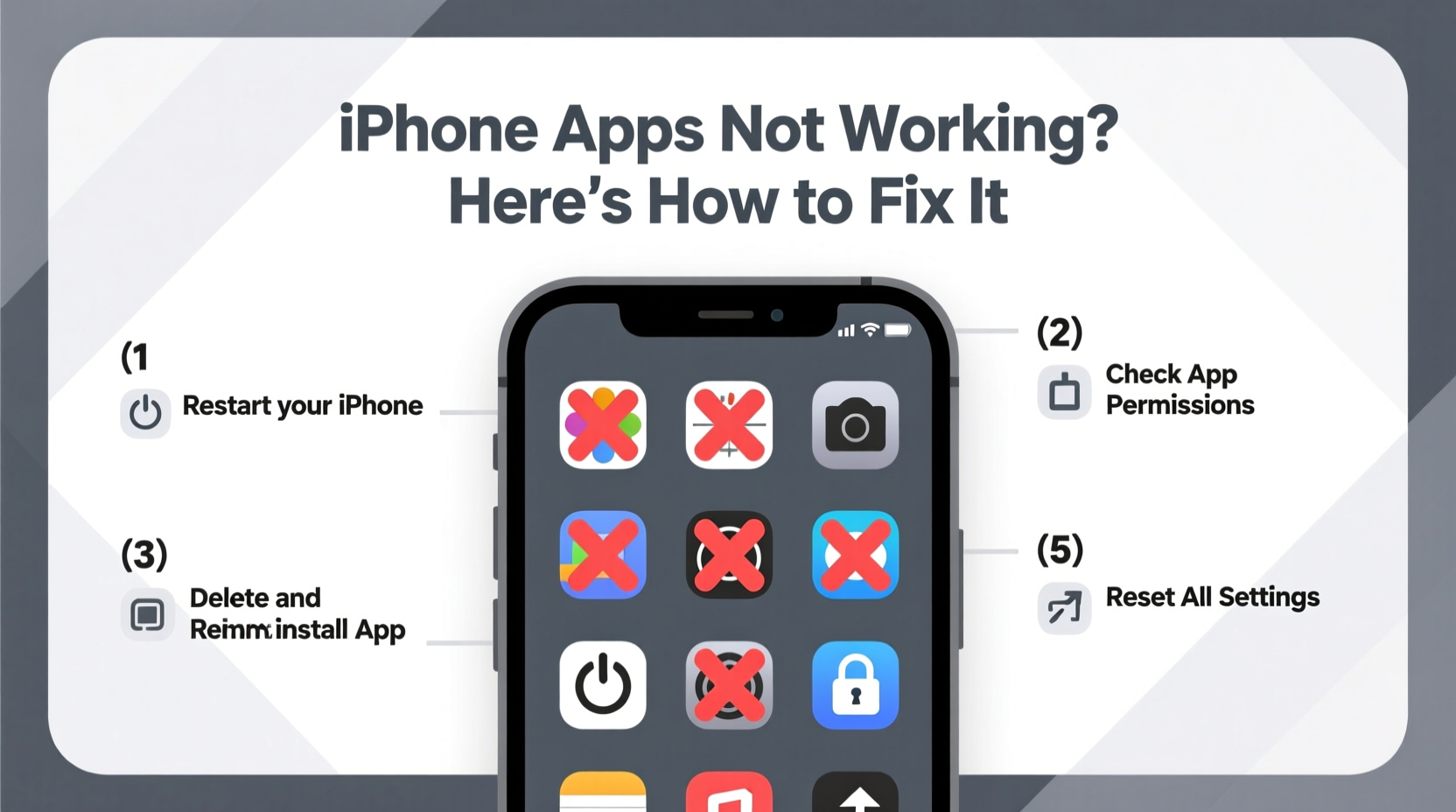
Many apps require a stable internet connection to function properly. If an app loads content from the web—like social media, email, or streaming services—a weak or unstable connection can cause timeouts, blank screens, or crashes.
Start by testing your Wi-Fi or cellular data:
- Open Safari and visit a website to confirm connectivity.
- Switch between Wi-Fi and cellular data to see if the issue persists.
- Restart your router if other devices also have poor connectivity.
If only one app fails while others work fine, the issue likely isn’t your network—but if multiple apps behave poorly online, resolving your internet should be the first step.
Force Close and Reopen the App
Apps sometimes hang or freeze due to background processes consuming memory. Force closing clears temporary data and resets the app state.
How to Force Close an App:
- Swipe up from the bottom of the screen (or double-click the Home button on older models).
- Locate the problematic app’s preview card.
- Swipe the card upward to close it.
- Reopen the app from the home screen.
This simple action resolves many minor glitches. If the app still misbehaves, proceed to deeper fixes.
Update the App and iOS
Outdated apps or operating systems often lead to compatibility issues. Developers regularly release updates to patch bugs, improve performance, and support new iOS versions.
To Update Apps:
- Open the App Store.
- Tap your profile icon in the top right.
- Scroll down to see pending updates.
- Tap “Update” next to the app or “Update All.”
To Check for iOS Updates:
- Go to Settings > General > Software Update.
- If an update is available, download and install it over Wi-Fi.
Apple recommends keeping both iOS and apps updated—not just for features, but for security and stability.
Clear App Cache and Data
While iOS doesn’t let users manually delete app cache like Android, some apps store large amounts of temporary data that can corrupt over time. For apps like Safari, Messages, or social platforms, clearing data may help.
For Safari:
- Go to Settings > Safari > Clear History and Website Data.
For Other Apps:
You can offload or reinstall the app to clear local data:
- Navigate to Settings > General > iPhone Storage.
- Select the problematic app.
- Choose “Offload App” to remove the app but keep its documents and data.
- Reinstall it from the App Store.
Alternatively, delete the app entirely and reinstall it—this guarantees a clean slate.
Restart Your iPhone
One of the most effective yet underrated fixes is restarting your device. A reboot clears RAM, stops rogue processes, and reloads system resources.
How to Restart:
- iPhones with Face ID: Press and hold the side button + either volume button until the power slider appears. Drag to power off, then press and hold the side button to restart.
- iPhones with Home Button: Press and hold the top (or side) button until the slider appears.
Wait at least 30 seconds before turning it back on. After rebooting, test the app again.
“Over 70% of transient iOS app issues are resolved with a simple restart. It’s the digital equivalent of turning it off and on again.” — Mark Tran, Senior iOS Support Engineer at Apple Authorized Service Provider
Troubleshooting Checklist
Follow this step-by-step checklist when apps aren’t working:
✅ App Troubleshooting Checklist
- Test internet connection (Wi-Fi/cellular)
- Force close the app and reopen
- Check for app updates in the App Store
- Ensure iOS is up to date
- Restart your iPhone
- Offload and reinstall the app
- Check if the app server is down (e.g., Instagram outage)
- Sign out and back into the app account
- Reset network settings (Settings > General > Transfer or Reset iPhone > Reset > Reset Network Settings)
- Contact app support or Apple if the issue continues
Real Example: Sarah’s Messaging App Failure
Sarah couldn’t send messages through WhatsApp. Taps did nothing, and the app froze on launch. She tried reopening it multiple times with no success. First, she checked her internet—Safari worked fine. Then she force-closed WhatsApp and restarted her iPhone. No change. Next, she visited the App Store and noticed a pending update. After updating WhatsApp, the app launched normally and synced her messages.
The root cause? A recent iOS update had introduced a compatibility issue that the app developer patched within days. Because Sarah hadn’t enabled auto-updates, her app remained outdated—and broken—until manually updated.
This scenario highlights why timely updates matter and why a structured approach beats random troubleshooting.
Common Causes of App Failures
| Issue | Description | Solution |
|---|---|---|
| Outdated App | App not compatible with current iOS version | Update via App Store |
| Poor Internet | App can't fetch data or authenticate | Switch networks or reset connection |
| Corrupted Cache | Temporary files cause crashes | Offload or reinstall app |
| Low Storage | iPhone lacks space to run apps smoothly | Delete unused apps/media or upgrade storage |
| Server Downtime | App’s backend service is offline | Check status page (e.g., downdetector.com) |
Frequently Asked Questions
Why do my apps keep crashing after an iOS update?
After an iOS update, some apps haven’t been optimized for the new system yet. Developers usually release patches within days. Until then, check for app updates or temporarily use web versions.
Can too many apps running in the background slow things down?
iOS manages background apps efficiently, so having many open doesn’t significantly impact performance. However, apps actively using GPS, audio, or downloads consume more resources. Closing unused ones can help battery life and responsiveness.
Should I factory reset my iPhone if apps keep failing?
A factory reset should be a last resort. Try all software fixes first. If problems persist across multiple apps and reboots, back up your data and go to Settings > General > Reset > Erase All Content and Settings. Restore from backup afterward.
Conclusion: Take Control of Your iPhone Experience
When iPhone apps stop working, the solution is often simpler than expected. Most issues stem from small glitches that a restart, update, or reinstall can fix. By following a logical sequence—from checking connectivity to verifying updates and clearing app data—you regain control without unnecessary stress or expense.
Don’t accept persistent app failures as normal. With the right steps, your iPhone can return to smooth, reliable performance in minutes. Start applying these fixes today and enjoy a seamless digital experience.




 浙公网安备
33010002000092号
浙公网安备
33010002000092号 浙B2-20120091-4
Comments
No comments yet. Why don't you start the discussion?