
Sudden silence from your iPhone can be more than just annoying—it can disrupt calls, ruin music sessions, and interfere with daily productivity. Whether you're dealing with no sound during calls, muffled speaker output, or headphones that aren’t responding, audio problems are among the most common iPhone frustrations. The good news is that most sound issues can be resolved without visiting a service center. With a methodical approach and a few simple checks, you can restore full functionality to your device’s audio systems.
Check for Common Causes First
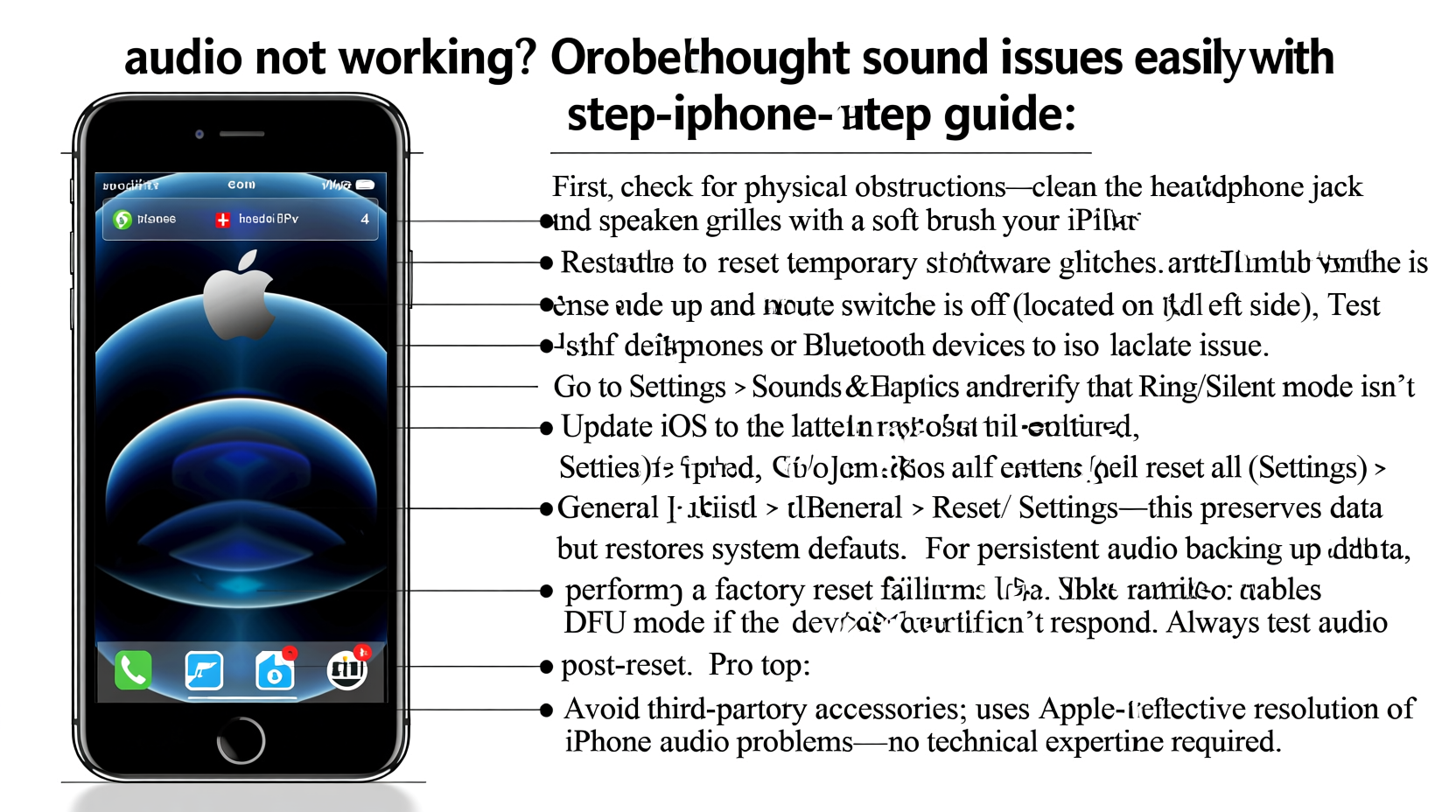
Before diving into complex diagnostics, eliminate the simplest explanations. Many audio issues stem from user settings or minor glitches rather than hardware failure.
- Mute switch: Ensure the physical mute switch (on the left side of most iPhones) isn’t enabled. When the switch shows red, your phone is muted.
- Volume level: Press the volume buttons to confirm the ringer isn’t turned down. Open an app that plays sound to test.
- Do Not Disturb mode: This setting silences alerts and calls. Check Control Center or Settings > Focus > Do Not Disturb.
- Bluetooth interference: If your iPhone is connected to a Bluetooth device, sound may route there instead. Disconnect by going to Settings > Bluetooth and tapping the “i” icon next to the device.
Step-by-Step Troubleshooting Guide
Follow this structured process to isolate and resolve the root cause of your iPhone’s audio issues.
- Restart your iPhone: A soft reboot clears temporary software glitches. Press and hold the side button and either volume button until the power slider appears. Slide to power off, wait 30 seconds, then turn it back on.
- Test different audio outputs: Play a video, make a call, and use FaceTime. Determine whether the issue affects the earpiece, speaker, headphones, or all.
- Inspect for physical damage: Examine the speaker grills (bottom edge and near the front camera) for lint, dust, or moisture. Use a soft brush or compressed air to gently clean.
- Update iOS: Go to Settings > General > Software Update. Installing the latest version often fixes known bugs affecting audio drivers.
- Reset all settings: If the problem persists, go to Settings > General > Transfer or Reset iPhone > Reset > Reset All Settings. This won’t erase data but will clear network, display, and sound configurations.
Diagnose Specific Audio Problems
Different symptoms point to different causes. Pinpointing where the issue lies helps apply the correct solution.
No Sound During Calls
If callers can't hear you or you can't hear them, start by checking the microphone and earpiece. Cover the rear camera while on a silent call—this forces the phone to switch to the bottom mic. If sound improves, the primary mic may be blocked. Also, ensure Noise Cancellation isn’t over-filtering input. Disable it via Settings > Accessibility > Audio/Visual > Phone Noise Cancellation.
Speaker Sounds Muffled or Distorted
Dust, debris, or water damage often clogs the speaker mesh. Avoid using sharp tools. Instead, tilt the phone slightly and use a dry, soft-bristled brush. If exposed to liquid, let the device dry completely—do not use heat. For persistent distortion, try playing a high-frequency tone (search “speaker cleaning sound” in YouTube) at moderate volume to dislodge particles.
Headphones Not Detected or No Sound
If wired headphones aren’t recognized, clean the Lightning port with a non-metallic tool. For Bluetooth headphones, forget the device and re-pair it. In Settings > Bluetooth, tap the “i” icon and select “Forget This Device,” then reconnect.
| Issue | Possible Cause | Solution |
|---|---|---|
| No sound on speaker | Mute mode, software bug | Check mute switch, restart phone |
| Sound only in one ear (wired) | Cable damage, audio balance | Test with other headphones; check Settings > Accessibility > Audio/Visual |
| Intermittent Bluetooth audio | Connection instability | Forget device, update firmware, reset network settings |
| Earpiece silent during calls | Blocked speaker, software glitch | Clean grill, reset settings, test in Safe Mode alternative |
“Over 70% of iPhone audio complaints we see in support logs are resolved with a restart or settings reset. Physical damage is less common than people assume.” — Jordan Lee, Apple-Certified Technician, iSupport NYC
Tips for Preventing Future Audio Issues
Prevention is more effective than repair. Small habits can significantly reduce the risk of recurring audio problems.
- Regularly clean ports and grills with a dry, soft brush.
- Avoid exposing your iPhone to moisture—even humidity can corrode internal components over time.
- Keep iOS updated to benefit from performance improvements and bug fixes.
- Use reputable accessories. Cheap adapters or headphones can introduce electrical noise or compatibility issues.
Mini Case Study: Resolving Persistent Speaker Silence
Marissa, a remote worker in Seattle, noticed her iPhone 13 stopped producing sound during Zoom meetings. The ringer worked, but the speaker was silent. She first checked mute mode and volume—both were fine. After restarting, the issue remained. She tested with headphones and found audio worked perfectly, ruling out software-wide muting.
She inspected the bottom speaker and discovered lint buildup from her pocket. Using a small paintbrush, she gently cleaned the area. Still no sound. Then, she played a speaker-cleaning tone at 50% volume for two minutes. On her next call, the speaker functioned normally. The combination of mechanical blockage and temporary driver lag was resolved without professional help.
FAQ
Why does my iPhone have no sound but is not on mute?
This can happen due to incorrect audio routing (e.g., still connected to Bluetooth), app-specific volume settings, or a system glitch. Try restarting the phone and checking Settings > Sounds & Haptics to ensure \"Change with Buttons\" is enabled.
Can water damage cause permanent audio loss?
Yes. Even minor exposure can corrode speaker coils or microphone circuits. If your iPhone has been wet, avoid charging or heating it. Let it dry for at least 48 hours in a dry environment. Note: Rice is not recommended—it can leave residue. Use silica gel packs instead.
Why do my AirPods connect but produce no sound?
This may be due to outdated firmware, misaligned audio balance, or an app sending audio to another output. Ensure both AirPods are charged and within range. Reset by placing them in the case, holding the setup button for 15 seconds, then re-pairing.
Final Checklist: Audio Troubleshooting at a Glance
Use this checklist to systematically address iPhone audio problems:
- ✅ Check mute switch and volume buttons
- ✅ Verify Do Not Disturb or Focus modes are off
- ✅ Restart the iPhone
- ✅ Test with headphones and Bluetooth devices
- ✅ Inspect and clean speaker/microphone grills
- ✅ Update to the latest iOS version
- ✅ Reset all settings if needed
- ✅ Contact Apple Support if hardware failure is suspected
Conclusion
Audio issues on your iPhone don’t have to mean a trip to the repair shop. Most problems stem from simple oversights or temporary glitches that you can fix in minutes. By understanding how sound routes through your device and applying targeted solutions, you regain control over your experience. Whether it’s a muffled speaker, silent calls, or unresponsive headphones, the steps outlined here provide a reliable path to resolution.




 浙公网安备
33010002000092号
浙公网安备
33010002000092号 浙B2-20120091-4
Comments
No comments yet. Why don't you start the discussion?