
For millions of iPhone users, photos are more than just digital files—they’re irreplaceable records of life’s most meaningful moments. From a child’s first steps to once-in-a-lifetime travels, losing these images can feel like losing part of your history. That’s why choosing the right backup method matters. While both iCloud and computer backups offer ways to safeguard your photos, they differ significantly in terms of security, control, accessibility, and long-term reliability. Understanding these differences helps you make an informed decision about where your visual memories should live.
How iPhone Backups Work: The Basics
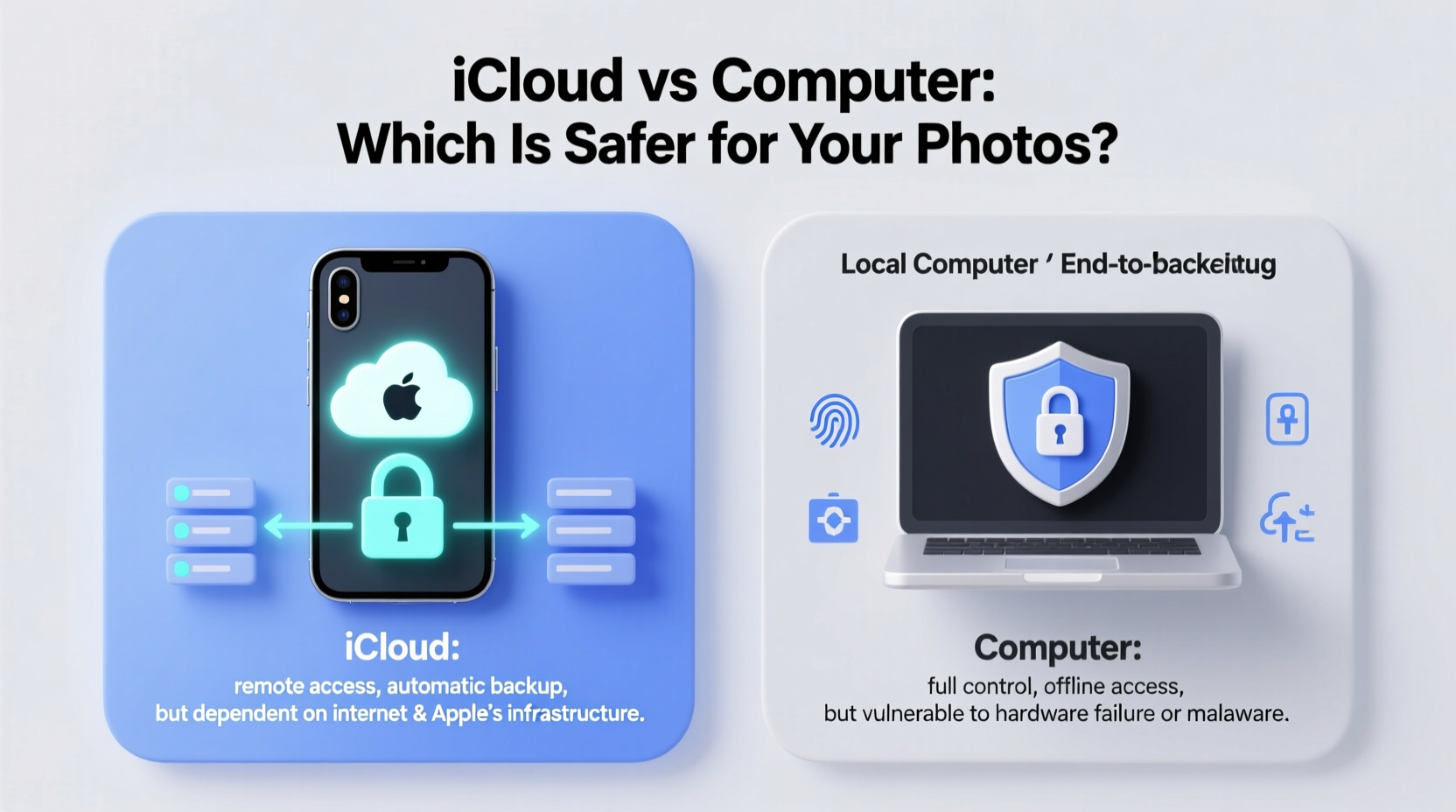
Before comparing iCloud and computer backups, it's important to understand what each method actually does. An iPhone backup preserves your device data—apps, messages, settings, and yes, photos—but how that data is stored and protected varies.
iCloud backups are encrypted, cloud-based copies of your device stored on Apple’s servers. When enabled, your iPhone automatically uploads data over Wi-Fi when the phone is locked and charging. This includes photos from your Camera Roll, provided they aren’t already optimized via iCloud Photos.
Computer backups, on the other hand, are typically created through iTunes (on Windows) or Finder (on macOS). These are local, full-device backups saved directly to your hard drive. Unlike iCloud, this method doesn’t rely on internet connectivity after the initial transfer and gives you complete physical control over your data.
The key distinction lies not just in location—cloud versus local—but in who controls access, how encryption works, and what happens when things go wrong.
Security Comparison: Encryption and Access Control
When evaluating safety, encryption is paramount. Both iCloud and computer backups use encryption, but the implementation and user control differ.
iCloud backups are encrypted by default, but the level of protection depends on whether you enable Advanced Data Protection—a feature Apple introduced in 2022 that shifts encryption keys from Apple’s servers to your trusted devices. With this turned on, even Apple cannot access your backup data. Without it, Apple holds the encryption keys and could theoretically be compelled to provide access under legal request.
“End-to-end encryption means only you have the keys. That’s the gold standard for personal data security.” — Dr. Lena Torres, Cybersecurity Researcher at Stanford University
In contrast, computer backups can be encrypted locally using a password during setup in iTunes or Finder. When encrypted, your backup is protected with a password you create—Apple has no record of it. If you lose the password, the backup becomes inaccessible. This puts full control in your hands, eliminating third-party access risks entirely.
iCloud vs Computer: A Detailed Feature Breakdown
| Feature | iCloud Backup | Computer Backup |
|---|---|---|
| Storage Location | Apple’s cloud servers | Your personal computer or external drive |
| Encryption Type | Server-side (default), end-to-end (with Advanced Data Protection) | Local, password-protected (if enabled) |
| User Control Over Keys | Limited unless Advanced Data Protection is on | Full control—you hold the password |
| Internet Required? | Yes, for upload and restore | Only for initial transfer; restoration offline |
| Automatic Backup | Yes (daily, when conditions met) | No—manual or scheduled via software |
| Photo Recovery Flexibility | Restores entire backup or uses iCloud Photos separately | Selective recovery possible with third-party tools |
| Risk of Permanent Loss | Account compromise, subscription lapse, deletion | Drive failure, theft, fire, no redundancy |
| Cost Over Time | Subscription-based (5GB free, then $0.99+/month) | One-time hardware cost (external drive) |
This comparison reveals a core trade-off: convenience and automation (iCloud) versus control and independence (computer). For photo safety, control often trumps convenience—especially when dealing with large libraries accumulated over years.
Real-World Risk Scenarios: What Could Go Wrong?
Consider Sarah, a freelance photographer who relied solely on iCloud to back up five years’ worth of travel photography. She had 120GB of images stored across her iPhone and iCloud Photos. When her account was compromised through a phishing attack, the hacker deleted her iCloud data, including backups. Because she hadn’t enabled two-factor authentication or Advanced Data Protection, recovery was impossible. Her entire portfolio vanished in minutes.
Now consider James, a teacher who backed up his iPhone weekly to his MacBook using encrypted iTunes backups. When his house flooded and both his phone and laptop were damaged, he lost immediate access—but because he also kept a duplicate of his backup on an external SSD stored offsite, he was able to restore all his family photos within days.
Sarah’s case highlights the vulnerability of cloud-only storage when security practices are lax. James’s approach demonstrates the resilience of local backups—especially when combined with redundancy.
Best Practices for Maximum Photo Safety
The safest strategy isn’t choosing between iCloud and computer—it’s using both intelligently. Experts recommend a tiered approach known as the 3-2-1 backup rule:
- 3 copies of your data: original + two backups
- 2 different media types: e.g., internal drive + external drive or cloud
- 1 offsite copy: stored away from your home (e.g., cloud or trusted friend’s house)
Here’s how to apply this to iPhone photos:
- Enable iCloud Photos with Advanced Data Protection – This ensures your photos sync across devices and are end-to-end encrypted. Turn this on in Settings > [Your Name] > iCloud > iCloud Photos.
- Perform regular encrypted computer backups – Connect your iPhone to your Mac or PC monthly and back up via Finder or iTunes with encryption enabled.
- Use an external drive for long-term archives – Copy your computer backup folder to a separate external SSD every few months and store it in a safe, dry place.
- Verify backup integrity periodically – Occasionally restore a small backup to a test device or use tools like iMazing to browse backup contents without overwriting your current phone.
- Keep your software updated – iOS updates often include security patches that protect against vulnerabilities in backup protocols.
“The biggest mistake people make is assuming one backup is enough. Redundancy isn’t paranoia—it’s preparedness.” — Marcus Lee, Digital Archivist at the National Library of New Zealand
Step-by-Step: Setting Up a Secure Computer Backup
If you’ve never backed up your iPhone to a computer, follow these steps to ensure maximum photo safety:
- Connect your iPhone to your Mac or Windows PC using a USB cable.
- Unlock your iPhone and tap “Trust This Computer” if prompted.
- On Mac: Open Finder. On Windows: Open iTunes.
- Select your device when it appears in the sidebar.
- Under the “Backups” section, select “Encrypt local backup.”
- Create a strong, unique password and store it securely (e.g., in a password manager). Do not forget this password.
- Click “Back Up Now.” The process may take minutes to hours depending on photo volume.
- Once complete, locate the backup folder:
- Mac:
~/Library/Application Support/MobileSync/Backup/ - Windows:
C:\\Users\\[Username]\\AppData\\Roaming\\Apple Computer\\MobileSync\\Backup\\
- Mac:
- Copy this folder to an external drive labeled with the date.
- Repeat monthly or after major photo events (e.g., vacations).
This method ensures your photos are preserved in their original form, independent of Apple’s ecosystem or subscription status.
Frequently Asked Questions
Does iCloud backup include all my photos?
Yes, if iCloud Photos is not enabled, your full photo library is included in the iCloud backup. However, if iCloud Photos is turned on, only photos not yet uploaded will be part of the device backup. In this case, your photos are managed separately through iCloud Photos, not the general backup.
Can someone access my computer backup if they steal my laptop?
If you did not encrypt the backup, yes—they can potentially recover photos and other data. Always enable encryption during backup setup. Even then, secure your computer with a login password, FileVault (Mac), or BitLocker (Windows) for full protection.
Is Apple’s iCloud really safe from hackers?
With Advanced Data Protection enabled, iCloud offers end-to-end encryption for backups, iMessages, Health data, and more. This means your data is unreadable even if intercepted. Without it, some data remains accessible to Apple under certain circumstances. Enabling this feature is strongly recommended for maximum safety.
Conclusion: Safety Lies in Strategy, Not Just Storage
When it comes to protecting your iPhone photos, neither iCloud nor computer backups alone offer complete safety. iCloud provides seamless, automatic protection but introduces dependency on subscriptions, internet access, and Apple’s infrastructure. Computer backups give you ownership and stronger encryption control but require discipline and physical safeguards.
The truth is, the safest approach combines both methods within a broader strategy of redundancy and verification. Enable iCloud Photos with Advanced Data Protection for real-time syncing and remote access. Complement it with encrypted, regularly updated computer backups stored on external drives. Keep one copy offsite. Test your ability to restore occasionally.
Your photos are too valuable to gamble with. By treating backup not as a one-time task but as an ongoing habit, you ensure that no matter what happens to your phone—or your account—you’ll always have a way back to your memories.




 浙公网安备
33010002000092号
浙公网安备
33010002000092号 浙B2-20120091-4
Comments
No comments yet. Why don't you start the discussion?