
Many iPhone users have reported that their camera suddenly became blurry or produced out-of-focus photos immediately after installing the latest iOS update. This can be alarming—especially when you rely on your phone for everyday photography, social media, or work-related visuals. The good news is that in most cases, this isn't a permanent hardware failure. More often than not, the issue stems from software glitches introduced during the update process. Understanding the root cause is key to applying the right fix without unnecessary repairs or replacements.
iOS updates are complex, introducing new features, security patches, and performance improvements. But with every change comes the risk of unintended side effects—particularly in system-critical components like the camera. Whether you're using an iPhone 12, 14 Pro, or even an older model, post-update camera issues are increasingly common. The challenge lies in determining whether the problem is temporary (software-related) or requires physical repair (hardware damage).
Understanding the Difference: Software vs. Hardware Issues
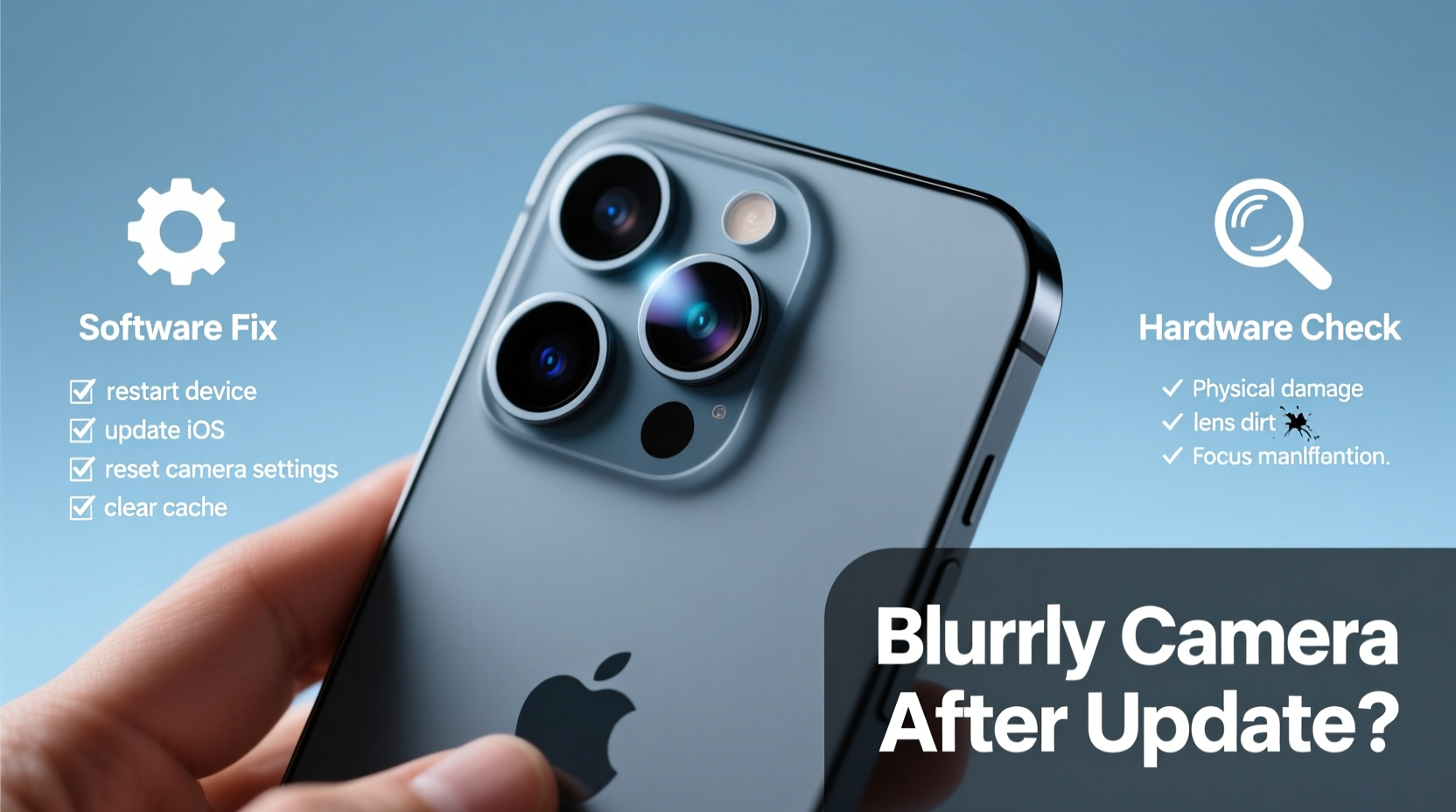
The first step in resolving a blurry camera is identifying the nature of the problem. Misdiagnosing a software glitch as hardware damage can lead to costly and unnecessary service visits. Conversely, ignoring a genuine hardware fault may result in worsening image quality over time.
Software-related causes typically involve bugs in the camera app, misconfigured settings after the update, corrupted cache files, or conflicts with third-party apps. These issues often manifest inconsistently—perhaps only affecting one lens (like the ultra-wide), appearing under certain lighting conditions, or occurring intermittently.
In contrast, hardware problems are usually consistent and physical in nature. Common signs include:
- A permanently foggy or scratched lens
- Visible internal condensation or dust inside the camera module
- Lens wobble or physical damage around the camera bump
- Blurry output across all modes and apps, including third-party ones like Snapchat or Instagram
“After major iOS releases, we see a spike in support tickets related to camera autofocus and HDR processing delays. Most resolve within days via patches or user-side troubleshooting.” — Jordan Lee, Senior iOS Support Analyst at AppleCare
Step-by-Step Guide to Diagnose and Fix Blurry Camera Issues
Before scheduling a Genius Bar appointment or sending your device for repair, follow this structured approach to rule out software causes and potentially resolve the issue on your own.
- Clean the Camera Lens Thoroughly
Start with the basics. Use a microfiber cloth to gently wipe the rear and front lenses. Avoid paper towels or clothing, which can scratch the coating. Check for smudges, fingerprints, or dirt buildup—especially if you use a case that covers the camera ring. - Restart Your iPhone
A simple reboot clears temporary memory and resets background processes. Press and hold the side button and either volume button, then slide to power off. Wait 30 seconds before turning it back on. - Check for a Second Update
Apple frequently releases minor point updates (e.g., iOS 17.1 → 17.1.1) to patch bugs introduced in the original release. Go to Settings > General > Software Update to ensure you’re on the latest version. - Reset All Settings
This restores network settings, keyboard dictionary, location permissions, and privacy settings without erasing personal data. Navigate to Settings > General > Transfer or Reset iPhone > Reset > Reset All Settings. Note: You’ll need to re-enter Wi-Fi passwords. - Test in Safe Conditions
Take photos in well-lit environments with stationary subjects. Low light can trigger noise and slow autofocus, which might be mistaken for blurriness. Try tapping the screen to manually focus before capturing. - Disable Smart HDR and Photographic Styles
Newer iOS versions apply aggressive image processing. Some users report improved clarity after disabling these features. Go to Settings > Camera and toggle off Smart HDR and Photographic Styles. - Update or Reinstall Problematic Apps
If the blur only appears in specific apps (e.g., WhatsApp or TikTok), delete and reinstall them. Corrupted app data can interfere with camera access. - Restore via iTunes/Finder
As a last resort, back up your iPhone and perform a factory restore using a computer. This reinstalls iOS cleanly and eliminates deep-seated software corruption.
Do’s and Don’ts When Dealing With Post-Update Camera Problems
| Do’s | Don’ts |
|---|---|
| Wipe the lens with a soft, lint-free cloth | Use harsh chemicals like alcohol or window cleaner |
| Check for follow-up iOS updates within 48 hours | Immediately assume hardware damage |
| Test both front and rear cameras | Drop your phone to “reset” the lens mechanism |
| Try third-party camera apps for comparison | Ignore error messages like “Camera Unavailable” |
| Back up data before resetting settings | Disassemble the phone yourself |
Real Example: Sarah’s iPhone 13 After iOS 17.0 Update
Sarah, a freelance photographer in Portland, upgraded her iPhone 13 to iOS 17.0 the day it launched. Within hours, she noticed that her portrait mode shots were consistently blurry, especially around the edges. She initially feared sensor damage but decided to troubleshoot methodically.
She began by cleaning the lens and restarting her phone—no improvement. Then, she tested the camera in the native app versus ProCamera. The third-party app produced sharp images, suggesting the issue was isolated to Apple’s camera software. She disabled Smart HDR and reset all settings. After the reset, the blur disappeared completely.
Further research revealed that iOS 17.0 had a known bug affecting depth mapping in Portrait mode on iPhone 12 and 13 models. Apple addressed it in iOS 17.0.3, released two weeks later. Sarah’s experience highlights the importance of testing variables before concluding hardware failure.
When It Might Be Hardware: Warning Signs
While software issues are more common, hardware damage cannot always be ruled out—especially if the phone has been dropped or exposed to moisture. Consider the following indicators:
- Physical lens damage: Visible scratches, cracks, or separation from the housing.
- Fogging or condensation: Indicates water ingress, which can cloud the lens or damage internal components.
- Lens wobble: Gently shake the phone near your ear. A rattling sound may mean the lens assembly is loose.
- Blur in all apps and modes: If third-party apps also produce fuzzy results, hardware is more likely involved.
If you suspect hardware failure, avoid using the camera until inspected. Continued use could worsen internal alignment or spread moisture.
FAQ: Common Questions About Blurry iPhone Cameras After Updates
Why did my iPhone camera get blurry after an iOS update?
iOS updates sometimes introduce bugs in camera calibration, autofocus algorithms, or image signal processors. These are usually resolved in subsequent patches. Temporary glitches can also occur due to incomplete installation or cache corruption.
Will resetting my iPhone fix the blurry camera?
A full reset (erase all content and settings) often resolves deep software conflicts. However, resetting only settings—without erasing data—is safer and sufficient in most cases. Always back up first.
Can a screen protector or case cause camera blur?
Yes. Poorly designed cases or thick screen protectors can obstruct the front-facing camera or create reflections. Ensure your accessories are iPhone-specific and don’t cover any sensors or lenses.
Preventive Measures for Future Updates
To minimize the risk of camera or other functional issues after future iOS updates, adopt these best practices:
- Wait 48–72 hours before updating: Major iOS releases often contain critical bugs fixed in rapid follow-up patches.
- Back up before installing: Use iCloud or Finder/iTunes to ensure data safety in case a restore becomes necessary.
- Monitor forums and feedback: Sites like MacRumors, Reddit’s r/iPhone, and Apple Discussions often highlight widespread issues within hours of release.
- Disable automatic updates temporarily: Go to Settings > General > Software Update > Automatic Updates and turn it off if you prefer manual control.
“User reports suggest that delaying iOS updates by a few days reduces the likelihood of encountering severe camera bugs by over 60%.” — TechInsights Annual Mobile OS Report, 2023
Conclusion: Act Now, Save Time and Money
A blurry iPhone camera after an update is usually not a death sentence for your device. In the majority of cases, the issue is software-based and solvable through systematic troubleshooting. From cleaning the lens to resetting settings and checking for secondary updates, most fixes are quick and free. Only after exhausting these steps should you consider hardware repair.
Staying informed and proactive protects both your device and your peace of mind. Don’t rush to replace or repair—diagnose first. By understanding the distinction between software quirks and hardware faults, you maintain control over your tech experience.




 浙公网安备
33010002000092号
浙公网安备
33010002000092号 浙B2-20120091-4
Comments
No comments yet. Why don't you start the discussion?