
When you take a photo with your iPhone, the device gives you a choice: save images in High Efficiency or Most Compatible format. This setting, found under Settings > Camera > Formats, determines whether your photos use Apple’s HEIF (High Efficiency Image File Format) or the traditional JPEG standard. While both options capture the same visual detail, they differ significantly in file size, compatibility, and long-term usability. Understanding these differences is essential for anyone who values storage efficiency and image quality—especially as iPhones continue to produce higher-resolution photos and videos.
Apple introduced HEIF with iOS 11 as part of its move toward more efficient media handling. The format compresses images better than JPEG while maintaining superior quality, often reducing file sizes by up to 50%. But does this efficiency come at a cost? And should everyday users stick with HEIF or switch to the more universally accepted JPEG? Let’s break down what each option means, how they perform in real-world use, and whether HEIF is truly worth keeping enabled.
How HEIF Works and Why It Matters
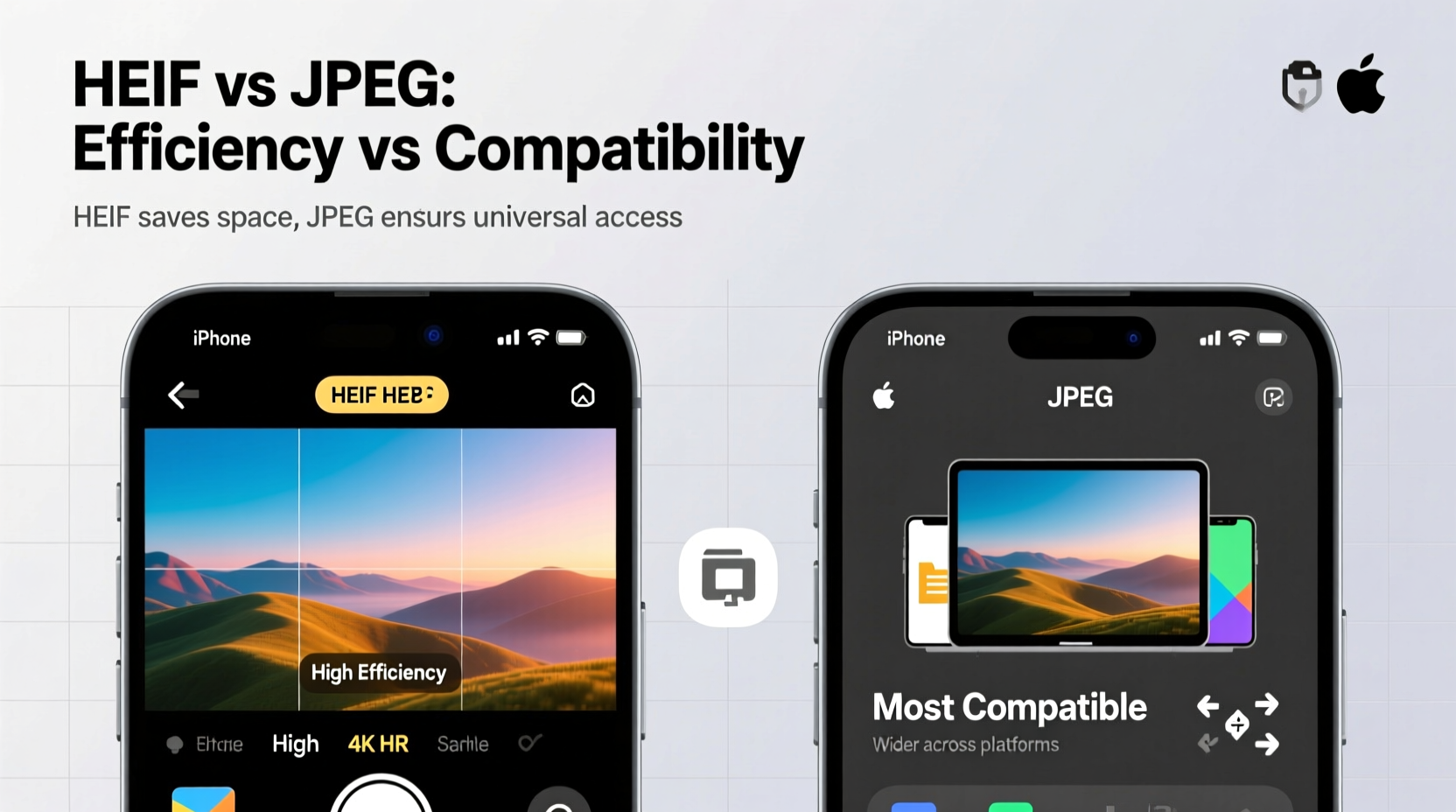
HEIF is based on the HEVC (High Efficiency Video Coding) compression standard, the same technology used for 4K video streaming. Unlike JPEG, which has been around since the early 1990s, HEIF is designed for modern devices with high-resolution sensors and advanced processing capabilities. It supports 16-bit color depth (compared to JPEG’s 8-bit), enabling richer gradients and reduced banding in skies or shadows. It also preserves transparency, multiple images (like burst shots), and even stores depth data for Portrait mode photos—all within a single file.
The most immediate benefit of HEIF is storage savings. A typical 12-megapixel photo saved as HEIF might be 3–4 MB, whereas the same image in JPEG could take up 6–8 MB. For users with 64GB or 128GB iPhones, that difference adds up quickly, especially when capturing hundreds of photos and videos over time.
High Efficiency vs Most Compatible: A Direct Comparison
The “Most Compatible” setting forces your iPhone to save photos as JPEG and videos as older H.264 formats. This ensures broad interoperability but sacrifices compression efficiency. Here's a detailed comparison:
| Feature | High Efficiency (HEIF/HEVC) | Most Compatible (JPEG/H.264) |
|---|---|---|
| File Size | Up to 50% smaller | Larger files |
| Image Quality | Higher bit depth, better dynamic range | Good, but limited to 8-bit color |
| Compatibility | Limited on non-Apple & older devices | Universal support across platforms |
| Editing Flexibility | Retains depth maps, live photo data, transparency | Standard metadata only |
| Cloud Sync & Sharing | May require conversion when shared externally | No conversion needed |
While HEIF excels in technical performance, JPEG remains the default language of digital imaging. Many websites, email clients, and operating systems still expect JPEGs. Even some newer Android phones may not display HEIF thumbnails correctly without third-party apps.
“HEIF represents the future of image formats—smaller, smarter, and richer in data—but we’re still in a transition period where legacy compatibility matters.” — David Liu, Digital Imaging Analyst at TechInsight Labs
Real-World Example: Travel Photography Dilemma
Consider Sarah, a frequent traveler who uses her iPhone 14 Pro to document trips. On a recent two-week journey through Southeast Asia, she took over 1,200 photos and several hours of 4K video. Her phone has 128GB of storage. With HEIF enabled, her entire trip consumed about 28GB. When she switched to “Most Compatible” for a follow-up trip to Europe, the same volume of content used 47GB—a 68% increase.
The extra space usage forced her to delete older videos mid-trip to make room. Worse, when she tried emailing a few HEIF photos to her grandparents, they couldn’t open them on their Windows laptop. She had to re-upload them to iCloud and manually convert each one before sending. Sarah realized that while HEIF saved space, it created friction during sharing. Her solution? Keep HEIF enabled but use shared albums for cross-platform access, letting iCloud handle automatic conversion.
When to Use Each Format: A Practical Guide
Choosing between High Efficiency and Most Compatible isn’t about picking a winner—it’s about matching the format to your workflow. Follow this step-by-step decision process:
- Assess your primary devices: If you use iPhone, iPad, Mac, and Apple TV, HEIF is safe and beneficial.
- Evaluate your sharing habits: Do you frequently send photos to Windows users, upload to websites, or use third-party printing services? Stick with Most Compatible or prepare for conversions.
- Check cloud backup behavior: iCloud handles HEIF seamlessly, but Google Photos and other services may convert HEIF to JPEG upon upload, negating storage benefits.
- Consider editing needs: If you edit photos in apps like Lightroom or Snapseed, HEIF preserves more data for adjustments.
- Test both modes: Take identical photos in both formats and compare side-by-side on your devices. You’ll likely see no visual difference—but notice the file size gap.
Checklist: Optimizing Your iPhone Camera Format
- ✅ Audit your current storage usage under Settings > General > iPhone Storage
- ✅ Determine whether you regularly share photos outside the Apple ecosystem
- ✅ Test HEIF photo sharing with a friend using Android or Windows
- ✅ Enable iCloud Photos to leverage automatic format conversion when needed
- ✅ Backup important HEIF albums before switching formats
- ✅ Use AirDrop instead of email for sharing HEIF files with nearby Apple users
Frequently Asked Questions
Can I change from HEIF to JPEG after taking photos?
No—not retroactively. Once a photo is saved in HEIF, it remains in that format unless exported or converted manually. However, when you share a HEIF photo from your iPhone to a non-Apple device via Messages, Mail, or social apps, iOS automatically converts it to JPEG.
Does HEIF affect video quality too?
Yes. The “High Efficiency” setting also applies to video, using HEVC (H.265) encoding. This reduces 4K video file sizes significantly but may cause playback issues on older computers or TVs. If you edit video in Final Cut Pro, HEVC is well-supported. For Adobe Premiere or older systems, consider switching to Most Compatible or converting files post-export.
Will disabling HEIF improve photo quality?
No. JPEG and HEIF look nearly identical to the human eye when viewed at normal scale. The main trade-off is not quality, but dynamic range, file size, and metadata retention. HEIF actually retains more image information than JPEG due to its higher bit depth.
Final Verdict: Is HEIF Worth It?
For most iPhone users, yes—HEIF is absolutely worth it, provided you operate within the Apple ecosystem or use tools that support modern formats. The storage savings are substantial, the quality is objectively better, and features like depth mapping rely on HEIF to function properly. The inconvenience of limited compatibility is increasingly mitigated by smart sharing behaviors built into iOS, such as automatic conversion during export.
However, if you routinely collaborate with Android users, submit photos to platforms that don’t accept HEIF, or manage media on older hardware, “Most Compatible” remains the safer choice. The key is awareness: knowing what each format offers allows you to make intentional decisions rather than relying on defaults.




 浙公网安备
33010002000092号
浙公网安备
33010002000092号 浙B2-20120091-4
Comments
No comments yet. Why don't you start the discussion?