
When Apple introduced HEIF (High Efficiency Image Format) as the default image format for iPhone cameras in iOS 11, it marked a quiet revolution in mobile photography. Designed to replace the decades-old JPEG standard, HEIF promised smaller file sizes with equal or better image quality. But despite its technical advantages, many users still default back to JPEG out of concern for compatibility. So, is it time to fully embrace HEIF and leave JPEG behind?
The answer depends on how you use your photos, where you share them, and what devices are in your ecosystem. This article breaks down the real-world implications of choosing HEIF over JPEG on your iPhone, evaluates performance across platforms, and gives you a clear roadmap to decide what’s best for your needs.
Understanding HEIF vs. JPEG: The Core Differences
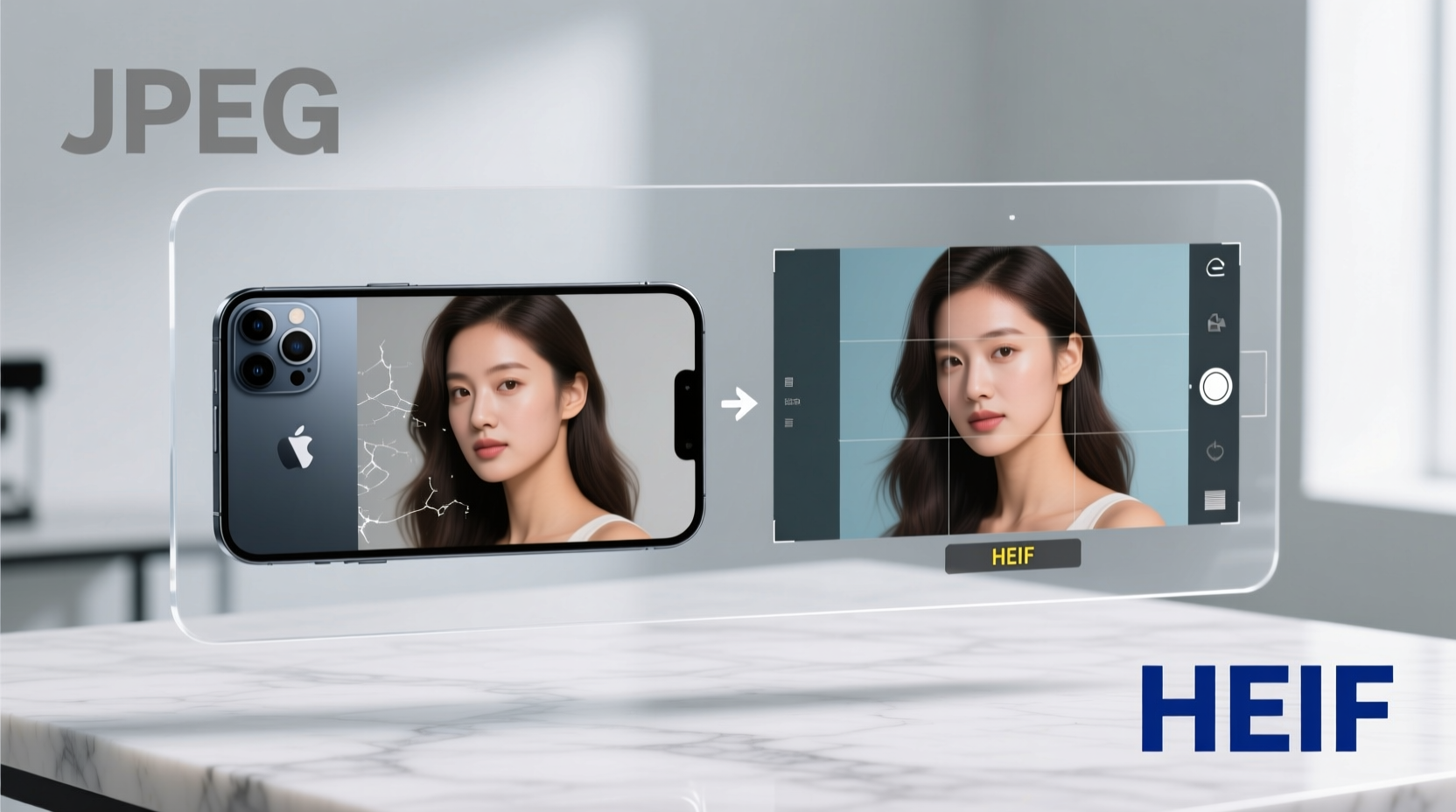
At first glance, both formats serve the same purpose—storing digital images—but they do so in fundamentally different ways.
- JPEG (Joint Photographic Experts Group): Developed in 1992, JPEG uses lossy compression optimized for simplicity and universal compatibility. It’s supported by virtually every device, operating system, and web platform ever made.
- HEIF (High Efficiency Image Format): Based on the HEVC (H.265) video compression standard, HEIF compresses images more efficiently than JPEG—typically reducing file size by up to 50% at the same visual quality. It also supports advanced features like transparency, depth maps, and burst sequences in a single file.
For example, a 12-megapixel photo saved as a JPEG might take up 3–4 MB, while the same image in HEIF could be just 1.8–2.2 MB without perceptible quality loss. That difference adds up fast if you take hundreds of photos per month.
Compatibility: Where HEIF Works—and Where It Doesn’t
The biggest barrier to adopting HEIF isn’t performance—it’s compatibility. While modern Apple devices handle HEIF seamlessly, older systems and non-Apple environments may not.
| Platform/Device | Native HEIF Support | Notes |
|---|---|---|
| iOS 11+ | Yes | Full support including Live Photos and depth data |
| macOS High Sierra+ | Yes | Preview, Photos, and Safari all support HEIF |
| Windows 10/11 | Limited | Requires HEIF Image Extensions from Microsoft Store |
| Android 10+ | Partial | Some manufacturers support it; others rely on third-party apps |
| Email Clients | No | Most auto-convert HEIF to JPEG upon attachment |
| Social Media Platforms | Mixed | Instagram, Facebook, Twitter accept uploads but reprocess files |
If you frequently send photos via email to relatives using Windows 7 machines or upload directly to legacy web forms, HEIF can create friction. However, Apple mitigates this through automatic conversion when sharing via Messages, Mail, or AirDrop to non-compatible devices.
“HEIF represents a generational leap in image efficiency. For users within the Apple ecosystem, the benefits far outweigh the drawbacks.” — Dr. Alan Zhou, Digital Imaging Researcher at MIT Media Lab
Real-World Example: A Photographer’s Workflow
Consider Sarah, a travel blogger who shoots exclusively on her iPhone 15 Pro. She takes an average of 200 photos per week and backs them to iCloud, edits in Lightroom Mobile, and shares to Instagram and her WordPress site.
By using HEIF, Sarah saves approximately 300 MB per week in storage. Over a year, that’s nearly 16 GB—equivalent to over 3,000 additional photos on a 64 GB phone. When she uploads to Instagram, the platform converts the image anyway, so there’s no downside. Her website’s CMS accepts HEIF through plugins, and she only occasionally emails clients, where auto-conversion handles compatibility.
In contrast, her colleague Mark uses JPEG because he often sends unedited photos to clients using older PCs. He quickly runs out of iCloud space and pays for extra storage—a cost that could be avoided with better workflow planning.
Sarah’s case illustrates that HEIF shines when integrated into a modern, cloud-first workflow. The savings in bandwidth, storage, and sync speed are tangible.
Step-by-Step Guide to Optimizing Your iPhone Camera Format
If you're unsure whether to stick with JPEG or switch to HEIF, follow this practical sequence to make an informed decision:
- Check Your Device Ecosystem: List all devices you regularly share photos with. If they’re all iOS, macOS, or recent Android/Windows versions, HEIF is safe.
- Review Sharing Habits: How often do you email photos directly? Share via social media? Upload to websites? Most platforms now handle conversion automatically.
- Test Storage Impact: Take 10 identical photos in both HEIF and JPEG (use “Most Compatible” vs. “High Efficiency” in Settings). Compare file sizes in the Files app.
- Enable Auto Conversion: Go to Settings > Camera > Formats > Choose “High Efficiency”. Then ensure Settings > Photos > “Transfer to Mac or PC” is set to “Automatic”.
- Monitor for Issues: For one month, use HEIF exclusively. Note any problems opening files on other devices. Adjust settings if needed.
Expert Checklist: Should You Switch to HEIF?
Use this checklist to determine if HEIF is right for your usage pattern:
- ✅ I primarily use Apple devices (iPhone, iPad, Mac)
- ✅ I back up photos to iCloud or a modern cloud service
- ✅ I edit photos using apps like Photos, Lightroom, or Snapseed
- ✅ I share photos via social media, messaging apps, or AirDrop
- ✅ I want to save storage space without sacrificing quality
- ⚠️ I frequently email full-resolution photos to non-tech-savvy contacts
- ⚠️ I upload directly to websites or portals that don’t support HEIF
If four or more checked items are positives (✅), HEIF is likely the better choice. If compatibility concerns dominate (⚠️), consider sticking with “Most Compatible” mode—or adopt HEIF with a disciplined export workflow.
Frequently Asked Questions
Does HEIF affect photo quality?
No. HEIF uses more advanced compression algorithms than JPEG, preserving more detail at smaller file sizes. In side-by-side comparisons, HEIF images often appear sharper, especially in gradients like skies or shadows.
Can I change existing JPEGs to HEIF?
Not directly. You can re-export JPEGs from editing software in HEIF, but doing so won’t reduce file size meaningfully since the original compression is already applied. HEIF’s benefits are greatest when capturing natively in the format.
What happens when I share a HEIF photo with someone on Android?
iOS automatically converts HEIF photos to JPEG when shared via Messages, Mail, or third-party apps unless the recipient uses an HEIF-compatible device. You won’t notice the conversion—it happens in the background.
Conclusion: Embrace the Future, But Stay Practical
HEIF is not just a technical upgrade—it’s a necessary evolution in an era of high-resolution sensors and limited storage. For most iPhone users, especially those embedded in Apple’s ecosystem, switching to HEIF offers real benefits: longer battery life due to faster writes, reduced iCloud costs, and smoother photo library management.
That said, compatibility still matters. If your workflow involves frequent interaction with outdated systems, a hybrid approach—using HEIF for capture and selective JPEG export—may be ideal. The key is understanding your habits and leveraging iOS’s built-in tools to bridge gaps.
The future of digital imaging is efficient, intelligent, and adaptive. HEIF is already part of that future. With the right setup, you can enjoy its advantages today—without leaving anyone behind.




 浙公网安备
33010002000092号
浙公网安备
33010002000092号 浙B2-20120091-4
Comments
No comments yet. Why don't you start the discussion?