
When setting up email on your iPhone, you’ve likely encountered a choice: use IMAP or configure an Exchange account. For many users, especially those tied to corporate environments, Exchange seems like the default. But for personal email accounts—Gmail, iCloud, Outlook.com, or custom domains—the decision isn’t so clear. Is Exchange actually superior, or does it introduce unnecessary complexity with little real benefit?
This article cuts through the confusion by comparing Exchange and IMAP on the iPhone across key areas: synchronization, battery impact, security, feature set, and ease of setup. The goal is simple: help you determine whether switching to or maintaining Exchange is worth it—or if IMAP remains the smarter, leaner option.
How Exchange and IMAP Work Differently
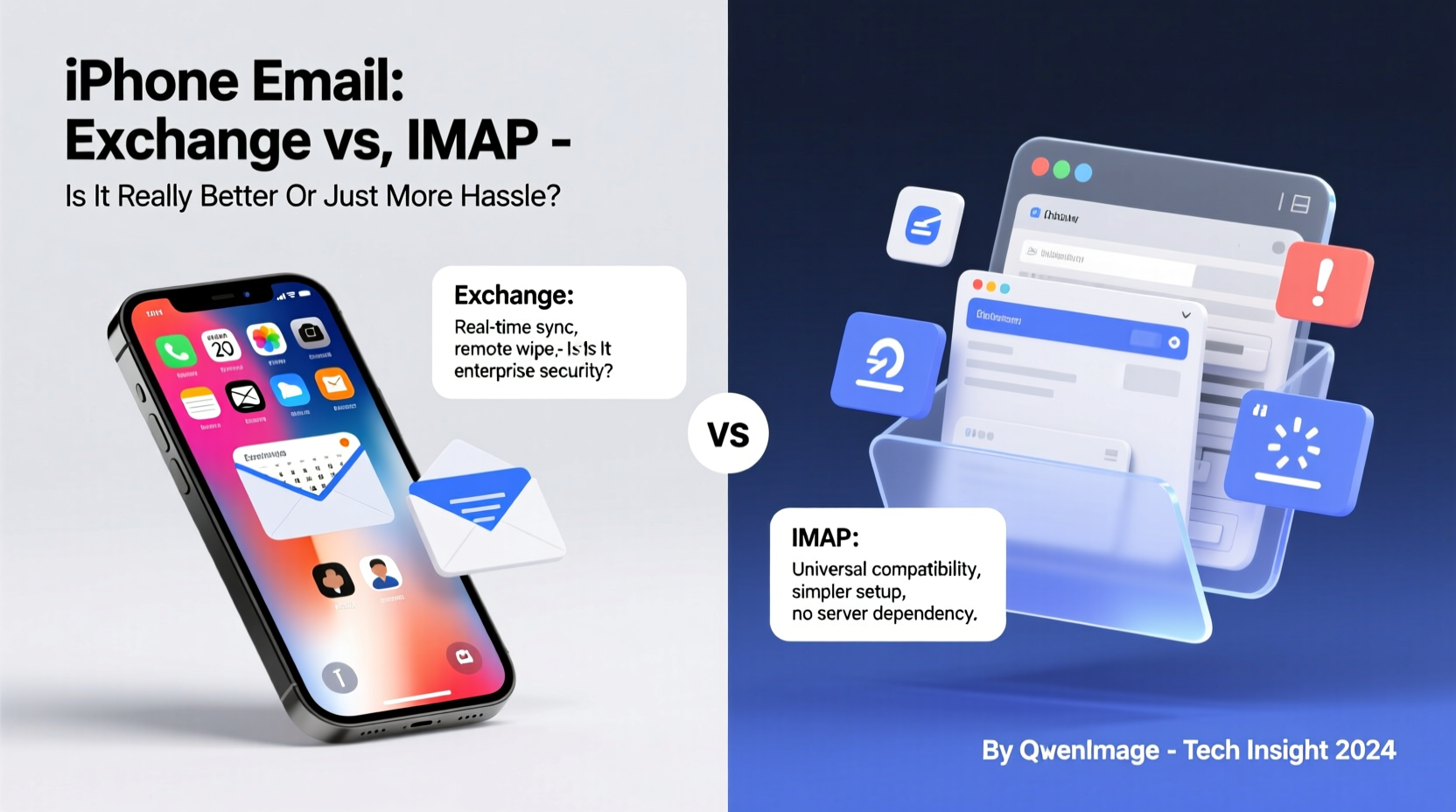
At their core, both protocols allow your iPhone to send and receive email. But they operate in fundamentally different ways.
IMAP (Internet Message Access Protocol) treats your iPhone as a remote viewer of your inbox. Emails stay on the server, and changes made on one device (like marking as read) are reflected across others. It’s lightweight, widely supported, and ideal for individuals managing personal or small business mailboxes.
Exchange (often via Microsoft Exchange ActiveSync) is a push-based protocol designed for enterprise environments. It synchronizes not only email but also calendars, contacts, tasks, and notes in real time. Changes are pushed instantly from the server to your device, rather than checked periodically.
The distinction matters because Exchange was built for high-demand work environments where timely access to data is critical. IMAP, while reliable, operates on a pull model—your phone checks for new messages at intervals, which can delay delivery.
Synchronization Speed and Reliability
One of Exchange’s biggest selling points is push email. When a message arrives on the server, it’s instantly delivered to your iPhone. No waiting for fetch intervals. This is especially valuable for professionals who must respond quickly.
IMAP, by contrast, uses “fetch” schedules—every 15 minutes, hourly, or manually. Even with Fetch set to “Push” in iOS settings (available for select providers like iCloud and Gmail), true push behavior is limited and often still relies on background polling.
However, modern implementations have narrowed the gap. Gmail’s native app and iCloud Mail offer near-real-time updates over IMAP-like connections using proprietary optimizations. For most users, the delay is negligible.
Where Exchange shines is consistency across multiple data types. If you use shared calendars, meeting invites, or delegated mailboxes, Exchange maintains tight synchronization that IMAP simply can’t match.
Real-World Example: A Small Business Owner's Dilemma
Sarah runs a freelance design business and uses her iPhone for client communication, scheduling, and invoicing. She initially set up her Gmail account via IMAP and found emails arriving within a minute or two. But when clients sent calendar invites, they often didn’t appear on her phone unless she opened the Gmail app directly.
After switching to Exchange (using Gmail’s Workspace-enabled Exchange ActiveSync), Sarah noticed immediate improvements. Meeting requests appeared instantly, conflicts were flagged automatically, and her assistant could manage her calendar remotely. The trade-off? Slightly higher battery usage and a more complex setup process.
For Sarah, the enhanced functionality justified the switch. For someone checking email once or twice a day, the same upgrade might feel like overkill.
Battery Life and Performance Impact
Push synchronization sounds ideal, but it comes at a cost: increased background activity. Exchange continuously communicates with the server, checking for updates across email, calendar, contacts, and tasks. This constant chatter can lead to faster battery drain, particularly on older iPhones or weak networks.
IMAP, with its periodic fetch intervals, is far less demanding. Set to “Manually” or “Hourly,” it minimizes background refresh, preserving battery life. Even on “Fetch New Data” every 15 minutes, IMAP typically uses fewer system resources than Exchange.
iOS attempts to mitigate this with background app refresh throttling and intelligent power management, but Exchange accounts remain among the top culprits in battery diagnostics.
“Push email is great until you’re stranded without a charger and watching your battery drop 20% per hour.” — David Lin, Mobile Productivity Consultant
Security and Remote Management Features
Exchange offers robust security controls that IMAP lacks. These include:
- Remote wipe capabilities (erase device data if lost or stolen)
- Mandatory passcode enforcement
- Encryption requirements
- Device compliance policies (e.g., blocking jailbroken phones)
These features are invaluable in corporate settings. Employers can ensure company data stays protected even on personal devices (BYOD setups).
IMAP has no such control. Once an account is added, the server cannot enforce device-level policies. Your security depends entirely on your own settings—passcodes, two-factor authentication, and app-specific passwords.
If you handle sensitive information or work in regulated industries (healthcare, finance), Exchange’s security layer adds meaningful protection. For everyday personal use, strong account practices may be enough.
Feature Comparison: Exchange vs IMAP on iPhone
| Feature | Exchange | IMAP |
|---|---|---|
| Email Sync Method | Push (real-time) | Pull (fetch intervals) |
| Calendar Sync | Yes, full two-way | Limited or requires separate app |
| Contacts Sync | Yes, with server groups | No native support |
| Tasks/Notes Sync | Yes (if server supports) | No |
| Battery Impact | Higher due to constant sync | Lower, especially with manual fetch |
| Security Policies | Enforced by server | User-controlled only |
| Setup Complexity | Moderate to high | Simple |
| Provider Support | Microsoft 365, Gmail Workspace, Exchange servers | Nearly all providers |
Step-by-Step: How to Decide Which Protocol to Use
- Evaluate your needs: Do you need real-time calendar invites, shared tasks, or contact syncing? If yes, consider Exchange.
- Check your email provider: Does your provider support Exchange ActiveSync? Free Gmail accounts do not; only Google Workspace plans do.
- Assess battery priorities: If you frequently run low on battery, test both setups for a day each and compare usage in Settings > Battery.
- Consider security requirements: Are you accessing sensitive data? Exchange offers stronger administrative controls.
- Test performance: Add the account both ways (if possible) and monitor sync speed, reliability, and feature completeness.
Common Pitfalls to Avoid
- Using Exchange unnecessarily: If you only need email and don’t use calendar/contact sync, Exchange adds overhead without benefit.
- Ignoring fetch settings: On IMAP, leaving Fetch set to “Manual” might cause missed messages. Balance frequency with battery life.
- Assuming all “Exchange” is equal: Some third-party Exchange services use outdated configurations that cause sync loops or duplicate emails.
- Overlooking app alternatives: Many users get better results using dedicated apps (e.g., Outlook, Spark) instead of the native Mail app, regardless of protocol.
Frequently Asked Questions
Can I use Exchange with a free Gmail account?
No. Google discontinued Exchange ActiveSync support for free Gmail accounts in 2013. Only Google Workspace (paid) accounts can use Exchange sync. Free users must use IMAP or the Gmail app.
Does IMAP sync calendars and contacts?
No. IMAP only handles email. Calendar and contact syncing require separate protocols (CalDAV and CardDAV) or integration through third-party apps.
Is Exchange more secure than IMAP?
In managed environments, yes. Exchange allows administrators to enforce encryption, remote wipes, and device compliance. IMAP relies solely on user-level security like strong passwords and 2FA.
Final Verdict: Is Exchange Better—or Just More Hassle?
For professionals who depend on seamless integration between email, calendar, and contacts—and whose organizations enforce security policies—Exchange delivers tangible benefits. The real-time sync, centralized management, and enterprise-grade controls justify its complexity.
But for the average iPhone user, Exchange often introduces more hassle than value. The battery toll, setup friction, and limited provider access make IMAP a smarter, leaner choice. Especially when combined with well-designed third-party email apps, IMAP provides a smooth, efficient experience without the overhead.
The truth is, “better” depends on context. There’s no universal winner. What matters is aligning your email setup with how you actually use your phone.




 浙公网安备
33010002000092号
浙公网安备
33010002000092号 浙B2-20120091-4
Comments
No comments yet. Why don't you start the discussion?