
The iPhone’s camera flash is a crucial feature for capturing well-lit photos in low-light environments. When it stops working, it can severely limit your ability to take clear pictures at night or in dimly lit spaces. Whether the flash fails to activate, flickers inconsistently, or only works in certain apps, the issue can stem from software glitches, incorrect settings, or hardware damage. Understanding how to systematically diagnose and resolve these problems ensures you can restore functionality without unnecessary repair costs.
Common Causes of iPhone Flash Failure
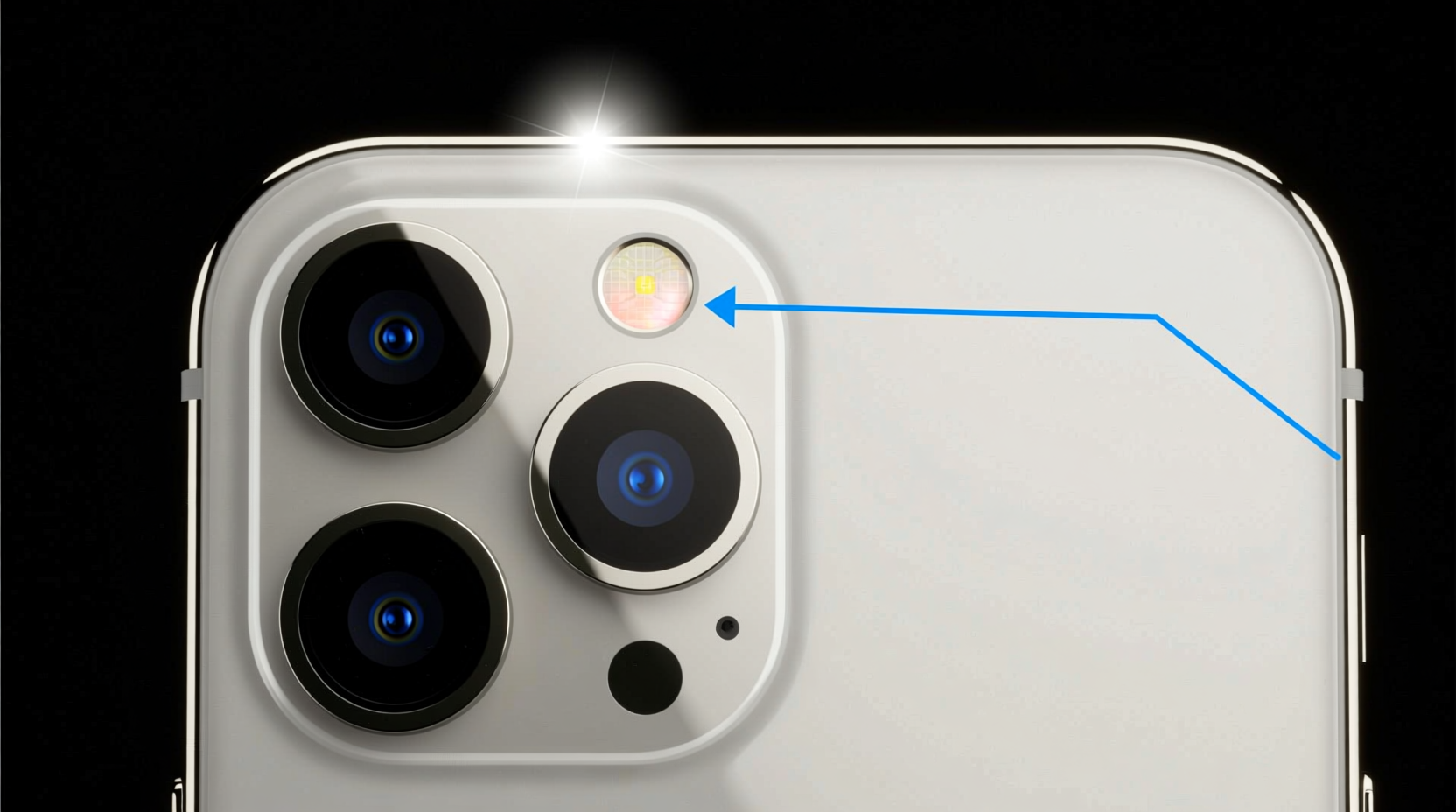
Before attempting fixes, it's important to identify what might be causing the flash malfunction. The root cause typically falls into one of three categories: software-related, setting-based, or hardware-related.
- Software Glitches: iOS bugs or app-specific crashes may prevent the flash from activating properly.
- Incorrect Settings: The flash mode may be set to \"Off\" by default, or restricted within certain apps.
- Physical Damage: A cracked lens cover, water exposure, or internal component failure can disable the flash permanently.
- Third-Party App Limitations: Some camera apps do not support flash functionality due to developer restrictions.
- Battery Optimization Features: Low Power Mode may disable non-essential features like the flash to conserve energy.
Step-by-Step Troubleshooting Guide
Follow this structured sequence to isolate and fix the problem efficiently. Start with simple solutions before progressing to advanced measures.
- Check Flash Settings: Open the Camera app, tap the lightning bolt icon, and ensure the flash is set to “Auto” or “On.” If the option is missing, proceed to the next step.
- Restart Your iPhone: A soft reboot clears temporary memory glitches that may interfere with hardware functions.
- Disable Low Power Mode: Go to Settings > Battery and toggle off Low Power Mode, which often disables background processes including flash operation.
- Test Flash in Different Apps: Try using the flash in third-party apps like Instagram or Snapchat. If it works there, the issue may be isolated to Apple’s Camera app.
- Update iOS: Navigate to Settings > General > Software Update. Install any pending updates, as patches often resolve known bugs affecting camera components.
- Reset All Settings: If no success, go to Settings > General > Transfer or Reset iPhone > Reset > Reset All Settings. This restores system preferences without deleting personal data.
- Check for Physical Obstructions: Inspect the flash LED (located near the camera lens) for dirt, smudges, or cracks. Clean gently with a microfiber cloth.
Tips to Prevent Future Flash Issues
Maintaining consistent performance requires proactive care and smart usage habits. Consider these preventive strategies:
- Avoid exposing your iPhone to extreme temperatures, which can degrade LED components over time.
- Use protective cases that don’t cover the camera bump, preventing blockage of the flash.
- Regularly update your device to benefit from security patches and performance improvements.
- Limit prolonged use of the flashlight feature, especially at maximum brightness, to reduce overheating risks.
Do’s and Don’ts When Fixing iPhone Flash Problems
| Do’s | Don’ts |
|---|---|
| Test the flash after each troubleshooting step to confirm resolution. | Don’t use sharp objects to clean around the flash LED—scratches can impair light diffusion. |
| Keep your iPhone dry and avoid moisture exposure near the camera module. | Don’t attempt internal repairs unless you’re a certified technician—this risks voiding warranty. |
| Use official Apple accessories when charging or connecting peripherals. | Don’t ignore recurring glitches—early intervention prevents escalation. |
| Back up your data before resetting settings or updating software. | Don’t assume all apps support flash—verify compatibility beforehand. |
Real-World Example: Resolving a Persistent Flash Issue
Samantha, a freelance photographer in Portland, noticed her iPhone 13’s flash stopped working during evening shoots. She initially assumed hardware damage but decided to troubleshoot methodically. First, she confirmed the flash was set to “On” in the Camera app. After restarting the phone with no change, she checked for iOS updates and installed version 17.5.1. Surprisingly, the flash remained unresponsive. Next, she tested it in Instagram Stories—where it worked perfectly. This indicated an app-specific bug. Clearing the Camera app cache wasn’t possible natively, so she reset all settings. Upon reopening the Camera app, the flash reappeared and functioned normally. The root cause? A corrupted preference file triggered by a failed background update.
“Many flash issues aren’t hardware failures—they’re silent software conflicts. Always rule out settings and updates before visiting a service center.” — David Lin, Senior Mobile Technician at iFix Solutions
When Hardware Repair Is Necessary
If all software troubleshooting steps fail, the problem likely involves physical damage. Common indicators include:
- No response from the flash even in third-party apps.
- Visible cracks or discoloration over the LED.
- Recent water exposure or drop impact.
- Intermittent blinking or dim output despite full charge.
In such cases, professional repair is essential. Authorized Apple Service Providers can replace the rear camera module, which houses the flash LED on most modern iPhones. Attempting DIY replacements risks damaging surrounding components or compromising water resistance seals.
FAQ: Frequently Asked Questions
Why does my iPhone flash work in some apps but not others?
This usually happens because certain apps don’t integrate flash controls properly or restrict access for performance reasons. It suggests the hardware is functional but software integration varies. Try updating the problematic app or switching to one with reliable flash support.
Can a screen protector or case block the flash?
Yes. Poorly designed cases or thick screen protectors that extend over the camera housing can obstruct the flash, creating shadows or reducing brightness. Ensure your accessories are iPhone-model-specific and leave the camera cutout fully exposed.
Is it safe to use third-party repair shops for flash replacement?
While many independent shops offer quality service, only Apple-certified technicians guarantee genuine parts and maintain original water resistance ratings. If you choose a third party, verify their credentials and ask about warranty coverage on repairs.
Final Checklist: Restore Your iPhone Flash in 7 Steps
- Verify flash mode is set to “On” or “Auto” in the Camera app.
- Restart your iPhone to clear temporary system errors.
- Turn off Low Power Mode in Settings > Battery.
- Install the latest iOS update via Settings > General > Software Update.
- Test flash functionality in multiple apps (e.g., Instagram, Snapchat).
- Clean the flash LED gently with a dry microfiber cloth.
- Reset all settings (Settings > General > Reset > Reset All Settings).
Conclusion: Take Control of Your iPhone’s Performance
A non-functional flash doesn’t always mean expensive repairs are inevitable. Most issues stem from simple oversights or correctable software hiccups. By following a logical diagnostic process, you can often restore full functionality in minutes. Regular maintenance, timely updates, and mindful usage go a long way in preserving your iPhone’s camera capabilities. If problems persist despite thorough troubleshooting, seek professional evaluation—but now you’ll know exactly what steps have already been taken.




 浙公网安备
33010002000092号
浙公网安备
33010002000092号 浙B2-20120091-4
Comments
No comments yet. Why don't you start the discussion?