
The iPhone flashlight is one of the most-used features, especially in emergencies or low-light situations. When it suddenly stops working, it can be more than inconvenient—it can feel like a critical tool has vanished. The good news: in most cases, the issue isn’t permanent. Whether your flashlight won’t turn on, flickers inconsistently, or fails through Control Center, there’s likely a fix. This guide walks through comprehensive, tested troubleshooting steps that address both software glitches and hardware concerns.
Common Causes of iPhone Flashlight Failure
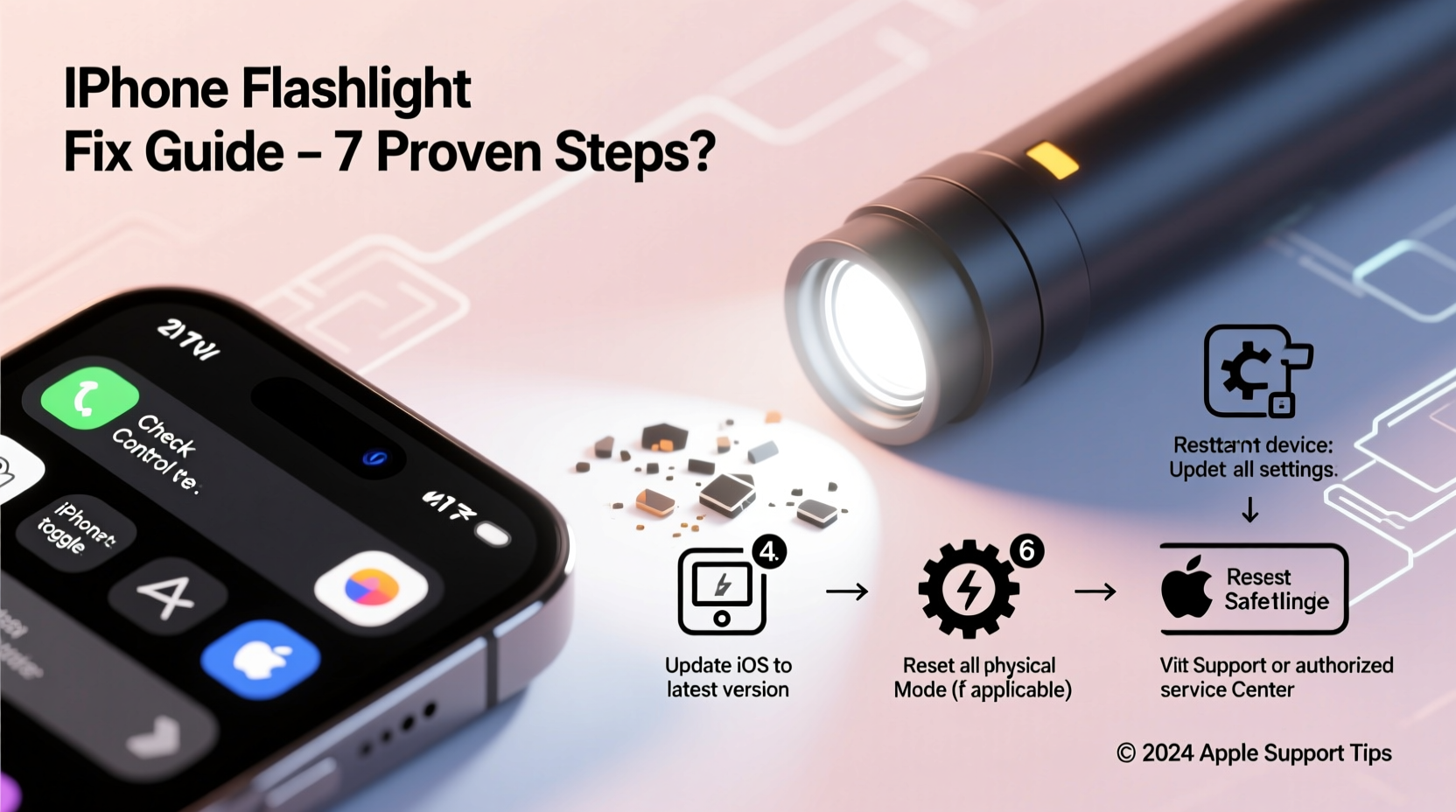
The flashlight function relies on a combination of hardware components and system-level software access. Problems can stem from:
- Software bugs after iOS updates or app conflicts
- Camera app interference when another app is using the camera
- Overheating protection disabling certain functions temporarily
- Physical damage to the LED flash or rear camera module
- Low power mode restrictions or battery issues
- Accessibility settings overriding default behavior
Understanding the root cause helps determine whether you need a quick reset or professional repair.
Step-by-Step Troubleshooting Guide
Follow this logical sequence to diagnose and resolve the problem efficiently. Start with the simplest fixes before moving to advanced options.
- Restart Your iPhone
Many temporary glitches are resolved with a reboot. Press and hold the side button and either volume button until the power slider appears. Slide to power off, wait 30 seconds, then turn it back on. - Check for Active Camera Usage
If an app (like Instagram, Snapchat, or a video recorder) is currently accessing the camera, the flashlight may be locked. Close all background apps via the App Switcher and try again. - Test Flashlight in the Camera App
Open the Camera app, tap the lightning bolt icon at the top. If it turns on here but not in Control Center, the issue is interface-related, not hardware. - Ensure No Overheating
If your iPhone displays a temperature warning, stop using it until it cools. Excessive heat triggers automatic shutdowns of non-critical functions, including the flashlight. - Update iOS
Go to Settings > General > Software Update. Install any available updates—Apple often patches bugs affecting hardware features. - Reset All Settings
This resets network, privacy, and system preferences without deleting data. Navigate to Settings > General > Transfer or Reset iPhone > Reset > Reset All Settings.
Control Center & Accessibility Conflicts
Sometimes the flashlight toggle disappears or becomes unresponsive due to misconfigured settings. Here’s how to verify and correct them:
- Navigate to Settings > Control Center and ensure “Flashlight” is listed under “Included Controls.” If missing, tap the green + next to it.
- Check Settings > Accessibility > Audio/Visual to confirm “LED Flash for Alerts” is enabled. While this setting affects notification flashes, it can interfere with the main flashlight function on older iOS versions.
- Disable “Tap to Wake” (Settings > Display & Brightness) temporarily. Some users report conflicts between gesture controls and Control Center responsiveness.
“Even minor software hiccups can disrupt hardware access. A settings reset often restores functionality without needing repairs.” — Jordan Lee, Apple-Certified Technician
Tips for Preventing Future Flashlight Issues
Proactive habits reduce the risk of recurring problems:
- Keep your iPhone updated to the latest stable iOS version.
- Limit background app refresh for non-essential apps to prevent resource conflicts.
- Use official Apple accessories; faulty chargers or cases can interfere with sensor performance.
- Regularly restart your device every few weeks to clear memory leaks.
Hardware Inspection & Real-World Example
When software fixes fail, consider physical causes. The flashlight shares space with the rear camera lens. Dropping your phone—even slightly—can dislodge internal connections or crack the LED housing.
Mini Case Study: Sarah, an iPhone 13 user, noticed her flashlight stopped working after dropping her phone in the kitchen sink. The device dried quickly, but the flashlight remained unresponsive. After trying multiple software fixes, she visited an Apple Store. Diagnostics revealed water had corroded the flash module connector. A $79 out-of-warranty repair restored full function. Moral: even minor impacts or exposure can cause hidden damage.
To test for hardware failure:
- Open the Camera app and check if the flash fires during photos.
- Inspect the LED near the camera for cracks, cloudiness, or debris.
- Listen for a faint click when toggling the flashlight—some models produce a subtle mechanical sound.
- If nothing responds, connect to iTunes or Finder and run Apple Diagnostics.
Do’s and Don’ts: Quick Reference Table
| Do’s | Don’ts |
|---|---|
| Restart your iPhone regularly | Ignore persistent overheating warnings |
| Keep iOS up to date | Use abrasive cleaners near the flash LED |
| Close camera-intensive apps when done | Assume it’s a hardware issue without testing software first |
| Visit Apple Support if under warranty | Attempt DIY repairs on sealed modules |
| Back up data before resetting settings | Leave the flashlight on for extended periods (risk of overheating) |
Frequently Asked Questions
Why does my iPhone flashlight turn off automatically?
The flashlight may shut off after 2–3 minutes as a safety measure to prevent overheating or battery drain. This is normal behavior. However, if it turns off instantly, check for software bugs or hardware faults.
Can I use the flashlight if the camera is broken?
Yes, in many cases. The flashlight LED is a separate component from the camera sensor. Even with a damaged camera, the flashlight may still work unless the physical impact also affected the flash module.
Does Low Power Mode disable the flashlight?
No. Low Power Mode restricts background activity and visual effects but does not disable the flashlight. If the flashlight doesn’t work only in Low Power Mode, the issue is likely unrelated to power settings.
Final Checklist: What to Do When Flashlight Fails
- Reboot the iPhone
- Check if the Camera app flash works
- Close all background apps, especially camera-based ones
- Verify Control Center includes the flashlight toggle
- Install pending iOS updates
- Reset all settings (Settings > General > Reset > Reset All Settings)
- Inspect for physical damage or moisture exposure
- Contact Apple Support or visit an authorized service provider
Conclusion: Take Action Before It’s Too Late
A malfunctioning flashlight doesn’t always mean a trip to the repair shop. Most issues are resolvable with basic troubleshooting—especially when addressed early. Ignoring the problem can lead to missed moments, safety risks, or worsening hardware conditions. By following the steps outlined here, you regain control and extend your iPhone’s reliability. If software fixes don’t help, don’t delay seeking professional diagnostics. Modern iPhones are built to last, but they need care and attention when signals go wrong.




 浙公网安备
33010002000092号
浙公网安备
33010002000092号 浙B2-20120091-4
Comments
No comments yet. Why don't you start the discussion?