
When you send a message from your iPhone, the color of the bubble—blue or green—tells you more than just aesthetics. Blue means your message was sent via Apple’s iMessage, a secure, feature-rich service for communication between Apple devices. Green indicates the message reverted to standard SMS/MMS through your cellular provider. While both deliver your text, the shift from blue to green often signals an underlying issue with iMessage. Understanding why this happens—and how to fix it—is essential for seamless communication.
What Do Blue and Green Messages Mean?
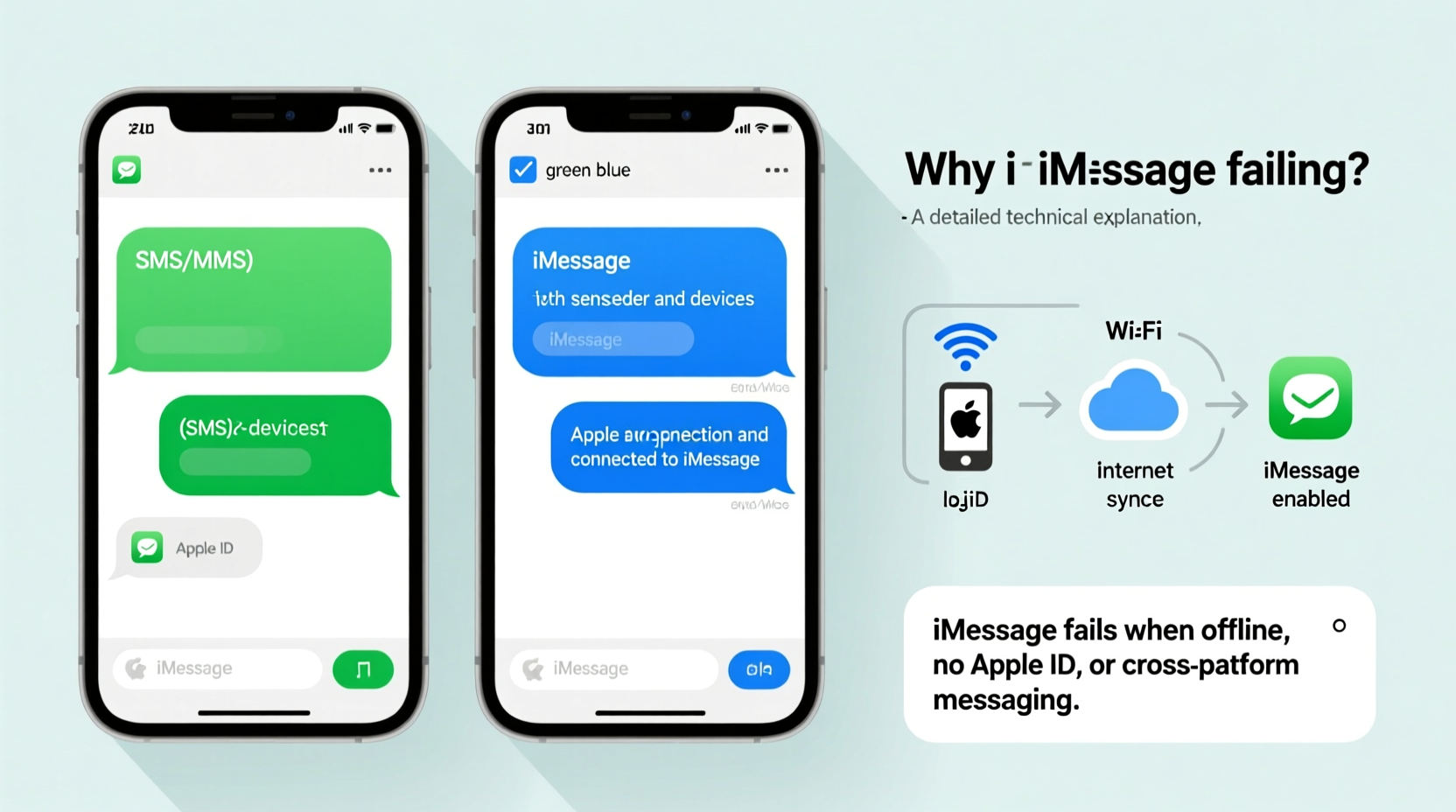
The color distinction between message bubbles is not arbitrary. It reflects the technology used to transmit your message:
- Blue bubbles: These are iMessages. They use your internet connection (Wi-Fi or cellular data) to send texts, photos, videos, and other media between Apple devices. iMessage supports read receipts, typing indicators, high-quality media sharing, and end-to-end encryption.
- Green bubbles: These are traditional SMS (text) or MMS (multimedia) messages sent over your carrier’s network. They don’t require internet access but lack advanced features like typing indicators and encryption. They also count against your texting plan if not unlimited.
iMessage automatically switches to SMS when it can't connect to Apple’s servers or when messaging someone without an Apple device. But if you're sending to another iPhone user and seeing green bubbles unexpectedly, something is likely disrupting iMessage functionality.
Common Reasons Why iMessage Fails
iMessage relies on several conditions being met. When any of these fail, your messages default to SMS. Here are the most frequent causes:
- No Internet Connection: iMessage requires Wi-Fi or cellular data. If you’re offline, even temporarily, messages fall back to SMS.
- iMessage Is Turned Off: Accidentally disabling iMessage in Settings will force all outgoing messages to use SMS.
- Incorrect Apple ID or Sign-In Issues: If you're not signed into iMessage with the correct Apple ID, or if your credentials have expired, syncing fails.
- Recipient Uses a Non-Apple Device: If your contact switched from iPhone to Android, your messages will always appear green when sent to them.
- Carrier Restrictions or SMS Settings: Some carriers limit MMS or restrict data usage needed for iMessage activation.
- Date and Time Misconfigured: Incorrect system time can interfere with SSL certificates used by iMessage, blocking connection.
- Software Bugs After Updates: iOS updates occasionally introduce bugs that disrupt iMessage until patched.
Mini Case Study: The Weekend iMessage Outage
Sarah noticed all her messages to friends turned green during a weekend trip. She assumed her friends had switched phones. But after returning home, she realized her own iPhone wasn’t connecting to Wi-Fi properly at the cabin. Once reconnected to a stable network, iMessage resumed instantly. The root cause? Poor internet connectivity—not a setting issue. This scenario highlights how environmental factors, not device errors, can trigger the switch.
Troubleshooting Steps to Fix iMessage Failures
If you're consistently getting green messages when you expect blue, follow this step-by-step guide to diagnose and resolve the problem.
Step 1: Check Your Internet Connection
Ensure you have active Wi-Fi or cellular data. Open Safari or another app to confirm connectivity. Try switching between Wi-Fi and data to test stability.
Step 2: Verify iMessage Is Enabled
Go to Settings > Messages and make sure the toggle next to iMessage is green. If it’s off, turn it on and wait up to a minute for activation.
Step 3: Confirm Apple ID Sign-In
In the same Messages menu, check the Apple ID listed under “Send & Receive.” Tap it and ensure you’re signed in correctly. If prompted, re-enter your password.
Step 4: Restart iMessage and Your iPhone
Toggle iMessage off, wait 30 seconds, then turn it back on. Follow with a full restart of your iPhone to clear temporary glitches.
Step 5: Check Date & Time Settings
Navigate to Settings > General > Date & Time and ensure “Set Automatically” is enabled. Incorrect time prevents secure server handshakes.
Step 6: Reset Network Settings (If Needed)
If issues persist, go to Settings > General > Transfer or Reset iPhone > Reset > Reset Network Settings. This clears saved Wi-Fi passwords and resets cellular configurations, often resolving connectivity hiccups.
“iMessage depends on precise synchronization between your device, Apple’s servers, and your carrier. Even minor misconfigurations can break the chain.” — David Lin, Senior iOS Support Analyst
Do’s and Don’ts When Fixing iMessage Issues
| Do’s | Don’ts |
|---|---|
| ✅ Ensure Wi-Fi or cellular data is active | ❌ Ignore pending software updates |
| ✅ Sign in with the correct Apple ID | ❌ Use third-party apps to \"fix\" iMessage |
| ✅ Restart your device after making changes | ❌ Assume the recipient’s phone is the issue without verifying |
| ✅ Check if iMessage is blocked for specific contacts | ❌ Factory reset without trying simpler fixes first |
| ✅ Update to the latest iOS version | ❌ Disable MMS Messaging unless necessary |
FAQ: Common Questions About iMessage and Green Bubbles
Why are my messages green when texting another iPhone?
This usually means either you or the recipient isn’t connected to the internet, iMessage is disabled, or there’s an authentication issue with Apple ID. It can also happen if the recipient has blocked you or deleted their iCloud account.
Can I force a message to send as iMessage instead of SMS?
No direct option exists, but if iMessage is enabled and working, your iPhone will automatically use it when possible. If it defaults to SMS, it’s because iMessage couldn’t establish a connection at send time.
Does turning off MMS Messaging affect iMessage?
Not directly, but if iMessage fails and MMS is disabled, multimedia content won’t send at all. For reliability, keep MMS enabled unless you have a specific reason to turn it off.
Prevent Future iMessage Failures: A Quick Checklist
Stay ahead of disruptions with this proactive checklist:
- ☑️ Keep your iPhone updated to the latest iOS version
- ☑️ Regularly verify iMessage is enabled in Settings
- ☑️ Confirm your Apple ID is signed in and verified
- ☑️ Ensure “Set Automatically” is on for Date & Time
- ☑️ Test iMessage periodically with a known Apple user
- ☑️ Avoid jailbreaking or installing unauthorized modifications
- ☑️ Monitor carrier settings updates after travel or SIM changes
Conclusion: Take Control of Your Messaging Experience
The shift from blue to green messages isn’t just cosmetic—it reflects the reliability of your digital communication. While SMS works in a pinch, iMessage offers superior functionality and privacy. By understanding the triggers behind iMessage failures and applying consistent troubleshooting practices, you can maintain seamless, secure conversations with your contacts. Don’t wait for the next green bubble surprise. Audit your settings today, ensure everything is optimized, and enjoy the full benefits of Apple’s ecosystem.




 浙公网安备
33010002000092号
浙公网安备
33010002000092号 浙B2-20120091-4
Comments
No comments yet. Why don't you start the discussion?