
Many iPhone users are surprised when they swipe left on an email in the Mail app, only to see it disappear into their inbox history rather than being permanently removed. Instead of deletion, Apple defaults to archiving messages—a design choice that prioritizes data preservation over immediate removal. While this can be helpful for avoiding accidental loss, it often frustrates users who expect a traditional delete function. Understanding why this happens and how to adjust it gives you full control over your email workflow.
Why Does iPhone Mail Archive Instead of Delete?
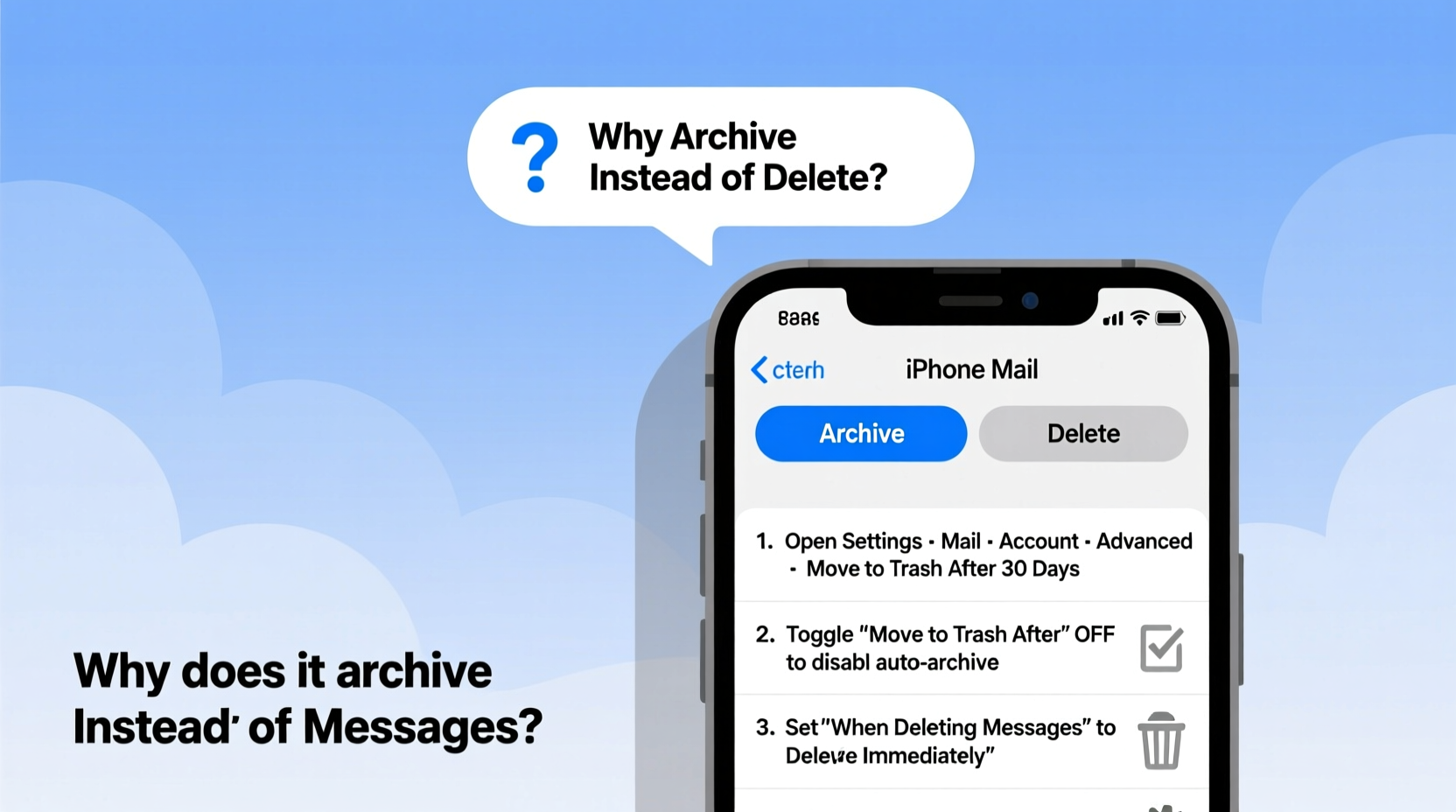
Apple introduced the archive-first behavior in iOS as part of its broader philosophy: prevent irreversible actions by default. When you swipe left on an email in the iPhone Mail app, the system assumes you want to clear it from view without losing access to it later. Archiving moves the message out of your inbox and into the \"All Mail\" folder (on IMAP or Gmail accounts) or simply removes it from view while keeping it stored (on iCloud or Exchange).
This behavior stems from user research showing that people often regret deleting emails too quickly—especially those containing receipts, confirmations, or important contacts. By archiving, Apple ensures messages remain searchable and retrievable, even if they’re no longer cluttering your inbox.
“Archiving is not about hiding emails—it’s about smart organization. Think of it as filing rather than trashing.” — Lisa Tran, Senior UX Designer at a leading mobile productivity firm
How to Change Swipe Actions: From Archive to Delete
If you prefer permanent deletion over archiving, you can customize the swipe gesture directly in your iPhone’s settings. This change applies globally across all mailboxes unless specified otherwise per account.
Step-by-Step Guide to Enable Delete on Swipe
- Open the Settings app on your iPhone.
- Scroll down and tap Mail.
- Under the \"General\" section, select Swipe Options.
- Tap Left Edge (this controls what happens when you swipe left on a message).
- Choose Delete from the list of available actions.
Once selected, swiping left on any email will now trigger deletion instead of archiving. You’ll see a red “Delete” button appear during the swipe, confirming the new action.
Account-Specific Behavior: Not All Email Types Are Equal
The way archiving and deleting work can vary depending on your email provider. For example:
- Gmail: Archiving removes the message from the inbox but keeps it in “All Mail.” There is no true “Deleted Mailbox” unless you manually delete.
- iCloud, Outlook.com, Yahoo: These services support both Archive and Trash folders, so deleted items go to Trash and stay there until manually purged.
- Exchange (Work/School Accounts): Often follows corporate retention policies. Deleted items may move to \"Recoverable Items\" and linger for weeks.
This means changing the swipe action to “Delete” doesn’t always mean immediate permanent removal—it usually sends the email to the Trash folder, where it remains recoverable for a period (typically 30 days).
Do’s and Don’ts Based on Email Type
| Email Service | Do | Don't |
|---|---|---|
| Gmail | Use “Delete” to send to Trash; empty Trash periodically | Assume archived emails are gone—they’re still searchable |
| iCloud | Check Trash folder monthly to manage storage | Expect instant permanent deletion after swipe |
| Exchange | Know that admins may retain deleted items | Assume privacy after deletion—data may be recoverable |
Real Example: Sarah’s Inbox Overhaul
Sarah, a freelance graphic designer, used her iPhone for client communication and found herself constantly frustrated by emails reappearing in searches despite being “archived.” She wanted a clean break—permanent deletion—for outdated project threads.
After researching, she changed her swipe action to “Delete” in Settings > Mail > Swipe Options. She also set up a rule in her Gmail account to automatically purge Trash every 7 days. Within a week, her inbox felt more manageable, and she regained confidence that removing an email truly meant letting it go.
Her key realization? Control comes not just from gestures, but from understanding backend behavior.
Alternative Methods to Delete Emails Without Swiping
If you don’t want to change the global swipe behavior, there are other ways to delete emails directly:
- Open and Delete: Open any email, tap the trash icon in the top-right corner, and confirm deletion.
- Edit Mode: In any mailbox, tap “Edit” in the top-right, select multiple messages, then tap “Trash.”
- Force Touch (if supported): On older iPhones with 3D Touch, hard-pressing an email reveals quick actions including Trash.
- Long Press + Menu: On newer models, long-pressing an email offers a context menu with Move options, including moving to Trash.
These methods give you flexibility without altering your swipe preferences—ideal if you occasionally want to delete but generally prefer archiving.
Frequently Asked Questions
Does deleting an email on iPhone remove it from all my devices?
Yes, if your email account uses IMAP or Exchange synchronization. Once deleted (and synced), the message will disappear from all connected devices and the web interface. However, it typically moves to the Trash folder first and stays there according to your provider’s retention policy.
Can I recover an email after I delete it?
Usually, yes—but only within a limited time. Check your Trash folder in the Mail app or via your email provider’s website. Most services keep deleted emails for 30 days before permanent removal. iCloud, for instance, empties Trash automatically after one month unless configured otherwise.
Is there a way to make deletion permanent immediately?
Not natively through the iPhone Mail app. Even when you delete, messages go to Trash. To achieve near-instant permanence, you’d need to enable auto-purge rules on the server side (e.g., in Gmail Settings > Forwarding and POP/IMAP > Auto-Expunge Trash).
Expert Tips for Managing Email Flow
- Create filters or rules on your email provider’s end to auto-delete spam or low-priority newsletters.
- Use folders or labels wisely—if you rely heavily on archiving, organize archived threads with labels (like “Clients” or “Receipts”) for easy retrieval.
- Disable archive if unused: Some third-party email providers allow disabling the Archive folder entirely, forcing all actions to route through Trash.
Conclusion: Take Control of Your Email Experience
The default archiving behavior in iPhone Mail isn’t a flaw—it’s a safeguard designed for safety over speed. But if your workflow demands definitive deletion, the tools are there to adapt the experience to your needs. Whether you switch the swipe action, use alternative deletion methods, or fine-tune your email provider settings, the power to shape your inbox lies in your hands.




 浙公网安备
33010002000092号
浙公网安备
33010002000092号 浙B2-20120091-4
Comments
No comments yet. Why don't you start the discussion?