
If you’ve ever tapped “Send” on an iPhone message only to see it stuck with a red exclamation mark or simply frozen, you’re not alone. Message delivery issues are one of the most frequent complaints among iPhone users. Whether it’s iMessages turning green unexpectedly, texts failing to send, or delays in delivery, these problems can disrupt communication when it matters most. The good news is that most causes have simple explanations—and even simpler solutions. Understanding why messages fail and knowing how to fix them quickly can save time, frustration, and missed connections.
Common Reasons iPhone Messages Fail to Send
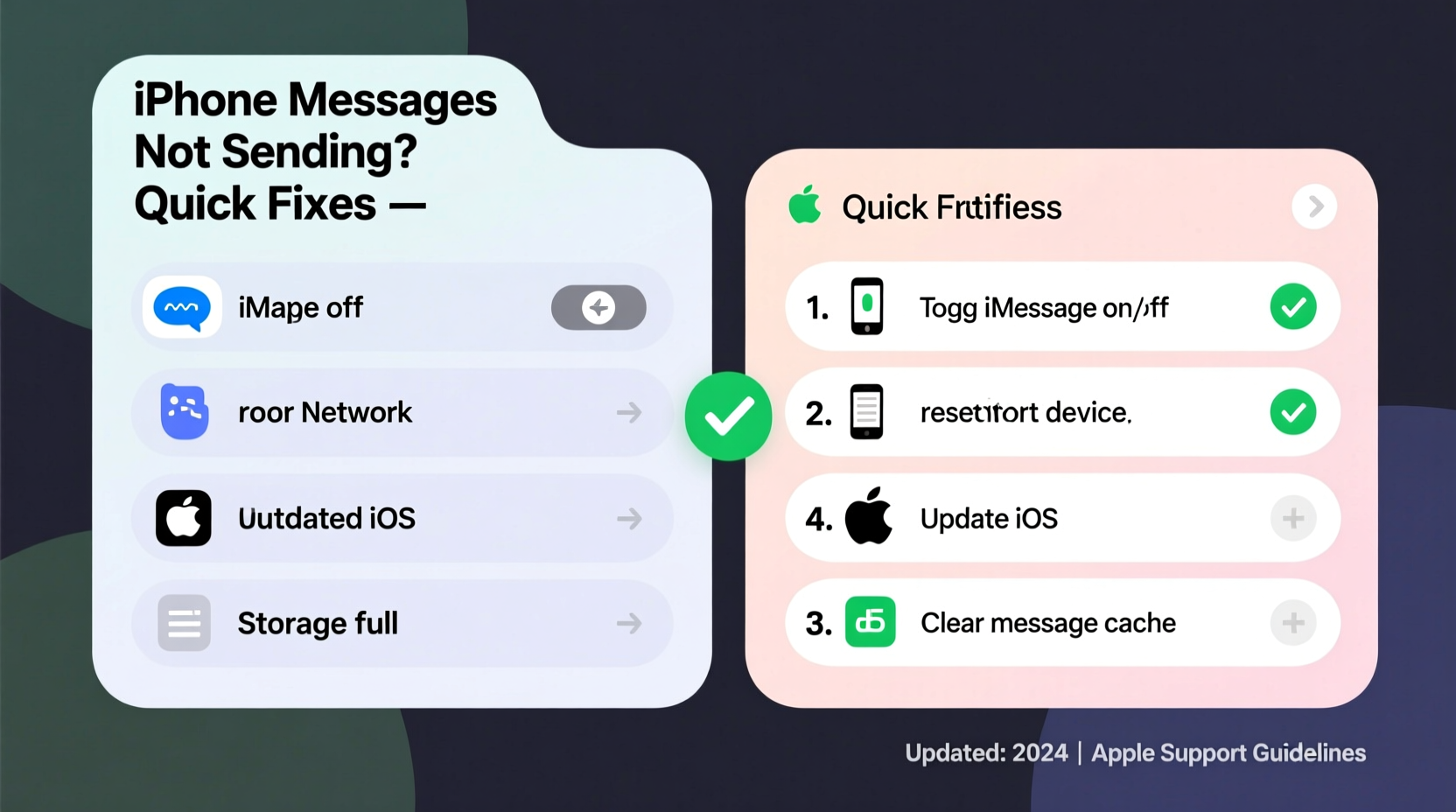
iPhone messaging relies on a combination of cellular networks, Wi-Fi, Apple ID settings, and carrier configurations. When any part of this system falters, messages may not go through. Below are the primary culprits behind failed or delayed message delivery:
- Poor or No Internet Connection: iMessages require Wi-Fi or cellular data; SMS needs a cellular signal.
- iMessage Misconfiguration: If iMessage is turned off or linked to the wrong Apple ID, blue bubbles won’t work.
- Carrier Settings Outdated: Carriers periodically update their network profiles for optimal performance.
- Do Not Disturb or Blocked Contacts: These features can interfere with sending or receiving.
- Software Glitches: iOS bugs after updates can temporarily break messaging functions.
- Incorrect Date & Time Settings: Authentication protocols rely on accurate timestamps.
- Full Message History or Storage Issues: In rare cases, excessive messages can impact app performance.
Step-by-Step Guide to Fix Sending Issues
Follow this systematic troubleshooting process to identify and resolve the root cause efficiently:
- Check Network Connectivity
Ensure you have strong Wi-Fi or cellular signal. Try loading a webpage or using another app that requires internet access. - Verify iMessage & SMS Settings
Go to Settings > Messages and confirm:- iMessage is toggled ON.
- “Send as SMS” is enabled (for fallback when iMessage fails).
- Your phone number appears under “You can be reached by iMessage at…”
- Restart Your iPhone
A soft reboot clears temporary glitches. Press and hold the side button and volume down until the slider appears, then slide to power off. Turn it back on after 30 seconds. - Check for Carrier Updates
Navigate to Settings > General > About. If an update is available, a prompt will appear to install it. - Re-enable Airplane Mode Briefly
Turn on Airplane Mode for 15 seconds, then turn it off. This resets all wireless connections. - Sign Out and Back Into iCloud
Sometimes syncing issues stem from Apple ID authentication. Go to Settings > [Your Name] > iCloud > Sign Out, then sign back in. - Update iOS
Outdated software may contain known bugs. Check Settings > General > Software Update. - Reset Network Settings
As a last resort: Settings > General > Transfer or Reset iPhone > Reset > Reset Network Settings. Note: This erases saved Wi-Fi passwords.
Do’s and Don’ts When Troubleshooting Messaging Problems
| Do’s | Don’ts |
|---|---|
| Double-check that iMessage is activated with your correct Apple ID. | Assume it's a hardware issue without testing software fixes first. |
| Toggle iMessage off and on again under Settings > Messages. | Ignore carrier notifications about service outages. |
| Use FaceTime to verify your Apple ID is properly linked (since both services use the same backend). | Try third-party apps claiming to \"fix\" iMessage unless from trusted sources. |
| Contact your carrier if SMS also fails consistently across devices. | Delete the entire conversation thread hoping it resolves connectivity issues. |
Real Example: Sarah’s iMessage Dilemma
Sarah upgraded her iPhone and restored from an iCloud backup. For days afterward, her messages wouldn’t send—some appeared in green (SMS), others stayed gray with exclamation marks. She checked her Wi-Fi and cellular signal, both strong. After reviewing her settings, she noticed her Apple ID wasn’t verified for iMessage. Even though she was logged into iCloud, iMessage had defaulted to her email instead of her phone number. By signing out of iMessage and signing back in, ensuring her number was selected during setup, her messages resumed sending instantly. The fix took less than five minutes but required understanding where the sync broke down.
Expert Insight on iMessage Reliability
“iMessage depends on seamless integration between hardware, network, and account systems. Most failures aren't due to broken components but misaligned settings. A methodical reset of services usually restores function.” — David Lin, Senior Mobile Support Analyst at Apple Authorized Service Provider
Quick Fixes Checklist
✅ Quick Fixes Checklist: Get Your iPhone Messages Sending Again
- Confirm Wi-Fi or cellular data is active and stable
- Ensure iMessage is enabled in Settings > Messages
- Make sure “Send as SMS” is turned on
- Verify your phone number is listed under iMessage settings
- Restart your iPhone
- Toggle Airplane Mode on/off
- Check for iOS and carrier updates
- Sign out and back into your Apple ID
- Reset network settings if all else fails
Frequently Asked Questions
Why do my messages show as “Not Delivered”?
This error typically means the message couldn’t reach Apple’s servers (for iMessage) or your carrier’s network (for SMS). Causes include poor connectivity, server downtime, blocked numbers, or incorrect recipient details. First, ensure your own connection is stable, then ask the recipient if they’re experiencing issues.
What does it mean when my iMessage turns green?
A green bubble indicates the message was sent as SMS instead of iMessage. This happens when either you or the recipient lacks internet access, iMessage is disabled, or there’s an Apple ID sync problem. It doesn’t mean the message failed—just that it used the cellular network instead of data.
Can I fix message issues without losing my chat history?
Absolutely. None of the standard troubleshooting steps—like restarting the phone, re-enabling iMessage, or resetting network settings—will delete your conversations. Only a full factory reset would erase data, which isn’t necessary for message delivery problems.
Conclusion: Regain Control Over Your Communication
iPhone messages not sending is rarely a permanent issue. With a clear understanding of how iMessage and SMS operate, you can diagnose and fix most problems within minutes. Start with the basics: connection, settings, and restarts. Progress to deeper resets only if needed. Most importantly, don’t assume the worst—your phone isn’t broken, and your messages aren’t lost forever. By applying these practical fixes, you’ll maintain smooth, reliable communication with friends, family, and colleagues.




 浙公网安备
33010002000092号
浙公网安备
33010002000092号 浙B2-20120091-4
Comments
No comments yet. Why don't you start the discussion?