
There are few things more frustrating than picking up your iPhone only to see a dead battery—especially when plugging it in doesn’t seem to help. Whether your device shows no response, charges intermittently, or displays a “Charging… 1%” message that never progresses, charging issues can disrupt your day. The good news is that most problems aren't permanent hardware failures. In many cases, simple fixes can restore normal function without needing a trip to the Apple Store.
This guide walks through practical, step-by-step solutions to troubleshoot an iPhone that isn’t charging. From cleaning ports to checking cables and resetting settings, these methods cover both software glitches and physical causes.
Step-by-Step Diagnosis: What to Check First
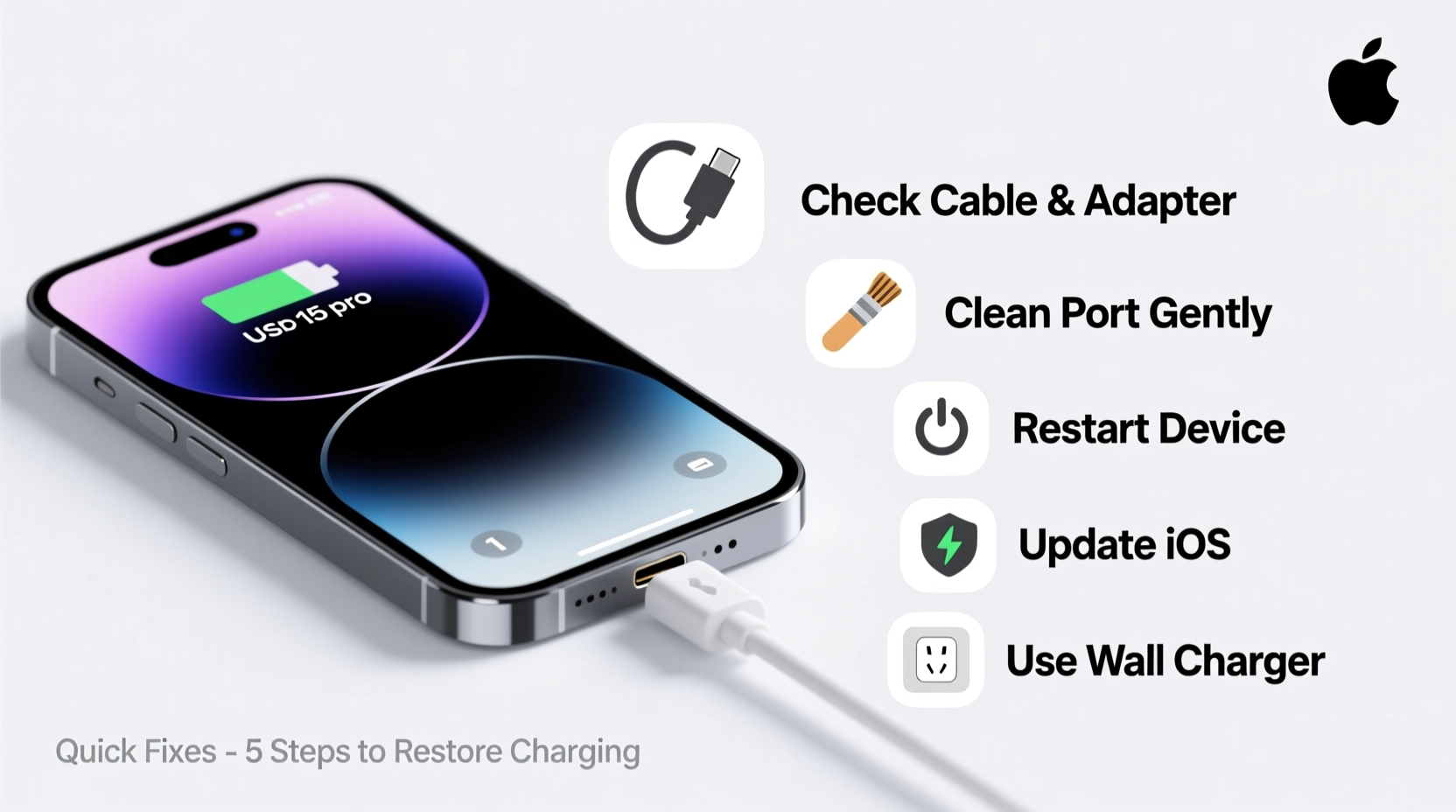
Before assuming the worst, start with basic checks. Many charging problems stem from preventable or easily fixable issues.
- Verify the power source: Plug your charger into a different wall outlet. Test it with another device to confirm it’s delivering power.
- Inspect the cable: Look for fraying, kinks, or bent connectors. Lightning cables degrade over time, especially near the ends.
- Try a different charger: Use a known-working Apple-certified cable and adapter. Avoid third-party chargers unless they’re MFi (Made for iPhone) certified.
- Check the iPhone port: Shine a light into the charging port. Look for lint, dust, or debris blocking the connection.
- Restart your iPhone: A soft reboot clears temporary system glitches that might interfere with charging detection.
Cleaning the Charging Port Safely
Dust, pocket lint, and grime accumulate in the Lightning port over time, preventing proper contact between the cable and pins. This is one of the most common—and overlooked—reasons for charging failure.
To clean the port safely:
- Power off your iPhone completely.
- Use a dry, soft-bristled brush (like a clean toothbrush) to gently dislodge debris.
- Alternatively, use a wooden or plastic toothpick to carefully scrape out buildup. Avoid metal tools—they can damage internal contacts.
- Hold the phone with the port facing down so debris falls out naturally.
- Do not use liquids, compressed air, or sharp objects.
After cleaning, plug in the charger and wait 10 seconds. If you hear the chime or see the charging indicator, the port was likely obstructed.
“Over 30% of ‘broken’ iPhone charging issues we see at repair shops are actually just clogged ports.” — Carlos Mendez, Mobile Repair Technician, iFix Solutions
Software Fixes That Restore Charging Functionality
Sometimes, the hardware works fine, but iOS fails to recognize the charging signal. Software bugs, corrupted settings, or background processes can interfere.
Force Restart Your iPhone
A force restart resets the system without erasing data. The method varies by model:
| iPhone Model | Force Restart Steps |
|---|---|
| iPhone 8 and later | Press and release Volume Up, then Volume Down. Press and hold Side button until Apple logo appears. |
| iPhone 7/7 Plus | Press and hold Volume Down + Side button until Apple logo appears. |
| iPhone 6s and earlier | Press and hold Home + Side (or Top) button until Apple logo appears. |
Reset All Settings
If charging still fails, try resetting system settings. This won’t delete photos or apps but will clear network, display, and accessibility preferences.
- Go to Settings > General > Transfer or Reset iPhone > Reset.
- Select Reset All Settings.
- Enter your passcode and confirm.
- Wait for the phone to reboot, then test charging.
Hardware & Accessory Checklist
Not all charging problems originate with the phone. Faulty accessories or incompatible hardware often mimic device failure.
Essential Charging Checklist
- ✅ Use an Apple-certified (MFi) Lightning cable
- ✅ Test with a different power adapter (preferably Apple-branded)
- ✅ Try a USB-C to Lightning cable if using a newer iPad or MacBook charger
- ✅ Charge from a computer USB port to rule out wall adapter issues
- ✅ Avoid charging through car dashboards, hubs, or extension cords with poor power delivery
- ✅ Disable Low Power Mode temporarily during testing (Settings > Battery)
If the iPhone charges via a computer but not a wall outlet, the issue is likely the adapter or outlet. If it only charges intermittently when held at a certain angle, the cable or port may be physically damaged.
When to Suspect Hardware Damage
If all software and accessory checks fail, the problem may be internal. Physical trauma, liquid exposure, or wear over time can damage the charging port or battery.
Signs of Hardware Failure
- Visible corrosion or discoloration in the charging port
- Loose port—cable wiggles without staying connected
- Device heats up excessively during charging attempts
- “Accessory Not Supported” or “Moisture Detected” messages persist after drying
- No charging even with multiple known-good cables and adapters
Liquid damage is a frequent culprit. iPhones have moisture-detection sensors that disable charging when water is detected—even if the phone seems dry. Letting the device sit unplugged in a dry area for 24–48 hours can sometimes resolve false moisture alerts.
“Apple’s IP68 rating means resistance to water, not immunity. A brief splash is fine, but submersion or charging while damp risks long-term damage.” — Dr. Lena Torres, Senior Engineer at Consumer Tech Review Lab
Mini Case Study: Sarah’s Intermittent Charging Issue
Sarah noticed her iPhone 12 wouldn’t charge unless she held the cable at a precise angle. She tried two different cables and a new adapter with no success. After reading online, she inspected the port and found dark residue inside. Using a wooden toothpick, she removed a compacted piece of lint. After cleaning, the phone charged normally. A week later, the issue returned. She realized her habit of keeping her phone in her jeans pocket exposed it to constant lint buildup. Since switching to a protective case with a port cover, she hasn’t had further issues.
Sarah’s experience highlights how recurring environmental factors can create persistent problems—even after a successful fix.
FAQ: Common Questions About iPhone Charging
Why does my iPhone say “Not Charging” when plugged in?
This message typically appears when the power source doesn’t provide enough current. It can happen when using low-output USB ports, faulty cables, or non-compliant chargers. Try a higher-wattage adapter (e.g., 20W) and an Apple-certified cable.
Can a software update fix charging issues?
Yes. Occasionally, iOS updates include bug fixes for power management and charging logic. If you're on an older version, go to Settings > General > Software Update to check for available patches.
Is it safe to keep using a frayed charging cable?
No. Frayed cables expose internal wires, increasing the risk of short circuits, overheating, or electric shock. Replace damaged cables immediately, especially if you notice exposed copper or cracked insulation.
Conclusion: Take Action Before Replacing Your iPhone
An iPhone that won’t charge doesn’t automatically mean it’s broken. Most issues stem from simple causes: dirty ports, worn cables, or minor software hiccups. By following a systematic approach—starting with basic checks, moving to cleaning and software resets, and finally evaluating hardware—you can identify and resolve the root cause efficiently.
Before scheduling a repair or buying a new device, apply these troubleshooting steps. You might save time, money, and unnecessary stress. And once fixed, adopt better habits: use MFi-certified accessories, keep the port clean, and avoid charging in humid environments.




 浙公网安备
33010002000092号
浙公网安备
33010002000092号 浙B2-20120091-4
Comments
No comments yet. Why don't you start the discussion?