
If your iPhone isn’t receiving messages—whether SMS, MMS, or iMessage—it can disrupt communication with family, friends, and colleagues. The issue may stem from network settings, software glitches, carrier problems, or incorrect configurations. While frustrating, most message delivery failures are resolvable with systematic troubleshooting. This guide walks through actionable fixes, real-world scenarios, and expert-backed strategies to restore reliable messaging on your iPhone.
Understanding the Difference: SMS vs. iMessage
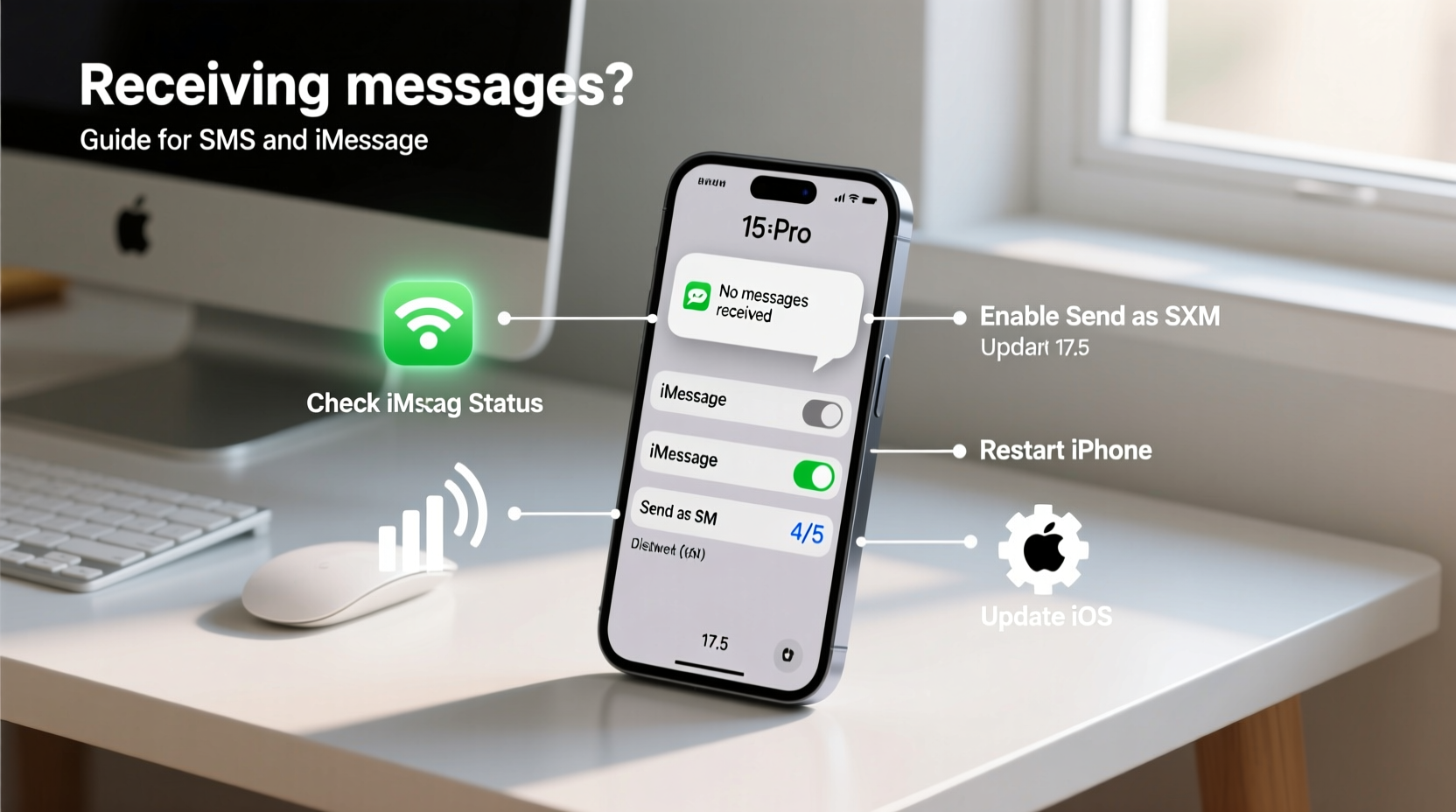
iMessage and SMS serve different purposes and operate on separate infrastructures. Recognizing the distinction is critical when diagnosing message delivery problems.
- iMessage: Apple’s proprietary messaging service that uses Wi-Fi or cellular data. Messages appear in blue bubbles and require an Apple ID, internet connection, and both sender and recipient using iOS devices.
- SMS/MMS: Traditional text and multimedia messages sent over cellular networks. These appear in green bubbles and work across all phones, including Android devices.
When messages aren’t being received, determine whether the issue affects only iMessages, only SMS, or both. This helps narrow down the root cause.
Step-by-Step Troubleshooting Guide
Follow this structured approach to identify and resolve the underlying issue causing missed messages.
- Check Network Connection
Ensure your iPhone has a stable internet or cellular signal. iMessage requires Wi-Fi or data; SMS needs cellular coverage. Toggle Airplane Mode on for 10 seconds, then off to refresh connections. - Verify Message Settings
Go to Settings > Messages and confirm:- iMessage is turned on.
- Send & Receive is configured with your correct Apple ID and phone number.
- SMS/MMS Messaging is enabled if you want to receive standard texts.
- Restart Your iPhone
A simple reboot clears temporary software glitches. Press and hold the side button and either volume button, then slide to power off. Wait 30 seconds before restarting. - Update iOS
Outdated software can interfere with messaging functions. Navigate to Settings > General > Software Update and install any pending updates. - Reset Network Settings
Corrupted network configurations often block message delivery. Go to Settings > General > Transfer or Reset iPhone > Reset > Reset Network Settings. Note: This erases saved Wi-Fi passwords.
Common Fixes by Message Type
Different message types fail for different reasons. Below is a breakdown of targeted solutions.
| Issue | Possible Cause | Solution |
|---|---|---|
| iMessage not working | Disabled iMessage, wrong Apple ID, no internet | Enable iMessage, sign out and back into Apple ID, check Wi-Fi/data |
| SMS not arriving | Carrier issue, SMS disabled, poor signal | Confirm SMS is on, contact carrier, reset network settings |
| Delayed messages | Server delay, weak connection, background app refresh off | Wait 24 hours, ensure connectivity, enable Background App Refresh |
| Only receive iMessages, not SMS | \"Send as SMS\" disabled or blocked | Enable \"Send as SMS\" in Settings > Messages |
Expert Insight: Carrier and System-Level Factors
Carriers play a crucial role in SMS delivery, while Apple’s servers manage iMessage routing. Misconfigurations at either level can interrupt service.
“Many users overlook the importance of SMSC (Short Message Service Center) settings. If these are outdated or incorrect, SMS delivery fails—even with full signal.” — Raj Patel, Senior Mobile Network Engineer
Contact your carrier to verify that your account supports SMS and that your SIM card is activated properly. For eSIM users, ensure the digital plan is correctly installed and up to date.
Mini Case Study: Resolving Persistent iMessage Sync Issues
Sarah, a freelance designer in Seattle, reported not receiving iMessages from clients for two days. Her iPhone showed messages sent but not delivered (red exclamation marks). She could send emails and browse the web, so connectivity wasn’t the issue.
After checking her internet connection and restarting the device without success, she reviewed her Settings > Messages > Send & Receive. Her Apple ID was signed in, but her phone number wasn’t selected under “You can be reached by iMessage at.”
She tapped her number, confirmed it via SMS code, and within minutes, iMessage began syncing all pending messages. The root cause? A failed automatic verification after a recent iOS update.
This case highlights how a small configuration error can completely disrupt communication, even when everything else appears functional.
Troubleshooting Checklist
Use this checklist to methodically eliminate potential causes:
- ✅ Ensure Wi-Fi or cellular data is active
- ✅ Confirm iMessage and SMS are enabled in Settings
- ✅ Restart the iPhone
- ✅ Check Do Not Disturb or Focus modes
- ✅ Verify your phone number is linked to iMessage
- ✅ Sign out of iMessage and Apple ID, then sign back in
- ✅ Reset network settings
- ✅ Contact carrier to confirm SMS service is active
- ✅ Test with another iPhone user to isolate the issue
- ✅ Update to the latest iOS version
Frequently Asked Questions
Why am I not receiving texts from Android users?
If you see green message bubbles but aren’t receiving messages from Android phones, the issue is likely SMS-related. Confirm that SMS is enabled in Settings > Messages, and ensure your carrier plan includes text messaging. Also, check if the sender’s number is blocked.
Can iMessage stop working after changing my Apple ID password?
Yes. Changing your Apple ID password may temporarily disable iMessage until you re-authenticate. Go to Settings > Messages > Send & Receive, tap your Apple ID, and sign in again to restore service.
Will resetting network settings delete my messages?
No. Resetting network settings only clears Wi-Fi passwords, VPNs, and cellular configurations. Your messages, contacts, and apps remain intact.
Preventive Best Practices
To avoid future disruptions, adopt these habits:
- Keep iOS updated: Apple frequently releases patches for messaging bugs.
- Monitor storage space: Low storage can prevent message downloads, especially MMS.
- Review blocked numbers: Accidentally blocked contacts won’t deliver messages.
- Use dual-factor authentication: Secures your Apple ID, which is essential for iMessage sync.
- Periodically sign out and back into iMessage: Helps maintain clean session tokens.
“Just like email accounts, iMessage relies on consistent authentication. Logging out and back in every few months can prevent silent sync failures.” — Lisa Tran, iOS Support Specialist
Conclusion: Take Control of Your Messaging Experience
An iPhone that doesn’t receive messages undermines its core purpose as a communication tool. Whether the problem lies in settings, connectivity, or carrier services, most issues are solvable with patience and precision. By understanding the difference between SMS and iMessage, applying structured troubleshooting, and maintaining good device hygiene, you can ensure seamless message delivery.




 浙公网安备
33010002000092号
浙公网安备
33010002000092号 浙B2-20120091-4
Comments
No comments yet. Why don't you start the discussion?