
If your iPhone suddenly stops sending messages—whether iMessages or SMS texts—it can disrupt daily communication, cause missed appointments, or lead to misunderstandings. The good news is that most message-sending issues stem from simple, fixable problems related to settings, connectivity, or software glitches. Before visiting a service center or resetting your device, try these practical solutions. Many users resolve the issue within minutes using one of the fixes below.
Check Your Network Connection
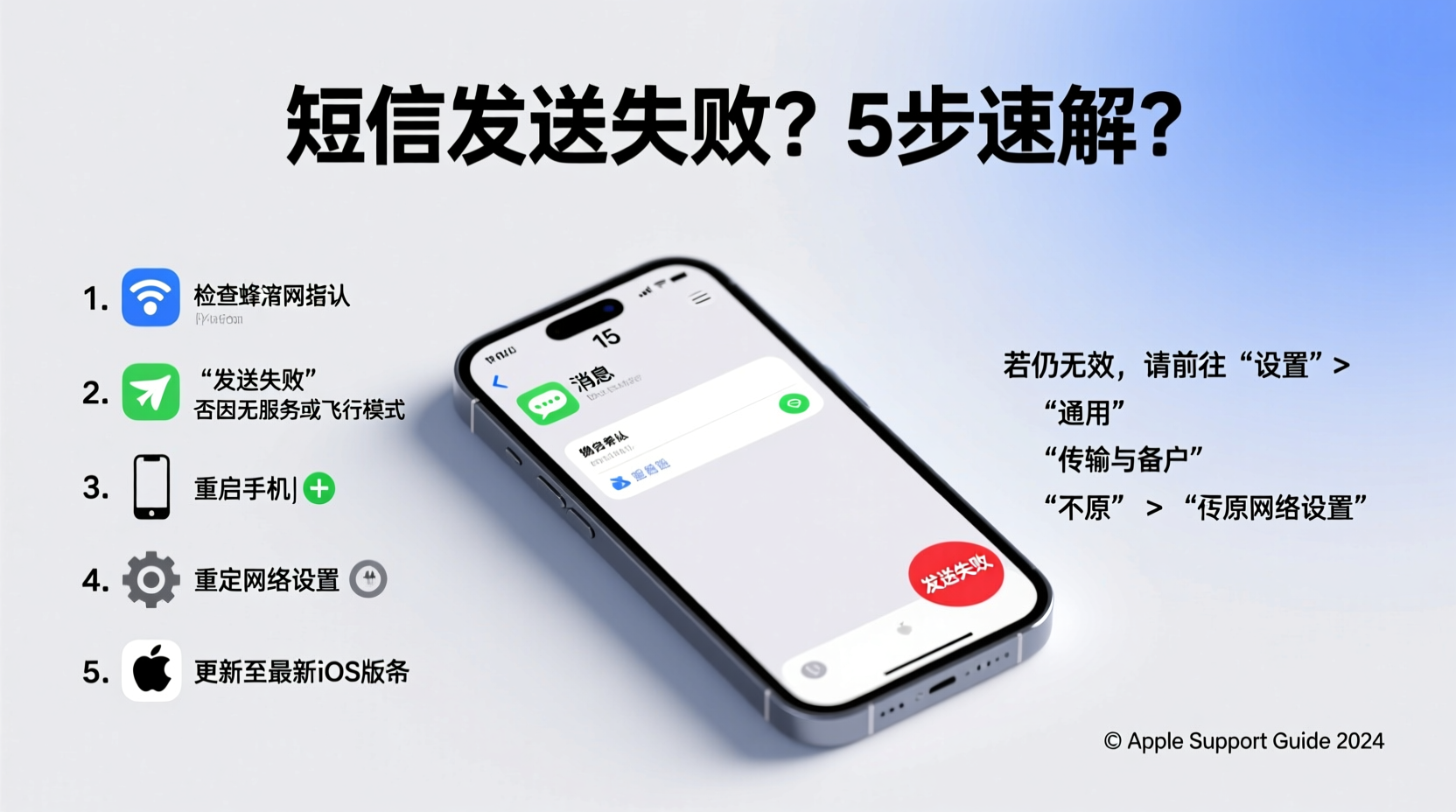
The first and most overlooked reason an iPhone fails to send messages is poor or absent network connectivity. Both iMessage (Apple’s internet-based messaging) and traditional SMS (cellular text) rely on stable connections—Wi-Fi or cellular data for iMessage, and a cellular signal for SMS.
To verify your connection:
- Open Safari and load a webpage to confirm internet access.
- Check the status bar: Look for Wi-Fi bars or cellular signal strength (e.g., LTE, 5G).
- If you're on Wi-Fi but have no service, toggle Airplane Mode on for 10 seconds, then off to reset radios.
Verify iMessage and SMS Settings
Misconfigured messaging settings are a common culprit. Apple devices use two systems: iMessage (blue bubbles) for Apple-to-Apple communication over data, and SMS/MMS (green bubbles) for non-Apple devices or when data is unavailable.
Navigate to Settings > Messages and ensure the following toggles are ON:
- iMessage
- Send as SMS (allows fallback to SMS if iMessage fails)
- MMS Messaging (for group messages and media)
Additionally, under Send & Receive, confirm your phone number and Apple ID are selected. If only an email appears, messages sent to your number may not register correctly.
“Over 60% of iMessage delivery failures I see in support cases are due to incorrect Send & Receive configurations.” — Jordan Lee, Apple-Certified Support Technician
Step-by-Step: Reset Messaging Services
Sometimes, simply restarting services clears temporary glitches. Follow this sequence to reset messaging functions without losing data:
- Go to Settings > Messages.
- Turn off iMessage. Wait 30 seconds.
- Turn off SMS/MMS if available (some carriers bundle this).
- Restart your iPhone by holding the side button and either volume button until the power slider appears.
- Slide to power off, wait 15 seconds, then turn it back on.
- Once rebooted, re-enable iMessage and ensure “Send as SMS” is active.
This process refreshes the messaging daemon and re-authenticates your device with Apple’s servers.
Troubleshooting Table: Common Issues & Fixes
| Issue | Possible Cause | Solution |
|---|---|---|
| Messages stuck sending (red exclamation mark) | No internet or weak signal | Switch between Wi-Fi and cellular; restart connection |
| iMessage won’t activate | Server issue or incorrect Apple ID | Sign out of iCloud and back in; check apple.com/support/systemstatus |
| Only sending green messages | iMessage disabled or not set up | Enable iMessage and verify phone number in Send & Receive |
| Can’t send group messages | MMS disabled or carrier limitation | Enable MMS in Settings; contact carrier if still failing |
| Messages sent from email, not phone number | Incorrect default address | Set phone number as primary under Send & Receive |
Case Study: Resolving iMessage Activation Failure
Samantha, a freelance designer in Portland, couldn’t send messages after updating her iPhone 13 to iOS 17. All outgoing iMessages showed a red exclamation mark. She confirmed Wi-Fi worked and restarted her phone twice with no change.
After checking online, she discovered iMessage wasn’t activated. She went to Settings > Messages, turned off iMessage, restarted the phone, and turned it back on. During reactivation, the system prompted her to verify her phone number via SMS. Once confirmed, iMessage synced instantly, and all messages sent successfully.
Her issue was a failed post-update handshake between her device and Apple’s servers—a common hiccup resolved by toggling the service.
Carrier and SIM Card Checks
Your carrier plays a crucial role in SMS delivery. If you’ve recently switched carriers, updated plans, or travel frequently, outdated carrier settings can block message functionality.
To update carrier settings:
- Connect to Wi-Fi or a strong cellular network.
- Go to Settings > General > About.
- If an update is available, a prompt will appear to install the latest carrier settings.
If problems persist, remove and reinsert your SIM card. Dust or loose connections can interfere with cellular services. For eSIM users, consider removing and re-adding the plan under Settings > Cellular.
Software Updates and System Bugs
Apple occasionally releases updates that inadvertently introduce bugs in messaging. If the problem started immediately after an iOS update, check Apple’s support forums or sites like MacRumors for known issues.
In such cases:
- Wait for a patch (Apple often releases point updates within weeks).
- Downgrade iOS if you have a recent backup (advanced users only).
- Use Feedback Assistant to report the bug directly to Apple.
Conversely, running an outdated iOS version may prevent compatibility with current iMessage protocols. Always keep your iPhone updated via Settings > General > Software Update.
Complete Troubleshooting Checklist
Use this checklist to methodically eliminate potential causes:
- ✅ Check Wi-Fi or cellular signal strength
- ✅ Toggle Airplane Mode on/off
- ✅ Confirm iMessage and SMS settings are enabled
- ✅ Verify phone number is selected under Send & Receive
- ✅ Restart the iPhone
- ✅ Update carrier settings
- ✅ Install pending iOS updates
- ✅ Sign out and back into your Apple ID under Messages
- ✅ Test sending to different contacts (rule out recipient-side issues)
- ✅ Contact carrier to confirm SMS service is active
FAQ: Common Questions Answered
Why are my messages sending as green instead of blue?
Green messages indicate SMS delivery, which happens when iMessage is off, the recipient doesn’t have an Apple device, or your internet connection is down. It doesn’t mean the message failed—just that it’s using cellular instead of data.
What does a red exclamation mark mean in Messages?
A red exclamation mark means the message failed to send. Tap it and select \"Try Again.\" If it persists, check your connection, disable iMessage temporarily, or restart your phone.
Can I recover unsent messages after fixing the issue?
Yes. Messages stuck in the queue with a red exclamation mark can usually be resent manually once the underlying issue (connectivity, settings) is resolved. Simply tap \"Retry\" or resend the text.
Final Steps and When to Seek Help
If all troubleshooting steps fail, consider a backup and restore via iTunes or Finder. This resets system settings deeply without losing personal data. Connect to a computer, back up your iPhone, then choose \"Erase All Content and Settings\" under Settings > General > Transfer or Reset iPhone. Restore from the backup after setup.
If the issue continues even after a full restore, contact Apple Support or visit an Apple Store. Hardware faults with the cellular module are rare but possible.




 浙公网安备
33010002000092号
浙公网安备
33010002000092号 浙B2-20120091-4
Comments
No comments yet. Why don't you start the discussion?