
If your iPhone isn’t alerting you with notifications, it can feel like being cut off from the world. Missed messages, silent calls, or no app alerts disrupt daily routines and professional communication. While iOS is generally reliable, notification issues are surprisingly common—and often solvable without visiting a technician. The root causes range from simple user settings to deeper software glitches. Understanding these factors allows for fast diagnosis and correction.
Common Reasons iPhone Notifications Fail
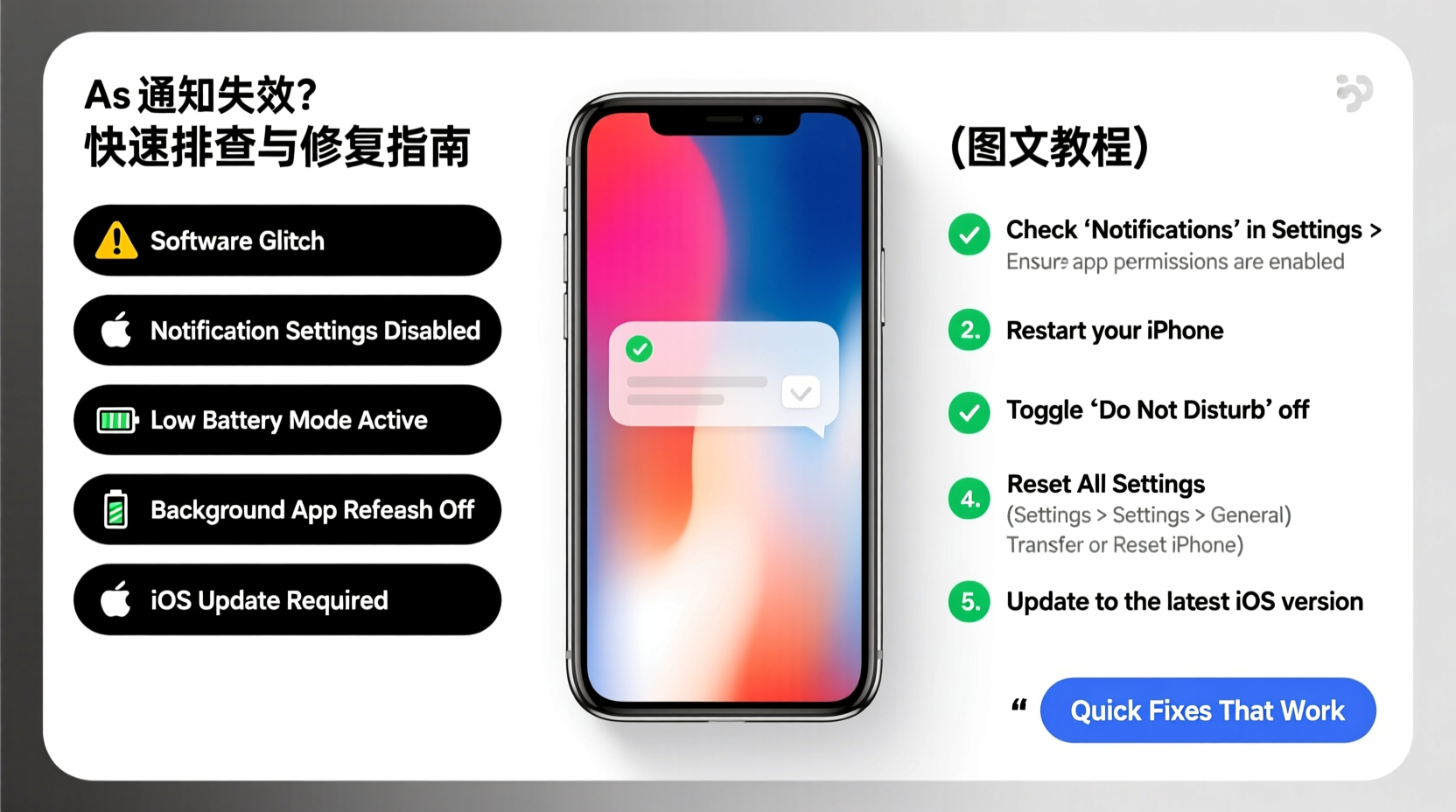
Notifications rely on a complex chain: app permissions, system settings, network connectivity, and device state. When one link breaks, alerts stop. Below are the most frequent culprits behind missing notifications.
- Do Not Disturb or Focus Mode enabled: These features silence alerts during set times or activities.
- Notification permissions disabled: Apps may lack permission to send alerts after an update or reinstall.
- Background App Refresh turned off: Prevents apps from checking for new data when not in use.
- iCloud or Apple ID sync issues: Notifications across devices depend on seamless syncing.
- Outdated iOS version: Bugs in older software can interfere with push services.
- Network problems: Weak Wi-Fi or cellular signal blocks incoming alerts.
- App-specific bugs: Some apps fail to register with Apple’s Push Notification Service (APNs).
Step-by-Step Guide to Restore iPhone Notifications
Follow this logical troubleshooting sequence to identify and fix the issue efficiently.
- Check Physical Settings: Ensure Silent mode is off (toggle near volume buttons). If orange appears, your phone is muted.
- Review Focus Modes: Open Control Center—check if Focus icons (e.g., Moon, Theater) are active. Disable them temporarily to test.
- Verify App Notification Permissions:
- Go to Settings > Notifications.
- Select the problematic app.
- Ensure “Allow Notifications” is toggled on and alert style is set to “Banner” or “Alert.”
- Enable Sound and Badge Alerts: In the same menu, confirm that Sounds and Badges are enabled for the app.
- Toggle Off Do Not Disturb: Navigate to Settings > Focus > Do Not Disturb and disable scheduling or manual activation.
- Check Background App Refresh:
- Go to Settings > General > Background App Refresh.
- Ensure it’s enabled globally and for specific apps needing live updates (e.g., Messages, Email).
- Reset Network Settings: Poor connectivity can block push notifications. Reset via Settings > General > Transfer or Reset iPhone > Reset > Reset Network Settings. Note: This erases saved Wi-Fi passwords.
- Update iOS: Outdated systems miss critical patches. Check under Settings > General > Software Update.
- Reinstall Problematic Apps: Uninstall and redownload apps consistently failing to notify. This re-establishes APNs registration.
- Sign Out and Back Into Apple ID: Go to Settings > [Your Name] > Sign Out, then sign back in to refresh iCloud services including notifications.
Tips and Best Practices for Reliable Alerts
Preventing future issues is just as important as fixing current ones. Implement these habits to maintain consistent notification delivery.
Optimize Push Settings
Navigate to Settings > Notifications > Show Previews and set to “Always” for critical apps. Also ensure “Lock Screen,” “Notification Center,” and “Banners” are enabled per app.
Maintain Cellular and Wi-Fi Connections
Push notifications require internet access. If you frequently lose signal, consider enabling Wi-Fi Assist (Settings > Cellular > Cellular Data Options > Enable LTE/5G > Voice & Data) to switch seamlessly between networks.
Use Push vs. Fetch Correctly
Email accounts often default to “Fetch,” which checks for new mail at intervals. Switch to “Push” so messages arrive instantly.
- Go to Settings > Mail > Accounts > Fetch New Data.
- Turn off “Fetch” and enable “Push.”
“Many users overlook Focus Modes—they’re powerful but can silently suppress alerts even when unintended.” — David Lin, iOS Support Analyst at AppleInsider Tech Support
Checklist: Quick Fixes for Non-Working Notifications
Use this checklist to rapidly diagnose and resolve notification failures:
- ✅ Is Silent mode off?
- ✅ Are Focus or Do Not Disturb modes disabled?
- ✅ Has the app been granted notification permissions?
- ✅ Is Background App Refresh on for the app?
- ✅ Is the device connected to Wi-Fi or cellular data?
- ✅ Has iOS been updated to the latest version?
- ✅ Did restarting the iPhone help?
- ✅ Was the app reinstalled successfully?
- ✅ Is Apple ID signed in and syncing properly?
- ✅ For email: Is Push enabled instead of Fetch?
Real Example: Sarah’s Missing Text Alerts
Sarah, a freelance designer, missed several client messages over two days. Her iPhone showed no alerts, though she could open Messages and see new texts manually. She first checked her ringer—sound worked fine. Then she noticed a crescent moon icon in her status bar. She had accidentally activated Sleep Focus the night before and forgotten to turn it off. Disabling Focus immediately restored notifications. A simple oversight caused hours of anxiety, highlighting how easily system features can interfere with core functionality.
Comparison Table: Do’s and Don’ts for Notification Health
| Action | Do | Don’t |
|---|---|---|
| Managing Focus Modes | Customize schedules and allowed contacts | Leave them on indefinitely without review |
| Updating iOS | Install updates promptly for stability | Delay updates due to fear of bugs |
| Using Battery Saver | Enable occasionally during low charge | Keep Low Power Mode on permanently |
| Installing Apps | Grant notifications when prompted | Always tap “Don’t Allow” out of habit |
| Troubleshooting | Restart device and check settings step-by-step | Immediately reset all settings without diagnosis |
Frequently Asked Questions
Why do some apps get notifications while others don’t?
This usually indicates selective permission settings. Each app must be individually authorized to display alerts. Visit Settings > Notifications and verify each app’s status. Some apps also require login or background activity to function properly.
Will resetting all settings delete my data?
No. Resetting settings (Settings > General > Reset > Reset All Settings) only clears system preferences like Wi-Fi passwords, display brightness, and privacy options. Your photos, messages, and apps remain intact. However, you’ll need to re-enter saved passwords.
Can a factory reset fix persistent notification issues?
Yes, but it should be a last resort. Erasing all content and settings often resolves deep software conflicts. Before doing so, back up your iPhone via iCloud or Finder/iTunes. After restoring, set up as new or restore from backup to test if notifications return.
Conclusion: Take Control of Your iPhone’s Alerts
Missing notifications don’t have to be a constant frustration. Most issues stem from overlooked settings rather than hardware failure. By methodically checking permissions, Focus Modes, connectivity, and software health, you can restore reliable alerts within minutes. Regular maintenance—like updating iOS and auditing app permissions—keeps your iPhone running smoothly. Don’t wait until you miss something important. Apply these fixes today and reclaim full control over how and when you receive information.




 浙公网安备
33010002000092号
浙公网安备
33010002000092号 浙B2-20120091-4
Comments
No comments yet. Why don't you start the discussion?