
When you take a photo on your iPhone, especially if it's running iOS 11 or later, the image is saved in HEIC format by default. While this modern file type offers benefits like smaller file sizes and better quality, it can cause issues when sharing with non-Apple devices or older software. Understanding what HEIC is, why Apple uses it, and how to manage or convert these files is essential for seamless photo handling across platforms.
What Is HEIC and Why Does iPhone Use It?
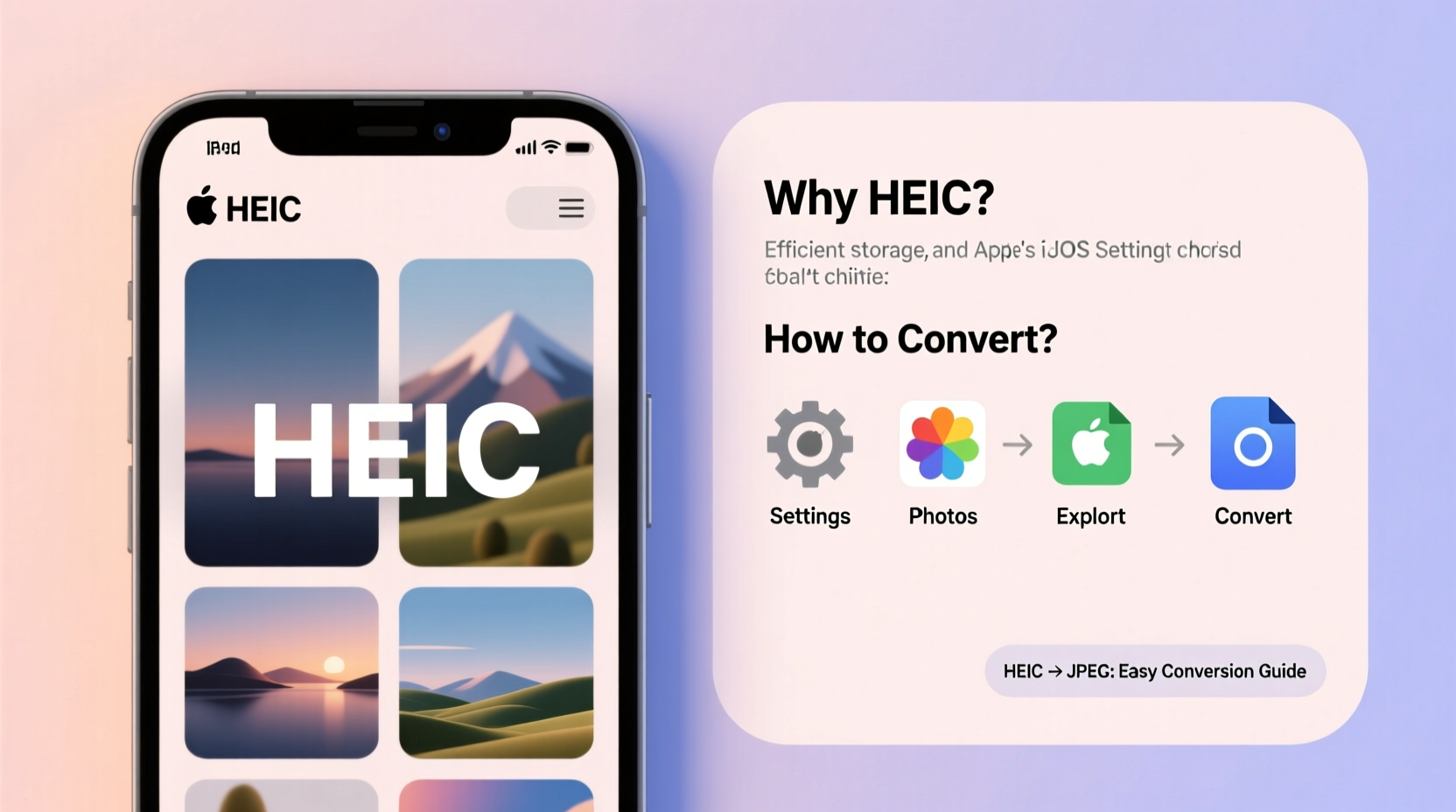
HEIC stands for High Efficiency Image Container. It’s the file extension for images encoded using the High Efficiency Video Coding (HEVC) standard, also known as H.265. Introduced with iOS 11, HEIC replaced JPEG as the default photo format on iPhones because it provides superior compression without sacrificing visual quality.
Compared to traditional JPEGs, HEIC files are typically 40–50% smaller while maintaining similar or better image fidelity. This efficiency helps users save valuable storage space—especially important given the high-resolution cameras on modern iPhones that generate large image files.
“HEIC represents a significant leap in image compression technology, allowing consumers to capture more photos without constantly managing storage.” — Dr. Alan Reed, Digital Imaging Researcher at MIT Media Lab
The trade-off, however, is compatibility. Many Windows PCs, Android devices, and older applications don’t natively support HEIC files. This often leads to confusion when trying to open or share photos taken on an iPhone.
How to Change iPhone Photo Format from HEIC to JPEG
If you frequently share photos with people using non-Apple devices or need broader compatibility, switching your iPhone to save photos in JPEG format may be the simplest solution.
Follow these steps to change the setting:
- Open the Settings app on your iPhone.
- Tap Camera.
- Select Formats.
- Choose Most Compatible instead of High Efficiency.
With “Most Compatible” selected, your iPhone will save new photos as JPEGs and videos in older formats like AVI, ensuring they work seamlessly across nearly all devices and platforms.
Do You Lose Quality by Using JPEG Instead of HEIC?
JPEG has been the standard for decades and remains highly reliable. While HEIC offers better compression, JPEG images from modern iPhones are still excellent in quality for everyday use—social media, printing, messaging, etc. Unless you're a professional photographer or regularly edit high-bit-depth images, the difference is rarely noticeable.
Converting Existing HEIC Photos to JPEG
Changing your settings won’t convert photos already saved in HEIC. For those, you’ll need to manually or automatically convert them. Here are several practical methods:
On Mac
macOS supports HEIC natively, so opening a HEIC file in Preview is straightforward:
- Right-click the HEIC photo and choose Open With > Preview.
- In Preview, go to File > Export.
- Set the format to JPEG, adjust quality if needed, then click Save.
On Windows
Windows 10 and 11 can open HEIC files—but only after installing the HEIF Image Extensions from the Microsoft Store. Once installed:
- Double-click the HEIC file to view it in the Photos app.
- Click ... (More options), then select Save a copy.
- Choose JPEG as the output format before saving.
Using Online Converters
Websites like CloudConvert, Zamzar, or HEICToJPEG.com allow batch conversion of HEIC files. Simply upload your images, select JPEG as the output, and download the converted files. Be cautious with sensitive photos—uploading personal data to third-party sites carries privacy risks.
Via Email or Messages (Automatic Conversion)
iPhones automatically convert HEIC photos to JPEG when sending via email or iMessage to non-iOS users. You can leverage this feature intentionally:
- Compose a new message or email.
- Attach the HEIC photo(s).
- Send to yourself or another device.
- Download the attachment on the receiving end—it will be in JPEG format.
Comparison: HEIC vs JPEG – Key Differences
| Feature | HEIC | JPEG |
|---|---|---|
| File Size | Smaller (up to 50% reduction) | Larger |
| Image Quality | Higher dynamic range, better detail retention | Good, but more lossy compression |
| Cross-Platform Support | Limited (requires plugins on Windows/Android) | Universal |
| Transparency & Animation | Supports transparency and burst sequences | No transparency; single frame only |
| Editing Flexibility | Better for non-destructive editing | Less flexible due to generational loss |
Real-World Scenario: The Family Reunion Dilemma
Sarah took over 300 photos during her family reunion using her iPhone 14. Excited to share them, she uploaded the entire album to a shared Google Drive folder. Her cousin Mark, using a Windows laptop, couldn’t open any of the files. He saw only thumbnails or error messages.
Sarah realized the issue was the HEIC format. She went back, changed her iPhone settings to “Most Compatible,” and re-uploaded new JPEG versions of the key photos. She also used a free online converter to batch-process the rest, renaming and organizing them before sharing again. The second time, everyone could view and download the memories without hassle.
This common situation underscores the importance of considering your audience when sharing digital photos—even small technical choices can impact accessibility.
Action Checklist: Managing HEIC Photos Effectively
- Evaluate your needs: Do you prioritize storage savings (HEIC) or broad compatibility (JPEG)?
- Change iPhone settings: Go to Settings > Camera > Formats > Select “Most Compatible” for JPEG output.
- Install HEIC support on Windows: Download HEIF Image Extensions from Microsoft Store.
- Batch convert old HEIC files: Use a trusted tool like iMazing HEIC Converter or CloudConvert.
- Use automatic conversion: Share via email or message to get instant JPEG versions.
- Backup smartly: Keep originals in HEIC for quality, store converted JPEGs for sharing.
Frequently Asked Questions
Can I revert a converted JPEG back to HEIC?
Technically yes, using specialized software, but it defeats the purpose. Converting JPEG to HEIC doesn’t recover lost data or reduce file size meaningfully. It’s best to keep original HEIC files if you want to preserve their advantages.
Why do some apps show HEIC photos but others don’t?
App developers must integrate HEIC decoding libraries. Modern apps like Google Photos, Adobe Lightroom, and newer versions of Microsoft Office support HEIC. Older or lightweight apps may not, leading to display issues or upload errors.
Does converting HEIC to JPEG reduce quality every time?
Yes, each time you save a JPEG, some quality is lost due to lossy compression. Always convert from the original HEIC file rather than re-saving an already-converted JPEG to minimize degradation.
Final Thoughts: Balancing Quality and Compatibility
HEIC is a forward-thinking format that reflects advancements in imaging technology. It makes sense for Apple’s ecosystem, where devices and software are designed to work together seamlessly. However, in a world where people use diverse devices and platforms, compatibility often trumps technical superiority.
You don’t have to choose one approach permanently. Smart users adapt based on context—using HEIC for personal archives and switching to JPEG when collaboration or sharing is the goal. By understanding both formats and knowing how to switch between them, you maintain control over your digital memories without unnecessary friction.




 浙公网安备
33010002000092号
浙公网安备
33010002000092号 浙B2-20120091-4
Comments
No comments yet. Why don't you start the discussion?